Parking Manager — WPF Desktop dokumentacijaParking Manager — dokumentacija za WPF desktopParking Manager — WPF Desktop dokumentacijaParking Manager — WPF Desktop DocumentationParking Manager — WPF-Desktop-DokumentationParking Manager — Documentación de escritorio WPF
Pregled svih prozora desktop aplikacije Parking Manager: šta rade, odakle se otvaraju i kako izgledaju. Dugme „?“ u gornjem desnom uglu svakog prozora u aplikaciji vodi direktno na odgovarajuću sekciju ove stranice.
Pregled svih prozora desktop aplikacije Parking Manager: što rade, odakle se otvaraju i kako izgledaju. Gumb „?” u gornjem desnom kutu svakog prozora u aplikaciji vodi izravno na odgovarajući odjeljak ove stranice.
Pregled svih prozora desktop aplikacije Parking Manager: šta rade, odakle se otvaraju i kako izgledaju. Dugme „?“ u gornjem desnom uglu svakog prozora u aplikaciji vodi direktno na odgovarajući odeljak ove stranice.
An overview of every window in the Parking Manager desktop app: what it does, where it opens from, and what it looks like. The "?" button in the top-right corner of every window in the app leads directly to the matching section of this page.
Ein Überblick über jedes Fenster der Parking-Manager-Desktopanwendung: was es tut, von wo es geöffnet wird und wie es aussieht. Die Schaltfläche „?“ oben rechts in jedem Fenster der Anwendung führt direkt zum passenden Abschnitt dieser Seite.
Una visión general de cada ventana de la aplicación de escritorio Parking Manager: qué hace, desde dónde se abre y cómo se ve. El botón "?" en la esquina superior derecha de cada ventana de la aplicación lleva directamente a la sección correspondiente de esta página.
Glavni prozorGlavni prozorGlavni prozorMain windowHauptfensterVentana principal Resize#main-window
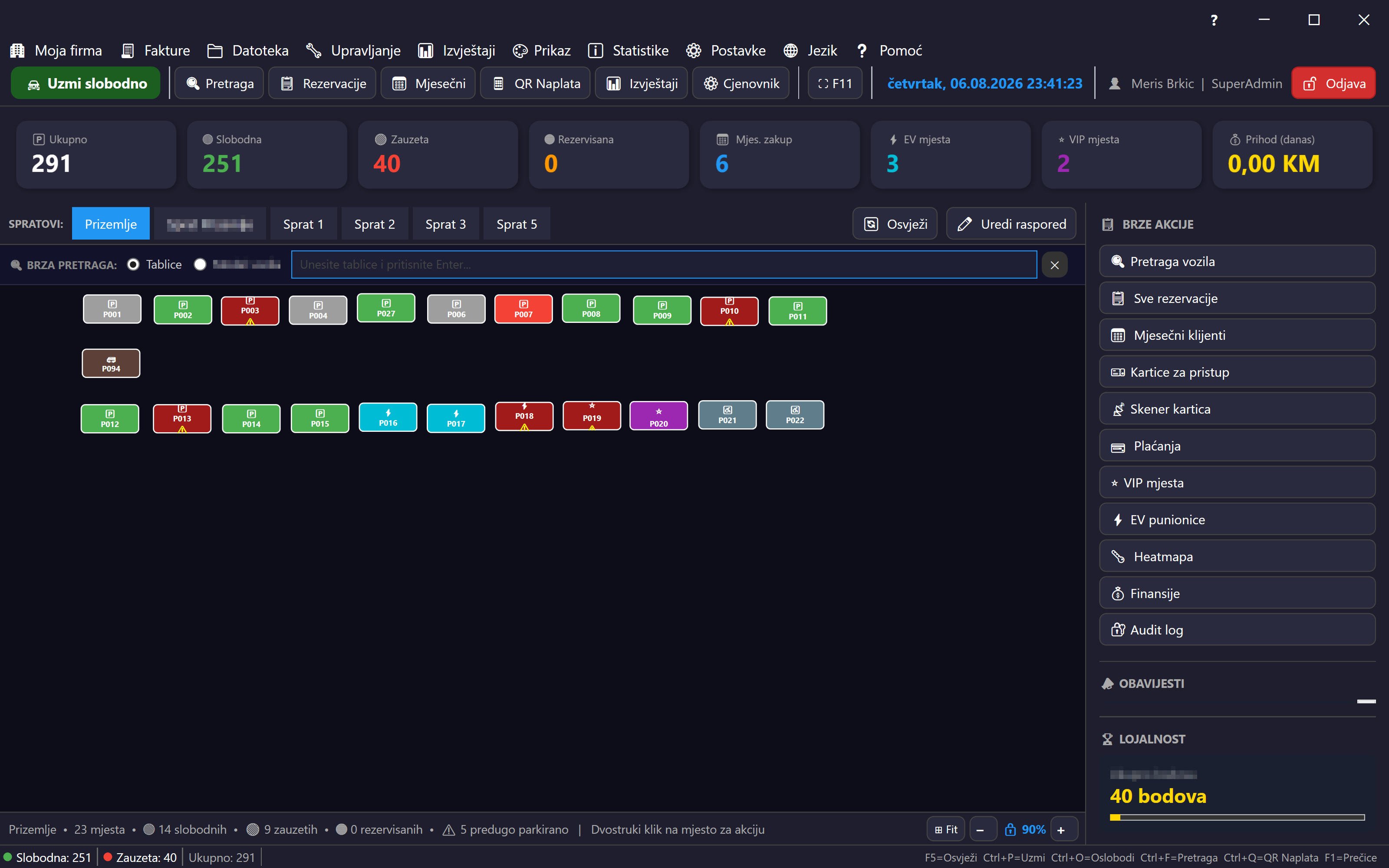
Centralni prozor aplikacije — otvara se automatski nakon uspješne prijave i ostaje otvoren tokom cijele radne sesije. Sadrži meni traku (Moja firma, Fakture, Fajl, Upravljanje, Izvještaji, Prikaz, Statistika, Postavke, Jezik, Pomoć), toolbar sa brzim akcijama (Brzo parkiranje, Pretraga, Rezervacije, Mjesečni klijenti, QR naplata, Izvještaji, Cjenovnik, Fullscreen) i uživo sat. U sredini se nalazi vizuelni prikaz parkinga (canvas po zonama, sa tabovima za svaku zonu) na kojem se klikom na mjesto otvaraju odgovarajući dijalozi (Brzo parkiranje za slobodno mjesto, Oslobodi mjesto za zauzeto). Gornji red kartica prikazuje ukupno/slobodno/zauzeto/rezervisano/mjesečno/EV/VIP mjesta i dnevni prihod (klik na karticu filtrira canvas). Desna bočna traka nudi brze akcije (pretraga vozila, rezervacije, mjesečni klijenti, kartice, gate scanner, plaćanja, VIP/EV mjesta, heatmap, finansije, audit log), listu obavještenja i traku lojalnosti. Na dnu je status bar sa brojem slobodnih/zauzetih mjesta, online/offline indikatorom i brojem stavki na čekanju za sinhronizaciju.
Središnji prozor aplikacije — otvara se automatski nakon uspješne prijave i ostaje otvoren tijekom cijele radne sesije. Sadrži traku izbornika (Moja tvrtka, Računi, Datoteka, Upravljanje, Izvješća, Prikaz, Statistika, Postavke, Jezik, Pomoć), alatnu traku s brzim radnjama (Brzo parkiranje, Pretraživanje, Rezervacije, Mjesečni klijenti, QR naplata, Izvješća, Cjenik, Cijeli zaslon) i sat uživo. U sredini je vizualni prikaz parkirališta (platno po zonama, s karticama za svaku zonu) na kojem se klikom na mjesto otvaraju odgovarajući dijalozi (Brzo parkiranje za slobodno mjesto, Oslobodi mjesto za zauzeto). Gornji red kartica prikazuje ukupna/slobodna/zauzeta/rezervirana/mjesečna/EV/VIP mjesta i dnevni prihod (klik na karticu filtrira platno). Desna bočna traka nudi brze radnje (pretraživanje vozila, rezervacije, mjesečni klijenti, kartice, skener na ulazu, plaćanja, VIP/EV mjesta, toplinska karta, financije, audit log), popis obavijesti i traku vjernosti. Na dnu je statusna traka s brojem slobodnih/zauzetih mjesta, pokazateljem online/offline i brojem stavki koje čekaju sinkronizaciju.
Centralni prozor aplikacije — otvara se automatski nakon uspešne prijave i ostaje otvoren tokom cele radne sesije. Sadrži traku menija (Moja firma, Fakture, Datoteka, Upravljanje, Izveštaji, Prikaz, Statistike, Podešavanja, Jezik, Pomoć), traku sa alatkama sa brzim akcijama (Brzo parkiranje, Pretraga, Rezervacije, Mesečni klijenti, QR naplata, Izveštaji, Cenovnik, Ceo ekran) i sat uživo. U sredini se nalazi vizuelni prikaz parkinga (platno po zonama, sa karticama za svaku zonu) na kojem se klikom na mesto otvaraju odgovarajući dijalozi (Brzo parkiranje za slobodno mesto, Oslobodi mesto za zauzeto). Gornji red kartica prikazuje ukupno/slobodno/zauzeto/rezervisano/mesečno/EV/VIP mesta i dnevni prihod (klik na karticu filtrira platno). Desna bočna traka nudi brze akcije (pretraga vozila, rezervacije, mesečni klijenti, kartice, skener na kapiji, plaćanja, VIP/EV mesta, toplotna mapa, finansije, audit log), listu obaveštenja i traku lojalnosti. Na dnu je statusna traka sa brojem slobodnih/zauzetih mesta, indikatorom online/offline i brojem stavki koje čekaju sinhronizaciju.
The application's central window — opens automatically after a successful login and stays open for the entire work session. Contains the menu bar (My Company, Invoices, File, Management, Reports, View, Statistics, Settings, Language, Help), a toolbar with quick actions (Quick Park, Search, Reservations, Monthly Clients, QR Checkout, Reports, Pricing, Fullscreen), and a live clock. The center shows a visual parking layout (a canvas per zone, with tabs for each zone) where clicking a spot opens the matching dialog (Quick Park for a free spot, Release Spot for an occupied one). The top row of cards shows total/free/occupied/reserved/monthly/EV/VIP spots and today's revenue (clicking a card filters the canvas). The right sidebar offers quick actions (vehicle search, reservations, monthly clients, cards, gate scanner, payments, VIP/EV spots, heatmap, finance, audit log), a notification list, and a loyalty bar. At the bottom is a status bar showing the number of free/occupied spots, an online/offline indicator, and the number of items pending sync.
Das zentrale Fenster der Anwendung — öffnet sich automatisch nach erfolgreicher Anmeldung und bleibt während der gesamten Arbeitssitzung geöffnet. Enthält die Menüleiste (Mein Unternehmen, Rechnungen, Datei, Verwaltung, Berichte, Ansicht, Statistik, Einstellungen, Sprache, Hilfe), eine Symbolleiste mit Schnellaktionen (Schnellparken, Suchen, Reservierungen, Monatskunden, QR-Kassiervorgang, Berichte, Preise, Vollbild) und eine Live-Uhr. In der Mitte befindet sich die visuelle Parkdarstellung (eine Fläche pro Zone, mit Reitern für jede Zone), auf der ein Klick auf einen Platz den passenden Dialog öffnet (Schnellparken für einen freien Platz, Platz freigeben für einen belegten). Die obere Kartenreihe zeigt Gesamt-/freie/belegte/reservierte/Monats-/EV-/VIP-Plätze und den Tagesumsatz (ein Klick auf eine Karte filtert die Fläche). Die rechte Seitenleiste bietet Schnellaktionen (Fahrzeugsuche, Reservierungen, Monatskunden, Karten, Schrankenscanner, Zahlungen, VIP-/EV-Plätze, Heatmap, Finanzen, Audit-Protokoll), eine Benachrichtigungsliste und eine Treuepunkte-Anzeige. Unten befindet sich eine Statusleiste mit der Anzahl freier/belegter Plätze, einer Online-/Offline-Anzeige und der Anzahl der auf Synchronisierung wartenden Einträge.
La ventana central de la aplicación — se abre automáticamente tras un inicio de sesión exitoso y permanece abierta durante toda la sesión de trabajo. Contiene la barra de menú (Mi empresa, Facturas, Archivo, Gestión, Informes, Ver, Estadísticas, Configuración, Idioma, Ayuda), una barra de herramientas con acciones rápidas (Parqueo rápido, Buscar, Reservas, Clientes mensuales, Cobro QR, Informes, Tarifas, Pantalla completa) y un reloj en vivo. En el centro se muestra la disposición visual del parqueo (un lienzo por zona, con pestañas para cada zona) donde al hacer clic en una plaza se abre el diálogo correspondiente (Parqueo rápido para una plaza libre, Liberar plaza para una ocupada). La fila superior de tarjetas muestra las plazas totales/libres/ocupadas/reservadas/mensuales/EV/VIP y los ingresos del día (al hacer clic en una tarjeta se filtra el lienzo). La barra lateral derecha ofrece acciones rápidas (búsqueda de vehículos, reservas, clientes mensuales, tarjetas, escáner de puerta, pagos, plazas VIP/EV, mapa de calor, finanzas, registro de auditoría), una lista de notificaciones y una barra de fidelización. En la parte inferior hay una barra de estado con el número de plazas libres/ocupadas, un indicador en línea/fuera de línea y el número de elementos pendientes de sincronización.
PrijavaPrijavaPrijavaLoginAnmeldungInicio de sesión Fiksna veličinaFiksna veličinaFiksna veličinaFixed sizeFeste GrößeTamaño fijo#login-window
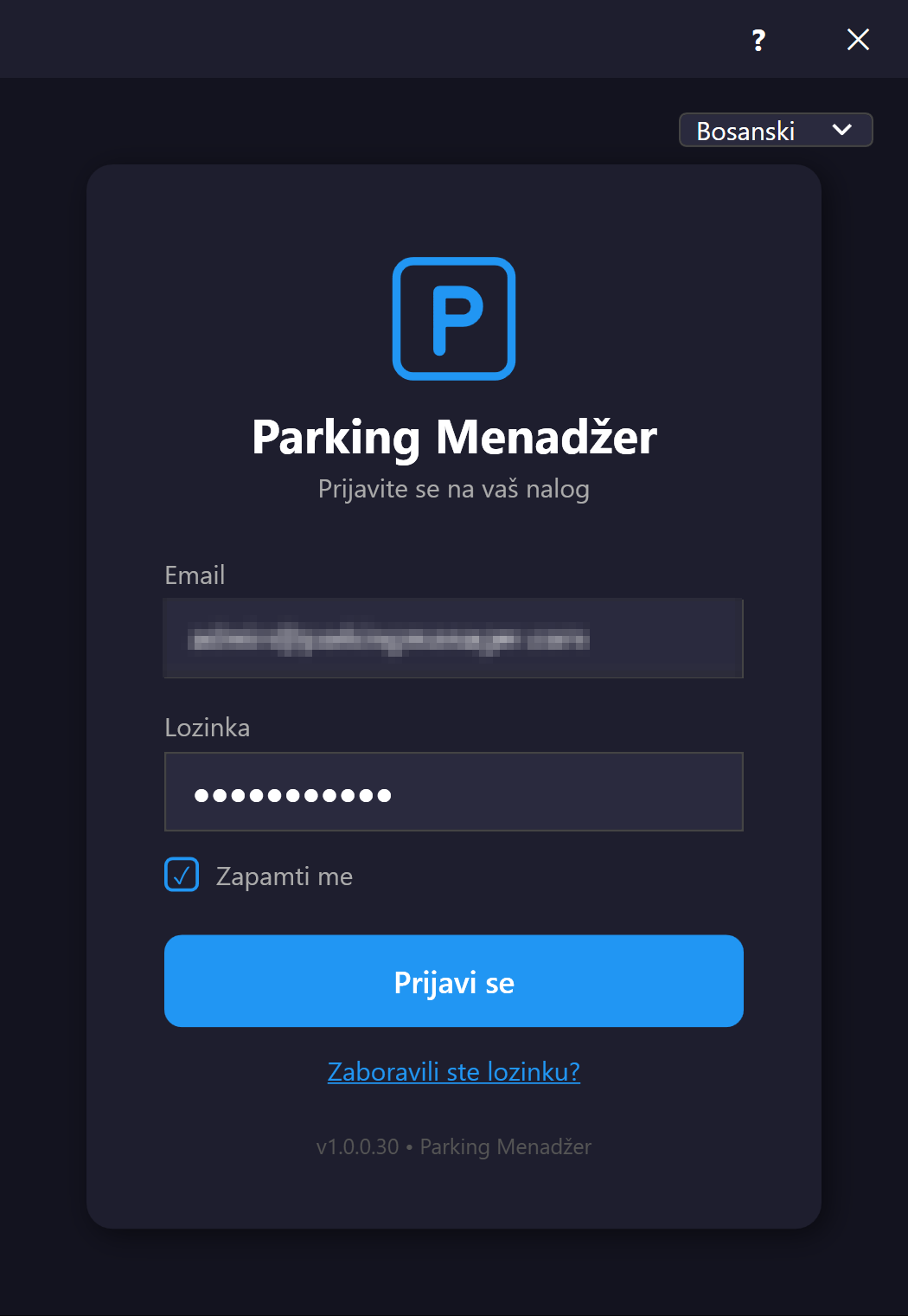
Prvi ekran koji korisnik vidi pri pokretanju aplikacije — traži email i lozinku, sa opcijom "Zapamti me" (kredencijali se čuvaju enkriptovano preko Windows Credential Managera). Podržava biranje jezika prije prijave (jezik je vezan za mašinu, ne za nalog) i link "Zaboravljena lozinka" koji otvara admin portal u browseru. Ako je korisnik vezan za više tenanta, nakon uspješne prijave otvara se prozor Odabir tenanta. Ako server nije dostupan, aplikacija automatski pokušava offline prijavu na osnovu ranije sačuvanog RSA offline granta i lokalno keširanih podataka.
Google i Microsoft prijava: dugmad „Nastavi s Google nalogom” i „Nastavi s Microsoft nalogom” otvaraju prijavu u vašem pregledniku. Kada je završite, vratite se u aplikaciju i ona nastavlja sama. Radi samo za postojeće VehPark naloge; registracija ide preko web administracije. Ako imate uključenu dvofaktorsku autentikaciju, nakon prijave (lozinkom, Google-om ili Microsoftom) otvara se prozor za unos 6-cifrenog koda ili recovery koda.
Prvi zaslon koji korisnik vidi pri pokretanju aplikacije — traži adresu e-pošte i lozinku, s opcijom „Zapamti me” (vjerodajnice se spremaju šifrirano putem Windows Credential Managera). Omogućuje odabir jezika prije prijave (jezik je vezan uz računalo, ne uz korisnički račun) i poveznicu „Zaboravljena lozinka” koja otvara administratorski portal u pregledniku. Ako korisnik ima pristup većem broju tenanata, nakon uspješne prijave otvara se prozor Odabir tenanta. Ako poslužitelj nije dostupan, aplikacija automatski pokušava offline prijavu na temelju ranije spremljenog RSA offline dopuštenja i lokalno pohranjenih podataka.
Prijava Googleom i Microsoftom: gumbi „Nastavi s Google računom” i „Nastavi s Microsoftovim računom” otvaraju prijavu u vašem pregledniku. Kada je završite, vratite se u aplikaciju i ona nastavlja sama. Radi samo za postojeće VehPark račune; registracija ide putem web administracije. Ako imate uključenu dvofaktorsku autentifikaciju, nakon prijave (lozinkom, Googleom ili Microsoftom) otvara se prozor za unos šesteroznamenkastog koda ili koda za oporavak.
Prvi ekran koji korisnik vidi pri pokretanju aplikacije — traži email i lozinku, sa opcijom „Zapamti me“ (kredencijali se čuvaju šifrovano preko Windows Credential Manager-a). Omogućava izbor jezika pre prijave (jezik je vezan za računar, ne za nalog) i link „Zaboravljena lozinka“ koji otvara admin portal u pregledaču. Ako korisnik ima pristup za više tenanta, nakon uspešne prijave otvara se prozor Izbor tenanta. Ako server nije dostupan, aplikacija automatski pokušava offline prijavu na osnovu ranije sačuvanog RSA offline granta i lokalno keširanih podataka.
Google i Microsoft prijava: dugmad „Nastavi sa Google nalogom“ i „Nastavi sa Microsoft nalogom“ otvaraju prijavu u vašem pregledaču. Kada je završite, vratite se u aplikaciju i ona nastavlja sama. Radi samo za postojeće VehPark naloge; registracija ide preko veb administracije. Ako imate uključenu dvofaktorsku autentifikaciju, posle prijave (lozinkom, Google-om ili Microsoft-om) otvara se prozor za unos šestocifrenog koda ili recovery koda.
The first screen the user sees when launching the app — asks for email and password, with a "Remember me" option (credentials are stored encrypted via Windows Credential Manager). Supports choosing a language before logging in (the language is tied to the machine, not the account) and a "Forgot password" link that opens the admin portal in the browser. If the user belongs to more than one tenant, the Tenant selection window opens after a successful login. If the server is unreachable, the app automatically attempts an offline login based on a previously saved RSA offline grant and locally cached data.
Google and Microsoft sign-in: the "Continue with Google" and "Continue with Microsoft" buttons open the sign-in in your browser. When you finish, return to the app and it continues on its own. This works only for existing VehPark accounts; registration is done in the web administration. If two-factor authentication is enabled, after signing in (with a password, Google or Microsoft) a window asks for the 6-digit code or a recovery code.
Der erste Bildschirm, den der Benutzer beim Starten der Anwendung sieht — fragt nach E-Mail und Passwort, mit der Option „Angemeldet bleiben“ (Zugangsdaten werden verschlüsselt über den Windows Credential Manager gespeichert). Unterstützt die Sprachauswahl vor der Anmeldung (die Sprache ist an den Rechner gebunden, nicht an das Konto) und einen Link „Passwort vergessen“, der das Admin-Portal im Browser öffnet. Wenn der Benutzer mehr als einer Anlage zugeordnet ist, öffnet sich nach erfolgreicher Anmeldung das Fenster Anlagenauswahl. Ist der Server nicht erreichbar, versucht die Anwendung automatisch eine Offline-Anmeldung anhand eines zuvor gespeicherten RSA-Offline-Grants und lokal zwischengespeicherter Daten.
Anmeldung mit Google und Microsoft: Die Schaltflächen „Weiter mit Google“ und „Mit Microsoft fortfahren“ öffnen die Anmeldung in Ihrem Browser. Danach kehren Sie zur Anwendung zurück, die automatisch fortfährt. Funktioniert nur für bestehende VehPark-Konten; die Registrierung erfolgt in der Web-Administration. Ist die Zwei-Faktor-Authentifizierung aktiv, öffnet sich nach der Anmeldung (per Passwort, Google oder Microsoft) ein Fenster für den 6-stelligen Code oder einen Wiederherstellungscode.
La primera pantalla que ve el usuario al iniciar la aplicación — solicita correo electrónico y contraseña, con la opción "Recordarme" (las credenciales se guardan cifradas mediante el Administrador de credenciales de Windows). Permite elegir el idioma antes de iniciar sesión (el idioma está vinculado a la máquina, no a la cuenta) y un enlace "¿Olvidó su contraseña?" que abre el portal de administración en el navegador. Si el usuario tiene acceso a más de una instalación, tras iniciar sesión correctamente se abre la ventana Selección de instalación. Si el servidor no está disponible, la aplicación intenta automáticamente un inicio de sesión sin conexión basado en una concesión RSA sin conexión guardada previamente y datos almacenados localmente.
Inicio de sesión con Google y Microsoft: los botones "Continuar con Google" y "Continuar con Microsoft" abren el inicio de sesión en su navegador. Al terminar, vuelva a la aplicación y esta continúa sola. Solo funciona con cuentas VehPark existentes; el registro se hace en la administración web. Si tiene activada la autenticación de dos factores, después de iniciar sesión (con contraseña, Google o Microsoft) se abre una ventana para el código de 6 dígitos o un código de recuperación.
Dashboard (Statistika)Nadzorna ploča (Statistika)Dashboard (Statistike)Dashboard (Statistics)Dashboard (Statistik)Panel (Estadísticas) Resize#dashboard-window
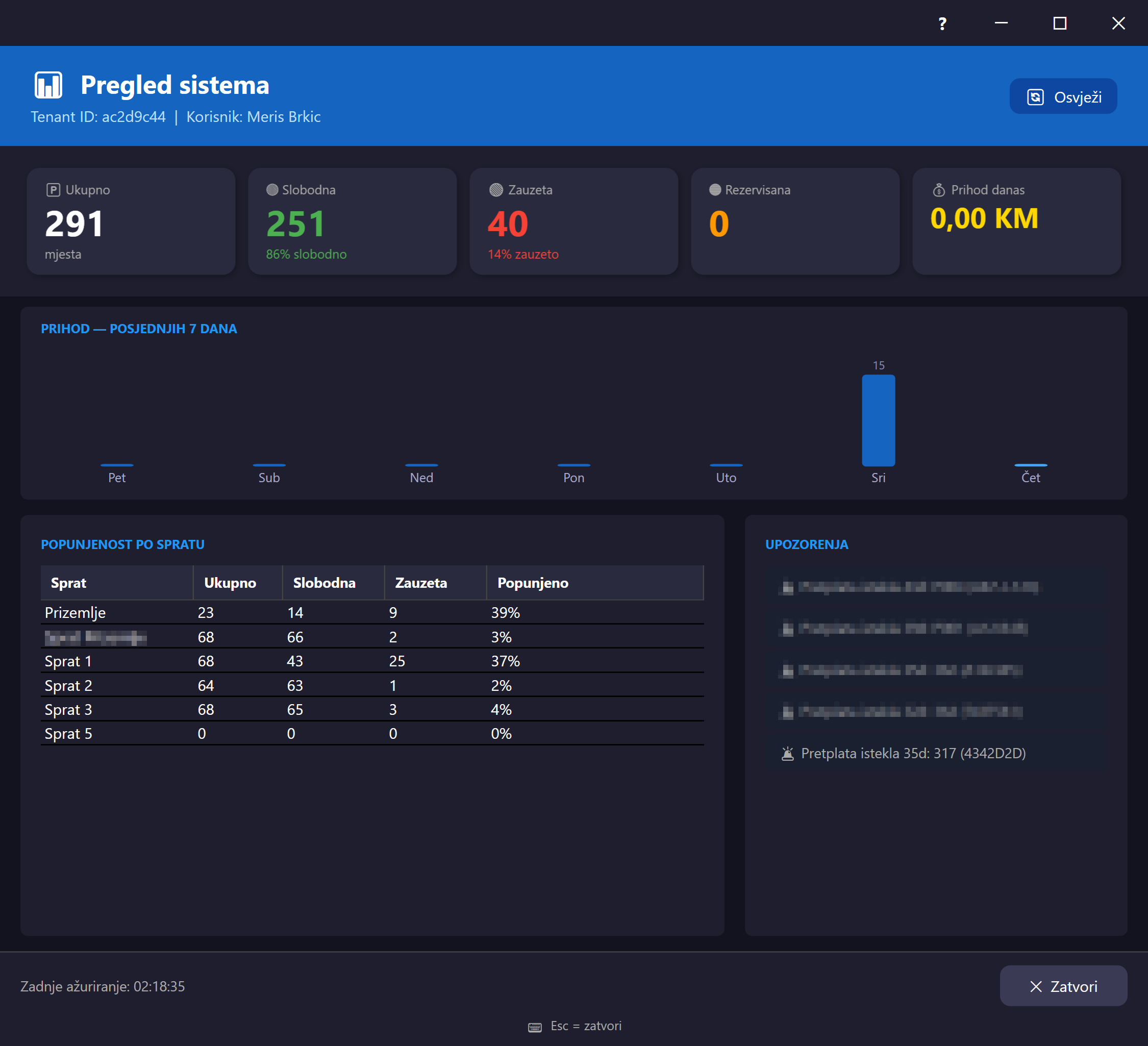
Otvara se iz menija Statistika ili Pomoć → Dashboard, i prikazuje pregled stanja parkinga: kartice sa ukupnim/slobodnim/zauzetim/rezervisanim mjestima i dnevnim prihodom, grafikon prihoda za posljednjih 7 dana, tabelu popunjenosti po zoni i listu upozorenja (npr. dugo parkirana vozila, isticanje zakupa). Podaci se povlače sa API-ja pri otvaranju; ako server nije dostupan, prozor automatski prelazi na lokalne (SQLite keširane) podatke kao offline fallback.
Otvara se iz izbornika Statistika ili Pomoć → Nadzorna ploča i prikazuje pregled stanja parkirališta: kartice s ukupnim/slobodnim/zauzetim/rezerviranim mjestima i dnevnim prihodom, grafikon prihoda za posljednjih 7 dana, tablicu popunjenosti po zoni i popis upozorenja (npr. dugo parkirana vozila, istek najma). Podaci se dohvaćaju s API-ja pri otvaranju; ako poslužitelj nije dostupan, prozor automatski prelazi na lokalne (u SQLite pohranjene) podatke kao offline zamjenu.
Otvara se iz menija Statistike ili Pomoć → Dashboard i prikazuje pregled stanja parkinga: kartice sa ukupnim/slobodnim/zauzetim/rezervisanim mestima i dnevnim prihodom, grafikon prihoda za poslednjih 7 dana, tabelu popunjenosti po zoni i listu upozorenja (npr. dugo parkirana vozila, istek zakupa). Podaci se preuzimaju sa API-ja pri otvaranju; ako server nije dostupan, prozor automatski prelazi na lokalne (u SQLite keširane) podatke kao offline rezervu.
Opens from the Statistics menu or Help → Dashboard, and shows an overview of the parking state: cards with total/free/occupied/reserved spots and today's revenue, a revenue chart for the last 7 days, an occupancy table per zone, and a list of alerts (e.g. long-parked vehicles, expiring leases). Data is fetched from the API on open; if the server is unreachable, the window automatically falls back to local (SQLite-cached) data offline.
Öffnet sich über das Menü Statistik oder Hilfe → Dashboard und zeigt eine Übersicht des Parkstatus: Karten mit Gesamt-/freien/belegten/reservierten Plätzen und dem Tagesumsatz, ein Umsatzdiagramm für die letzten 7 Tage, eine Belegungstabelle pro Zone und eine Liste von Warnungen (z. B. lange parkende Fahrzeuge, ablaufende Mietverhältnisse). Die Daten werden beim Öffnen von der API abgerufen; ist der Server nicht erreichbar, wechselt das Fenster automatisch offline zu lokalen (SQLite-zwischengespeicherten) Daten.
Se abre desde el menú Estadísticas o Ayuda → Panel, y muestra una visión general del estado del parqueo: tarjetas con plazas totales/libres/ocupadas/reservadas y los ingresos del día, un gráfico de ingresos de los últimos 7 días, una tabla de ocupación por zona y una lista de alertas (p. ej. vehículos estacionados por mucho tiempo, arriendos por vencer). Los datos se obtienen de la API al abrir; si el servidor no está disponible, la ventana pasa automáticamente a datos locales (en caché SQLite) sin conexión.
Brzo parkiranjeBrzo parkiranjeBrzo parkiranjeQuick parkSchnellparkenParqueo rápido Fiksna veličinaFiksna veličinaFiksna veličinaFixed sizeFeste GrößeTamaño fijo#quick-park-dialog
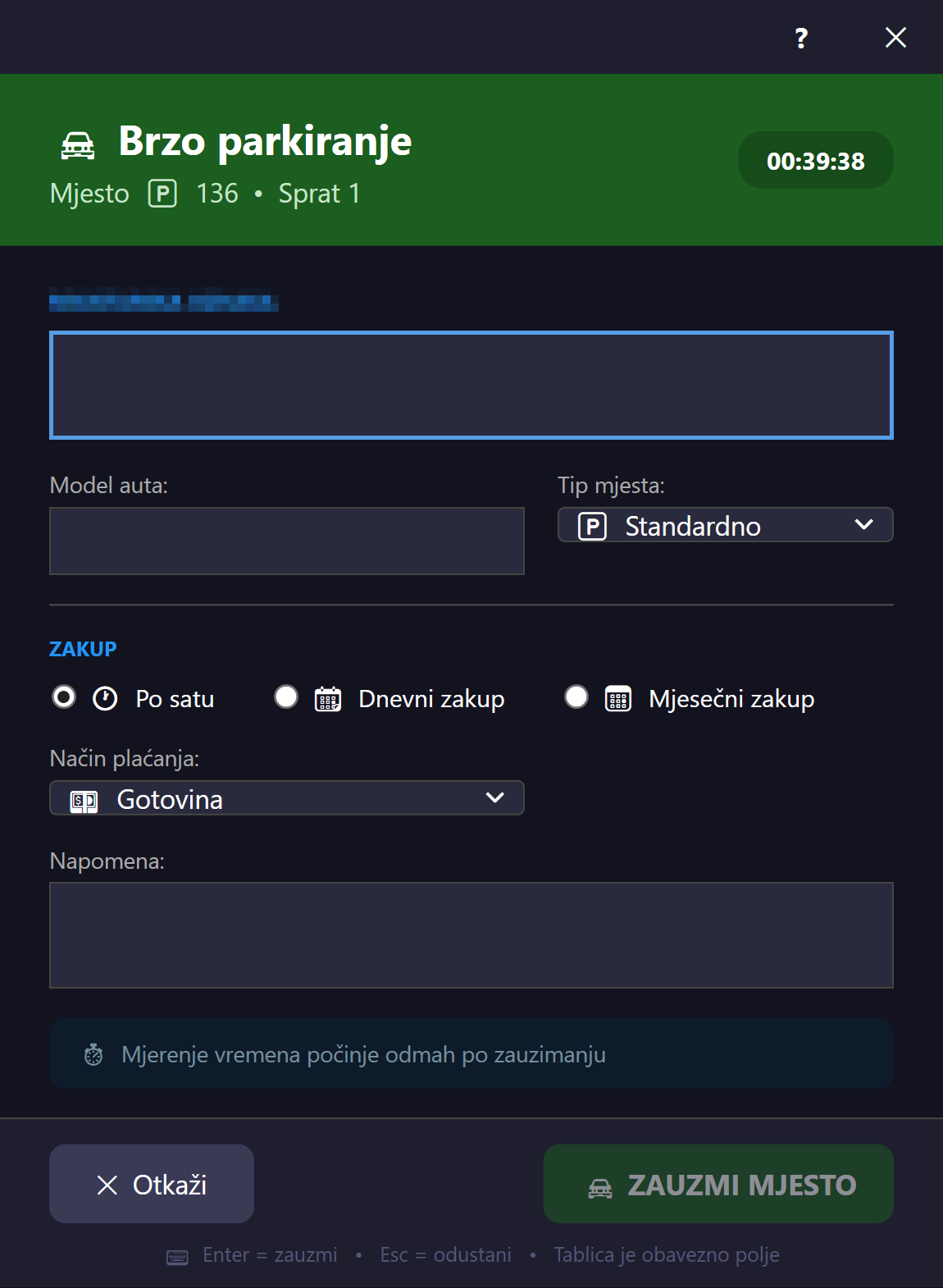
Otvara se klikom na slobodno parking mjesto na glavnom canvasu (ili preko toolbar dugmeta "Brzo parkiranje"). Omogućava unos registarske oznake i modela vozila, tip mjesta, i tri načina zakupa: satni, dnevni (sa brojem dana i automatskim obračunom cijene) i mjesečni (sa podacima o vlasniku — ime, telefon, email, adresa — i autocomplete prijedlogom postojećih klijenata istog tenanta). Bira se i način plaćanja (gotovina, kartica, QR kod, pretplata) i da li je odmah plaćeno.
Otvara se klikom na slobodno parkirno mjesto na glavnom platnu (ili gumbom „Brzo parkiranje” na alatnoj traci). Omogućuje unos registarske oznake i modela vozila, vrste mjesta i tri načina najma: po satu, dnevni (s brojem dana i automatskim izračunom cijene) i mjesečni (s podacima o vlasniku — ime, telefon, e-pošta, adresa — i automatskim prijedlogom postojećih klijenata istog tenanta). Odabire se i način plaćanja (gotovina, kartica, QR kod, pretplata) te je li odmah plaćeno.
Otvara se klikom na slobodno parking mesto na glavnom platnu (ili preko dugmeta „Brzo parkiranje“ na traci sa alatkama). Omogućava unos registarske oznake i modela vozila, tip mesta i tri načina zakupa: po satu, dnevni (sa brojem dana i automatskim obračunom cene) i mesečni (sa podacima o vlasniku — ime, telefon, email, adresa — i automatskim predlogom postojećih klijenata istog tenanta). Bira se i način plaćanja (gotovina, kartica, QR kod, pretplata) i da li je odmah plaćeno.
Opens by clicking a free parking spot on the main canvas (or via the "Quick Park" toolbar button). Lets you enter the license plate and vehicle model, spot type, and three lease modes: hourly, daily (with number of days and automatic price calculation), and monthly (with owner details — name, phone, email, address — and an autocomplete suggestion of existing clients in the same tenant). You also choose the payment method (cash, card, QR code, subscription) and whether it's paid immediately.
Öffnet sich durch Klicken auf einen freien Parkplatz in der Hauptfläche (oder über die Symbolleisten-Schaltfläche „Schnellparken“). Ermöglicht die Eingabe von Kennzeichen und Fahrzeugmodell, Platztyp und drei Mietmodi: stündlich, täglich (mit Anzahl der Tage und automatischer Preisberechnung) und monatlich (mit Eigentümerdaten — Name, Telefon, E-Mail, Adresse — und einem Autocomplete-Vorschlag bestehender Kunden desselben Mandanten). Zudem wird die Zahlungsart gewählt (Bargeld, Karte, QR-Code, Abonnement) und ob sofort bezahlt wird.
Se abre al hacer clic en una plaza libre en el lienzo principal (o mediante el botón "Parqueo rápido" de la barra de herramientas). Permite ingresar la matrícula y el modelo del vehículo, el tipo de plaza y tres modos de arriendo: por hora, por día (con número de días y cálculo automático del precio) y mensual (con datos del propietario — nombre, teléfono, correo, dirección — y una sugerencia de autocompletado de clientes existentes del mismo inquilino). También se elige el método de pago (efectivo, tarjeta, código QR, suscripción) y si se paga de inmediato.
Oslobodi mjestoOslobodi mjestoOslobodi mestoRelease spotPlatz freigebenLiberar plaza Fiksna veličinaFiksna veličinaFiksna veličinaFixed sizeFeste GrößeTamaño fijo#release-spot-dialog
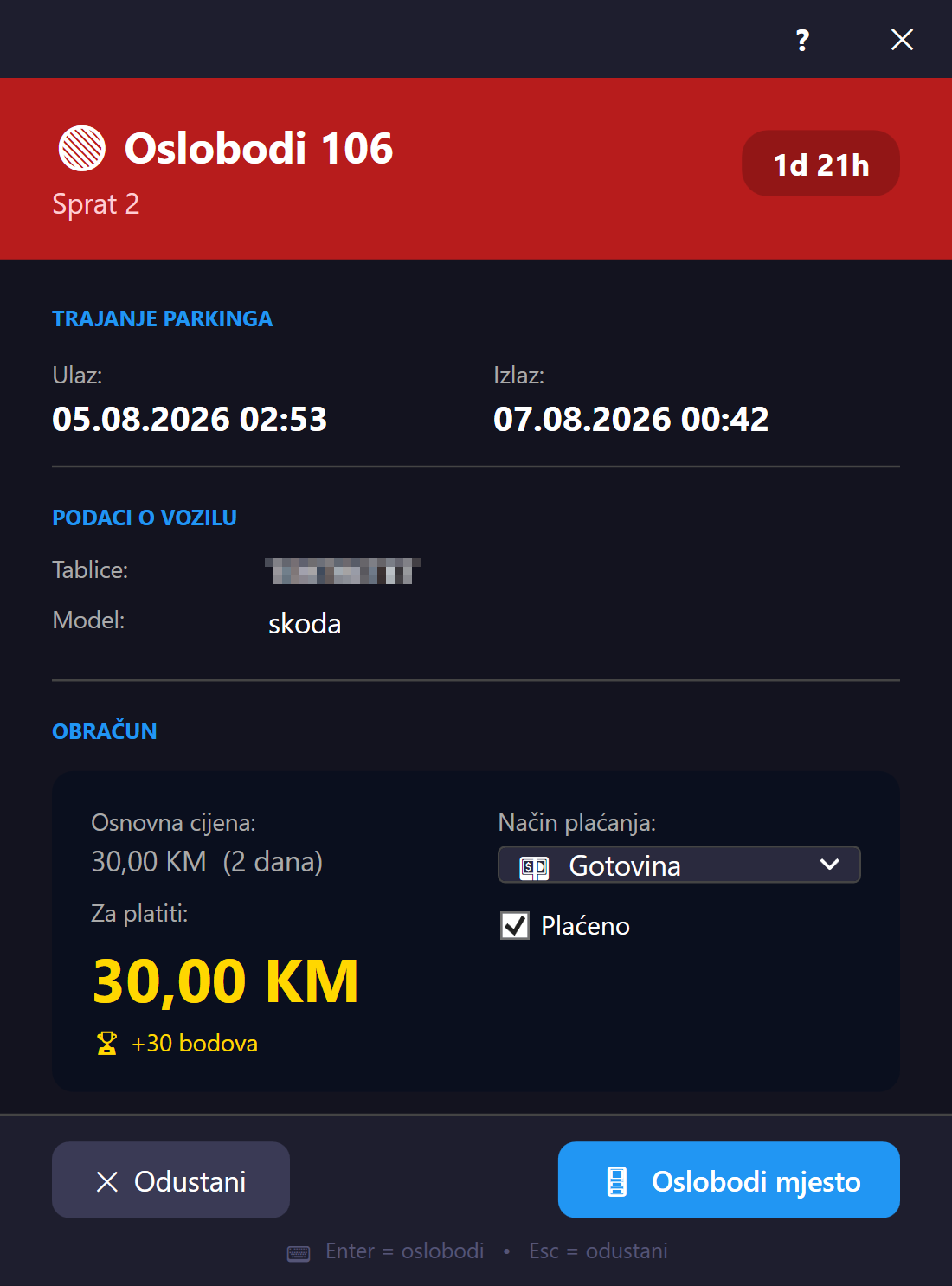
Otvara se klikom na zauzeto parking mjesto na canvasu (ili iz rezultata pretrage vozila). Prikazuje vrijeme ulaska/izlaska i automatski obračunatu cijenu — različit obračun za satni, dnevni i mjesečni zakup (mjesečni zakup dodatno nudi štampanje potvrde o rezervaciji). Omogućava odabir načina plaćanja i potvrdu naplate, čime se mjesto oslobađa.
Otvara se klikom na zauzeto parkirno mjesto na platnu (ili iz rezultata pretraživanja vozila). Prikazuje vrijeme ulaska/izlaska i automatski izračunatu cijenu — izračun se razlikuje za najam po satu, dnevni i mjesečni najam (za mjesečni najam dodatno se nudi ispis potvrde o rezervaciji). Omogućuje odabir načina plaćanja i potvrdu naplate, čime se mjesto oslobađa.
Otvara se klikom na zauzeto parking mesto na platnu (ili iz rezultata pretrage vozila). Prikazuje vreme ulaska/izlaska i automatski obračunatu cenu — različit obračun za zakup po satu, dnevni i mesečni zakup (mesečni zakup dodatno nudi štampanje potvrde o rezervaciji). Omogućava izbor načina plaćanja i potvrdu naplate, čime se mesto oslobađa.
Opens by clicking an occupied parking spot on the canvas (or from vehicle search results). Shows the entry/exit time and the automatically calculated price — the calculation differs for hourly, daily, and monthly leases (a monthly lease additionally offers printing a reservation receipt). Lets you choose the payment method and confirm payment, which releases the spot.
Öffnet sich durch Klicken auf einen belegten Parkplatz in der Fläche (oder aus den Ergebnissen der Fahrzeugsuche). Zeigt die Ein-/Ausfahrtszeit und den automatisch berechneten Preis — die Berechnung unterscheidet sich für stündliche, tägliche und monatliche Mietverhältnisse (bei einem Monatsmietverhältnis kann zusätzlich eine Reservierungsbestätigung gedruckt werden). Ermöglicht die Wahl der Zahlungsart und die Bestätigung der Zahlung, wodurch der Platz freigegeben wird.
Se abre al hacer clic en una plaza ocupada en el lienzo (o desde los resultados de la búsqueda de vehículos). Muestra la hora de entrada/salida y el precio calculado automáticamente — el cálculo difiere para arriendos por hora, por día y mensuales (un arriendo mensual además permite imprimir un comprobante de reserva). Permite elegir el método de pago y confirmar el pago, lo que libera la plaza.
Brza pretraga za oslobađanjeBrzo pretraživanje za oslobađanjeBrza pretraga za oslobađanjeQuick release searchSchnellfreigabe (Suche)Liberación rápida (búsqueda) Fiksna veličinaFiksna veličinaFiksna veličinaFixed sizeFeste GrößeTamaño fijo#quick-release-search-dialog
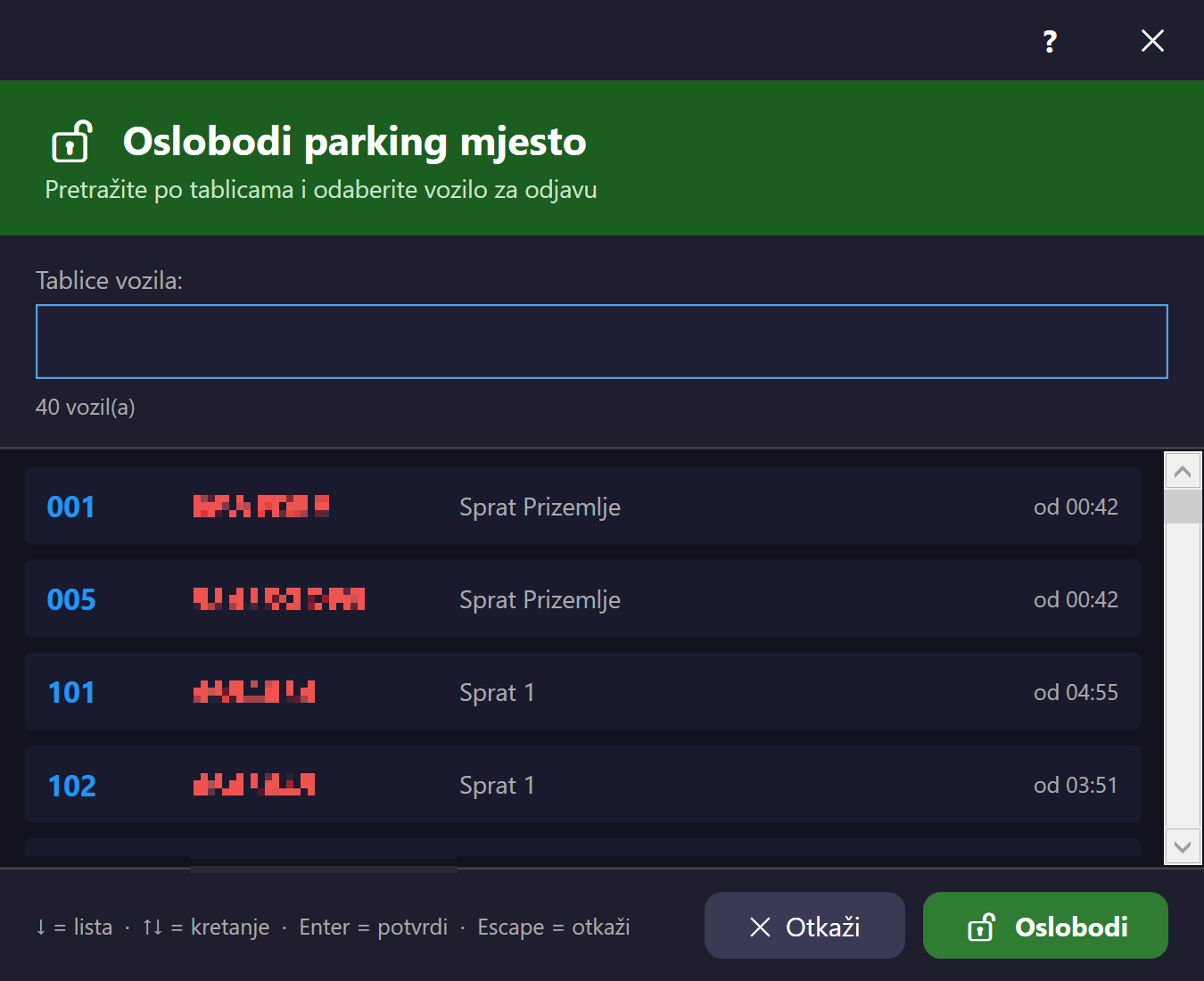
Alternativni način oslobađanja mjesta — otvara se preko kratice Ctrl+O kad korisnik zna registraciju vozila ali ne i tačnu lokaciju. Prikazuje listu svih trenutno zauzetih/rezervisanih mjesta (zona, registracija, model, vrijeme ulaska) sa pretragom po registarskoj oznaci uživo dok se kuca; odabirom stavke iz liste otvara se dijalog Oslobodi mjesto za to konkretno mjesto.
Alternativni način oslobađanja mjesta — otvara se prečacem Ctrl+O kada korisnik zna registarsku oznaku vozila, ali ne i točnu lokaciju. Prikazuje popis svih trenutačno zauzetih/rezerviranih mjesta (zona, registarska oznaka, model, vrijeme ulaska) s pretraživanjem po registarskoj oznaci uživo tijekom upisivanja; odabirom stavke s popisa otvara se dijalog Oslobodi mjesto za to konkretno mjesto.
Alternativni način oslobađanja mesta — otvara se prečicom Ctrl+O kada korisnik zna registarsku oznaku vozila, ali ne i tačnu lokaciju. Prikazuje listu svih trenutno zauzetih/rezervisanih mesta (zona, registracija, model, vreme ulaska) sa pretragom po registarskoj oznaci uživo dok se kuca; izborom stavke iz liste otvara se dijalog Oslobodi mesto za to konkretno mesto.
An alternative way to release a spot — opens via the Ctrl+O shortcut when the user knows the license plate but not the exact location. Shows a list of all currently occupied/reserved spots (zone, plate, model, entry time) with live search by plate as you type; selecting an item from the list opens the Release spot dialog for that specific spot.
Eine alternative Möglichkeit, einen Platz freizugeben — öffnet sich über die Tastenkombination Strg+O, wenn der Benutzer das Kennzeichen kennt, aber nicht den genauen Standort. Zeigt eine Liste aller aktuell belegten/reservierten Plätze (Zone, Kennzeichen, Modell, Einfahrtszeit) mit Live-Suche nach Kennzeichen während der Eingabe; die Auswahl eines Eintrags öffnet den Dialog Platz freigeben für diesen konkreten Platz.
Una forma alternativa de liberar una plaza — se abre mediante el atajo Ctrl+O cuando el usuario conoce la matrícula pero no la ubicación exacta. Muestra una lista de todas las plazas actualmente ocupadas/reservadas (zona, matrícula, modelo, hora de entrada) con búsqueda en vivo por matrícula mientras se escribe; al seleccionar un elemento de la lista se abre el diálogo Liberar plaza para esa plaza específica.
Detalji parking mjestaDetalji parkirnog mjestaDetalji parking mestaParking spot detailsParkplatz-DetailsDetalles de la plaza Fiksna veličinaFiksna veličinaFiksna veličinaFixed sizeFeste GrößeTamaño fijo#parking-spot-dialog
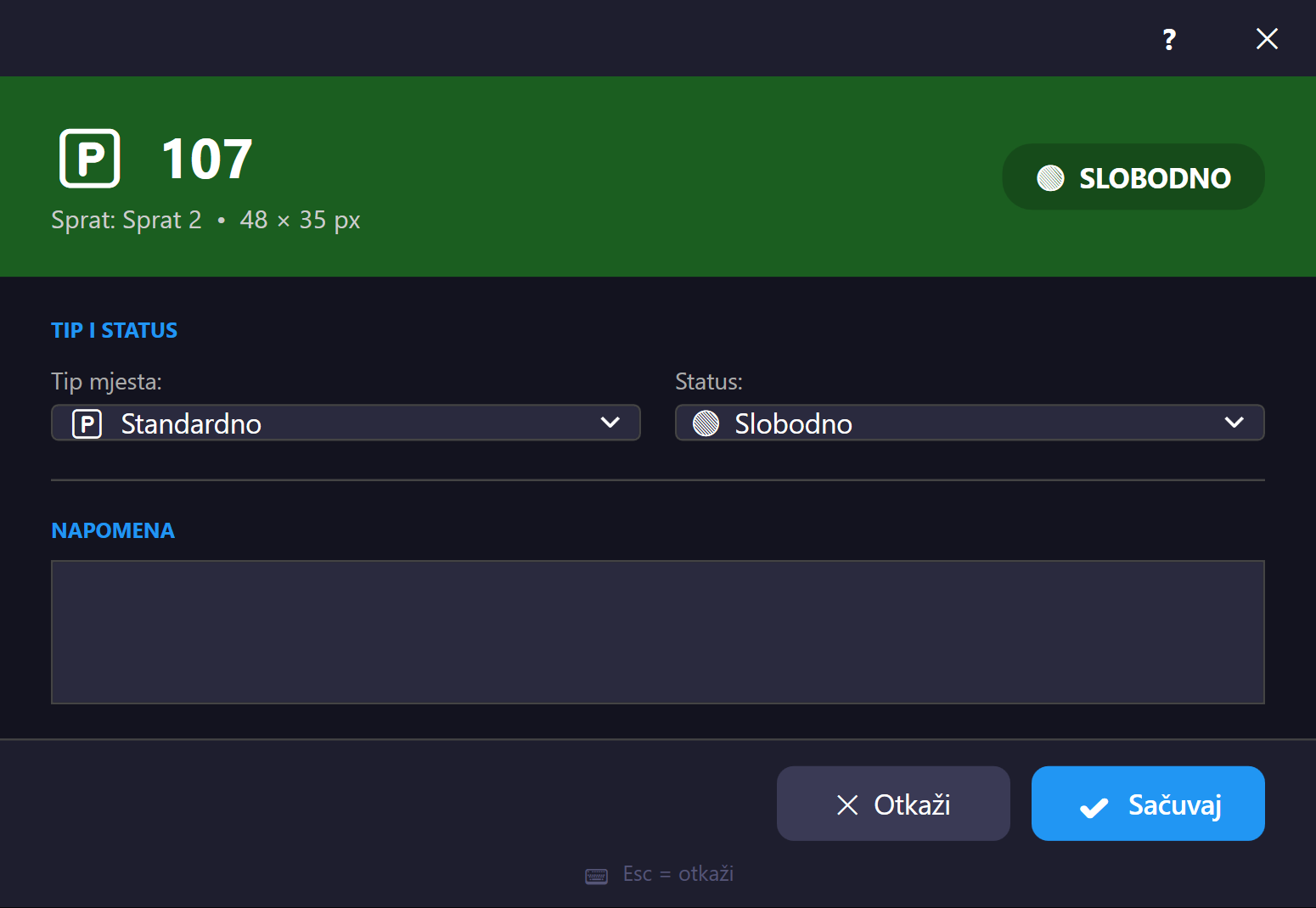
Otvara se preko kontekstnog menija na canvasu (opcija za detaljno uređivanje mjesta) — nezavisno od "brzog" toka (Brzo parkiranje/Oslobodi mjesto). Omogućava ručno uređivanje svih podataka mjesta: tip (standard/VIP/EV/invalidski/kamper/veliko), status (slobodno/zauzeto/rezervisano), ime i prezime vlasnika, i live obračun trenutnog iznosa i bodova lojalnosti dok je mjesto zauzeto.
Otvara se putem kontekstnog izbornika na platnu (opcija za detaljno uređivanje mjesta) — neovisno o „brzom” tijeku (Brzo parkiranje/Oslobodi mjesto). Omogućuje ručno uređivanje svih podataka o mjestu: vrsta (standardno/VIP/EV/za osobe s invaliditetom/kamper/veliko), status (slobodno/zauzeto/rezervirano), ime i prezime vlasnika te izračun trenutačnog iznosa i bodova vjernosti uživo dok je mjesto zauzeto.
Otvara se preko kontekstnog menija na platnu (opcija za detaljno uređivanje mesta) — nezavisno od „brzog“ toka (Brzo parkiranje/Oslobodi mesto). Omogućava ručno uređivanje svih podataka mesta: tip (standardno/VIP/EV/invalidsko/kamper/veliko), status (slobodno/zauzeto/rezervisano), ime i prezime vlasnika i obračun trenutnog iznosa i bodova lojalnosti uživo dok je mesto zauzeto.
Opens via the context menu on the canvas (an option for detailed spot editing) — independent of the "quick" flow (Quick Park/Release Spot). Lets you manually edit all spot data: type (standard/VIP/EV/disabled/camper/large), status (free/occupied/reserved), the owner's first and last name, and a live calculation of the current amount and loyalty points while the spot is occupied.
Öffnet sich über das Kontextmenü in der Fläche (eine Option zur detaillierten Bearbeitung des Platzes) — unabhängig vom „Schnell“-Ablauf (Schnellparken/Platz freigeben). Ermöglicht die manuelle Bearbeitung aller Platzdaten: Typ (Standard/VIP/EV/Behinderten-/Camper-/Großfahrzeug), Status (frei/belegt/reserviert), Vor- und Nachname des Eigentümers sowie eine Live-Berechnung des aktuellen Betrags und der Treuepunkte, während der Platz belegt ist.
Se abre mediante el menú contextual en el lienzo (una opción para editar la plaza en detalle) — independiente del flujo "rápido" (Parqueo rápido/Liberar plaza). Permite editar manualmente todos los datos de la plaza: tipo (estándar/VIP/EV/discapacitados/camper/grande), estado (libre/ocupada/reservada), nombre y apellido del propietario, y un cálculo en vivo del monto actual y los puntos de fidelidad mientras la plaza está ocupada.
Uređivač rasporeda parkingaUređivač rasporeda parkiralištaEditor rasporeda parkingaParking layout editorParklayout-EditorEditor de diseño de parqueo Resize#parking-editor-window
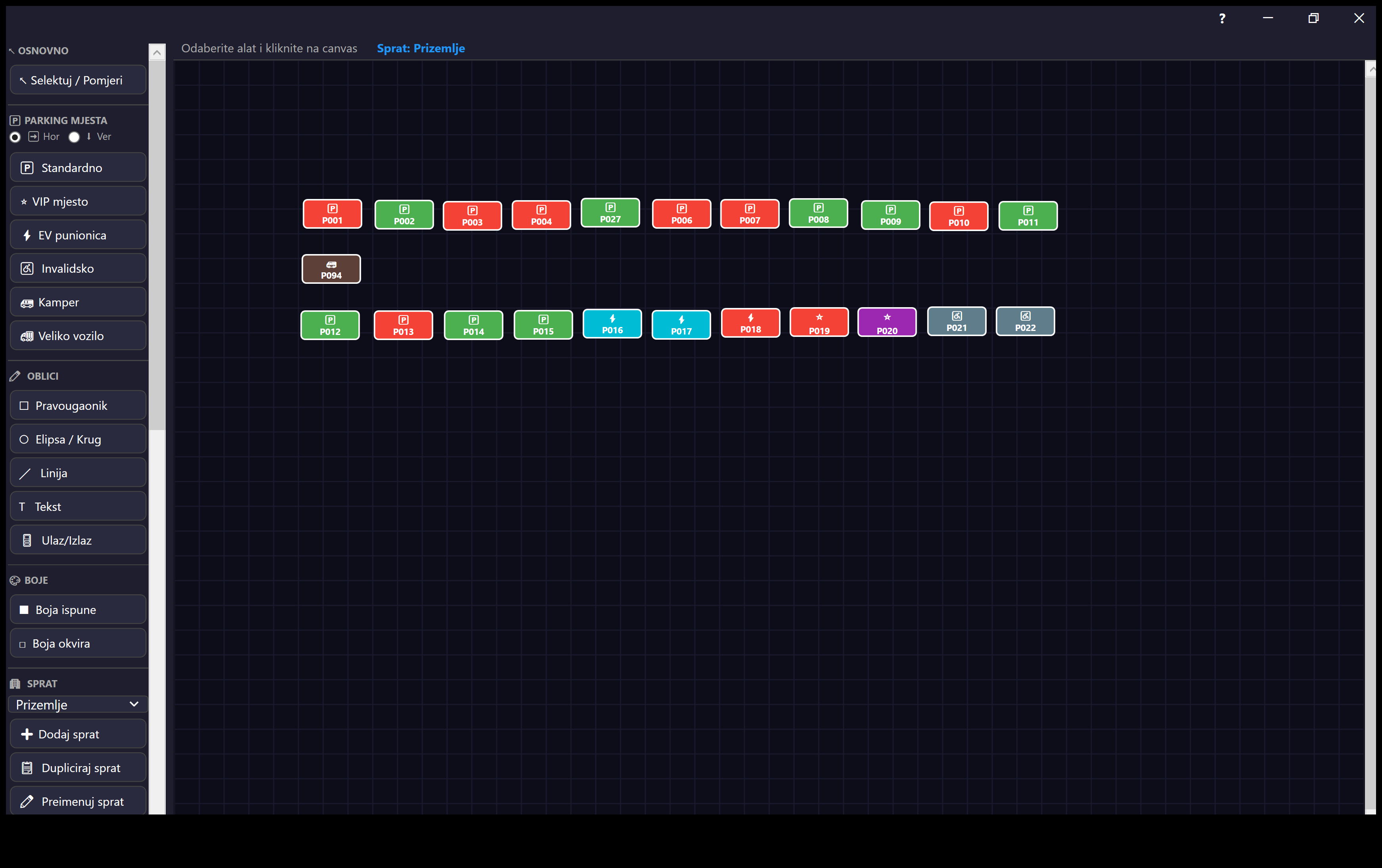
Otvara se preko dugmeta "Uredi raspored" (traka sa zonama u glavnom prozoru) — poseban canvas editor za kreiranje/uređivanje fizičkog izgleda parkinga po zonama. Nudi alatke za crtanje parking mjesta po tipu (standard, VIP, EV, invalidski, kamper, veliko), oblik alatke (pravougaonik, elipsa, linija, tekst, ulaz), alat za odabir/pomjeranje/undo-redo, snap-to-grid, zoom, i generator kružnog rasporeda (Kružni raspored) za brzo kreiranje spiralnih/kružnih blokova mjesta. Promjene se čuvaju na API i emituju nazad u glavni prozor.
Alat Selektuj/Pomjeri podržava višestruki odabir — držanjem Ctrl-a i klikom se dodaju dodatna mjesta u selekciju (traka na vrhu prikazuje broj odabranih). Kad je odabrano više mjesta, rotacija pod uglom se primjenjuje odjednom na sva odabrana mjesta, a kontekstni meni nudi i renumeraciju — automatsko dodjeljivanje novih rednih brojeva odabranim mjestima (ili svim mjestima na zoni) po redoslijedu njihove pozicije, umjesto ručnog preimenovanja jednog po jednog.
Otvara se gumbom „Uredi raspored” (traka sa zonama u glavnom prozoru) — zaseban uređivač na platnu za izradu i uređivanje fizičkog izgleda parkirališta po zonama. Nudi alate za crtanje parkirnih mjesta po vrsti (standardno, VIP, EV, za osobe s invaliditetom, kamper, veliko), alate za oblike (pravokutnik, elipsa, linija, tekst, ulaz), alat za odabir/pomicanje, poništavanje/ponavljanje, poravnavanje s mrežom, zumiranje i generator kružnog rasporeda (Kružni raspored) za brzu izradu spiralnih/kružnih blokova mjesta. Promjene se spremaju putem API-ja i šalju natrag u glavni prozor.
Alat Odaberi/Pomakni podržava višestruki odabir — držanjem tipke Ctrl i klikom dodaju se nova mjesta u odabir (traka na vrhu prikazuje broj odabranih). Kada je odabrano više mjesta, rotacija pod kutom primjenjuje se odjednom na sva odabrana mjesta, a kontekstni izbornik nudi i renumeraciju — automatsko dodjeljivanje novih rednih brojeva odabranim mjestima (ili svim mjestima u zoni) prema redoslijedu njihova položaja, umjesto ručnog preimenovanja jednog po jednog.
Otvara se preko dugmeta „Uredi raspored“ (traka sa zonama u glavnom prozoru) — poseban editor na platnu za kreiranje/uređivanje fizičkog izgleda parkinga po zonama. Nudi alatke za crtanje parking mesta po tipu (standardno, VIP, EV, invalidsko, kamper, veliko), alatke za oblike (pravougaonik, elipsa, linija, tekst, ulaz), alatku za izbor/pomeranje, poništavanje/ponavljanje, poravnanje sa mrežom, zum i generator kružnog rasporeda (Kružni raspored) za brzo kreiranje spiralnih/kružnih blokova mesta. Promene se čuvaju preko API-ja i šalju nazad u glavni prozor.
Alatka Selektuj/Pomeri podržava višestruki izbor — držanjem tastera Ctrl i klikom dodaju se dodatna mesta u selekciju (traka na vrhu prikazuje broj izabranih). Kada je izabrano više mesta, rotacija pod uglom se primenjuje odjednom na sva izabrana mesta, a kontekstni meni nudi i renumeraciju — automatsko dodeljivanje novih rednih brojeva izabranim mestima (ili svim mestima na zoni) po redosledu njihove pozicije, umesto ručnog preimenovanja jednog po jednog.
Opens via the "Edit layout" button (the zone tab bar on the main window) — a dedicated canvas editor for creating/editing the physical parking layout per zone. Offers tools for drawing parking spots by type (standard, VIP, EV, disabled, camper, large), a shape tool (rectangle, ellipse, line, text, entrance), a select/move/undo-redo tool, snap-to-grid, zoom, and a circular layout generator (Circular layout) for quickly creating spiral/circular blocks of spots. Changes are saved to the API and broadcast back to the main window.
The Select/Move tool supports multi-select — holding Ctrl while clicking adds more spots to the selection (a bar at the top shows how many are selected). With more than one spot selected, rotating by angle applies to every selected spot at once, and the context menu also offers renumbering — automatically assigning new sequential numbers to the selected spots (or every spot in the zone) based on their position, instead of renaming them one by one.
Öffnet sich über die Schaltfläche „Layout bearbeiten“ (die Zonen-Reiterleiste im Hauptfenster) — ein eigener Flächen-Editor zum Erstellen/Bearbeiten des physischen Parklayouts pro Zone. Bietet Werkzeuge zum Zeichnen von Parkplätzen nach Typ (Standard, VIP, EV, Behinderten-, Camper-, Großfahrzeug), ein Formwerkzeug (Rechteck, Ellipse, Linie, Text, Einfahrt), ein Auswahl-/Verschiebe-/Rückgängig-Werkzeug, Raster-Einrasten, Zoom und einen Generator für kreisförmige Layouts (Kreisförmiges Layout) zum schnellen Erstellen spiralförmiger/kreisförmiger Platzblöcke. Änderungen werden an die API gespeichert und an das Hauptfenster zurückgesendet.
Das Werkzeug Auswählen/Verschieben unterstützt die Mehrfachauswahl — durch Halten von Strg beim Klicken werden weitere Plätze zur Auswahl hinzugefügt (eine Leiste oben zeigt die Anzahl der ausgewählten Plätze). Bei mehr als einem ausgewählten Platz wird die Drehung um einen Winkel auf alle ausgewählten Plätze gleichzeitig angewendet, und das Kontextmenü bietet zudem die Neunummerierung — die automatische Zuweisung neuer laufender Nummern zu den ausgewählten Plätzen (oder allen Plätzen der Zone) nach ihrer Position, statt sie einzeln umzubenennen.
Se abre mediante el botón "Editar diseño" (la barra de pestañas de zonas en la ventana principal) — un editor de lienzo dedicado para crear/editar el diseño físico del parqueo por zona. Ofrece herramientas para dibujar plazas por tipo (estándar, VIP, EV, discapacitados, camper, grande), una herramienta de forma (rectángulo, elipse, línea, texto, entrada), una herramienta de selección/movimiento/deshacer-rehacer, ajuste a la cuadrícula, zoom y un generador de diseño circular (Diseño circular) para crear rápidamente bloques de plazas en espiral/circulares. Los cambios se guardan en la API y se transmiten de vuelta a la ventana principal.
La herramienta Seleccionar/Mover admite la selección múltiple — mantener presionado Ctrl mientras se hace clic agrega más plazas a la selección (una barra en la parte superior muestra cuántas están seleccionadas). Con más de una plaza seleccionada, la rotación por ángulo se aplica a todas las plazas seleccionadas a la vez, y el menú contextual también ofrece la renumeración — asignar automáticamente nuevos números secuenciales a las plazas seleccionadas (o a todas las plazas de la zona) según su posición, en lugar de renombrarlas una por una.
Kružni rasporedKružni rasporedKružni rasporedCircular layoutKreisförmiges LayoutDiseño circular Fiksna veličinaFiksna veličinaFiksna veličinaFixed sizeFeste GrößeTamaño fijo#circular-layout-dialog
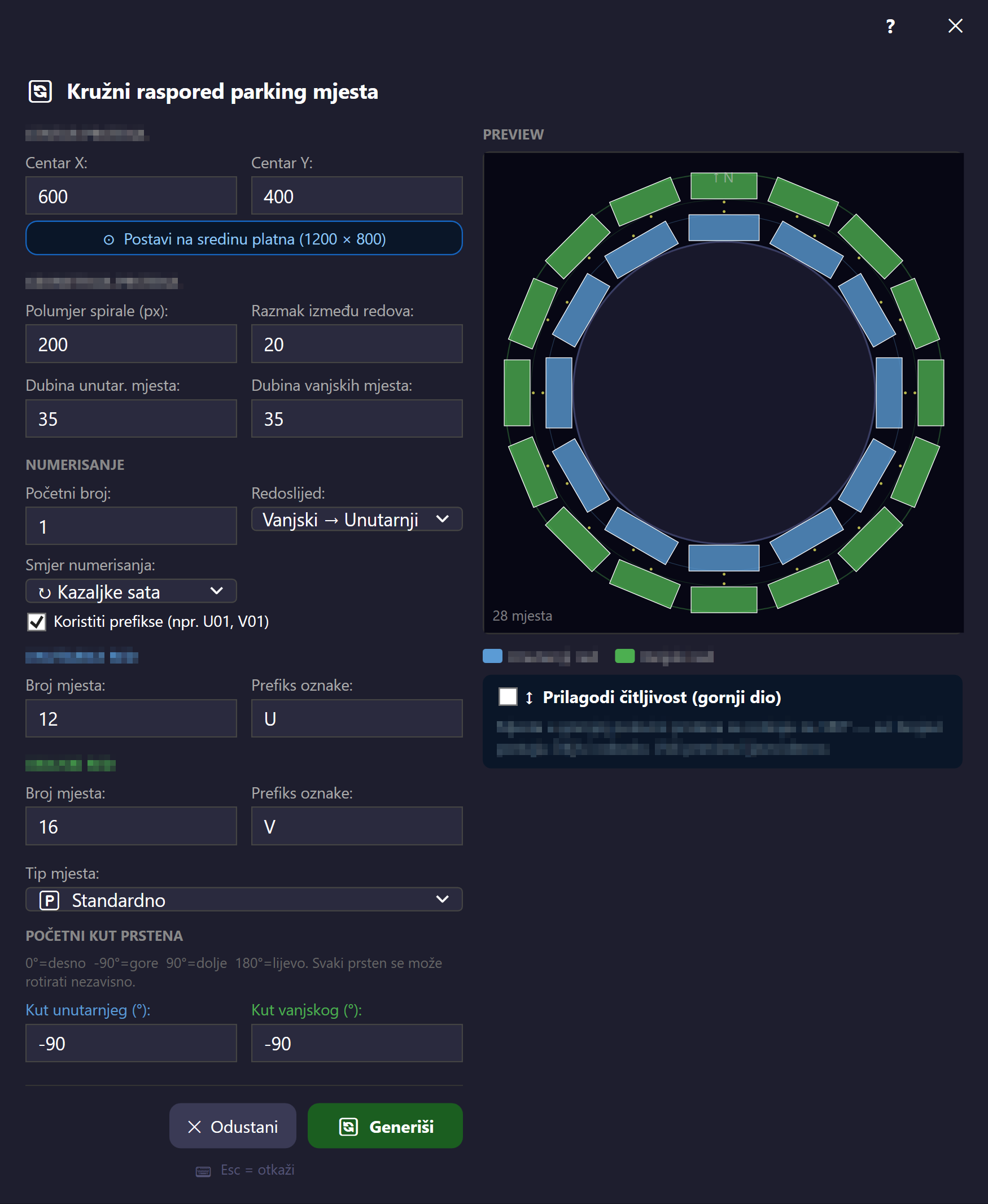
Pomoćni alat unutar Uređivača rasporeda (dugme u editoru) — generiše kružni/spiralni raspored parking mjesta bez ručnog crtanja svakog pojedinačno. Parametri uključuju centar, poluprečnik, dubinu unutrašnjeg/vanjskog reda, razmak, broj mjesta po redu, prefiks oznake, početni ugao, smjer (kazaljka na satu), i početni broj. Rezultat se prosljeđuje editoru koji generiše stvarna mjesta na canvasu.
Pomoćni alat unutar Uređivača rasporeda (gumb u uređivaču) — generira kružni/spiralni raspored parkirnih mjesta bez ručnog crtanja svakog pojedinačno. Parametri uključuju središte, polumjer, dubinu unutarnjeg/vanjskog reda, razmak, broj mjesta po redu, prefiks oznake, početni kut, smjer (u smjeru kazaljke na satu) i početni broj. Rezultat se prosljeđuje uređivaču koji stvara stvarna mjesta na platnu.
Pomoćna alatka unutar Editora rasporeda (dugme u editoru) — generiše kružni/spiralni raspored parking mesta bez ručnog crtanja svakog pojedinačno. Parametri uključuju centar, poluprečnik, dubinu unutrašnjeg/spoljnog reda, razmak, broj mesta po redu, prefiks oznake, početni ugao, smer (u smeru kazaljke na satu) i početni broj. Rezultat se prosleđuje editoru koji generiše stvarna mesta na platnu.
A helper tool inside the Layout editor (a button in the editor) — generates a circular/spiral layout of parking spots without drawing each one by hand. Parameters include center, radius, inner/outer row depth, spacing, spots per row, label prefix, start angle, direction (clockwise), and starting number. The result is passed to the editor, which generates the actual spots on the canvas.
Ein Hilfswerkzeug innerhalb des Layout-Editors (eine Schaltfläche im Editor) — erzeugt ein kreisförmiges/spiralförmiges Layout von Parkplätzen, ohne jeden einzeln von Hand zeichnen zu müssen. Zu den Parametern gehören Mittelpunkt, Radius, Tiefe der inneren/äußeren Reihe, Abstand, Plätze pro Reihe, Beschriftungspräfix, Startwinkel, Richtung (im Uhrzeigersinn) und Startnummer. Das Ergebnis wird an den Editor übergeben, der die tatsächlichen Plätze auf der Fläche erzeugt.
Una herramienta auxiliar dentro del Editor de diseño (un botón en el editor) — genera un diseño circular/en espiral de plazas sin dibujar cada una a mano. Los parámetros incluyen centro, radio, profundidad de fila interior/exterior, espaciado, plazas por fila, prefijo de etiqueta, ángulo inicial, dirección (sentido horario) y número inicial. El resultado se pasa al editor, que genera las plazas reales en el lienzo.
CjenovnikCjenikCenovnikPricingPreiseTarifas Fiksna veličinaFiksna veličinaFiksna veličinaFixed sizeFeste GrößeTamaño fijo#pricing-dialog
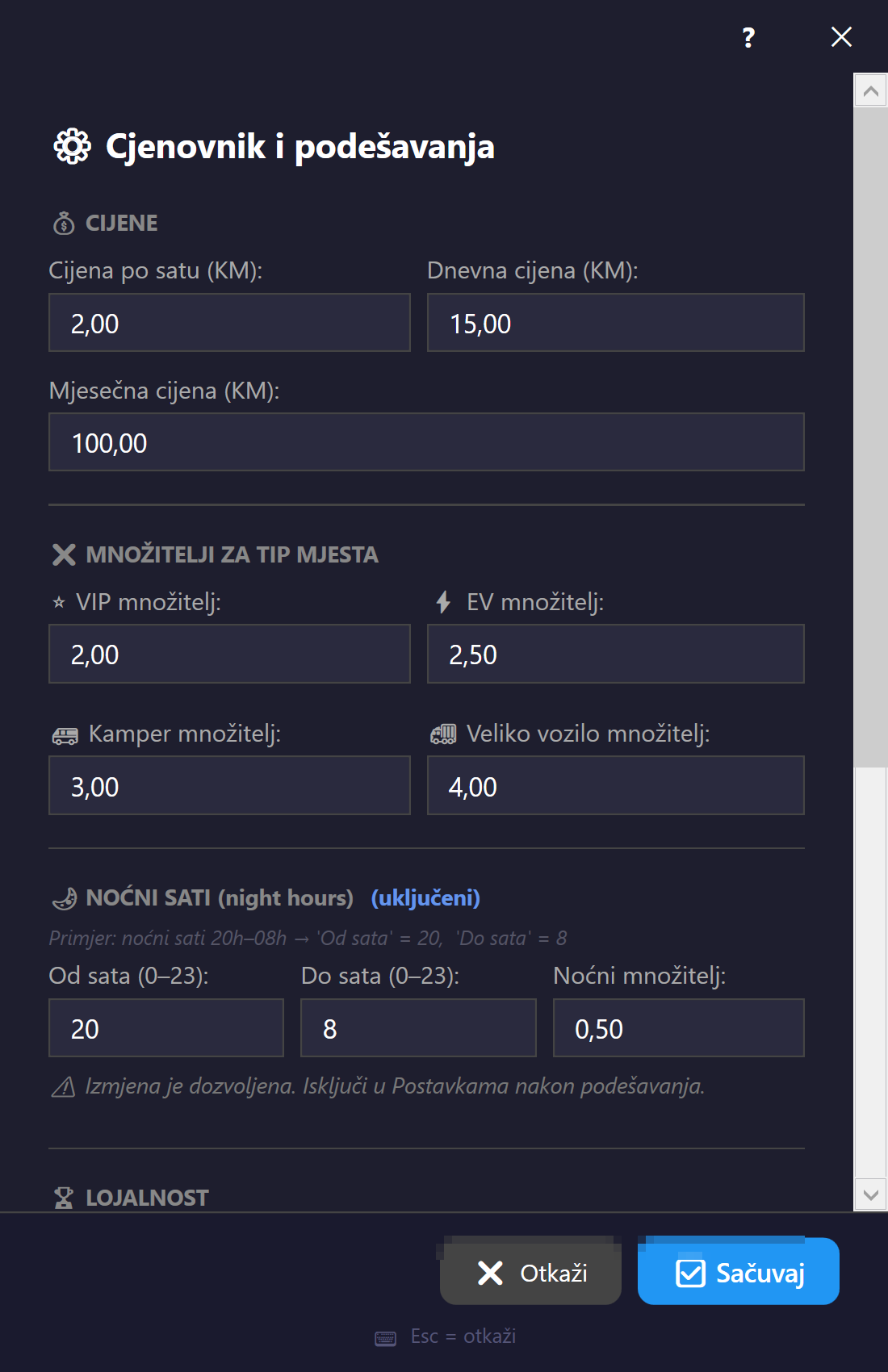
Otvara se preko toolbar dugmeta "Cjenovnik" ili menija Fajl → Cjenovnik. Definiše satnu, dnevnu i mjesečnu cijenu, množitelje za posebne tipove mjesta (VIP, EV, kamper, veliko), opciono "peak" vrijeme sa posebnim množiteljem, i broj bodova lojalnosti po parkiranju. Sadrži i kalkulator za provjeru izračunate cijene. Kada je aplikacija offline, cijene se ne mogu mijenjati (polja se zaključavaju, prikazuje se offline baner) jer izmjene ne bi bile sačuvane na serveru.
Otvara se gumbom „Cjenik” na alatnoj traci ili izbornikom Datoteka → Cjenik. Određuje satnu, dnevnu i mjesečnu cijenu, množitelje za posebne vrste mjesta (VIP, EV, kamper, veliko), neobvezno vršno („peak”) vrijeme s posebnim množiteljem i broj bodova vjernosti po parkiranju. Sadrži i kalkulator za provjeru izračunate cijene. Kada je aplikacija offline, cijene se ne mogu mijenjati (polja se zaključavaju i prikazuje se offline natpis) jer izmjene ne bi bile spremljene na poslužitelju.
Otvara se preko dugmeta „Cenovnik“ na traci sa alatkama ili preko menija Datoteka → Cenovnik. Definiše cenu po satu, dnevnu i mesečnu cenu, množioce za posebne tipove mesta (VIP, EV, kamper, veliko), opciono vršno („peak“) vreme sa posebnim množiocem i broj bodova lojalnosti po parkiranju. Sadrži i kalkulator za proveru izračunate cene. Kada je aplikacija offline, cene se ne mogu menjati (polja se zaključavaju i prikazuje se offline baner) jer izmene ne bi bile sačuvane na serveru.
Opens via the "Pricing" toolbar button or the File → Pricing menu. Defines the hourly, daily, and monthly rate, multipliers for special spot types (VIP, EV, camper, large), an optional "peak" time with a special multiplier, and the number of loyalty points per parking session. Also includes a calculator to check the computed price. When the app is offline, prices can't be changed (the fields lock and an offline banner is shown) since changes wouldn't be saved to the server.
Öffnet sich über die Symbolleisten-Schaltfläche „Preise“ oder das Menü Datei → Preise. Legt den Stunden-, Tages- und Monatspreis fest, Multiplikatoren für besondere Platztypen (VIP, EV, Camper, Großfahrzeug), ein optionales „Peak“-Zeitfenster mit besonderem Multiplikator und die Anzahl der Treuepunkte pro Parkvorgang. Enthält außerdem einen Rechner zur Überprüfung des berechneten Preises. Ist die Anwendung offline, können Preise nicht geändert werden (die Felder werden gesperrt, ein Offline-Banner wird angezeigt), da Änderungen nicht auf dem Server gespeichert würden.
Se abre mediante el botón "Tarifas" de la barra de herramientas o el menú Archivo → Tarifas. Define la tarifa por hora, por día y mensual, multiplicadores para tipos especiales de plaza (VIP, EV, camper, grande), un horario "pico" opcional con un multiplicador especial y el número de puntos de fidelidad por sesión de parqueo. También incluye una calculadora para comprobar el precio calculado. Cuando la aplicación está sin conexión, los precios no se pueden cambiar (los campos se bloquean y se muestra un aviso de sin conexión), ya que los cambios no se guardarían en el servidor.
Produženje mjesečnog zakupaProduljenje mjesečnog najmaProduženje mesečnog zakupaExtend monthly leaseMonatsmiete verlängernExtender arriendo mensual Fiksna veličinaFiksna veličinaFiksna veličinaFixed sizeFeste GrößeTamaño fijo#extend-monthly-dialog
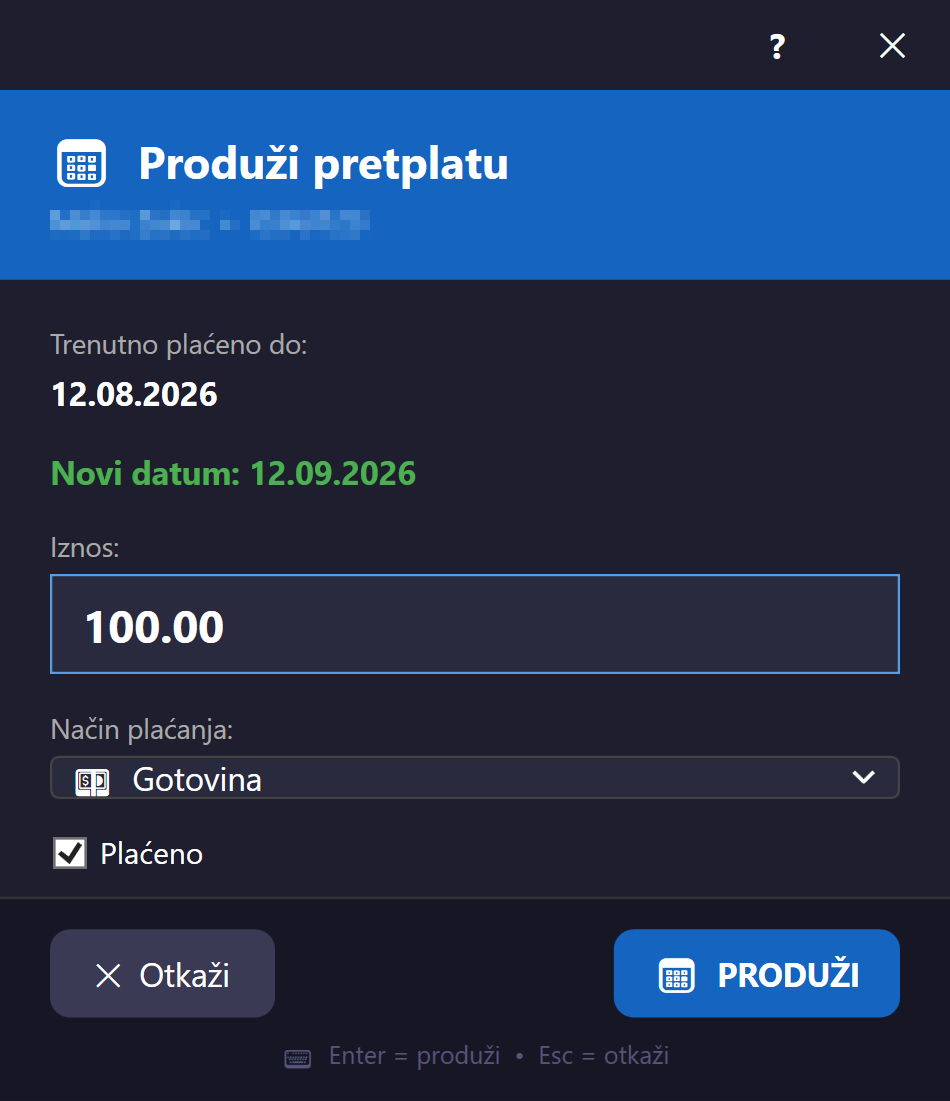
Otvara se iz prozora Mjesečni klijenti (dugme za produženje kod isteklog/ističućeg klijenta). Prikazuje ime klijenta, registarsku oznaku, trenutni datum do kojeg je plaćeno i automatski predloženi novi datum (+1 mjesec), sa unosom iznosa uplate i statusom plaćanja. Enter potvrđuje, Escape otkazuje.
Otvara se iz prozora Mjesečni klijenti (gumb za produljenje kod klijenta kojem je najam istekao ili uskoro istječe). Prikazuje ime klijenta, registarsku oznaku, trenutačni datum do kojeg je plaćeno i automatski predloženi novi datum (+1 mjesec), s unosom iznosa uplate i statusom plaćanja. Enter potvrđuje, Escape odustaje.
Otvara se iz prozora Mesečni klijenti (dugme za produženje kod klijenta kome je zakup istekao ili uskoro ističe). Prikazuje ime klijenta, registarsku oznaku, trenutni datum do kojeg je plaćeno i automatski predloženi novi datum (+1 mesec), sa unosom iznosa uplate i statusom plaćanja. Enter potvrđuje, Escape otkazuje.
Opens from the Monthly clients window (the extend button for an expired/expiring client). Shows the client's name, license plate, current paid-until date, and an automatically suggested new date (+1 month), with a payment amount field and payment status. Enter confirms, Escape cancels.
Öffnet sich aus dem Fenster Monatskunden (die Verlängerungsschaltfläche bei einem abgelaufenen/bald ablaufenden Kunden). Zeigt den Namen des Kunden, das Kennzeichen, das aktuelle Datum, bis zu dem bezahlt wurde, und ein automatisch vorgeschlagenes neues Datum (+1 Monat), mit einem Feld für den Zahlungsbetrag und den Zahlungsstatus. Enter bestätigt, Escape bricht ab.
Se abre desde la ventana Clientes mensuales (el botón de extender para un cliente vencido/por vencer). Muestra el nombre del cliente, la matrícula, la fecha actual hasta la que está pagado y una nueva fecha sugerida automáticamente (+1 mes), con un campo de importe de pago y el estado del pago. Enter confirma, Escape cancela.
Pretraga vozilaPretraživanje vozilaPretraga vozilaVehicle searchFahrzeugsucheBúsqueda de vehículos Resize#search-vehicle-window
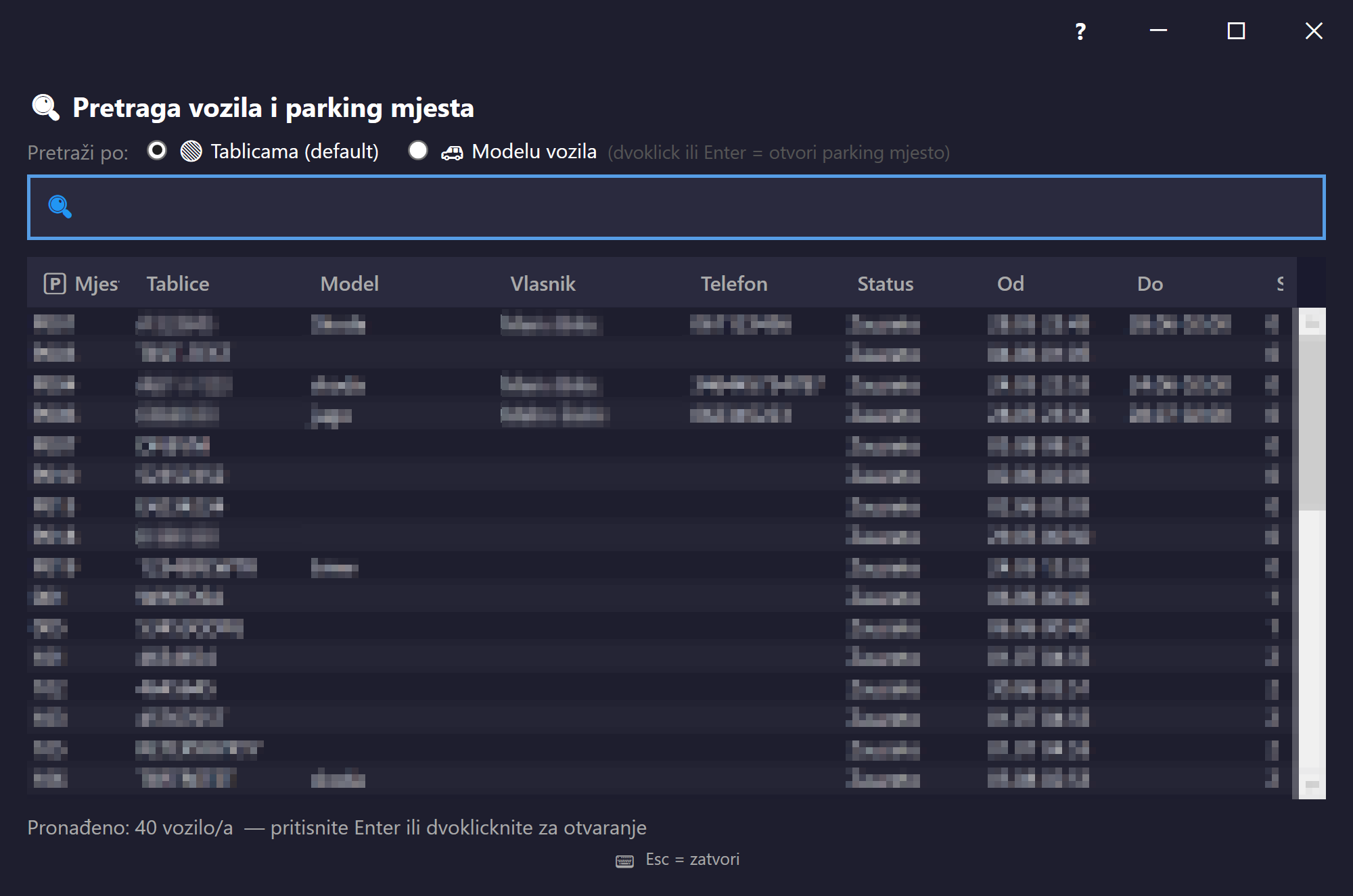
Otvara se preko toolbar dugmeta "Pretraga" ili brze pretrage sa glavnog prozora (traka ispod toolbar-a — pretraga po registraciji ili modelu). Prikazuje rezultate pretrage trenutno parkiranih vozila sa mogućnošću direktnog otvaranja dijaloga Oslobodi mjesto za pronađeno vozilo.
Otvara se gumbom „Pretraživanje” na alatnoj traci ili brzim pretraživanjem iz glavnog prozora (traka ispod alatne trake — pretraživanje po registarskoj oznaci ili modelu). Prikazuje rezultate pretraživanja trenutačno parkiranih vozila s mogućnošću izravnog otvaranja dijaloga Oslobodi mjesto za pronađeno vozilo.
Otvara se preko dugmeta „Pretraga“ na traci sa alatkama ili brze pretrage u glavnom prozoru (traka ispod trake sa alatkama — pretraga po registraciji ili modelu). Prikazuje rezultate pretrage trenutno parkiranih vozila sa mogućnošću direktnog otvaranja dijaloga Oslobodi mesto za pronađeno vozilo.
Opens via the "Search" toolbar button or the quick search on the main window (the bar below the toolbar — search by plate or model). Shows search results for currently parked vehicles, with the option to directly open the Release spot dialog for a found vehicle.
Öffnet sich über die Symbolleisten-Schaltfläche „Suchen“ oder die Schnellsuche im Hauptfenster (die Leiste unter der Symbolleiste — Suche nach Kennzeichen oder Modell). Zeigt Suchergebnisse für aktuell geparkte Fahrzeuge, mit der Möglichkeit, den Dialog Platz freigeben für ein gefundenes Fahrzeug direkt zu öffnen.
Se abre mediante el botón "Buscar" de la barra de herramientas o la búsqueda rápida en la ventana principal (la barra debajo de la barra de herramientas — búsqueda por matrícula o modelo). Muestra resultados de búsqueda de vehículos actualmente aparcados, con la opción de abrir directamente el diálogo Liberar plaza para un vehículo encontrado.
Historija vozilaPovijest vozilaIstorija vozilaVehicle historyFahrzeughistorieHistorial del vehículo Resize#vehicle-history-window
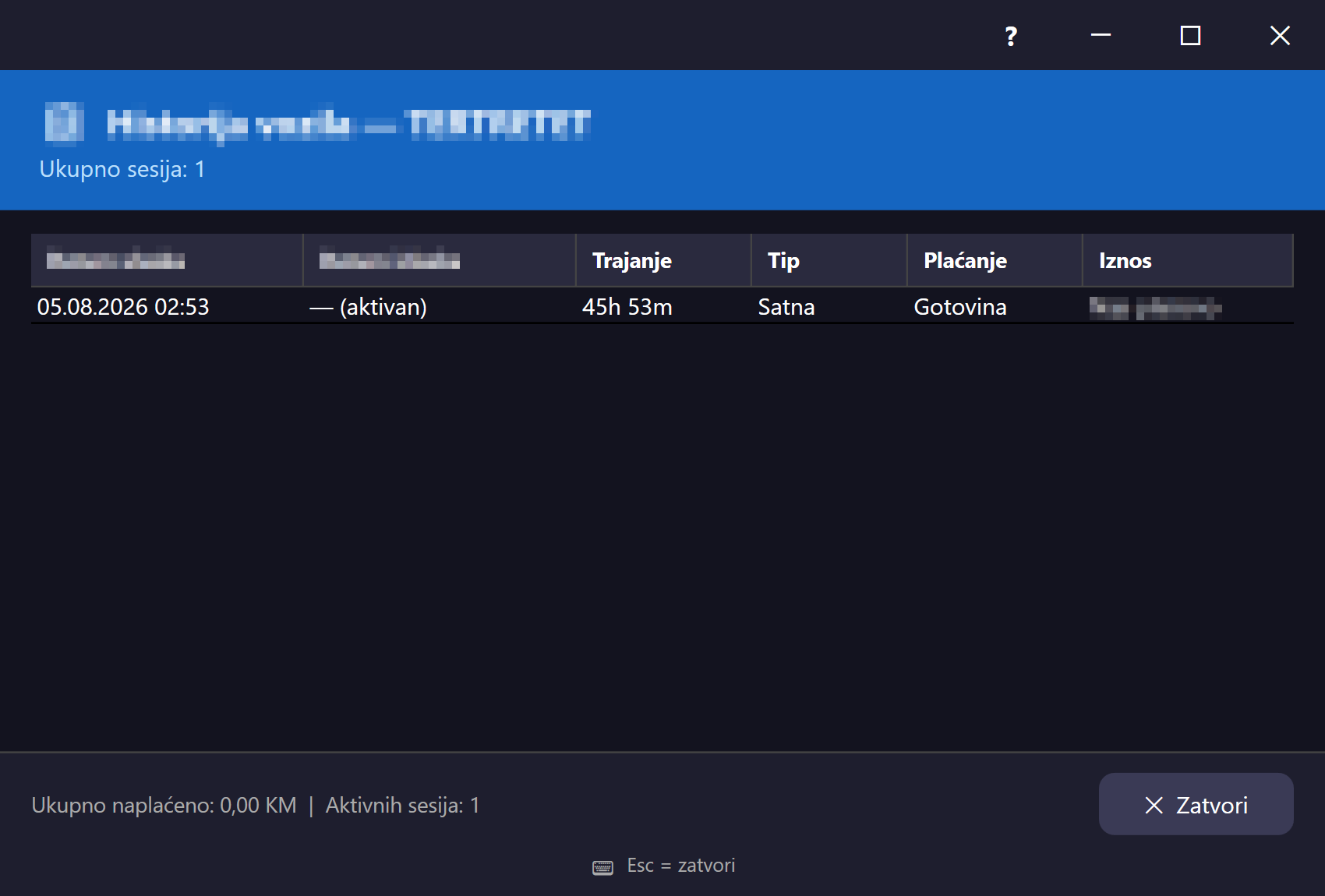
Otvara se preko kontekstnog menija na zauzetom parking mjestu ("Historija [registracija]"). Prikazuje kompletnu historiju parkiranja za tu registarsku oznaku — datum/vrijeme ulaska i izlaska, trajanje, tip zakupa (satni/mjesečni) i način plaćanja, učitano sa API-ja pri otvaranju.
Otvara se putem kontekstnog izbornika na zauzetom parkirnom mjestu („Povijest [registarska oznaka]”). Prikazuje potpunu povijest parkiranja za tu registarsku oznaku — datum/vrijeme ulaska i izlaska, trajanje, vrstu najma (po satu/mjesečni) i način plaćanja, učitano s API-ja pri otvaranju.
Otvara se preko kontekstnog menija na zauzetom parking mestu („Istorija [registracija]“). Prikazuje kompletnu istoriju parkiranja za tu registarsku oznaku — datum/vreme ulaska i izlaska, trajanje, tip zakupa (po satu/mesečni) i način plaćanja, učitano sa API-ja pri otvaranju.
Opens via the context menu on an occupied parking spot ("History [plate]"). Shows the complete parking history for that license plate — entry/exit date and time, duration, lease type (hourly/monthly), and payment method, loaded from the API on open.
Öffnet sich über das Kontextmenü auf einem belegten Parkplatz („Historie [Kennzeichen]“). Zeigt die vollständige Parkhistorie für dieses Kennzeichen — Datum/Uhrzeit der Ein- und Ausfahrt, Dauer, Mietart (stündlich/monatlich) und Zahlungsart, beim Öffnen von der API geladen.
Se abre mediante el menú contextual en una plaza ocupada ("Historial [matrícula]"). Muestra el historial completo de parqueo para esa matrícula — fecha/hora de entrada y salida, duración, tipo de arriendo (por hora/mensual) y método de pago, cargado desde la API al abrir.
Sve rezervacijeSve rezervacijeSve rezervacijeAll reservationsAlle ReservierungenTodas las reservas Resize#reservations-window
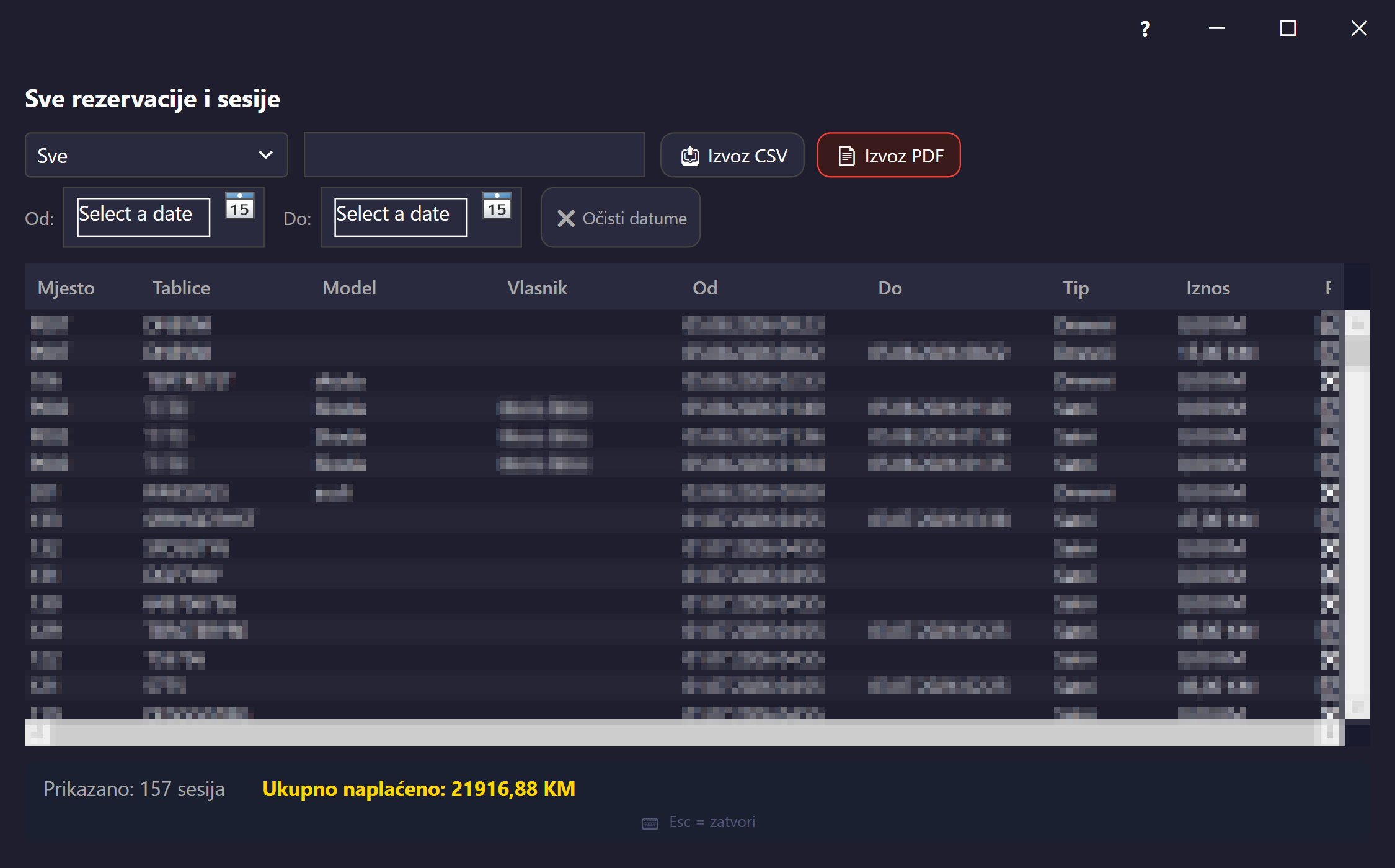
Tabelarni pregled svih parking sesija/rezervacija (mjesečnih, dnevnih i satnih) sa filterom (sve/mjesečno/satno/plaćeno/neplaćeno/dnevno), pretragom po tekstu i filterom po rasponu datuma. Otvara se iz toolbar dugmeta "Rezervacije" i menija "Upravljanje → Sve rezervacije". Dvoklik na red otvara detalje odabrane sesije; dugme "Označi plaćeno" je vidljivo kad je odabrana neplaćena stavka. Podržava izvoz u CSV i PDF.
Tablični pregled svih sesija parkiranja/rezervacija (mjesečnih, dnevnih i po satu) s filtrom (sve/mjesečno/po satu/plaćeno/neplaćeno/dnevno), pretraživanjem po tekstu i filtrom po rasponu datuma. Otvara se gumbom „Rezervacije” na alatnoj traci i izbornikom „Upravljanje → Sve rezervacije”. Dvostruki klik na redak otvara detalje odabrane sesije; gumb „Označi kao plaćeno” vidljiv je kada je odabrana neplaćena stavka. Podržava izvoz u CSV i PDF.
Tabelarni pregled svih parking sesija/rezervacija (mesečnih, dnevnih i po satu) sa filterom (sve/mesečno/po satu/plaćeno/neplaćeno/dnevno), pretragom po tekstu i filterom po rasponu datuma. Otvara se preko dugmeta „Rezervacije“ na traci sa alatkama i menija „Upravljanje → Sve rezervacije“. Dvoklik na red otvara detalje izabrane sesije; dugme „Označi kao plaćeno“ je vidljivo kada je izabrana neplaćena stavka. Podržava izvoz u CSV i PDF.
A tabular view of all parking sessions/reservations (monthly, daily, and hourly) with a filter (all/monthly/hourly/paid/unpaid/daily), text search, and a date-range filter. Opens from the "Reservations" toolbar button and the "Management → All reservations" menu. Double-clicking a row opens the details of the selected session; the "Mark paid" button is visible when an unpaid item is selected. Supports export to CSV and PDF.
Eine tabellarische Übersicht aller Parksitzungen/Reservierungen (monatlich, täglich und stündlich) mit einem Filter (alle/monatlich/stündlich/bezahlt/unbezahlt/täglich), Textsuche und einem Datumsbereichsfilter. Öffnet sich über die Symbolleisten-Schaltfläche „Reservierungen“ und das Menü „Verwaltung → Alle Reservierungen“. Ein Doppelklick auf eine Zeile öffnet die Details der ausgewählten Sitzung; die Schaltfläche „Als bezahlt markieren“ ist sichtbar, wenn ein unbezahlter Eintrag ausgewählt ist. Unterstützt den Export nach CSV und PDF.
Una vista tabular de todas las sesiones/reservas de parqueo (mensuales, diarias y por hora) con un filtro (todas/mensual/por hora/pagado/no pagado/diario), búsqueda de texto y un filtro de rango de fechas. Se abre desde el botón "Reservas" de la barra de herramientas y el menú "Gestión → Todas las reservas". Al hacer doble clic en una fila se abren los detalles de la sesión seleccionada; el botón "Marcar como pagado" es visible cuando se selecciona un elemento no pagado. Admite exportación a CSV y PDF.
Mjesečni klijentiMjesečni klijentiMesečni klijentiMonthly clientsMonatskundenClientes mensuales Resize#monthly-clients-window
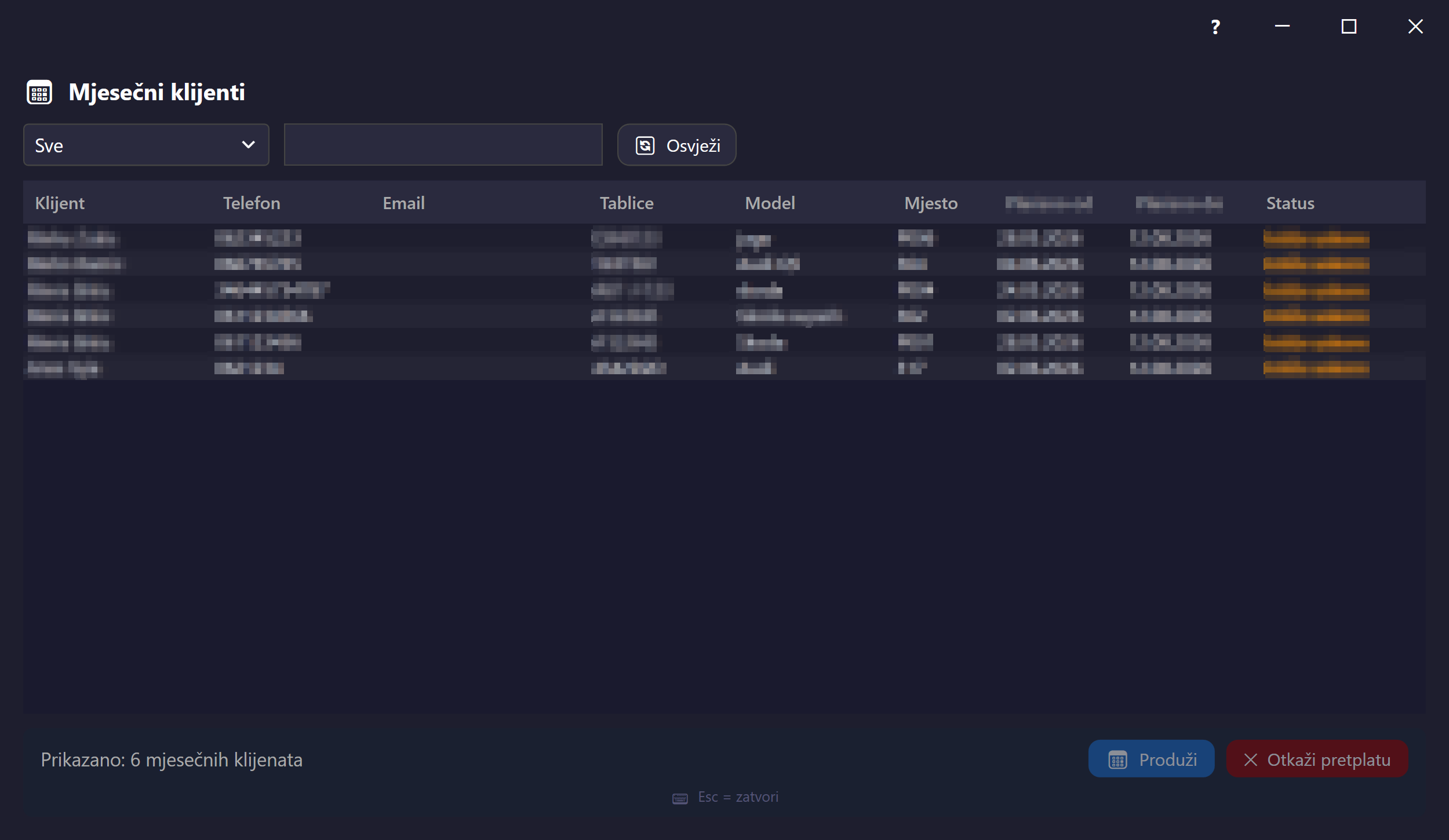
Pregled svih aktivnih mjesečnih zakupaca (klijent, telefon, email, tablica, model, mjesto, plaćeno od/do, status). Otvara se iz toolbar dugmeta i menija "Upravljanje → Mjesečni klijenti" te sa dashboard kartice. Filter (svi/uskoro ističe/isteklo) i pretraga po tekstu; klik na red otvara detalje/produženje zakupa preko dijaloga Produženje mjesečnog zakupa.
Pregled svih aktivnih mjesečnih zakupnika (klijent, telefon, e-pošta, registarska oznaka, model, mjesto, plaćeno od/do, status). Otvara se gumbom na alatnoj traci, izbornikom „Upravljanje → Mjesečni klijenti” i s kartice na nadzornoj ploči. Filtar (svi/uskoro istječe/isteklo) i pretraživanje po tekstu; klik na redak otvara detalje/produljenje najma putem dijaloga Produljenje mjesečnog najma.
Pregled svih aktivnih mesečnih zakupaca (klijent, telefon, email, tablica, model, mesto, plaćeno od/do, status). Otvara se preko dugmeta na traci sa alatkama, menija „Upravljanje → Mesečni klijenti“ i sa kartice na dashboard-u. Filter (svi/uskoro ističe/isteklo) i pretraga po tekstu; klik na red otvara detalje/produženje zakupa preko dijaloga Produženje mesečnog zakupa.
An overview of all active monthly tenants (client, phone, email, plate, model, spot, paid from/to, status). Opens from the toolbar button and the "Management → Monthly clients" menu, as well as from the dashboard card. Filter (all/expiring soon/expired) and text search; clicking a row opens the details/extension of the lease via the Extend monthly lease dialog.
Eine Übersicht aller aktiven Monatsmieter (Kunde, Telefon, E-Mail, Kennzeichen, Modell, Platz, bezahlt von/bis, Status). Öffnet sich über die Symbolleisten-Schaltfläche und das Menü „Verwaltung → Monatskunden“ sowie über die Dashboard-Karte. Filter (alle/läuft bald ab/abgelaufen) und Textsuche; ein Klick auf eine Zeile öffnet die Details/Verlängerung des Mietverhältnisses über den Dialog Monatsmiete verlängern.
Una visión general de todos los inquilinos mensuales activos (cliente, teléfono, correo, matrícula, modelo, plaza, pagado desde/hasta, estado). Se abre desde el botón de la barra de herramientas y el menú "Gestión → Clientes mensuales", así como desde la tarjeta del panel. Filtro (todos/por vencer/vencido) y búsqueda de texto; al hacer clic en una fila se abren los detalles/extensión del arriendo mediante el diálogo Extender arriendo mensual.
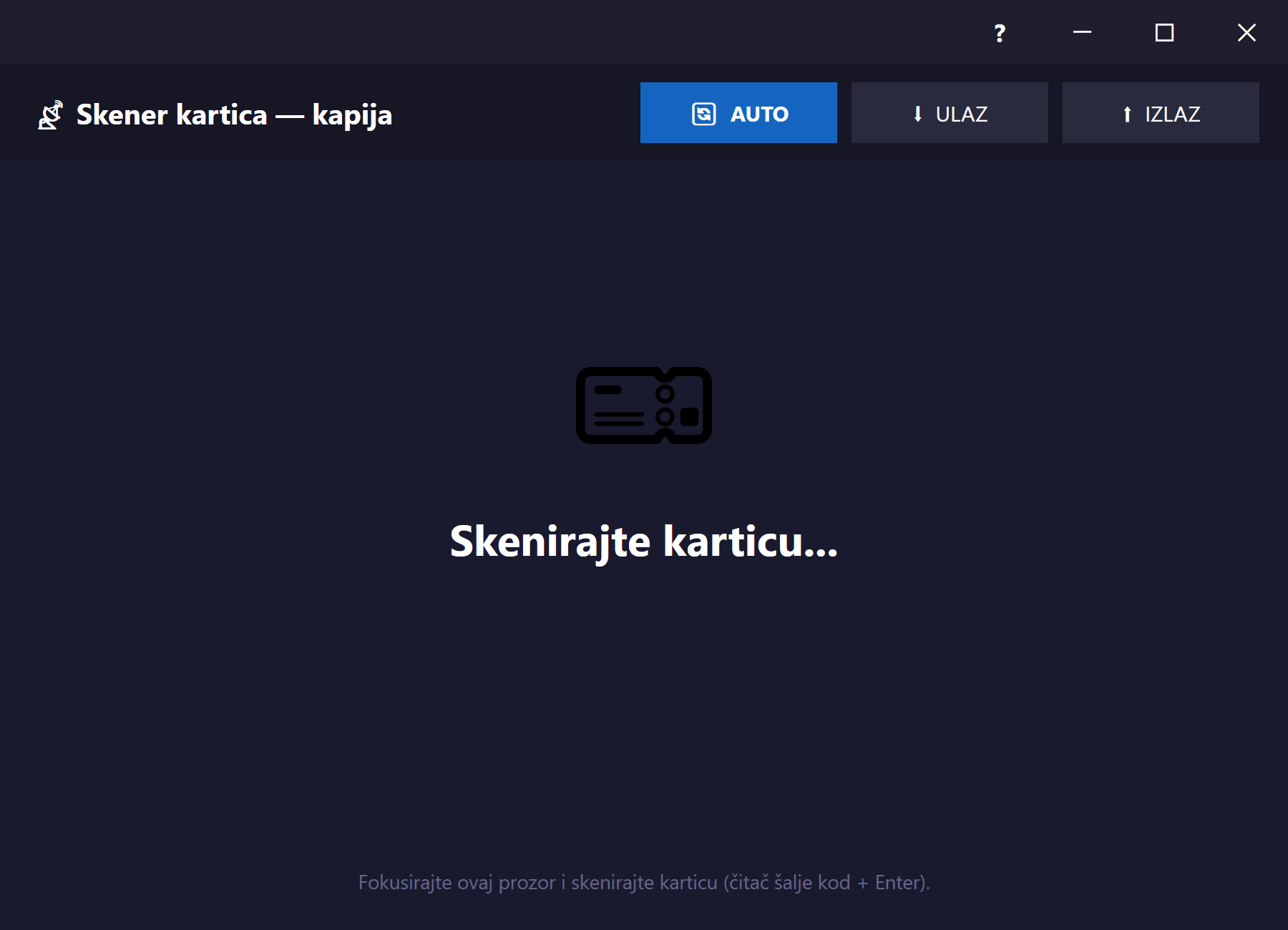
Kartice za pristup garažiPristupne kartice za garažuKartice za pristup garažiGarage access cardsZugangskarten für die GarageTarjetas de acceso al garaje Resize#cards-window
Prikazuje listu svih izdatih RFID kartica za pristup garaži (anti-passback kontrola na kapiji). Otvara se iz glavnog menija "Upravljanje → Kartice" ili iz bočne trake brzih akcija. Sadrži pretragu (po šifri kartice, imenu klijenta, telefonu ili registarskoj oznaci vozila), dugme za osvježavanje i dugme za novu karticu. Tabela prikazuje šifru kartice, klijenta, telefon, vozila, period važenja i status (obojen prema stanju). Dugmad Uredi/Produži/Obriši u dnu se aktiviraju tek kad je red selektovan, a "Produži" se posebno ističe kad kartici ističe važenje za manje od 10 dana ili je već istekla.
Prikazuje popis svih izdanih RFID kartica za pristup garaži (anti-passback kontrola na ulazu). Otvara se iz glavnog izbornika „Upravljanje → Kartice” ili iz bočne trake brzih radnji. Sadrži pretraživanje (po kodu kartice, imenu klijenta, telefonu ili registarskoj oznaci vozila), gumb za osvježavanje i gumb za novu karticu. Tablica prikazuje kod kartice, klijenta, telefon, vozila, razdoblje valjanosti i status (obojen prema stanju). Gumbi Uredi/Produlji/Izbriši na dnu aktiviraju se tek kada je redak odabran, a „Produlji” je posebno istaknut kada kartici valjanost istječe za manje od 10 dana ili je već istekla.
Prikazuje listu svih izdatih RFID kartica za pristup garaži (anti-passback kontrola na kapiji). Otvara se iz glavnog menija „Upravljanje → Kartice“ ili iz bočne trake brzih akcija. Sadrži pretragu (po kodu kartice, imenu klijenta, telefonu ili registarskoj oznaci vozila), dugme za osvežavanje i dugme za novu karticu. Tabela prikazuje kod kartice, klijenta, telefon, vozila, period važenja i status (obojen prema stanju). Dugmad Uredi/Produži/Obriši na dnu aktiviraju se tek kada je red selektovan, a „Produži“ se posebno ističe kada kartici važenje ističe za manje od 10 dana ili je već isteklo.
Shows a list of all issued RFID cards for garage access (anti-passback control at the gate). Opens from the main "Management → Cards" menu or from the sidebar quick actions. Contains a search (by card code, client name, phone, or license plate), a refresh button, and a new-card button. The table shows card code, client, phone, vehicles, validity period, and status (colored by state). The Edit/Extend/Delete buttons at the bottom activate only once a row is selected, and "Extend" is highlighted when a card expires in fewer than 10 days or has already expired.
Zeigt eine Liste aller ausgegebenen RFID-Karten für den Garagenzugang (Anti-Passback-Kontrolle an der Schranke). Öffnet sich über das Hauptmenü „Verwaltung → Karten“ oder über die Seitenleisten-Schnellaktionen. Enthält eine Suche (nach Kartencode, Kundenname, Telefon oder Kennzeichen), eine Aktualisieren-Schaltfläche und eine Schaltfläche für eine neue Karte. Die Tabelle zeigt Kartencode, Kunde, Telefon, Fahrzeuge, Gültigkeitszeitraum und Status (farblich nach Zustand). Die Schaltflächen Bearbeiten/Verlängern/Löschen unten werden erst aktiv, wenn eine Zeile ausgewählt ist, und „Verlängern“ wird besonders hervorgehoben, wenn eine Karte in weniger als 10 Tagen abläuft oder bereits abgelaufen ist.
Muestra una lista de todas las tarjetas RFID emitidas para el acceso al garaje (control anti-passback en la puerta). Se abre desde el menú principal "Gestión → Tarjetas" o desde las acciones rápidas de la barra lateral. Contiene una búsqueda (por código de tarjeta, nombre del cliente, teléfono o matrícula), un botón de actualizar y un botón para una nueva tarjeta. La tabla muestra el código de tarjeta, cliente, teléfono, vehículos, período de validez y estado (coloreado según el estado). Los botones Editar/Extender/Eliminar en la parte inferior se activan solo cuando se selecciona una fila, y "Extender" se resalta especialmente cuando a una tarjeta le quedan menos de 10 días o ya ha vencido.
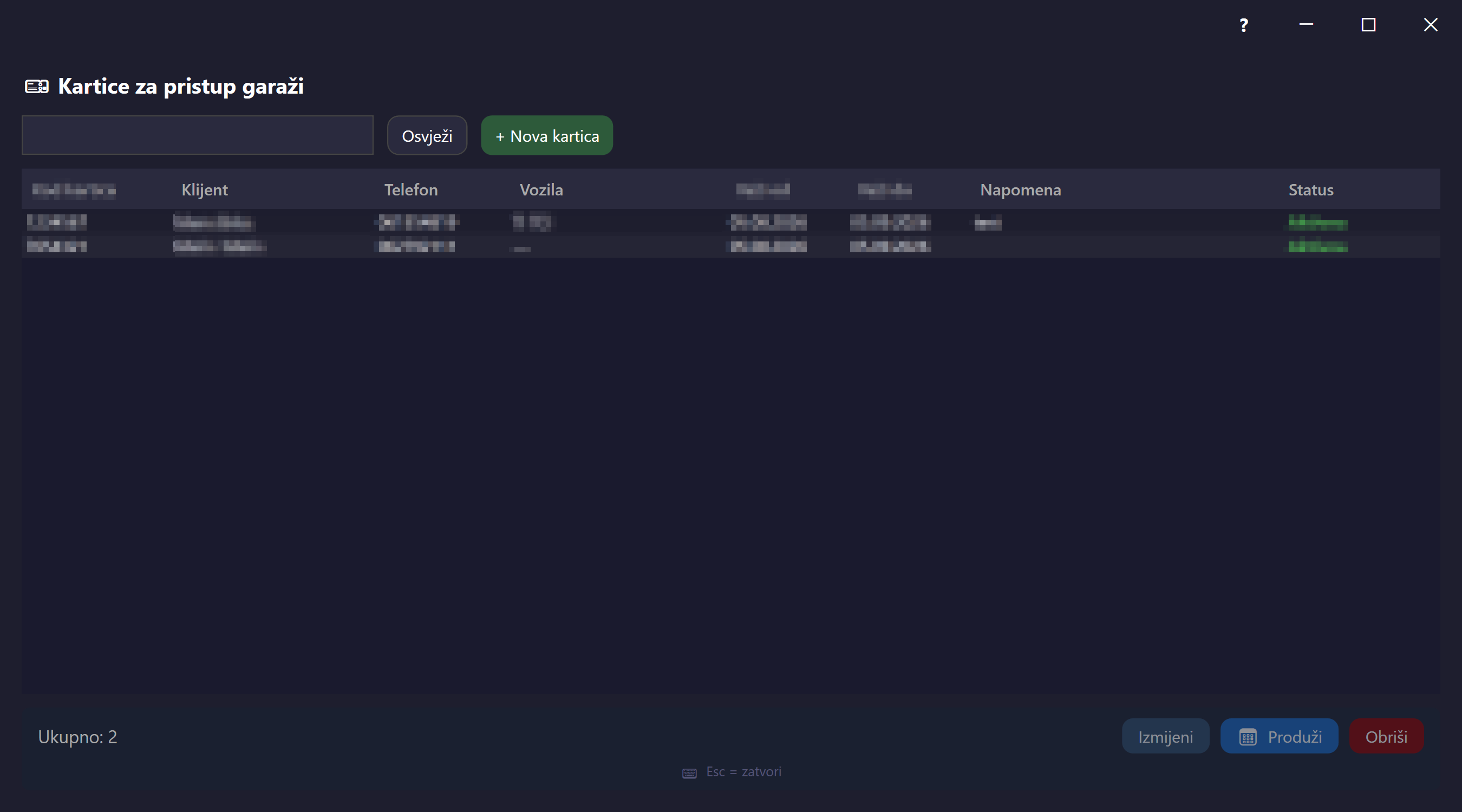
Kreiranje / uređivanje karticeIzrada / uređivanje karticeKreiranje / uređivanje karticeCreate / edit cardKarte erstellen / bearbeitenCrear / editar tarjeta Fiksna veličinaFiksna veličinaFiksna veličinaFixed sizeFeste GrößeTamaño fijo#card-edit-dialog
Modalni dijalog za kreiranje nove ili izmjenu postojeće kartice, otvara se iz prozora Kartice klikom na "Nova" ili "Uredi". Kod nove kartice nudi pretragu i odabir klijenta (po imenu, telefonu ili registraciji), a kod izmjene je klijent i šifra kartice zaključana. Nakon odabira klijenta generiše se lista njegovih vozila kao checkbox-ovi (bira se koja vozila kartica pokriva). Ostala polja: šifra kartice, period važenja (sa brzim dugmadima +1/+3/+6/+12 mjeseci), napomena, te checkbox aktivnosti kartice (vidljiv samo pri izmjeni).
Modalni dijalog za izradu nove ili izmjenu postojeće kartice, otvara se iz prozora Kartice klikom na „Nova” ili „Uredi”. Kod nove kartice nudi pretraživanje i odabir klijenta (po imenu, telefonu ili registarskoj oznaci), a kod izmjene su klijent i kod kartice zaključani. Nakon odabira klijenta prikazuje se popis njegovih vozila kao potvrdni okviri (odabire se koja vozila kartica pokriva). Ostala polja: kod kartice, razdoblje valjanosti (s brzim gumbima +1/+3/+6/+12 mjeseci), napomena te potvrdni okvir aktivnosti kartice (vidljiv samo pri izmjeni).
Modalni dijalog za kreiranje nove ili izmenu postojeće kartice, otvara se iz prozora Kartice klikom na „Nova“ ili „Uredi“. Kod nove kartice nudi pretragu i izbor klijenta (po imenu, telefonu ili registraciji), a kod izmene su klijent i kod kartice zaključani. Nakon izbora klijenta prikazuje se lista njegovih vozila kao polja za potvrdu (bira se koja vozila kartica pokriva). Ostala polja: kod kartice, period važenja (sa brzim dugmićima +1/+3/+6/+12 meseci), napomena i polje za aktivnost kartice (vidljivo samo pri izmeni).
A modal dialog for creating a new card or editing an existing one, opened from the Cards window by clicking "New" or "Edit". For a new card it offers searching for and selecting a client (by name, phone, or plate), while on edit the client and card code are locked. After selecting a client, a list of their vehicles is generated as checkboxes (choose which vehicles the card covers). Other fields: card code, validity period (with quick +1/+3/+6/+12-month buttons), a note, and an active-card checkbox (visible only when editing).
Ein modaler Dialog zum Erstellen einer neuen oder Bearbeiten einer bestehenden Karte, geöffnet aus dem Fenster Karten durch Klicken auf „Neu“ oder „Bearbeiten“. Bei einer neuen Karte bietet er die Suche und Auswahl eines Kunden (nach Name, Telefon oder Kennzeichen), während beim Bearbeiten Kunde und Kartencode gesperrt sind. Nach der Auswahl eines Kunden wird eine Liste seiner Fahrzeuge als Kontrollkästchen erzeugt (Auswahl, welche Fahrzeuge die Karte abdeckt). Weitere Felder: Kartencode, Gültigkeitszeitraum (mit Schnellschaltflächen +1/+3/+6/+12 Monate), eine Notiz und ein Kontrollkästchen für aktive Karte (nur beim Bearbeiten sichtbar).
Un diálogo modal para crear una nueva tarjeta o editar una existente, se abre desde la ventana Tarjetas haciendo clic en "Nueva" o "Editar". Para una tarjeta nueva ofrece buscar y seleccionar un cliente (por nombre, teléfono o matrícula), mientras que al editar el cliente y el código de tarjeta están bloqueados. Tras seleccionar un cliente, se genera una lista de sus vehículos como casillas de verificación (elegir qué vehículos cubre la tarjeta). Otros campos: código de tarjeta, período de validez (con botones rápidos +1/+3/+6/+12 meses), una nota y una casilla de tarjeta activa (visible solo al editar).
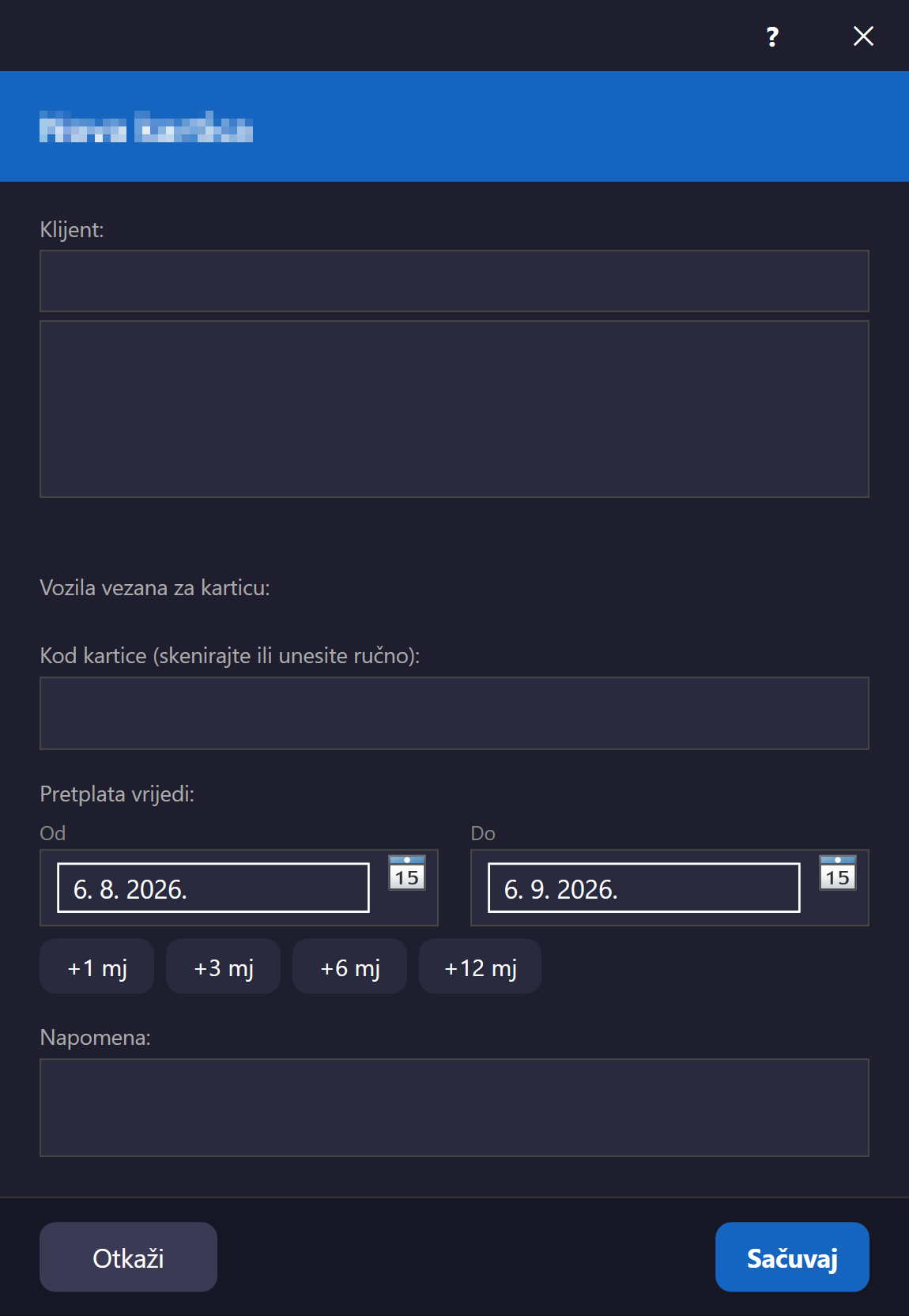
Produženje važenja karticeProduljenje valjanosti karticeProduženje važenja karticeExtend card validityKartengültigkeit verlängernExtender validez de la tarjeta Fiksna veličinaFiksna veličinaFiksna veličinaFixed sizeFeste GrößeTamaño fijo#extend-card-dialog
Modalni dijalog otvoren iz prozora Kartice klikom na "Produži". Prikazuje klijenta, šifru kartice i trenutni datum isteka, zatim nudi brze dugmadi (+1/+3/+6/+12 mjeseci) ili ručni unos broja mjeseci, uz živi prikaz novog datuma isteka (računa se od trenutnog datuma isteka ako je još u budućnosti, inače od danas). Enter potvrđuje akciju.
Modalni dijalog koji se otvara iz prozora Kartice klikom na „Produlji”. Prikazuje klijenta, kod kartice i trenutačni datum isteka, a zatim nudi brze gumbe (+1/+3/+6/+12 mjeseci) ili ručni unos broja mjeseci, uz prikaz novog datuma isteka uživo (računa se od trenutačnog datuma isteka ako je još u budućnosti, inače od danas). Enter potvrđuje radnju.
Modalni dijalog koji se otvara iz prozora Kartice klikom na „Produži“. Prikazuje klijenta, kod kartice i trenutni datum isteka, zatim nudi brze dugmiće (+1/+3/+6/+12 meseci) ili ručni unos broja meseci, uz prikaz novog datuma isteka uživo (računa se od trenutnog datuma isteka ako je još u budućnosti, inače od danas). Enter potvrđuje akciju.
A modal dialog opened from the Cards window by clicking "Extend". Shows the client, card code, and current expiry date, then offers quick buttons (+1/+3/+6/+12 months) or manual entry of the number of months, with a live preview of the new expiry date (calculated from the current expiry date if it's still in the future, otherwise from today). Enter confirms the action.
Ein modaler Dialog, geöffnet aus dem Fenster Karten durch Klicken auf „Verlängern“. Zeigt den Kunden, den Kartencode und das aktuelle Ablaufdatum, bietet dann Schnellschaltflächen (+1/+3/+6/+12 Monate) oder die manuelle Eingabe der Monatsanzahl, mit einer Live-Vorschau des neuen Ablaufdatums (berechnet ab dem aktuellen Ablaufdatum, falls dieses noch in der Zukunft liegt, andernfalls ab heute). Enter bestätigt die Aktion.
Un diálogo modal abierto desde la ventana Tarjetas haciendo clic en "Extender". Muestra el cliente, el código de tarjeta y la fecha de vencimiento actual, luego ofrece botones rápidos (+1/+3/+6/+12 meses) o la entrada manual del número de meses, con una vista previa en vivo de la nueva fecha de vencimiento (calculada desde la fecha de vencimiento actual si aún está en el futuro, o desde hoy en caso contrario). Enter confirma la acción.
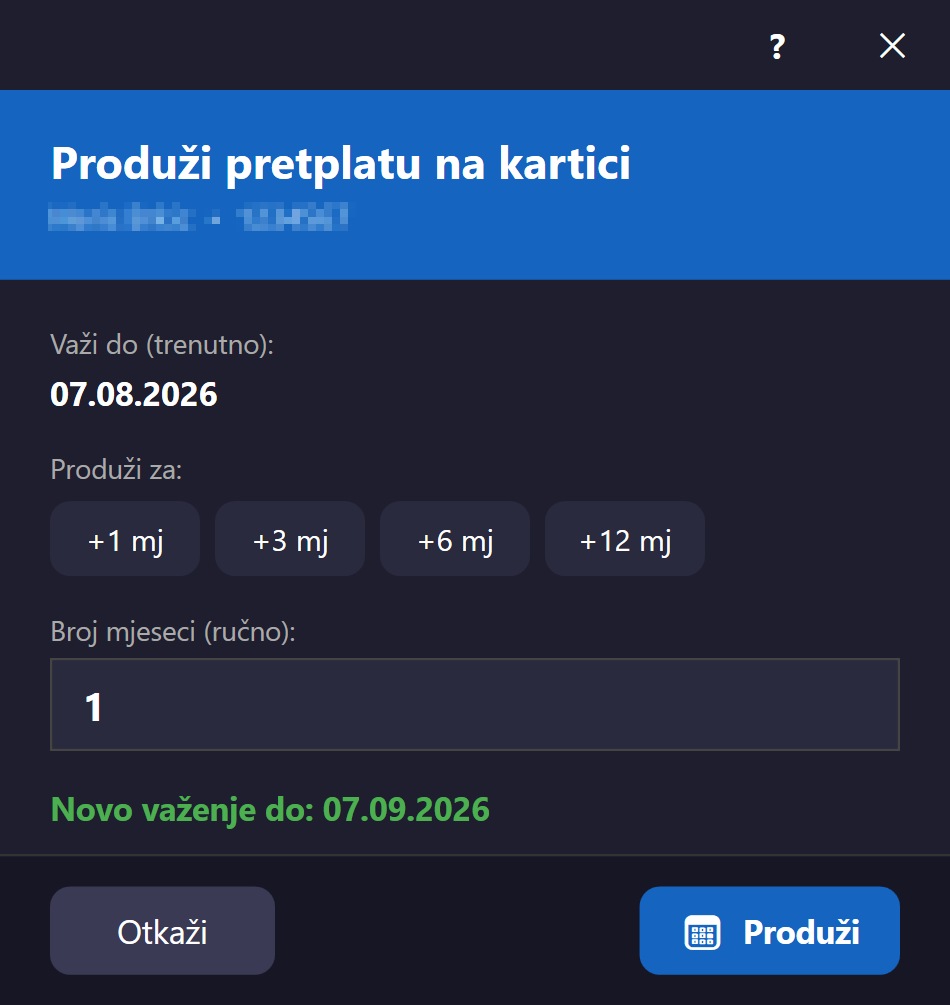
Skener na kapijiSkener na ulazuSkener na kapijiGate scannerSchrankenscannerEscáner de puerta Resize#gate-scanner-window
Kiosk-stil ekran namijenjen stanici na kapiji garaže, otvara se iz menija "Upravljanje → Skener na kapiji" kao samostalan prozor. Ima tri režima rada — Auto/Ulaz/Izlaz — birljiva preko dugmadi na vrhu, dok skriveno uvijek-fokusirano polje hvata unos RFID skenera (šifra + Enter). Nakon skeniranja prikazuje veliku poruku i pozadinu u boji koja odražava ishod radnje (zeleno = odobreno, crveno = odbijeno — uvijek crveno kod odbijanja, čak i ako je kartica inače validna, npr. odbijena zbog anti-passback provjere, da se ne stekne lažan utisak odobrenja), plus detalje o klijentu, vozilu i mjestu. Ako klijent ima više vozila registrovanih na karticu, korisnik bira tačno koje vozilo ulazi/izlazi prije potvrde. Ekran se automatski vraća u stanje mirovanja 6 sekundi nakon rezultata.
Zaslon u stilu kioska namijenjen stanici na ulazu u garažu, otvara se iz izbornika „Upravljanje → Skener na ulazu” kao samostalan prozor. Ima tri načina rada — Auto/Ulaz/Izlaz — koji se biraju gumbima na vrhu, dok skriveno, uvijek fokusirano polje prima unos RFID skenera (kod + Enter). Nakon skeniranja prikazuje veliku poruku i pozadinu u boji koja odražava ishod (zeleno = odobreno, crveno = odbijeno — uvijek crveno pri odbijanju, čak i ako je kartica inače valjana, npr. odbijena zbog anti-passback provjere, kako se ne bi stekao lažan dojam odobrenja), uz detalje o klijentu, vozilu i mjestu. Ako klijent ima više vozila registriranih na kartici, korisnik prije potvrde odabire koje točno vozilo ulazi/izlazi. Zaslon se automatski vraća u stanje mirovanja 6 sekundi nakon rezultata.
Ekran u stilu kioska namenjen stanici na kapiji garaže, otvara se iz menija „Upravljanje → Skener na kapiji“ kao samostalan prozor. Ima tri režima rada — Auto/Ulaz/Izlaz — koji se biraju dugmićima na vrhu, dok skriveno, uvek fokusirano polje prima unos RFID skenera (kod + Enter). Nakon skeniranja prikazuje veliku poruku i pozadinu u boji koja odražava ishod radnje (zeleno = odobreno, crveno = odbijeno — uvek crveno pri odbijanju, čak i ako je kartica inače važeća, npr. odbijena zbog anti-passback provere, da se ne bi stekao lažan utisak odobrenja), uz detalje o klijentu, vozilu i mestu. Ako klijent ima više vozila registrovanih na kartici, korisnik pre potvrde bira tačno koje vozilo ulazi/izlazi. Ekran se automatski vraća u stanje mirovanja 6 sekundi nakon rezultata.
A kiosk-style screen intended for the garage gate station, opened from the "Management → Gate scanner" menu as a standalone window. Has three operating modes — Auto/Entry/Exit — selectable via buttons at the top, while a hidden, always-focused field captures RFID scanner input (code + Enter). After a scan it shows a large message and a background color reflecting the outcome (green = approved, red = denied — always red on denial, even if the card is otherwise valid, e.g. denied due to an anti-passback check, so as not to give a false impression of approval), plus details about the client, vehicle, and spot. If the client has more than one vehicle registered on the card, the user chooses exactly which vehicle is entering/exiting before confirming. The screen automatically returns to idle 6 seconds after the result.
Ein Kiosk-artiger Bildschirm für die Schrankenstation der Garage, geöffnet über das Menü „Verwaltung → Schrankenscanner“ als eigenständiges Fenster. Hat drei Betriebsmodi — Auto/Einfahrt/Ausfahrt — auswählbar über Schaltflächen oben, während ein verstecktes, immer fokussiertes Feld die Eingabe des RFID-Scanners erfasst (Code + Enter). Nach einem Scan zeigt er eine große Meldung und eine Hintergrundfarbe, die das Ergebnis widerspiegelt (grün = genehmigt, rot = abgelehnt — bei Ablehnung immer rot, selbst wenn die Karte sonst gültig ist, z. B. wegen einer Anti-Passback-Prüfung abgelehnt, um keinen falschen Eindruck einer Genehmigung zu erwecken), plus Details zu Kunde, Fahrzeug und Platz. Hat der Kunde mehr als ein Fahrzeug auf der Karte registriert, wählt der Benutzer vor der Bestätigung genau aus, welches Fahrzeug ein-/ausfährt. Der Bildschirm kehrt 6 Sekunden nach dem Ergebnis automatisch in den Ruhezustand zurück.
Una pantalla de tipo quiosco pensada para la estación de la puerta del garaje, abierta desde el menú "Gestión → Escáner de puerta" como ventana independiente. Tiene tres modos de operación — Auto/Entrada/Salida — seleccionables mediante botones en la parte superior, mientras que un campo oculto y siempre enfocado captura la entrada del escáner RFID (código + Enter). Tras un escaneo muestra un mensaje grande y un color de fondo que refleja el resultado (verde = aprobado, rojo = denegado — siempre rojo en caso de denegación, incluso si la tarjeta es válida por lo demás, p. ej. denegada por una verificación anti-passback, para no dar una falsa impresión de aprobación), además de detalles del cliente, vehículo y plaza. Si el cliente tiene más de un vehículo registrado en la tarjeta, el usuario elige exactamente qué vehículo entra/sale antes de confirmar. La pantalla vuelve automáticamente al estado de reposo 6 segundos después del resultado.
IzvještajiIzvješćaIzveštajiReportsBerichteInformes Resize#reports-window
Jedan te isti prozor koristi se za sve vrste izvještaja u aplikaciji — koji izvještaj se prikaže zavisi od tipa proslijeđenog pri otvaranju (Dnevni, Sedmični, Mjesečni, Kvartalni, Polugodišnji, Godišnji, Po zoni, Heatmap, Finansije, Po smjeni, Po rasponu datuma, Statistika). Otvara se iz menija "Izvještaji" u glavnom prozoru (svaka stavka menija poziva isti prozor sa drugim tipom), sa dashboard kartica, i iz bočne trake brzih akcija (Finansije, Heatmap). Sadrži traku za odabir perioda (datum/mjesec/godina/kvartal/raspon, zavisno od tipa) sa navigacijom naprijed/nazad, glavni prikaz statistike i izvoz u TXT, PDF (sa memorandumom firme) i direktno štampanje.
Jedan te isti prozor koristi se za sve vrste izvješća u aplikaciji — koje će se izvješće prikazati ovisi o vrsti proslijeđenoj pri otvaranju (Dnevno, Tjedno, Mjesečno, Tromjesečno, Polugodišnje, Godišnje, Po zoni, Toplinska karta, Financije, Po smjeni, Po rasponu datuma, Statistika). Otvara se iz izbornika „Izvješća” u glavnom prozoru (svaka stavka izbornika poziva isti prozor s drugom vrstom), s kartica nadzorne ploče i iz bočne trake brzih radnji (Financije, Toplinska karta). Sadrži traku za odabir razdoblja (datum/mjesec/godina/tromjesečje/raspon, ovisno o vrsti) s navigacijom naprijed/natrag, glavni prikaz statistike i izvoz u TXT, PDF (s memorandumom tvrtke) te izravan ispis.
Jedan te isti prozor koristi se za sve vrste izveštaja u aplikaciji — koji će se izveštaj prikazati zavisi od tipa prosleđenog pri otvaranju (Dnevni, Nedeljni, Mesečni, Kvartalni, Polugodišnji, Godišnji, Po zoni, Toplotna mapa, Finansije, Po smeni, Po rasponu datuma, Statistike). Otvara se iz menija „Izveštaji“ u glavnom prozoru (svaka stavka menija poziva isti prozor sa drugim tipom), sa kartica dashboard-a i iz bočne trake brzih akcija (Finansije, Toplotna mapa). Sadrži traku za izbor perioda (datum/mesec/godina/kvartal/raspon, zavisno od tipa) sa navigacijom napred/nazad, glavni prikaz statistike i izvoz u TXT, PDF (sa memorandumom firme) i direktno štampanje.
One and the same window is used for every report type in the app — which report is shown depends on the type passed in when it's opened (Daily, Weekly, Monthly, Quarterly, Semi-annual, Yearly, By zone, Heatmap, Finance, By shift, By date range, Statistics). Opens from the "Reports" menu on the main window (each menu item calls the same window with a different type), from dashboard cards, and from the sidebar quick actions (Finance, Heatmap). Contains a period-selection bar (date/month/year/quarter/range, depending on type) with forward/back navigation, the main statistics view, and export to TXT, PDF (with the company letterhead), and direct printing.
Ein und dasselbe Fenster wird für alle Berichtstypen in der Anwendung verwendet — welcher Bericht angezeigt wird, hängt vom beim Öffnen übergebenen Typ ab (Täglich, Wöchentlich, Monatlich, Quartalsweise, Halbjährlich, Jährlich, Nach Zone, Heatmap, Finanzen, Nach Schicht, Nach Datumsbereich, Statistik). Öffnet sich über das Menü „Berichte“ im Hauptfenster (jeder Menüpunkt ruft dasselbe Fenster mit einem anderen Typ auf), über Dashboard-Karten und über die Seitenleisten-Schnellaktionen (Finanzen, Heatmap). Enthält eine Zeitraum-Auswahlleiste (Datum/Monat/Jahr/Quartal/Bereich, je nach Typ) mit Vor-/Zurück-Navigation, die Hauptstatistikansicht und Export nach TXT, PDF (mit Firmenbriefkopf) sowie Direktdruck.
Se utiliza una misma ventana para todos los tipos de informes de la aplicación — qué informe se muestra depende del tipo pasado al abrirla (Diario, Semanal, Mensual, Trimestral, Semestral, Anual, Por zona, Mapa de calor, Finanzas, Por turno, Por rango de fechas, Estadísticas). Se abre desde el menú "Informes" en la ventana principal (cada elemento del menú llama a la misma ventana con un tipo diferente), desde las tarjetas del panel y desde las acciones rápidas de la barra lateral (Finanzas, Mapa de calor). Contiene una barra de selección de período (fecha/mes/año/trimestre/rango, según el tipo) con navegación adelante/atrás, la vista principal de estadísticas y exportación a TXT, PDF (con el encabezado de la empresa) e impresión directa.
Audit log Resize#audit-log-window
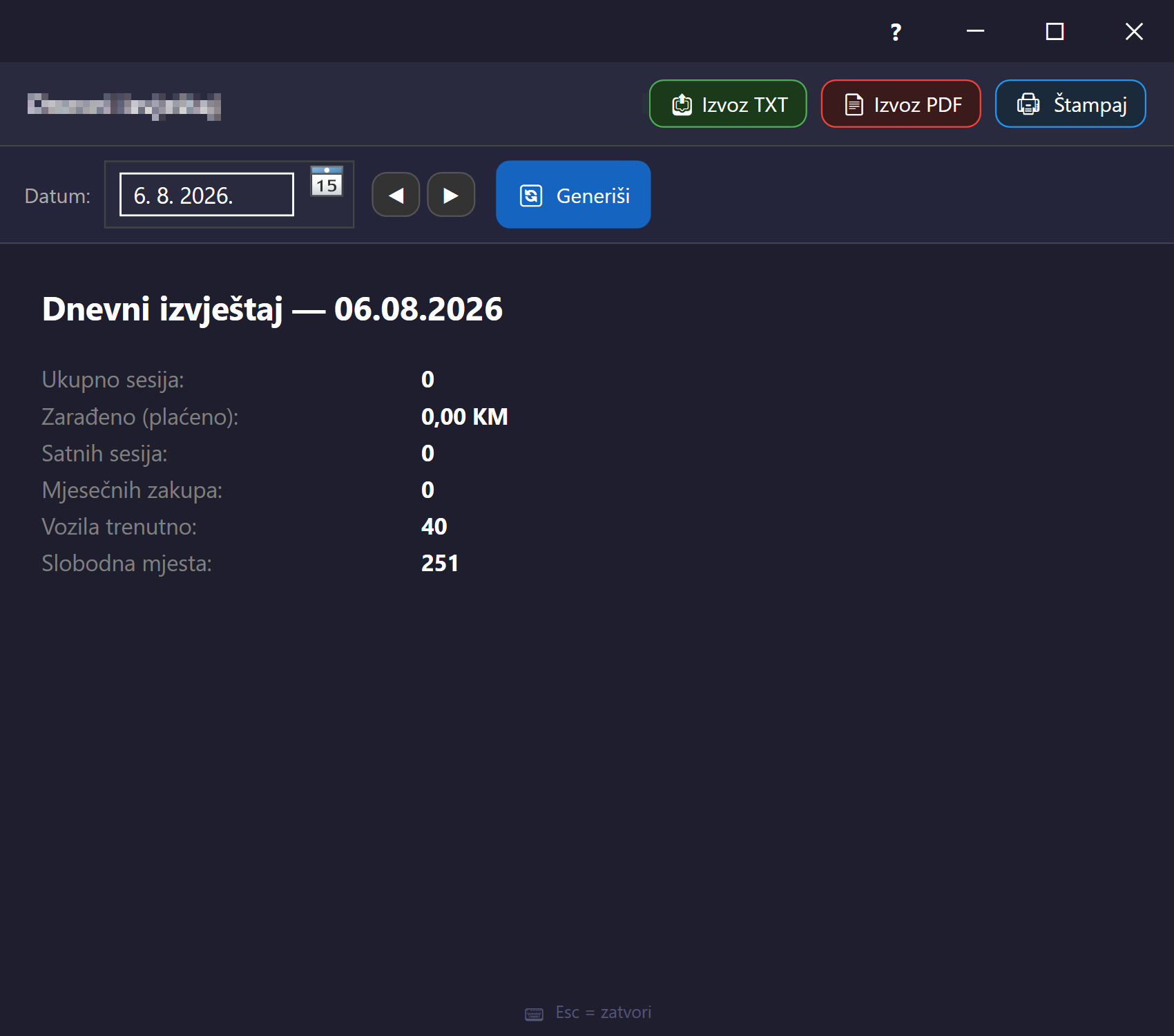
Prikazuje istoriju svih zabilježenih akcija korisnika u sistemu (prijava/odjava, dodavanje/uklanjanje mjesta, promjena statusa, početak/kraj sesije, plaćanje, promjena cijena, snimanje rasporeda, promjena postavki/profila). Otvara se iz menija "Upravljanje → Audit log" ili sa dashboard kartice "Audit log". Ima pretragu po tekstu, filter po tipu akcije (dropdown), filter po rasponu datuma i izvoz u CSV.
Prikazuje povijest svih zabilježenih radnji korisnika u sustavu (prijava/odjava, dodavanje/uklanjanje mjesta, promjena statusa, početak/kraj sesije, plaćanje, promjena cijena, spremanje rasporeda, promjena postavki/profila). Otvara se iz izbornika „Upravljanje → Audit log” ili s kartice „Audit log” na nadzornoj ploči. Ima pretraživanje po tekstu, filtar po vrsti radnje (padajući popis), filtar po rasponu datuma i izvoz u CSV.
Prikazuje istoriju svih zabeleženih akcija korisnika u sistemu (prijava/odjava, dodavanje/uklanjanje mesta, promena statusa, početak/kraj sesije, plaćanje, promena cena, snimanje rasporeda, promena podešavanja/profila). Otvara se iz menija „Upravljanje → Audit log“ ili sa kartice „Audit log“ na dashboard-u. Ima pretragu po tekstu, filter po tipu akcije (padajuća lista), filter po rasponu datuma i izvoz u CSV.
Shows the history of every logged user action in the system (login/logout, adding/removing spots, status changes, session start/end, payment, price changes, layout saves, settings/profile changes). Opens from the "Management → Audit log" menu or from the dashboard's "Audit log" card. Has text search, a filter by action type (dropdown), a date-range filter, and CSV export.
Zeigt die Historie aller protokollierten Benutzeraktionen im System (An-/Abmeldung, Hinzufügen/Entfernen von Plätzen, Statusänderungen, Sitzungsbeginn/-ende, Zahlung, Preisänderungen, Layout-Speicherungen, Einstellungs-/Profiländerungen). Öffnet sich über das Menü „Verwaltung → Audit-Protokoll“ oder über die Dashboard-Karte „Audit-Protokoll“. Bietet Textsuche, einen Filter nach Aktionstyp (Dropdown), einen Datumsbereichsfilter und CSV-Export.
Muestra el historial de todas las acciones de usuario registradas en el sistema (inicio/cierre de sesión, agregar/quitar plazas, cambios de estado, inicio/fin de sesión de parqueo, pago, cambios de precios, guardado de diseño, cambios de configuración/perfil). Se abre desde el menú "Gestión → Registro de auditoría" o desde la tarjeta "Registro de auditoría" del panel. Tiene búsqueda de texto, un filtro por tipo de acción (desplegable), un filtro de rango de fechas y exportación a CSV.
FaktureRačuniFaktureInvoicesRechnungenFacturas Resize#fakture-window
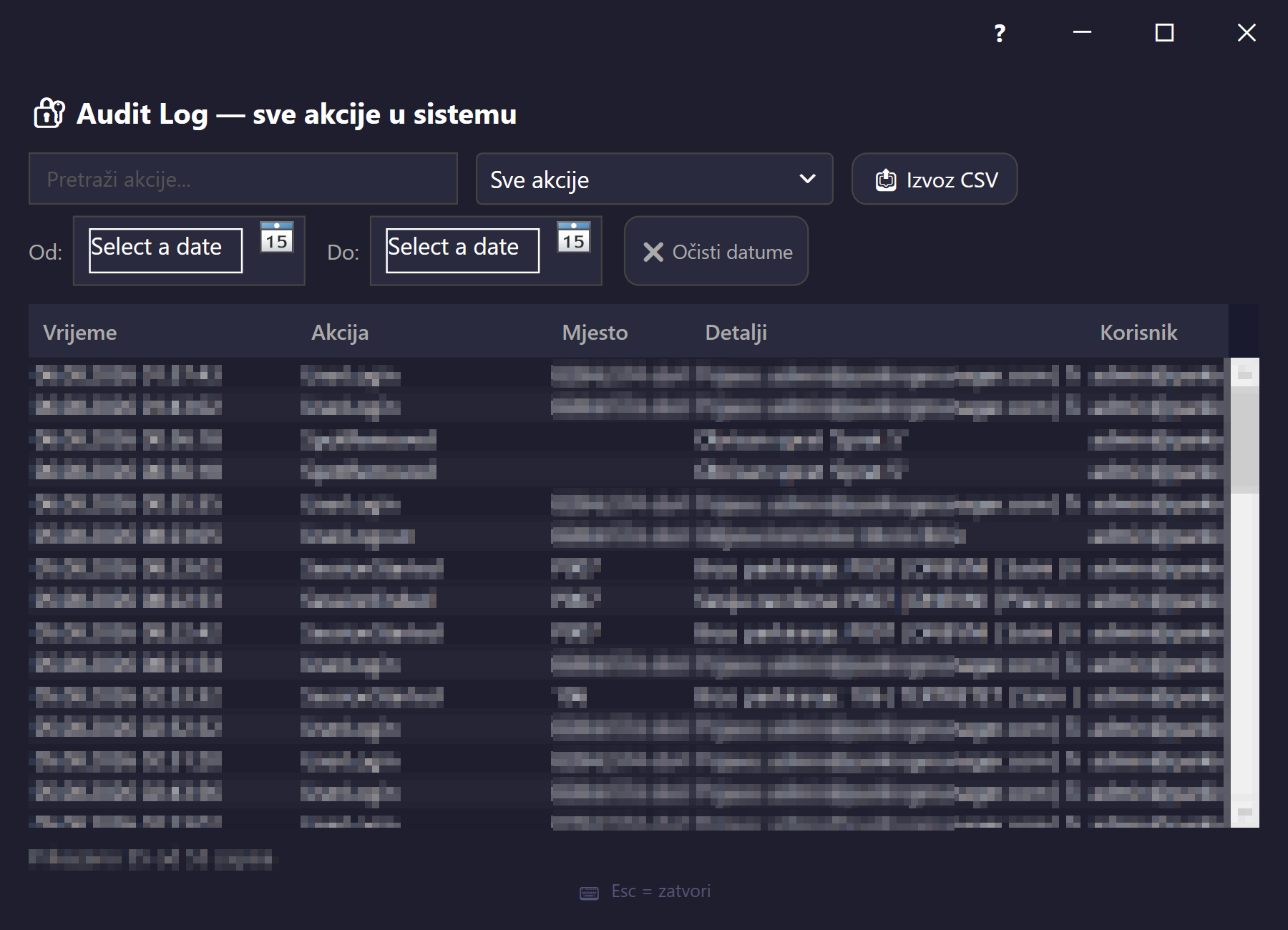
Otvara se iz glavnog menija "Fakture". Prikazuje listu izdatih faktura tenanta u tabeli (broj fakture, klijent, registracije, iznos, status obojen — neplaćeno/crveno, plaćeno/zeleno, u obradi/žuto, datum izdavanja). Za svaku fakturu nudi preuzimanje/otvaranje PDF-a i, samo za neplaćene fakture, dugme "Označi plaćeno" (za naplatu na licu mjesta na rampi).
Otvara se iz glavnog izbornika „Računi”. Prikazuje popis izdanih računa tenanta u tablici (broj računa, klijent, registarske oznake, iznos, status u boji — neplaćeno/crveno, plaćeno/zeleno, u obradi/žuto, datum izdavanja). Za svaki račun nudi preuzimanje/otvaranje PDF-a i, samo za neplaćene račune, gumb „Označi kao plaćeno” (za naplatu na licu mjesta na rampi).
Otvara se iz glavnog menija „Fakture“. Prikazuje listu izdatih faktura tenanta u tabeli (broj fakture, klijent, registracije, iznos, status u boji — neplaćeno/crveno, plaćeno/zeleno, u obradi/žuto, datum izdavanja). Za svaku fakturu nudi preuzimanje/otvaranje PDF-a i, samo za neplaćene fakture, dugme „Označi kao plaćeno“ (za naplatu na licu mesta na rampi).
Opens from the main "Invoices" menu. Shows a list of the tenant's issued invoices in a table (invoice number, client, plates, amount, color-coded status — unpaid/red, paid/green, processing/yellow, issue date). For each invoice it offers downloading/opening the PDF and, only for unpaid invoices, a "Mark paid" button (for on-the-spot payment at the barrier).
Öffnet sich über das Hauptmenü „Rechnungen“. Zeigt eine Liste der ausgestellten Rechnungen des Mandanten in einer Tabelle (Rechnungsnummer, Kunde, Kennzeichen, Betrag, farbcodierter Status — unbezahlt/rot, bezahlt/grün, in Bearbeitung/gelb, Ausstellungsdatum). Bietet für jede Rechnung das Herunterladen/Öffnen des PDFs und, nur für unbezahlte Rechnungen, eine Schaltfläche „Als bezahlt markieren“ (für die Zahlung vor Ort an der Schranke).
Se abre desde el menú principal "Facturas". Muestra una lista de las facturas emitidas del inquilino en una tabla (número de factura, cliente, matrículas, importe, estado codificado por color — no pagada/rojo, pagada/verde, en proceso/amarillo, fecha de emisión). Para cada factura ofrece descargar/abrir el PDF y, solo para facturas no pagadas, un botón "Marcar como pagada" (para el pago en el momento en la barrera).
Crna lista vozilaCrna lista vozilaCrna lista vozilaVehicle blacklistFahrzeug-SperrlisteLista negra de vehículos Resize#blacklist-window
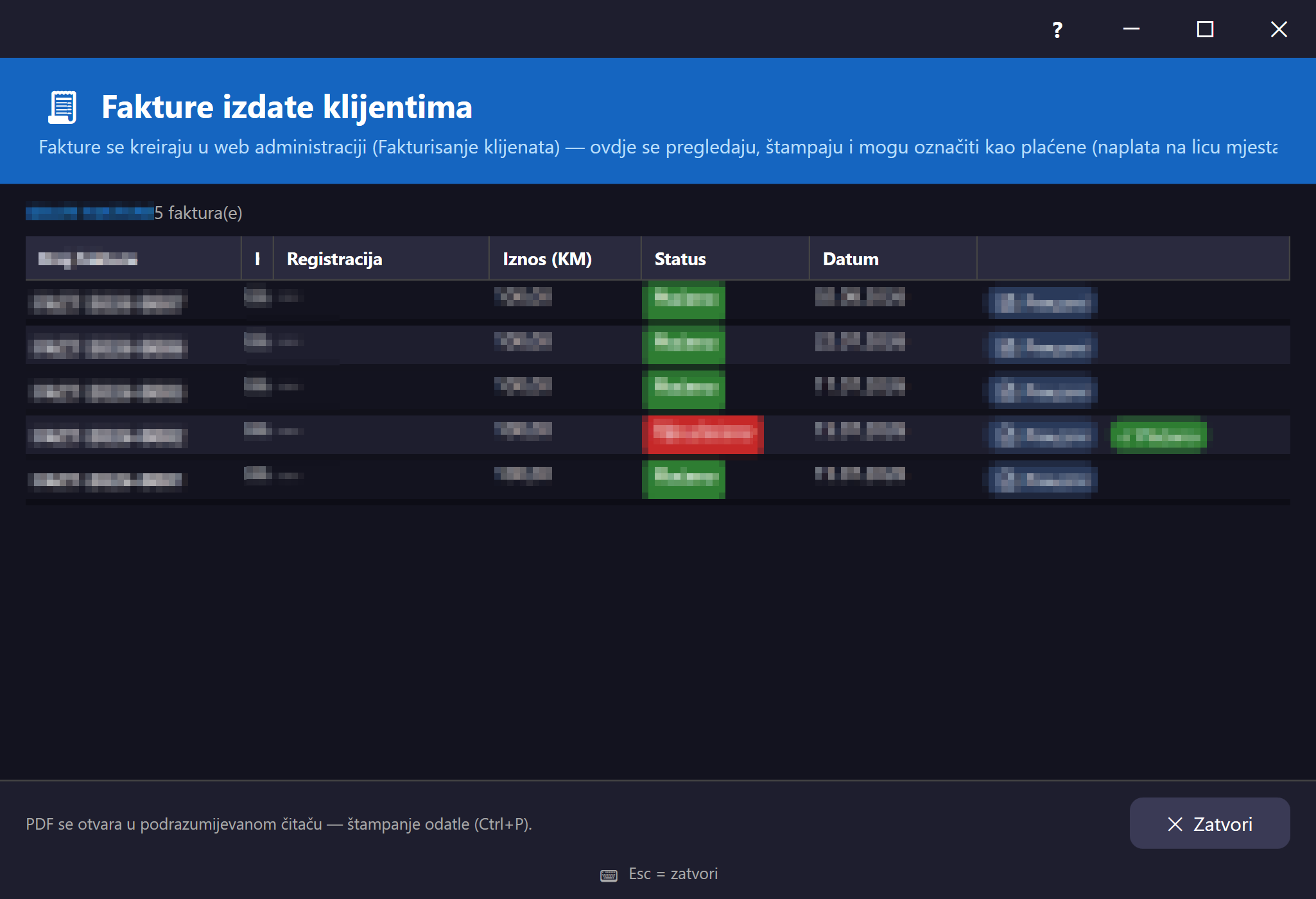
Upravljanje crnom listom registarskih oznaka — vozila kojima je zabranjen/označen ulazak. Otvara se iz menija "Upravljanje → Crna lista". Gornji dio ima formu za dodavanje nove tablice (registracija + razlog), donji dio prikazuje tabelu postojećih unosa sa dugmetom za uklanjanje po redu (uz potvrdu).
Upravljanje crnom listom registarskih oznaka — vozila kojima je ulazak zabranjen ili označen. Otvara se iz izbornika „Upravljanje → Crna lista”. Gornji dio ima obrazac za dodavanje nove registarske oznake (registarska oznaka + razlog), a donji dio prikazuje tablicu postojećih unosa s gumbom za uklanjanje u svakom retku (uz potvrdu).
Upravljanje crnom listom registarskih oznaka — vozila kojima je ulazak zabranjen ili označen. Otvara se iz menija „Upravljanje → Crna lista“. Gornji deo ima formu za dodavanje nove tablice (registracija + razlog), a donji deo prikazuje tabelu postojećih unosa sa dugmetom za uklanjanje u svakom redu (uz potvrdu).
Manage the blacklist of license plates — vehicles whose entry is forbidden/flagged. Opens from the "Management → Blacklist" menu. The top section has a form for adding a new plate (plate + reason), the bottom section shows a table of existing entries with a remove button per row (with confirmation).
Verwaltung der Sperrliste von Kennzeichen — Fahrzeuge, deren Einfahrt verboten/markiert ist. Öffnet sich über das Menü „Verwaltung → Sperrliste“. Der obere Bereich enthält ein Formular zum Hinzufügen eines neuen Kennzeichens (Kennzeichen + Grund), der untere Bereich zeigt eine Tabelle bestehender Einträge mit einer Entfernen-Schaltfläche pro Zeile (mit Bestätigung).
Gestión de la lista negra de matrículas — vehículos cuya entrada está prohibida/marcada. Se abre desde el menú "Gestión → Lista negra". La sección superior tiene un formulario para agregar una nueva matrícula (matrícula + motivo), la sección inferior muestra una tabla de entradas existentes con un botón de eliminar por fila (con confirmación).
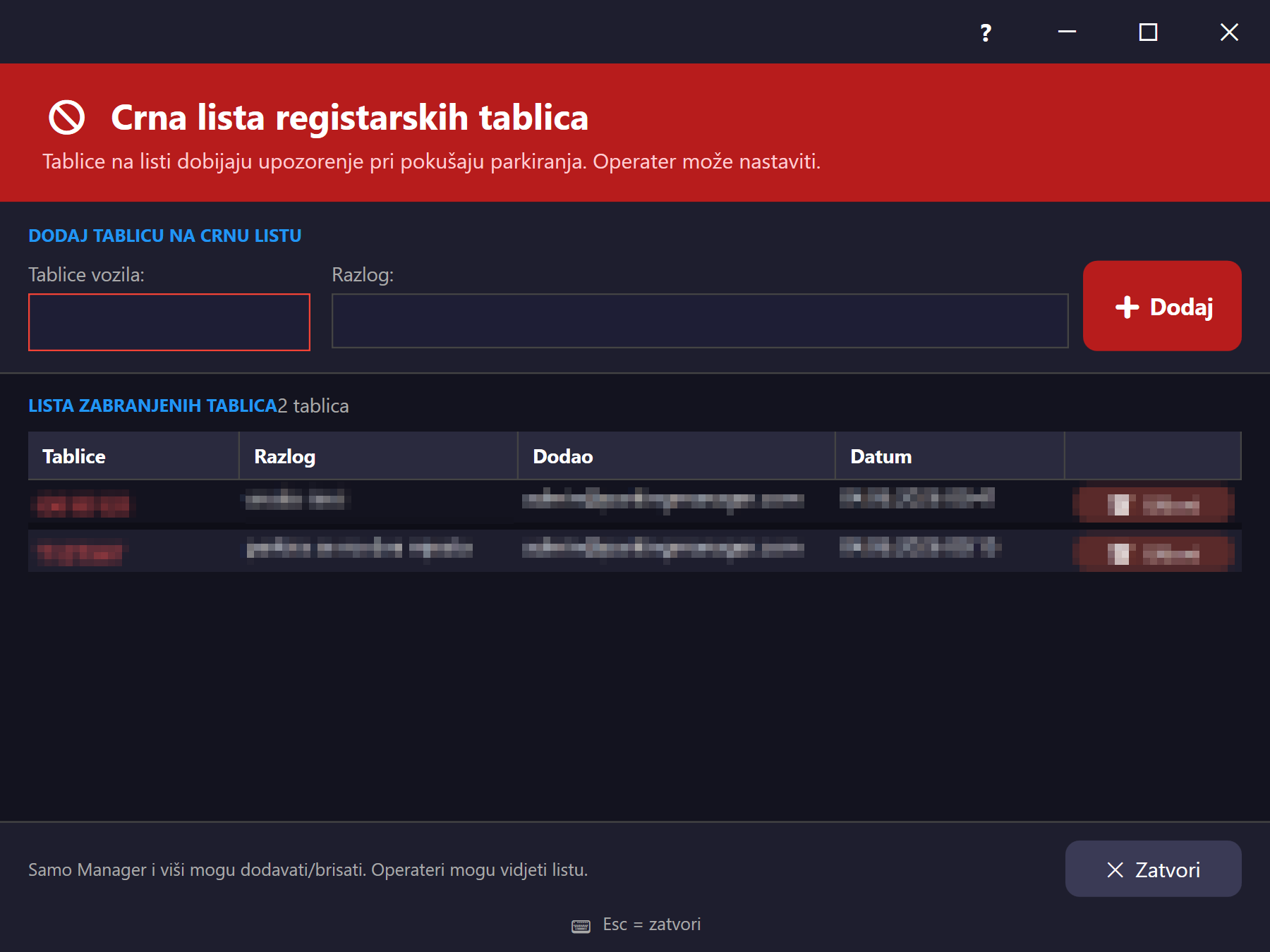
Recycle bin Resize#recycle-bin-window
Napomena: ovo nije isto što i "Recycle bin" u web administraciji (koji vraća obrisane korisnike/tenante) — ovaj WPF prozor upravlja soft-deleted parking zonama i parking mjestima unutar trenutnog tenanta, kroz tabove. Otvara se iz menija "Upravljanje → Recycle bin". Omogućava pregled obrisanih stavki i njihovo vraćanje (restore).
Napomena: ovo nije isto što i „Koš” u web administraciji (koji vraća izbrisane korisnike/tenante) — ovaj WPF prozor upravlja izbrisanim (soft-deleted) zonama i parkirnim mjestima unutar trenutačnog tenanta, kroz kartice. Otvara se iz izbornika „Upravljanje → Recycle Bin”. Omogućuje pregled izbrisanih stavki i njihovo vraćanje.
Napomena: ovo nije isto što i „Korpa“ u veb administraciji (koja vraća obrisane korisnike/tenante) — ovaj WPF prozor upravlja obrisanim (soft-deleted) parking zonama i parking mestima unutar trenutnog tenanta, kroz kartice. Otvara se iz menija „Upravljanje → Recycle Bin“. Omogućava pregled obrisanih stavki i njihovo vraćanje.
Note: this is not the same as the "Recycle bin" in the web administration (which restores deleted users/tenants) — this WPF window manages soft-deleted parking zones and parking spots within the current tenant, through tabs. Opens from the "Management → Recycle bin" menu. Lets you view deleted items and restore them.
Hinweis: Dies ist nicht dasselbe wie der „Recycle bin“ in der Web-Administration (der gelöschte Benutzer/Mandanten wiederherstellt) — dieses WPF-Fenster verwaltet soft-gelöschte Parkzonen und Parkplätze innerhalb des aktuellen Mandanten, über Reiter. Öffnet sich über das Menü „Verwaltung → Recycle bin“. Ermöglicht die Ansicht gelöschter Einträge und deren Wiederherstellung.
Nota: esto no es lo mismo que la "Papelera" en la administración web (que restaura usuarios/inquilinos eliminados) — esta ventana WPF gestiona zonas de parqueo y plazas eliminadas de forma reversible dentro del inquilino actual, mediante pestañas. Se abre desde el menú "Gestión → Papelera". Permite ver los elementos eliminados y restaurarlos.
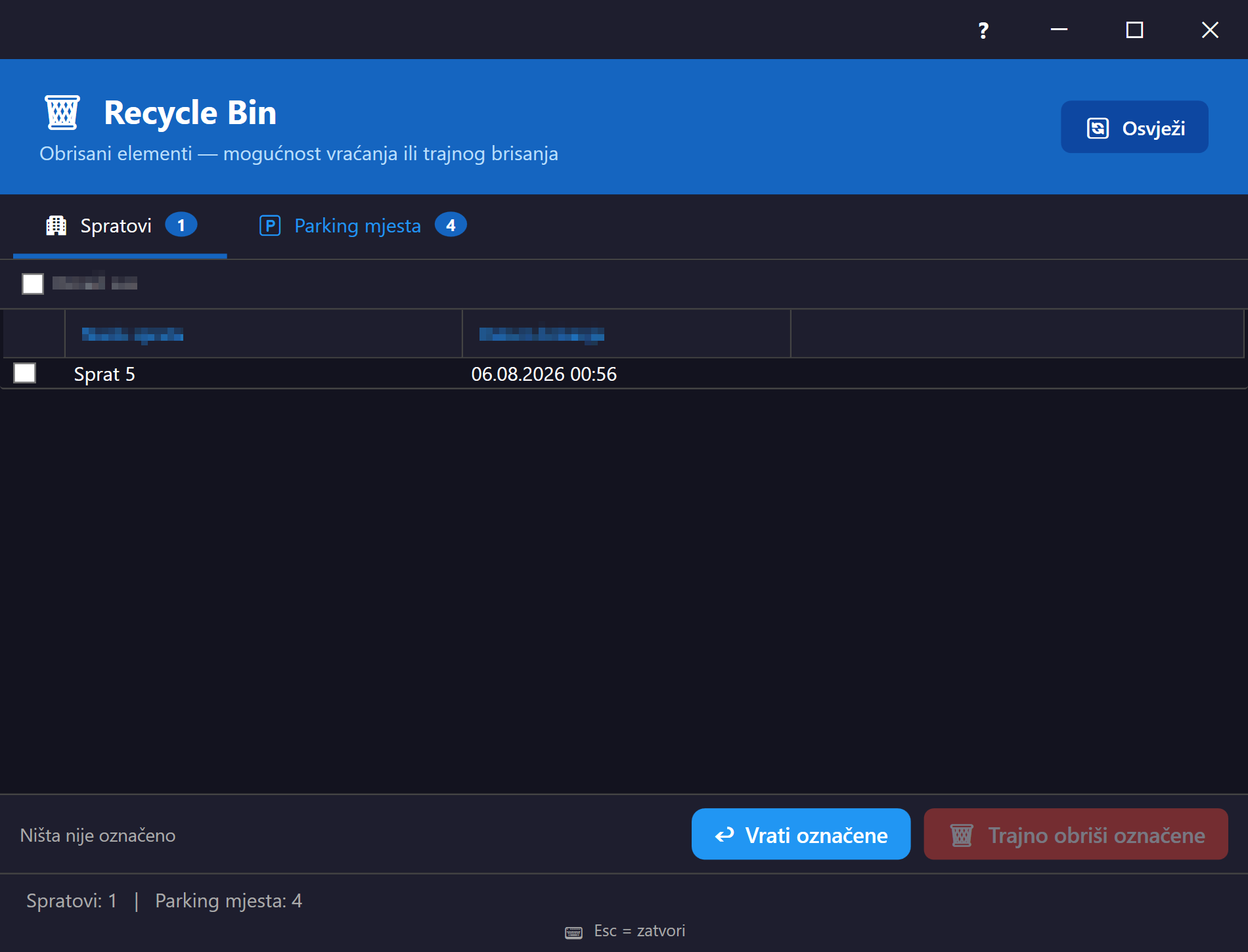
PostavkePostavkePodešavanjaSettingsEinstellungenConfiguración Fiksna veličinaFiksna veličinaFiksna veličinaFixed sizeFeste GrößeTamaño fijo#postavke-window
Centralni prozor sa svim korisničkim/tenant i mašinskim postavkama, podijeljen u sekcije: Prikaz (tema, fullscreen, centriranje prozora, format datuma), Ponašanje (auto-refresh, popusti, prvih N besplatnih minuta), Noćni sati, Alarmi za isticanje pretplate (mjesečni zakup), Kartice za pristup garaži (način praćenja, dani upozorenja), Postavke računara (UI zoom, zum parkinga, opcije specifične za ovaj računar/instalaciju), Termalni printer (izbor štampača, test štampe) i Backup (vidljivo samo SuperAdmin-u — enable, retencija, otvori folder, restore). Otvara se iz menija "Postavke".
Središnji prozor sa svim korisničkim/tenant i računalnim postavkama, podijeljen u odjeljke: Prikaz (tema, cijeli zaslon, centriranje prozora, format datuma), Ponašanje (automatsko osvježavanje, popusti, prvih N besplatnih minuta), Noćni sati, Alarmi za istek pretplate (mjesečni najam), Pristupne kartice za garažu (način praćenja, dani upozorenja), Postavke računala (zum sučelja, zum parkirališta, opcije specifične za ovo računalo/instalaciju), Termalni pisač (odabir pisača, probni ispis) i Sigurnosna kopija (vidljivo samo SuperAdminu — uključivanje, zadržavanje, otvaranje mape, vraćanje). Otvara se iz izbornika „Postavke”.
Centralni prozor sa svim korisničkim/tenant i podešavanjima računara, podeljen u odeljke: Prikaz (tema, ceo ekran, centriranje prozora, format datuma), Ponašanje (automatsko osvežavanje, popusti, prvih N besplatnih minuta), Noćni sati, Alarmi za istek pretplate (mesečni zakup), Kartice za pristup garaži (način praćenja, dani upozorenja), Podešavanja računara (zum korisničkog interfejsa, zum parkinga, opcije specifične za ovaj računar/instalaciju), Termalni štampač (izbor štampača, probna štampa) i Backup (vidljivo samo SuperAdmin-u — uključivanje, period čuvanja, otvaranje foldera, vraćanje). Otvara se iz menija „Podešavanja“.
The central window with all user/tenant and machine settings, divided into sections: Display (theme, fullscreen, window centering, date format), Behavior (auto-refresh, discounts, first N free minutes), Night hours, Subscription-expiry alarms (monthly lease), Garage access cards (tracking method, warning days), Machine settings (UI zoom, parking zoom, options specific to this computer/installation), Thermal printer (printer selection, test print), and Backup (visible only to SuperAdmin — enable, retention, open folder, restore). Opens from the "Settings" menu.
Das zentrale Fenster mit allen Benutzer-/Mandanten- und Maschineneinstellungen, unterteilt in Abschnitte: Anzeige (Design, Vollbild, Fensterzentrierung, Datumsformat), Verhalten (automatische Aktualisierung, Rabatte, erste N Freiminuten), Nachtstunden, Alarme für ablaufende Abonnements (Monatsmiete), Zugangskarten für die Garage (Nachverfolgungsmethode, Warntage), Rechnereinstellungen (UI-Zoom, Park-Zoom, Optionen speziell für diesen Rechner/diese Installation), Thermodrucker (Druckerauswahl, Testdruck) und Backup (nur für SuperAdmin sichtbar — aktivieren, Aufbewahrung, Ordner öffnen, wiederherstellen). Öffnet sich über das Menü „Einstellungen“.
La ventana central con toda la configuración de usuario/inquilino y de la máquina, dividida en secciones: Visualización (tema, pantalla completa, centrado de ventana, formato de fecha), Comportamiento (actualización automática, descuentos, primeros N minutos gratis), Horario nocturno, Alarmas de vencimiento de suscripción (arriendo mensual), Tarjetas de acceso al garaje (método de seguimiento, días de advertencia), Configuración de la máquina (zoom de la interfaz, zoom del parqueo, opciones específicas de este equipo/instalación), Impresora térmica (selección de impresora, impresión de prueba) y Copia de seguridad (visible solo para SuperAdmin — activar, retención, abrir carpeta, restaurar). Se abre desde el menú "Configuración".
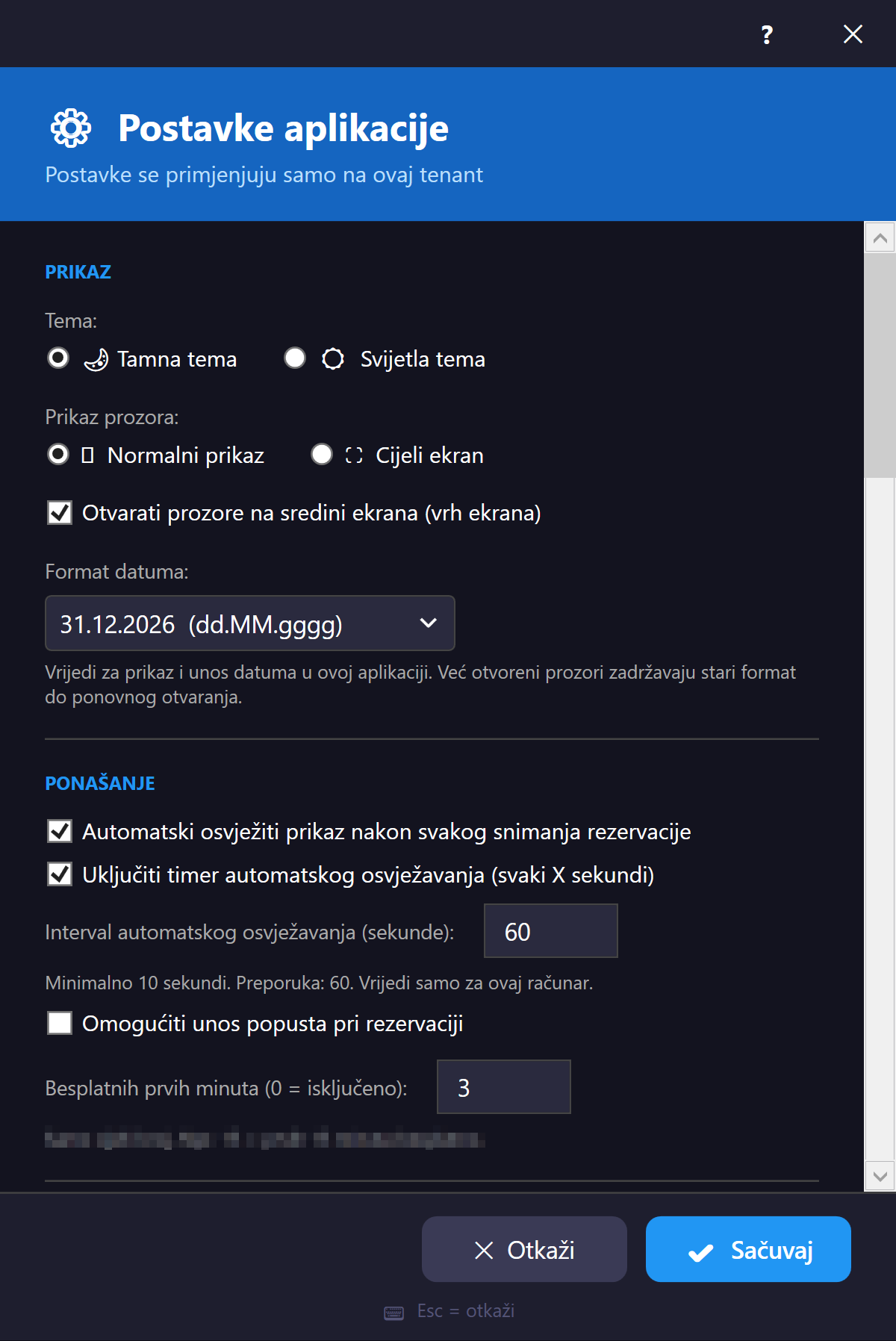
Moja firmaMoja tvrtkaMoja firmaMy companyMein UnternehmenMi empresa Fiksna veličinaFiksna veličinaFiksna veličinaFixed sizeFeste GrößeTamaño fijo#moja-firma-window
Prikaz i uređivanje podataka o firmi/tenantu (profil koji se koristi i na fakturama/izvještajima — naziv, adresa, kontakt, PDV/ID broj, banka, memorandum/logo). Otvara se iz menija "Moja firma" u glavnom prozoru. Naziv firme je uvijek iz profila tenanta (nikad iz imena ulogovanog korisnika). Prikazuje odmah keširane podatke (bez treptanja), a zatim ih osvježi sa servera u pozadini.
Prikaz i uređivanje podataka o tvrtki/tenantu (profil koji se koristi i na računima/izvješćima — naziv, adresa, kontakt, PDV/ID broj, banka, memorandum/logotip). Otvara se iz izbornika „Moja tvrtka” u glavnom prozoru. Naziv tvrtke uvijek dolazi iz profila tenanta (nikada iz imena prijavljenog korisnika). Odmah prikazuje lokalno pohranjene podatke (bez treptanja), a zatim ih u pozadini osvježava s poslužitelja.
Prikaz i uređivanje podataka o firmi/tenantu (profil koji se koristi i na fakturama/izveštajima — naziv, adresa, kontakt, PDV/ID broj, banka, memorandum/logo). Otvara se iz menija „Moja firma“ u glavnom prozoru. Naziv firme uvek dolazi iz profila tenanta (nikad iz imena prijavljenog korisnika). Odmah prikazuje keširane podatke (bez treperenja), a zatim ih u pozadini osvežava sa servera.
View and edit company/tenant data (the profile used on invoices/reports — name, address, contact, VAT/ID number, bank, letterhead/logo). Opens from the "My Company" menu on the main window. The company name always comes from the tenant profile (never from the logged-in user's name). Shows cached data immediately (no flicker), then refreshes it from the server in the background.
Ansicht und Bearbeitung der Firmen-/Mandantendaten (das Profil, das auch auf Rechnungen/Berichten verwendet wird — Name, Adresse, Kontakt, USt-/ID-Nummer, Bank, Briefkopf/Logo). Öffnet sich über das Menü „Mein Unternehmen“ im Hauptfenster. Der Firmenname stammt immer aus dem Mandantenprofil (nie aus dem Namen des angemeldeten Benutzers). Zeigt sofort zwischengespeicherte Daten (ohne Flackern) und aktualisiert sie dann im Hintergrund vom Server.
Ver y editar los datos de la empresa/inquilino (el perfil usado también en facturas/informes — nombre, dirección, contacto, número de IVA/ID, banco, encabezado/logo). Se abre desde el menú "Mi empresa" en la ventana principal. El nombre de la empresa siempre proviene del perfil del inquilino (nunca del nombre del usuario conectado). Muestra inmediatamente los datos en caché (sin parpadeo) y luego los actualiza desde el servidor en segundo plano.
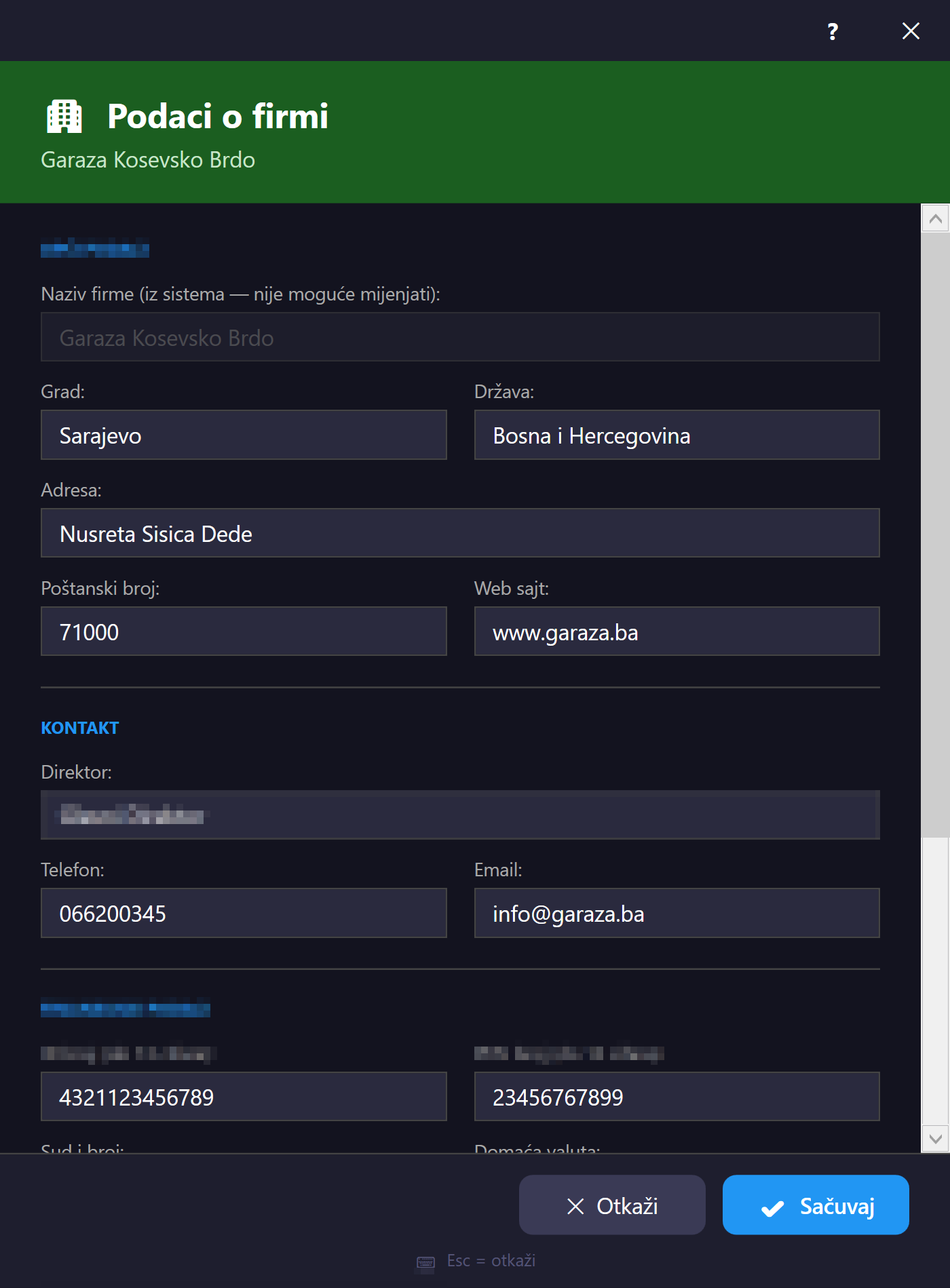
Odabir tenantaOdabir tenantaIzbor tenantaTenant selectionAnlagenauswahlSelección de instalación Fiksna veličinaFiksna veličinaFiksna veličinaFixed sizeFeste GrößeTamaño fijo#tenant-selection-window
Prikazuje se odmah nakon uspješne prijave, samo ako korisnik ima pristup više od jednog tenanta (firme/lokacije). Lista tenanata kao klikabilne kartice; dugme "Otvori" (aktivira se tek nakon odabira) šalje izbor na API i nastavlja prijavu za odabrani tenant. Dupli klik na karticu tenanta odmah pokreće otvaranje (isto kao odabir + klik na "Otvori"), bez potrebe da se dugme posebno klikne. Čisto tranzicioni ekran između prijave i glavnog prozora.
Prikazuje se odmah nakon uspješne prijave, samo ako korisnik ima pristup većem broju tenanata (tvrtki/lokacija). Popis tenanata prikazan je kao kartice na koje se može kliknuti; gumb „Otvori” (aktivira se tek nakon odabira) šalje odabir API-ju i nastavlja prijavu za odabrani tenant. Dvostruki klik na karticu tenanta odmah pokreće otvaranje (isto kao odabir + klik na „Otvori”), bez potrebe za zasebnim klikom na gumb. Riječ je o prijelaznom zaslonu između prijave i glavnog prozora.
Prikazuje se odmah nakon uspešne prijave, samo ako korisnik ima pristup za više od jednog tenanta (firme/lokacije). Lista tenanta prikazana je kao kartice na koje se može kliknuti; dugme „Otvori“ (aktivira se tek nakon izbora) šalje izbor API-ju i nastavlja prijavu za izabrani tenant. Dvoklik na karticu tenanta odmah pokreće otvaranje (isto kao izbor + klik na „Otvori“), bez potrebe da se dugme posebno klikne. Čisto prelazni ekran između prijave i glavnog prozora.
Shown right after a successful login, only if the user has access to more than one tenant (company/location). Lists tenants as clickable cards; the "Open" button (activated only after a selection) sends the choice to the API and continues the login for the selected tenant. Double-clicking a tenant's card immediately opens it (equivalent to selecting it and clicking "Open"), without needing to click the button separately. A purely transitional screen between login and the main window.
Wird direkt nach erfolgreicher Anmeldung angezeigt, nur wenn der Benutzer Zugriff auf mehr als eine Anlage (Firma/Standort) hat. Listet Anlagen als klickbare Karten auf; die Schaltfläche „Öffnen“ (erst nach einer Auswahl aktiv) sendet die Wahl an die API und setzt die Anmeldung für die ausgewählte Anlage fort. Ein Doppelklick auf eine Anlagenkarte öffnet sie sofort (entspricht Auswahl + Klick auf „Öffnen“), ohne die Schaltfläche separat klicken zu müssen. Ein rein transitorischer Bildschirm zwischen Anmeldung und Hauptfenster.
Se muestra justo después de un inicio de sesión exitoso, solo si el usuario tiene acceso a más de una instalación (empresa/ubicación). Enumera las instalaciones como tarjetas en las que se puede hacer clic; el botón "Abrir" (activado solo tras una selección) envía la elección a la API y continúa el inicio de sesión para la instalación seleccionada. Al hacer doble clic en la tarjeta de una instalación se abre de inmediato (equivalente a seleccionarla y hacer clic en "Abrir"), sin necesidad de pulsar el botón por separado. Una pantalla puramente transitoria entre el inicio de sesión y la ventana principal.
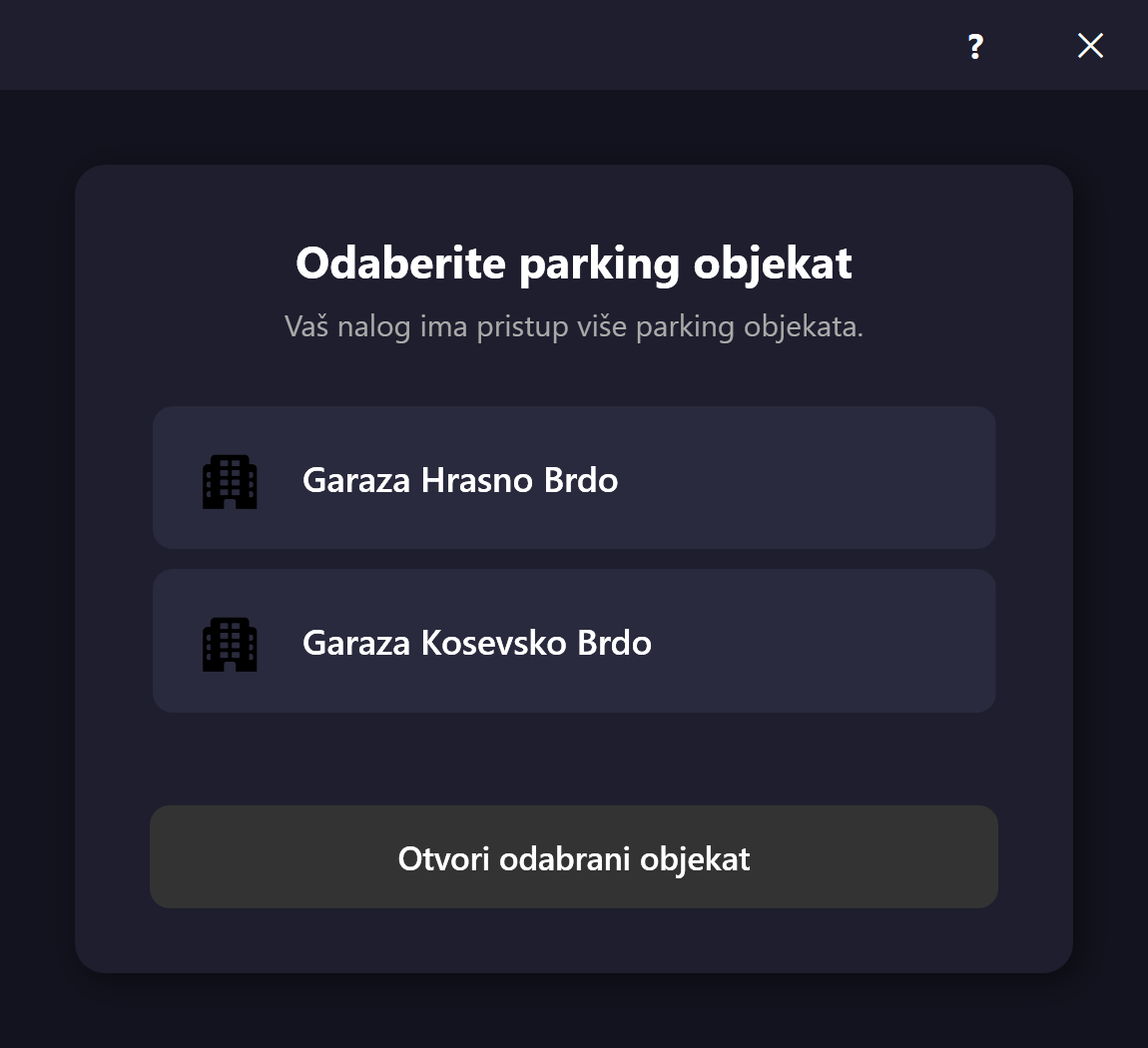
Neuspjele sinhronizacijeNeuspjele sinkronizacijeNeuspele sinhronizacijeFailed syncsFehlgeschlagene SynchronisierungenSincronizaciones fallidas Resize#failed-sync-window
Prikazuje offline operacije (parkiranje, oslobađanje mjesta, ažuriranje sesije) koje nisu uspjele da se sinhronizuju sa serverom nakon povratka online — tabela sa tipom operacije, mjestom, greškom i brojem pokušaja. Otvara se klikom na narandžasti sync bedž u status baru glavnog prozora (vidljiv samo kad postoje stavke na čekanju). Dugmad: ponovi odabranu, ponovi sve, zatvori.
Prikazuje offline operacije (parkiranje, oslobađanje mjesta, ažuriranje sesije) koje se nakon povratka online nisu uspjele sinkronizirati s poslužiteljem — tablica s vrstom operacije, mjestom, pogreškom i brojem pokušaja. Otvara se klikom na narančastu oznaku sinkronizacije u statusnoj traci glavnog prozora (vidljiva samo kada postoje stavke na čekanju). Gumbi: ponovi odabrano, ponovi sve, zatvori.
Prikazuje offline operacije (parkiranje, oslobađanje mesta, ažuriranje sesije) koje nisu uspele da se sinhronizuju sa serverom nakon povratka online — tabela sa tipom operacije, mestom, greškom i brojem pokušaja. Otvara se klikom na narandžasti bedž sinhronizacije u statusnoj traci glavnog prozora (vidljiv samo kada postoje stavke na čekanju). Dugmad: ponovi izabrano, ponovi sve, zatvori.
Shows offline operations (parking, releasing a spot, updating a session) that failed to sync with the server after coming back online — a table with the operation type, spot, error, and number of attempts. Opens by clicking the orange sync badge in the main window's status bar (visible only when there are pending items). Buttons: retry selected, retry all, close.
Zeigt Offline-Vorgänge (Parken, Platz freigeben, Sitzung aktualisieren), die nach der Rückkehr online nicht mit dem Server synchronisiert werden konnten — eine Tabelle mit Vorgangstyp, Platz, Fehler und Anzahl der Versuche. Öffnet sich durch Klicken auf das orange Sync-Badge in der Statusleiste des Hauptfensters (nur sichtbar, wenn ausstehende Einträge vorhanden sind). Schaltflächen: Ausgewählte wiederholen, Alle wiederholen, Schließen.
Muestra operaciones sin conexión (parqueo, liberación de plaza, actualización de sesión) que no se sincronizaron con el servidor al volver a estar en línea — una tabla con el tipo de operación, la plaza, el error y el número de intentos. Se abre haciendo clic en la insignia naranja de sincronización en la barra de estado de la ventana principal (visible solo cuando hay elementos pendientes). Botones: reintentar seleccionada, reintentar todas, cerrar.
QR naplata (checkout)naplata (checkout)naplata (checkout)checkout-Kassiervorgang: cobro Fiksna veličinaFiksna veličinaFiksna veličinaFixed sizeFeste GrößeTamaño fijo#qr-checkout-dialog
Dvofazni dijalog za brzu naplatu vozila skeniranjem QR/barkod tokena sa ulazne karte (umjesto ručnog pronalaska mjesta na canvasu). Otvara se sa toolbar dugmeta "QR Checkout". Faza 1: polje za unos/skeniranje koda — token se validira lokalno (bez potrebe za internetom), zatim u lokalnoj bazi izdatih karata, pa tek na kraju API pozivom. Faza 2 (nakon uspješnog prepoznavanja): prikazuje vrijeme ulaska/izlaska, obračunatu cijenu (sa opcionim popustom), način plaćanja i potvrdu naplate.
Dvofazni dijalog za brzu naplatu vozila skeniranjem QR/barkod tokena s ulaznog listića (umjesto ručnog traženja mjesta na platnu). Otvara se gumbom „QR naplata” na alatnoj traci. Faza 1: polje za unos/skeniranje koda — token se provjerava lokalno (bez potrebe za internetom), zatim u lokalnoj bazi izdanih listića, a tek na kraju pozivom API-ja. Faza 2 (nakon uspješnog prepoznavanja): prikazuje vrijeme ulaska/izlaska, izračunatu cijenu (s neobveznim popustom), način plaćanja i potvrdu naplate.
Dvofazni dijalog za brzu naplatu vozila skeniranjem QR/barkod tokena sa ulaznog listića (umesto ručnog pronalaženja mesta na platnu). Otvara se preko dugmeta „QR naplata“ na traci sa alatkama. Faza 1: polje za unos/skeniranje koda — token se proverava lokalno (bez potrebe za internetom), zatim u lokalnoj bazi izdatih listića, pa tek na kraju pozivom API-ja. Faza 2 (nakon uspešnog prepoznavanja): prikazuje vreme ulaska/izlaska, obračunatu cenu (sa opcionim popustom), način plaćanja i potvrdu naplate.
A two-phase dialog for quickly checking out a vehicle by scanning the QR/barcode token from the entry ticket (instead of manually finding the spot on the canvas). Opens from the "QR Checkout" toolbar button. Phase 1: a field for entering/scanning the code — the token is validated locally first (no internet needed), then against the local database of issued tickets, and only then via an API call. Phase 2 (after successful recognition): shows the entry/exit time, the calculated price (with an optional discount), payment method, and payment confirmation.
Ein zweiphasiger Dialog für den schnellen Kassiervorgang eines Fahrzeugs durch Scannen des QR-/Barcode-Tokens vom Einfahrtsticket (statt den Platz manuell in der Fläche zu suchen). Öffnet sich über die Symbolleisten-Schaltfläche „QR Checkout“. Phase 1: ein Feld zur Eingabe/zum Scannen des Codes — der Token wird zunächst lokal validiert (kein Internet nötig), dann gegen die lokale Datenbank ausgestellter Tickets, und erst danach per API-Aufruf. Phase 2 (nach erfolgreicher Erkennung): zeigt Ein-/Ausfahrtszeit, berechneten Preis (mit optionalem Rabatt), Zahlungsart und Zahlungsbestätigung.
Un diálogo de dos fases para cobrar rápidamente a un vehículo escaneando el token QR/código de barras del ticket de entrada (en lugar de buscar manualmente la plaza en el lienzo). Se abre desde el botón "QR Checkout" de la barra de herramientas. Fase 1: un campo para ingresar/escanear el código — el token se valida primero localmente (sin necesidad de internet), luego contra la base de datos local de tickets emitidos, y solo al final mediante una llamada a la API. Fase 2 (tras un reconocimiento exitoso): muestra la hora de entrada/salida, el precio calculado (con un descuento opcional), el método de pago y la confirmación del pago.
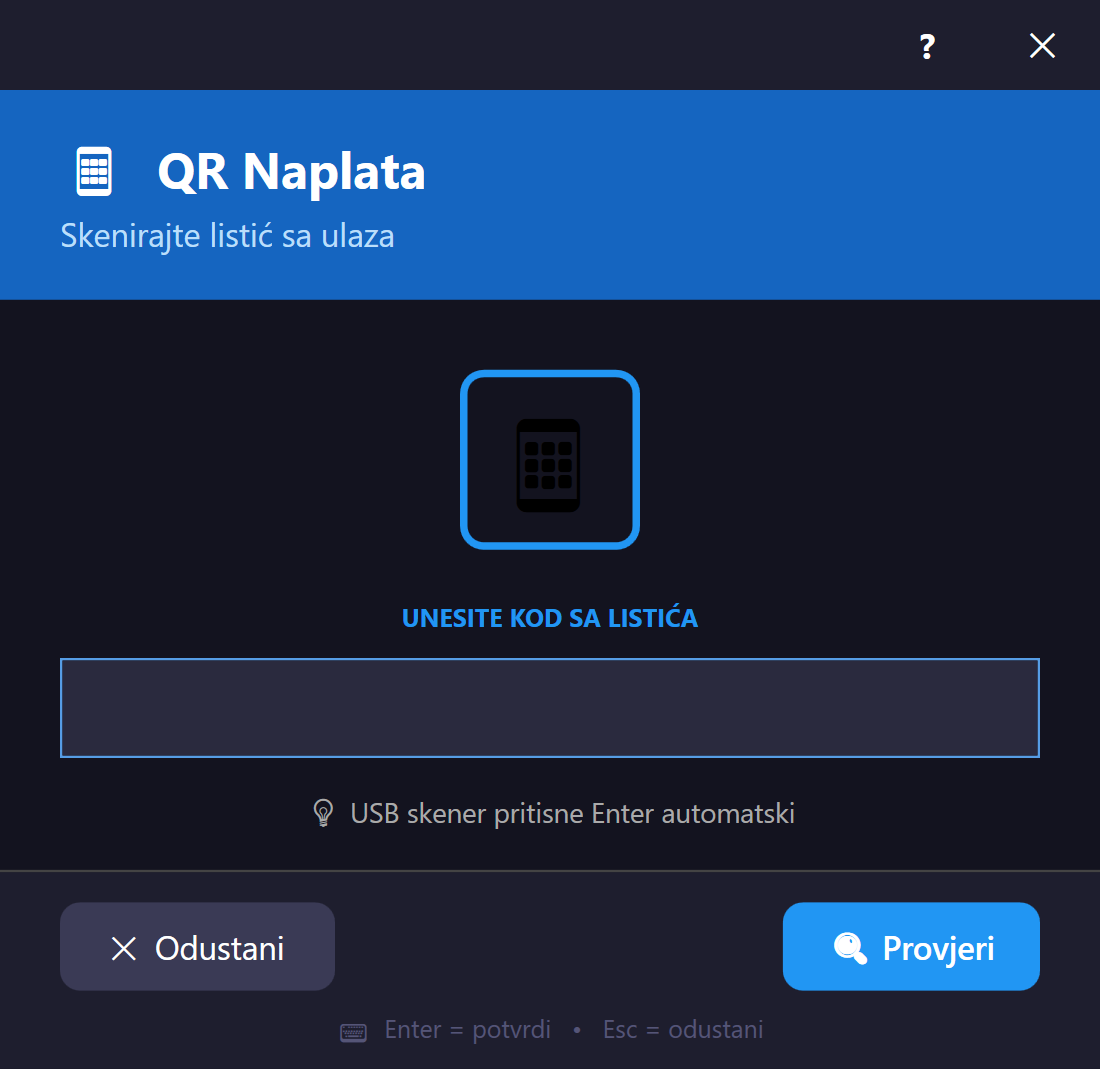
Štampanje izgleda garažeIspis izgleda garažeŠtampanje izgleda garažePrint garage layoutGaragenlayout druckenImprimir diseño del garaje Fiksna veličinaFiksna veličinaFiksna veličinaFixed sizeFeste GrößeTamaño fijo#print-garage-dialog
Dijalog za štampu/pregled izgleda parkinga (rasporeda mjesta) — po jednoj zoni ili svim zonama, sa opcijama šta uključiti (sam raspored mjesta i/ili podaci o vlasnicima mjesečnih mjesta) i redoslijedom stranica kad su odabrani i dizajn i podaci. Otvara se iz menija "Izvještaji → Štampaj garažu". Lijevo su kontrole (izbor zone, checkboxovi, redoslijed), desno live preview canvas koji se osvježava pri promjeni bilo koje opcije.
Dijalog za ispis/pregled izgleda parkirališta (rasporeda mjesta) — za jednu zonu ili sve zone, s opcijama što uključiti (sam raspored mjesta i/ili podatke o vlasnicima mjesečnih mjesta) i redoslijedom stranica kada su odabrani i dizajn i podaci. Otvara se iz izbornika „Izvješća → Ispiši izgled garaže”. Lijevo su kontrole (odabir zone, potvrdni okviri, redoslijed), a desno pregled uživo koji se osvježava pri promjeni bilo koje opcije.
Dijalog za štampu/pregled izgleda parkinga (rasporeda mesta) — za jednu zonu ili sve zone, sa opcijama šta uključiti (sam raspored mesta i/ili podaci o vlasnicima mesečnih mesta) i redosledom stranica kada su izabrani i dizajn i podaci. Otvara se iz menija „Izveštaji → Odštampaj izgled garaže“. Levo su kontrole (izbor zone, polja za potvrdu, redosled), a desno pregled uživo koji se osvežava pri promeni bilo koje opcije.
A dialog for printing/previewing the parking layout — for a single zone or all zones, with options for what to include (the layout itself and/or monthly-spot owner data) and page order when both the design and the data are selected. Opens from the "Reports → Print garage" menu. Controls are on the left (zone selection, checkboxes, order), with a live preview canvas on the right that refreshes as any option changes.
Ein Dialog zum Drucken/Vorschauen des Parklayouts — für eine einzelne Zone oder alle Zonen, mit Optionen, was einbezogen werden soll (das Layout selbst und/oder die Eigentümerdaten der Monatsplätze) und der Seitenreihenfolge, wenn sowohl Design als auch Daten ausgewählt sind. Öffnet sich über das Menü „Berichte → Garage drucken“. Die Steuerelemente befinden sich links (Zonenauswahl, Kontrollkästchen, Reihenfolge), rechts eine Live-Vorschaufläche, die sich bei jeder Optionsänderung aktualisiert.
Un diálogo para imprimir/previsualizar el diseño del parqueo — para una sola zona o todas las zonas, con opciones sobre qué incluir (el diseño en sí y/o los datos del propietario de las plazas mensuales) y el orden de las páginas cuando se seleccionan tanto el diseño como los datos. Se abre desde el menú "Informes → Imprimir garaje". Los controles están a la izquierda (selección de zona, casillas, orden), y a la derecha un lienzo de vista previa en vivo que se actualiza al cambiar cualquier opción.
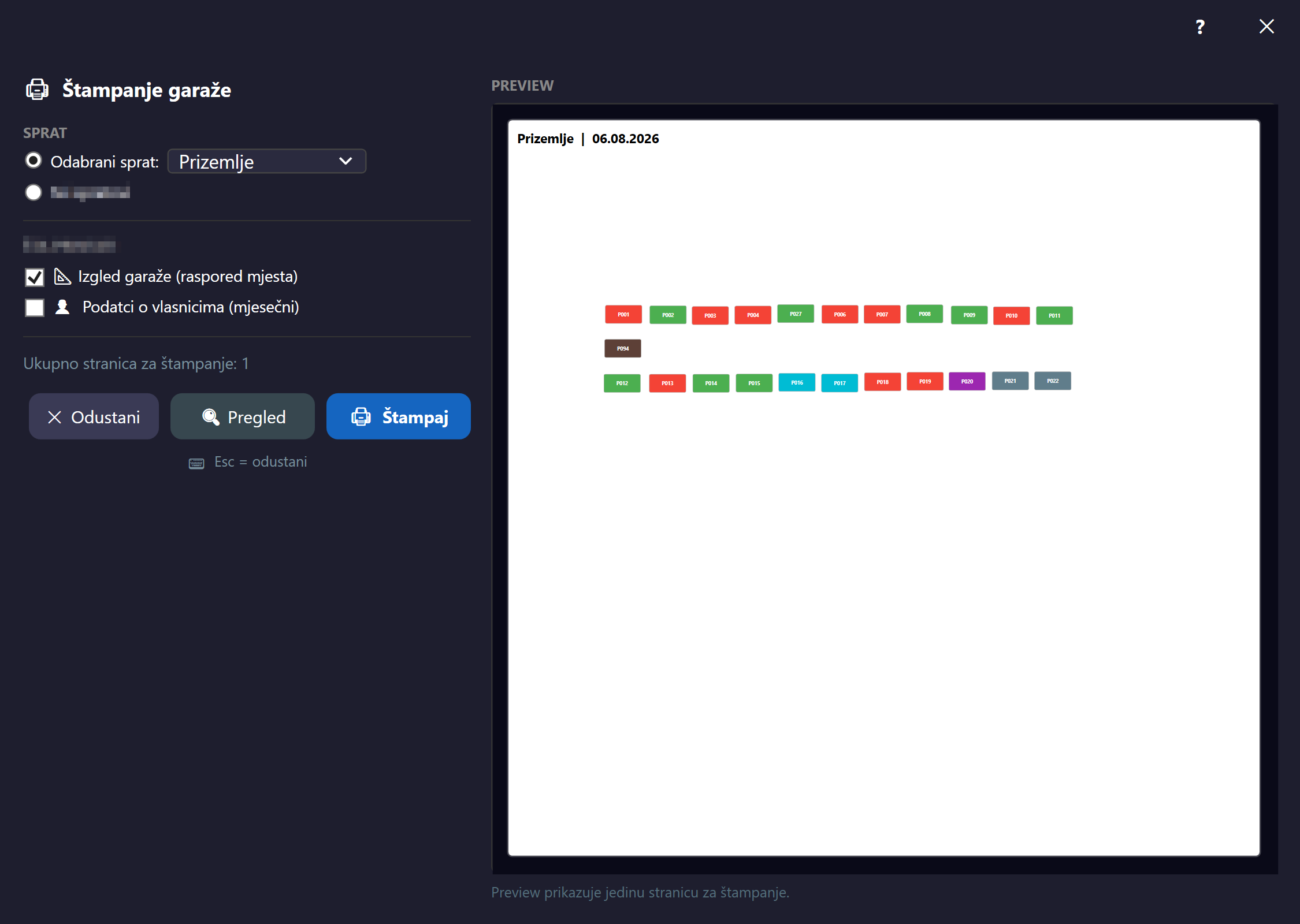
Dostupno ažuriranjeDostupno ažuriranjeDostupno ažuriranjeUpdate availableUpdate verfügbarActualización disponible Fiksna veličinaFiksna veličinaFiksna veličinaFixed sizeFeste GrößeTamaño fijo#update-dialog
Prikazuje se kada je otkrivena nova (opciona) verzija aplikacije — otvara se klikom na badge za novu verziju u alatnoj traci glavnog prozora. Prikazuje trenutnu i novu verziju, napomene uz izdanje (release notes), traku napretka preuzimanja, checkbox "automatski instaliraj pri zatvaranju" i dugmad Preuzmi/Zatvori. Sadržaj se uživo mijenja prema stanju servisa za ažuriranje (mirovanje / preuzimanje / spremno / greška).
Prikazuje se kada je otkrivena nova (neobvezna) verzija aplikacije — otvara se klikom na oznaku nove verzije na alatnoj traci glavnog prozora. Prikazuje trenutačnu i novu verziju, bilješke uz izdanje, traku napretka preuzimanja, potvrdni okvir „automatski instaliraj pri zatvaranju” i gumbe Preuzmi/Zatvori. Sadržaj se uživo mijenja prema stanju servisa za ažuriranje (mirovanje / preuzimanje / spremno / pogreška).
Prikazuje se kada je otkrivena nova (opciona) verzija aplikacije — otvara se klikom na bedž nove verzije na traci sa alatkama glavnog prozora. Prikazuje trenutnu i novu verziju, napomene uz izdanje (release notes), traku napretka preuzimanja, polje „automatski instaliraj pri zatvaranju“ i dugmad Preuzmi/Zatvori. Sadržaj se uživo menja prema stanju servisa za ažuriranje (mirovanje / preuzimanje / spremno / greška).
Shown when a new (optional) app version is detected — opens by clicking the new-version badge in the main window's toolbar. Shows the current and new version, release notes, a download progress bar, an "install automatically on close" checkbox, and Download/Close buttons. The content updates live to reflect the update service's state (idle / downloading / ready / error).
Wird angezeigt, wenn eine neue (optionale) App-Version erkannt wird — öffnet sich durch Klicken auf das Neue-Version-Badge in der Symbolleiste des Hauptfensters. Zeigt die aktuelle und die neue Version, Versionshinweise, einen Download-Fortschrittsbalken, ein Kontrollkästchen „Beim Schließen automatisch installieren“ und die Schaltflächen Herunterladen/Schließen. Der Inhalt aktualisiert sich live entsprechend dem Status des Update-Dienstes (Leerlauf / Herunterladen / Bereit / Fehler).
Se muestra cuando se detecta una nueva versión (opcional) de la aplicación — se abre haciendo clic en la insignia de nueva versión en la barra de herramientas de la ventana principal. Muestra la versión actual y la nueva, las notas de la versión, una barra de progreso de descarga, una casilla "instalar automáticamente al cerrar" y los botones Descargar/Cerrar. El contenido se actualiza en vivo según el estado del servicio de actualización (inactivo / descargando / listo / error).
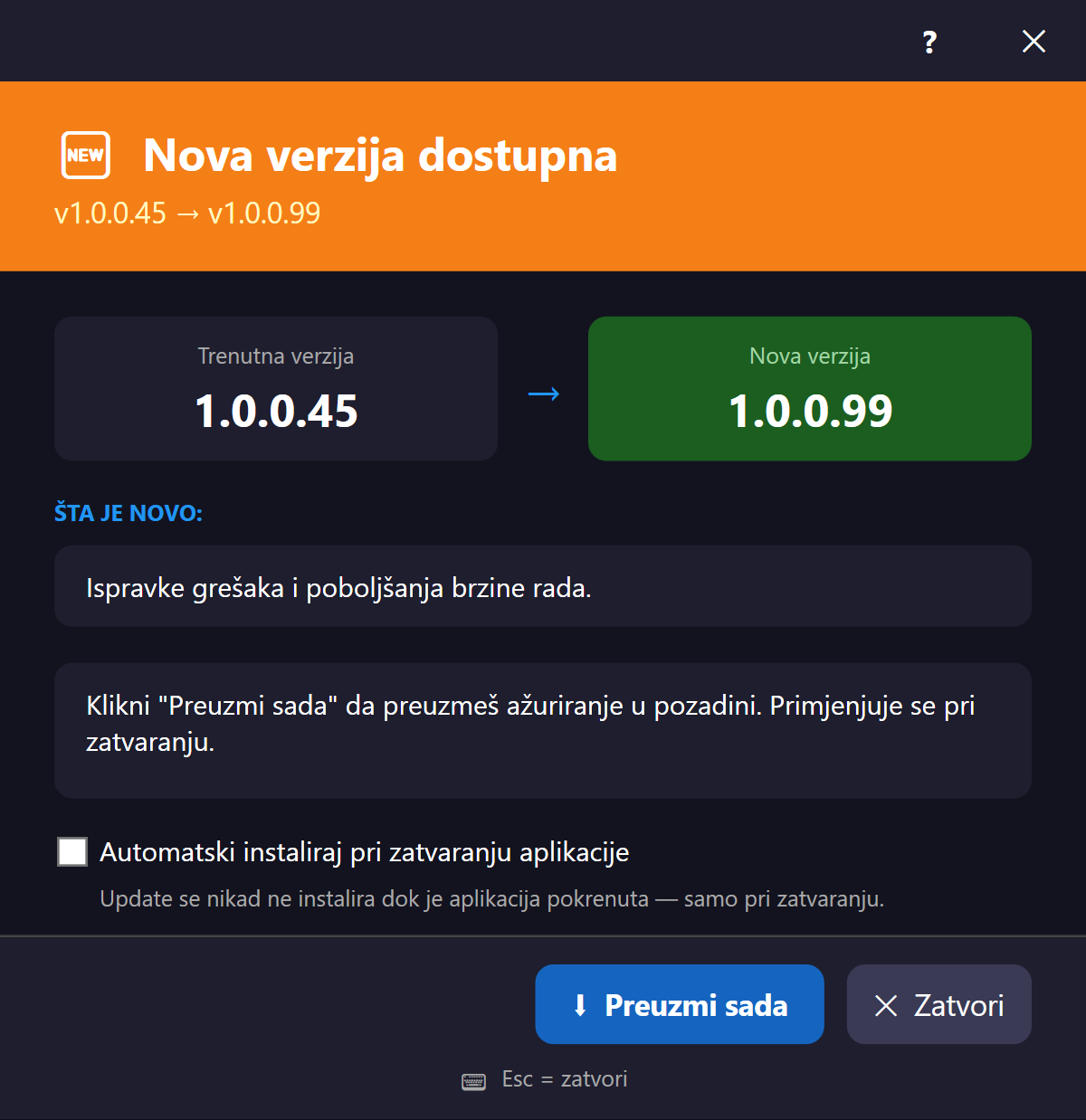
Ažuriranje spremnoAžuriranje spremnoAžuriranje spremnoUpdate readyUpdate bereitActualización lista Fiksna veličinaFiksna veličinaFiksna veličinaFixed sizeFeste GrößeTamaño fijo#update-ready-dialog
Pojavljuje se kad je preuzimanje ažuriranja završeno (npr. nakon pokretanja aplikacije ili zatvaranja prethodne sesije) i nudi da se odmah instalira. Prikazuje trenutnu vs novu verziju, napomene uz izdanje i dugmad "Instaliraj sada" (pokreće restart i instalaciju) ili "Kasnije".
Pojavljuje se kada je preuzimanje ažuriranja završeno (npr. nakon pokretanja aplikacije ili zatvaranja prethodne sesije) i nudi trenutačnu instalaciju. Prikazuje trenutačnu i novu verziju, bilješke uz izdanje i gumbe „Instaliraj sada” (pokreće ponovno pokretanje i instalaciju) ili „Kasnije”.
Pojavljuje se kada je preuzimanje ažuriranja završeno (npr. nakon pokretanja aplikacije ili zatvaranja prethodne sesije) i nudi da se odmah instalira. Prikazuje trenutnu i novu verziju, napomene uz izdanje i dugmad „Instaliraj sada“ (pokreće restart i instalaciju) ili „Kasnije“.
Appears when the update download has finished (e.g. after launching the app or closing the previous session) and offers to install it right away. Shows the current vs. new version, release notes, and "Install now" (triggers a restart and installation) or "Later" buttons.
Erscheint, wenn der Update-Download abgeschlossen ist (z. B. nach dem Start der Anwendung oder dem Schließen der vorherigen Sitzung) und bietet an, es sofort zu installieren. Zeigt die aktuelle im Vergleich zur neuen Version, Versionshinweise und die Schaltflächen „Jetzt installieren“ (löst einen Neustart und die Installation aus) oder „Später“.
Aparece cuando ha finalizado la descarga de la actualización (p. ej. tras iniciar la aplicación o cerrar la sesión anterior) y ofrece instalarla de inmediato. Muestra la versión actual frente a la nueva, las notas de la versión y los botones "Instalar ahora" (inicia un reinicio y la instalación) o "Más tarde".
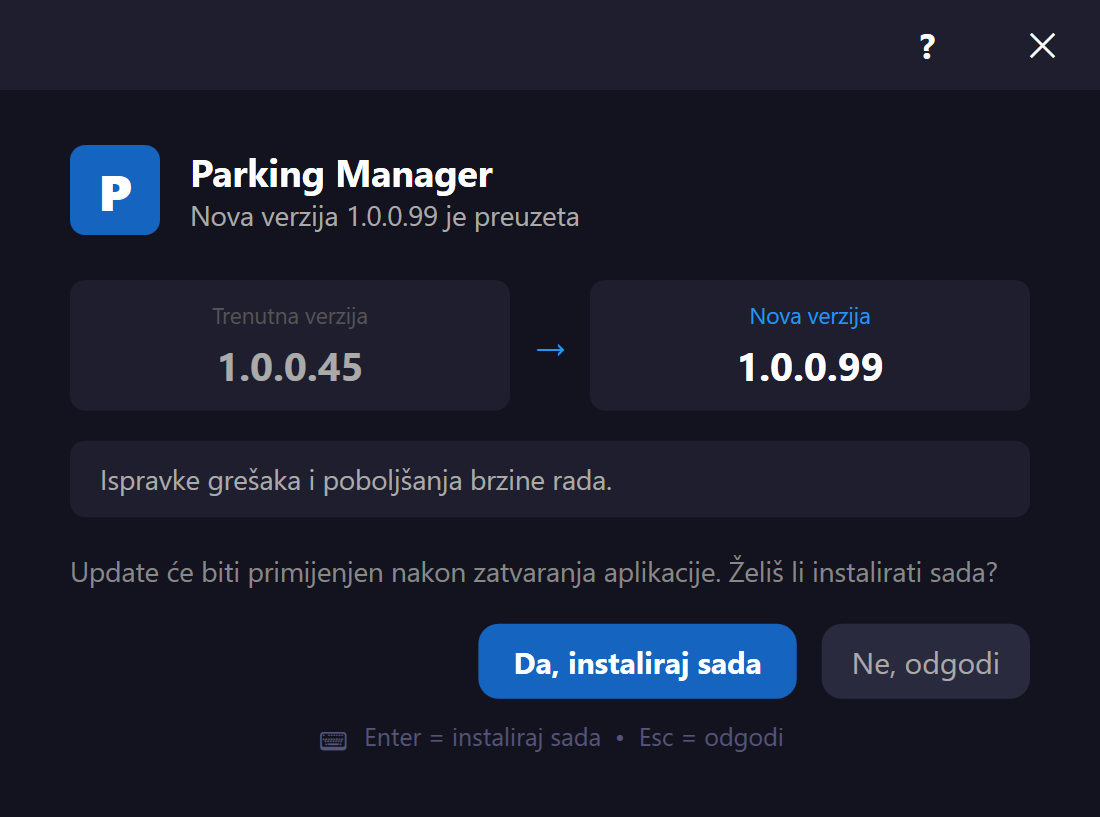
Obavezno ažuriranjeObvezno ažuriranjeObavezno ažuriranjeMandatory updatePflicht-UpdateActualización obligatoria Fiksna veličinaFiksna veličinaFiksna veličinaFixed sizeFeste GrößeTamaño fijo#mandatory-update-dialog
Blokirajući ekran koji se prikazuje kad server označi ažuriranje kao obavezno (npr. nakon prijave ili periodične provjere) — prozor je uvijek na vrhu i onemogućava se njegovo zatvaranje dok traje instalacija. Prikazuje trenutnu vs novu verziju, napomene, traku napretka i status tekst; dugmad OK/Pokušaj ponovo/Izađi se pojavljuju zavisno od ishoda. Korisnik ne može nastaviti rad u aplikaciji dok se ne riješi.
Blokirajući zaslon koji se prikazuje kada poslužitelj označi ažuriranje kao obvezno (npr. nakon prijave ili periodične provjere) — prozor je uvijek na vrhu i ne može se zatvoriti dok traje instalacija. Prikazuje trenutačnu i novu verziju, bilješke, traku napretka i statusni tekst; gumbi U redu/Pokušaj ponovno/Izađi pojavljuju se ovisno o ishodu. Korisnik ne može nastaviti rad u aplikaciji dok se to ne riješi.
Blokirajući ekran koji se prikazuje kada server označi ažuriranje kao obavezno (npr. nakon prijave ili periodične provere) — prozor je uvek na vrhu i ne može se zatvoriti dok traje instalacija. Prikazuje trenutnu i novu verziju, napomene, traku napretka i statusni tekst; dugmad OK/Pokušaj ponovo/Izađi pojavljuju se zavisno od ishoda. Korisnik ne može da nastavi rad u aplikaciji dok se to ne reši.
A blocking screen shown when the server flags an update as mandatory (e.g. after login or a periodic check) — the window always stays on top and cannot be closed while installation is in progress. Shows the current vs. new version, release notes, a progress bar, and status text; OK/Retry/Exit buttons appear depending on the outcome. The user cannot keep working in the app until it's resolved.
Ein blockierender Bildschirm, der angezeigt wird, wenn der Server ein Update als obligatorisch markiert (z. B. nach der Anmeldung oder einer periodischen Prüfung) — das Fenster bleibt immer im Vordergrund und kann während der Installation nicht geschlossen werden. Zeigt die aktuelle im Vergleich zur neuen Version, Versionshinweise, einen Fortschrittsbalken und Statustext; die Schaltflächen OK/Erneut versuchen/Beenden erscheinen je nach Ergebnis. Der Benutzer kann in der Anwendung nicht weiterarbeiten, bis dies gelöst ist.
Una pantalla bloqueante que se muestra cuando el servidor marca una actualización como obligatoria (p. ej. tras el inicio de sesión o una verificación periódica) — la ventana permanece siempre en primer plano y no se puede cerrar mientras la instalación está en curso. Muestra la versión actual frente a la nueva, notas de la versión, una barra de progreso y texto de estado; los botones Aceptar/Reintentar/Salir aparecen según el resultado. El usuario no puede seguir trabajando en la aplicación hasta que se resuelva.
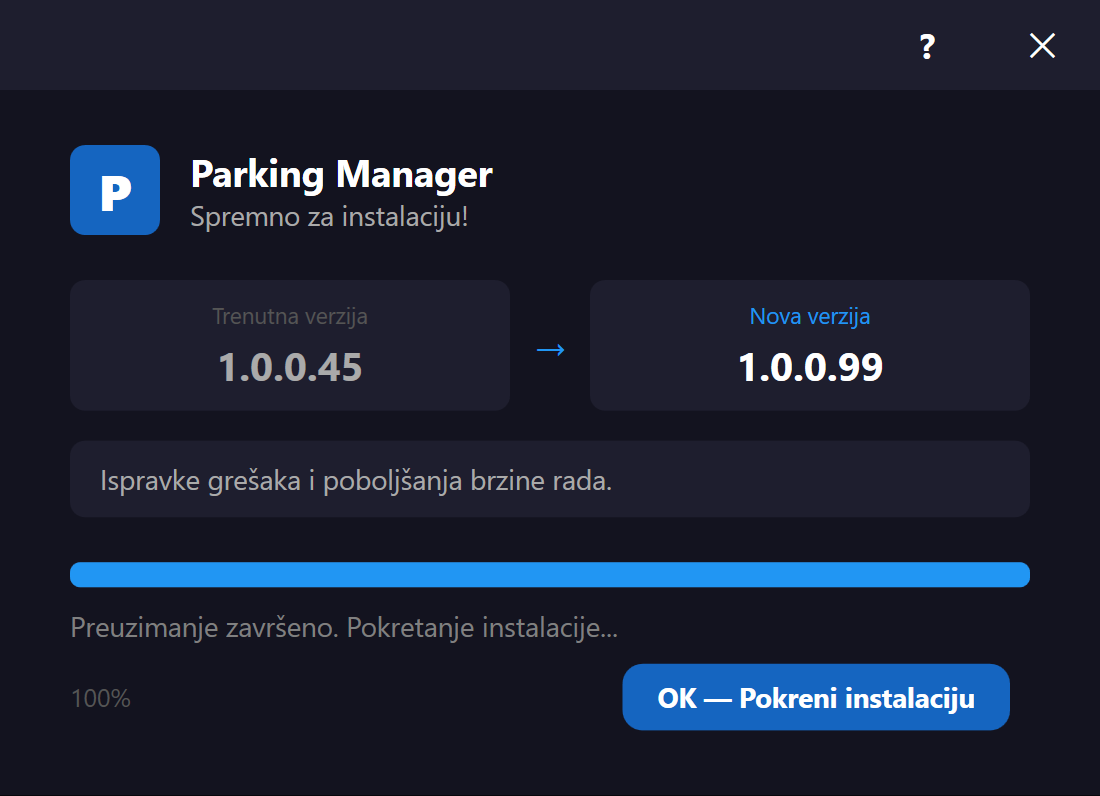
Hotfix ekranZaslon za hotfixHotfix ekranHotfix screenHotfix-BildschirmPantalla de hotfix Fiksna veličinaFiksna veličinaFiksna veličinaFixed sizeFeste GrößeTamaño fijo#hotfix-dialog
Poseban, brži kanal za hitne zakrpe, odvojen od redovnih izdanja — otvara se pritiskom na F5 na ekranu za prijavu. Prikazuje trenutnu vs hotfix verziju, napomene i traku napretka, uz dugmad Primijeni/Otkaži. Opt-in je (korisnik svjesno pokreće F5), za razliku od redovnih/obaveznih ažuriranja.
Zaseban, brži kanal za hitne zakrpe, odvojen od redovnih izdanja — otvara se pritiskom na F5 na zaslonu za prijavu. Prikazuje trenutačnu i hotfix verziju, bilješke i traku napretka, uz gumbe Primijeni/Odustani. Neobvezan je (korisnik ga svjesno pokreće tipkom F5), za razliku od redovnih/obveznih ažuriranja.
Poseban, brži kanal za hitne zakrpe, odvojen od redovnih izdanja — otvara se pritiskom na F5 na ekranu za prijavu. Prikazuje trenutnu i hotfix verziju, napomene i traku napretka, uz dugmad Primeni/Otkaži. Opcion je (korisnik ga svesno pokreće tasterom F5), za razliku od redovnih/obaveznih ažuriranja.
A separate, faster channel for urgent patches, distinct from regular releases — opens by pressing F5 on the login screen. Shows the current vs. hotfix version, notes, and a progress bar, with Apply/Cancel buttons. It's opt-in (the user consciously triggers F5), unlike regular/mandatory updates.
Ein separater, schnellerer Kanal für dringende Patches, getrennt von regulären Releases — öffnet sich durch Drücken von F5 auf dem Anmeldebildschirm. Zeigt die aktuelle im Vergleich zur Hotfix-Version, Hinweise und einen Fortschrittsbalken, mit den Schaltflächen Anwenden/Abbrechen. Es ist opt-in (der Benutzer löst F5 bewusst aus), anders als reguläre/obligatorische Updates.
Un canal separado y más rápido para parches urgentes, distinto de las versiones regulares — se abre presionando F5 en la pantalla de inicio de sesión. Muestra la versión actual frente a la del hotfix, notas y una barra de progreso, con los botones Aplicar/Cancelar. Es opcional (el usuario activa F5 conscientemente), a diferencia de las actualizaciones regulares/obligatorias.
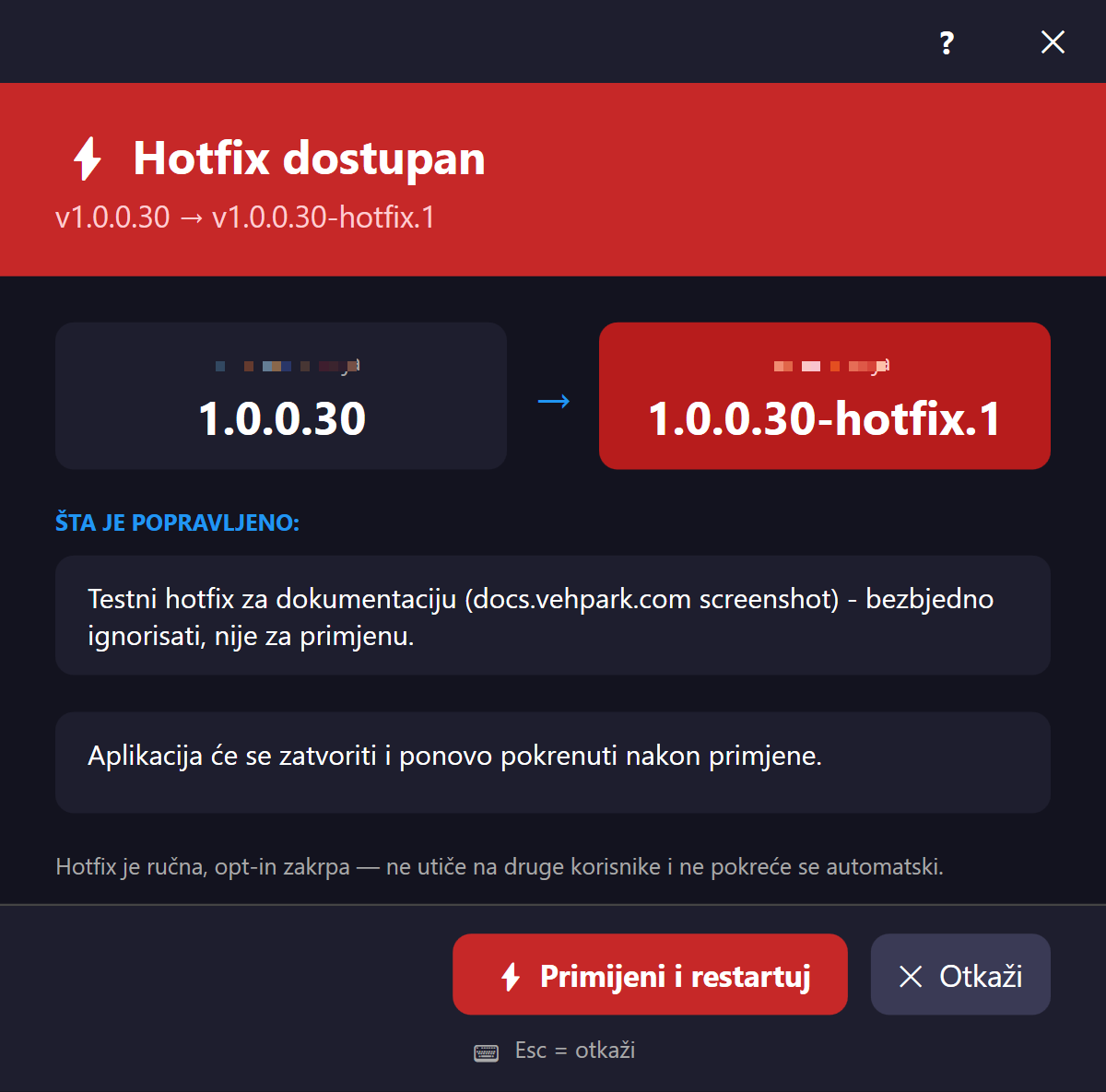
Tastaturne prečiceTipkovnički prečaciPrečice na tastaturiKeyboard shortcutsTastenkürzelAtajos de teclado Fiksna veličinaFiksna veličinaFiksna veličinaFixed sizeFeste GrößeTamaño fijo#shortcuts-help-window
Statična referentna lista svih tastaturnih prečica u aplikaciji, otvara se preko F1 (bilo gdje u glavnoj aplikaciji) ili iz menija "Pomoć → Prečice na tastaturi". Podijeljena je u dvije sekcije — Glavni prozor (F1, F5, F11, Ctrl+F, Ctrl+R, Ctrl+P, Ctrl+Shift+P, Ctrl+O, Ctrl+D, Ctrl+Q, Escape) i Editor parkinga (Ctrl+Z/Y/A, Delete, Ctrl+L, Ctrl+G, Ctrl+C/V, +/-, Ctrl+0, F2, Escape) — svaki red prikazuje kombinaciju tastera i kratak opis radnje.
Statičan referentni popis svih tipkovničkih prečaca u aplikaciji, otvara se tipkom F1 (bilo gdje u glavnoj aplikaciji) ili iz izbornika „Pomoć → Tipkovnički prečaci”. Podijeljen je u dva odjeljka — Glavni prozor (F1, F5, F11, Ctrl+F, Ctrl+R, Ctrl+P, Ctrl+Shift+P, Ctrl+O, Ctrl+D, Ctrl+Q, Escape) i Uređivač parkirališta (Ctrl+Z/Y/A, Delete, Ctrl+L, Ctrl+G, Ctrl+C/V, +/-, Ctrl+0, F2, Escape) — svaki redak prikazuje kombinaciju tipki i kratak opis radnje.
Statična referentna lista svih prečica na tastaturi u aplikaciji, otvara se tasterom F1 (bilo gde u glavnoj aplikaciji) ili iz menija „Pomoć → Prečice na tastaturi“. Podeljena je u dva odeljka — Glavni prozor (F1, F5, F11, Ctrl+F, Ctrl+R, Ctrl+P, Ctrl+Shift+P, Ctrl+O, Ctrl+D, Ctrl+Q, Escape) i Editor parkinga (Ctrl+Z/Y/A, Delete, Ctrl+L, Ctrl+G, Ctrl+C/V, +/-, Ctrl+0, F2, Escape) — svaki red prikazuje kombinaciju tastera i kratak opis radnje.
A static reference list of all keyboard shortcuts in the app, opened via F1 (anywhere in the main app) or from the "Help → Keyboard shortcuts" menu. It's split into two sections — Main window (F1, F5, F11, Ctrl+F, Ctrl+R, Ctrl+P, Ctrl+Shift+P, Ctrl+O, Ctrl+D, Ctrl+Q, Escape) and Parking editor (Ctrl+Z/Y/A, Delete, Ctrl+L, Ctrl+G, Ctrl+C/V, +/-, Ctrl+0, F2, Escape) — each row shows a key combination and a short description of the action.
Eine statische Referenzliste aller Tastenkürzel in der Anwendung, geöffnet über F1 (überall in der Hauptanwendung) oder über das Menü „Hilfe → Tastenkürzel“. Sie ist in zwei Abschnitte unterteilt — Hauptfenster (F1, F5, F11, Strg+F, Strg+R, Strg+P, Strg+Umschalt+P, Strg+O, Strg+D, Strg+Q, Escape) und Parkeditor (Strg+Z/Y/A, Entf, Strg+L, Strg+G, Strg+C/V, +/-, Strg+0, F2, Escape) — jede Zeile zeigt eine Tastenkombination und eine kurze Beschreibung der Aktion.
Una lista de referencia estática de todos los atajos de teclado de la aplicación, se abre con F1 (en cualquier lugar de la aplicación principal) o desde el menú "Ayuda → Atajos de teclado". Está dividida en dos secciones — Ventana principal (F1, F5, F11, Ctrl+F, Ctrl+R, Ctrl+P, Ctrl+Shift+P, Ctrl+O, Ctrl+D, Ctrl+Q, Escape) y Editor de parqueo (Ctrl+Z/Y/A, Supr, Ctrl+L, Ctrl+G, Ctrl+C/V, +/-, Ctrl+0, F2, Escape) — cada fila muestra una combinación de teclas y una breve descripción de la acción.
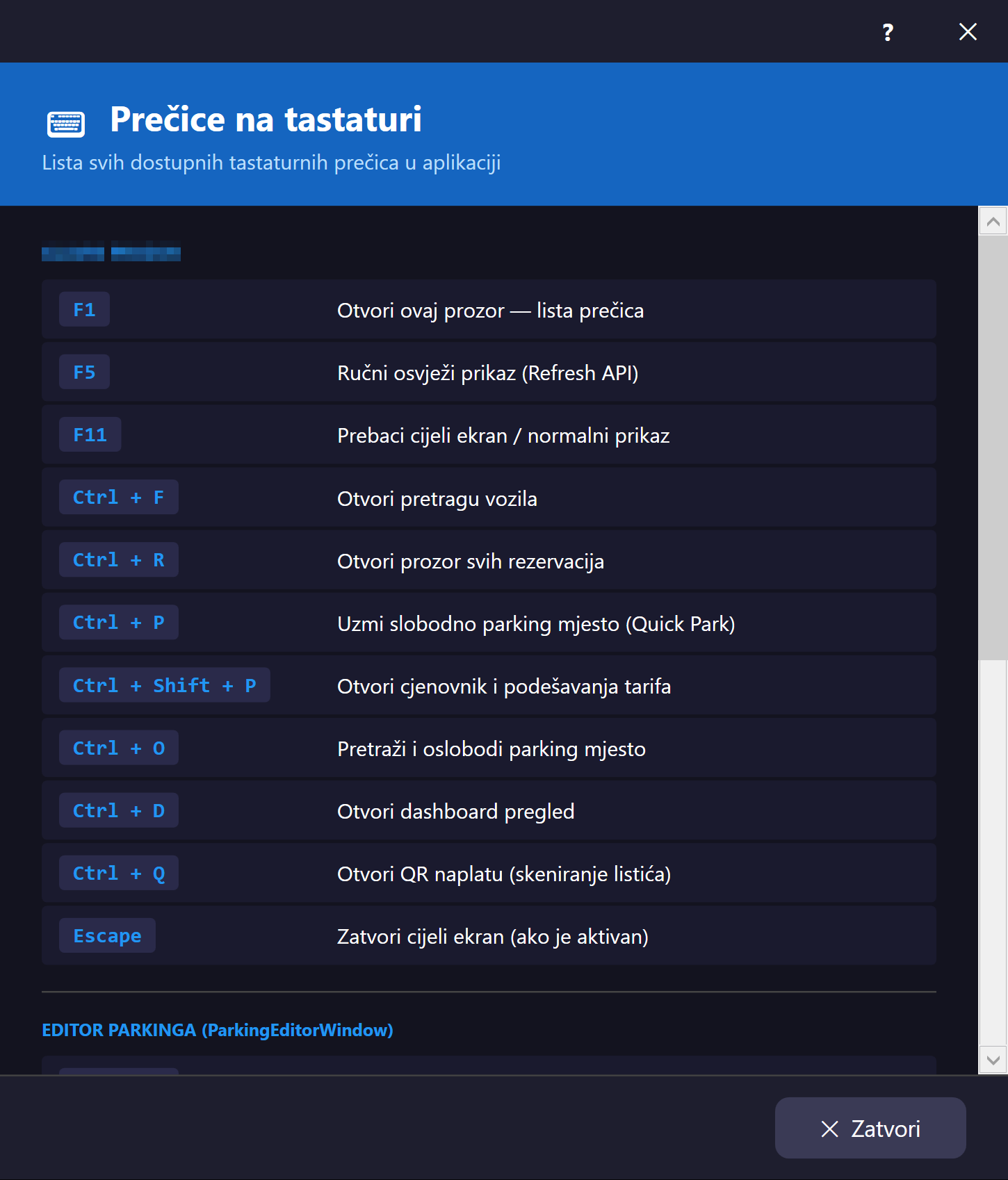
Generički message boxGenerički okvir porukeGenerički prozor za porukeGeneric message boxGenerisches MeldungsfensterCuadro de mensaje genérico Fiksna veličinaFiksna veličinaFiksna veličinaFixed sizeFeste GrößeTamaño fijo#message-dialog
Zamjena za standardni Windows MessageBox — koristi se u čitavoj aplikaciji za potvrde, informacije i upozorenja, kako bi izgled poruka odgovarao tamnoj temi aplikacije umjesto da izgleda kao nativni Windows dijalog. Prikazuje ikonu i naslov u headeru, tekst poruke u tijelu, te kombinaciju dugmadi Da/Ne ili U redu zavisno od konteksta. Ovo je vjerovatno najčešće pozivan prozor u cijeloj aplikaciji jer gotovo svaka potvrda i poruka o grešci/upozorenju prolazi kroz njega.
Zamjena za standardni Windows MessageBox — koristi se u cijeloj aplikaciji za potvrde, informacije i upozorenja kako bi izgled poruka odgovarao tamnoj temi aplikacije umjesto da izgleda kao izvorni Windows dijalog. Prikazuje ikonu i naslov u zaglavlju, tekst poruke u tijelu te kombinaciju gumba Da/Ne ili U redu, ovisno o kontekstu. Ovo je vjerojatno najčešće pozivani prozor u cijeloj aplikaciji jer gotovo svaka potvrda i poruka o pogrešci/upozorenju prolazi kroz njega.
Zamena za standardni Windows MessageBox — koristi se u celoj aplikaciji za potvrde, informacije i upozorenja, kako bi izgled poruka odgovarao tamnoj temi aplikacije umesto da izgleda kao izvorni Windows dijalog. Prikazuje ikonu i naslov u zaglavlju, tekst poruke u telu i kombinaciju dugmadi Da/Ne ili U redu, zavisno od konteksta. Ovo je verovatno najčešće pozivan prozor u celoj aplikaciji jer gotovo svaka potvrda i poruka o grešci/upozorenju prolazi kroz njega.
A replacement for the standard Windows MessageBox — used throughout the app for confirmations, information, and warnings, so messages match the app's dark theme instead of looking like a native Windows dialog. Shows an icon and title in the header, the message text in the body, and a combination of Yes/No or OK buttons depending on the context. This is probably the most frequently invoked window in the entire app, since almost every confirmation and error/warning message goes through it.
Ein Ersatz für das Standard-Windows-MessageBox — wird in der gesamten Anwendung für Bestätigungen, Informationen und Warnungen verwendet, damit Meldungen zum dunklen Design der Anwendung passen, statt wie ein nativer Windows-Dialog auszusehen. Zeigt ein Symbol und einen Titel im Kopfbereich, den Meldungstext im Hauptteil sowie eine Kombination aus Ja/Nein- oder OK-Schaltflächen je nach Kontext. Dies ist wahrscheinlich das am häufigsten aufgerufene Fenster der gesamten Anwendung, da fast jede Bestätigung und jede Fehler-/Warnmeldung darüber läuft.
Un reemplazo del MessageBox estándar de Windows — se usa en toda la aplicación para confirmaciones, información y advertencias, de modo que los mensajes coincidan con el tema oscuro de la aplicación en lugar de parecer un diálogo nativo de Windows. Muestra un icono y un título en el encabezado, el texto del mensaje en el cuerpo, y una combinación de botones Sí/No o Aceptar según el contexto. Esta es probablemente la ventana más invocada de toda la aplicación, ya que casi todas las confirmaciones y mensajes de error/advertencia pasan por ella.
Poruke od administracijePoruke od administracijePoruke od administracijeMessages from administrationNachrichten von der VerwaltungMensajes de la administración #notifications-window
Otvara se klikom na zvonce u alatnoj traci glavnog prozora. Crveni bedž na zvoncu pokazuje broj nepročitanih poruka i osvježava se uživo čim nova poruka stigne. Ovdje vidite poruke koje vam šalje VehPark ili vlasnik/menadžer vaše firme (vidi Pošalji poruku u web administraciji). Svaka poruka ima naslov, tekst, pošiljaoca i vrijeme slanja.
Otvaranjem prozora poruke se označavaju kao pročitane. Iste poruke se vide i u web administraciji i u Android aplikaciji. Prozor se zatvara dugmetom „Zatvori” ili tipkom Esc.
Otvara se klikom na zvonce na alatnoj traci glavnog prozora. Crvena oznaka na zvoncu prikazuje broj nepročitanih poruka i osvježava se uživo čim stigne nova poruka. Ovdje vidite poruke koje vam šalje VehPark ili vlasnik/upravitelj vaše tvrtke (vidi Pošalji poruku u web administraciji). Svaka poruka ima naslov, tekst, pošiljatelja i vrijeme slanja.
Otvaranjem prozora poruke se označavaju kao pročitane. Iste poruke vidljive su i u web administraciji i u Android aplikaciji. Prozor se zatvara gumbom „Zatvori” ili tipkom Esc.
Otvara se klikom na zvonce na traci sa alatkama glavnog prozora. Crveni bedž na zvoncu pokazuje broj nepročitanih poruka i osvežava se uživo čim stigne nova poruka. Ovde vidite poruke koje vam šalje VehPark ili vlasnik/menadžer vaše firme (vidi Pošalji poruku u veb administraciji). Svaka poruka ima naslov, tekst, pošiljaoca i vreme slanja.
Otvaranjem prozora poruke se označavaju kao pročitane. Iste poruke se vide i u veb administraciji i u Android aplikaciji. Prozor se zatvara dugmetom „Zatvori“ ili tasterom Esc.
Opens when you click the bell in the main window toolbar. The red badge on the bell shows the number of unread messages and updates live as soon as a new message arrives. Here you see messages sent to you by VehPark or by the owner/manager of your company (see Send message in the web administration). Each message shows its title, text, sender and time sent.
Opening the window marks the messages as read. The same messages are also visible in the web administration and in the Android app. Close the window with the "Close" button or the Esc key.
Öffnet sich per Klick auf die Glocke in der Symbolleiste des Hauptfensters. Das rote Abzeichen an der Glocke zeigt die Anzahl ungelesener Nachrichten und aktualisiert sich live, sobald eine neue Nachricht eintrifft. Hier sehen Sie Nachrichten von VehPark oder vom Inhaber/Manager Ihres Unternehmens (siehe Nachricht senden in der Web-Administration). Jede Nachricht zeigt Titel, Text, Absender und Sendezeit.
Beim Öffnen des Fensters werden die Nachrichten als gelesen markiert. Dieselben Nachrichten sind auch in der Web-Administration und in der Android-App sichtbar. Geschlossen wird das Fenster mit „Schließen“ oder der Esc-Taste.
Se abre al hacer clic en la campana de la barra de herramientas de la ventana principal. La insignia roja de la campana muestra el número de mensajes no leídos y se actualiza en directo en cuanto llega un mensaje nuevo. Aquí ve los mensajes que le envía VehPark o el propietario/gerente de su empresa (consulte Enviar mensaje en la administración web). Cada mensaje muestra el título, el texto, el remitente y la hora de envío.
Al abrir la ventana, los mensajes se marcan como leídos. Los mismos mensajes también se ven en la administración web y en la aplicación Android. La ventana se cierra con el botón "Cerrar" o la tecla Esc.
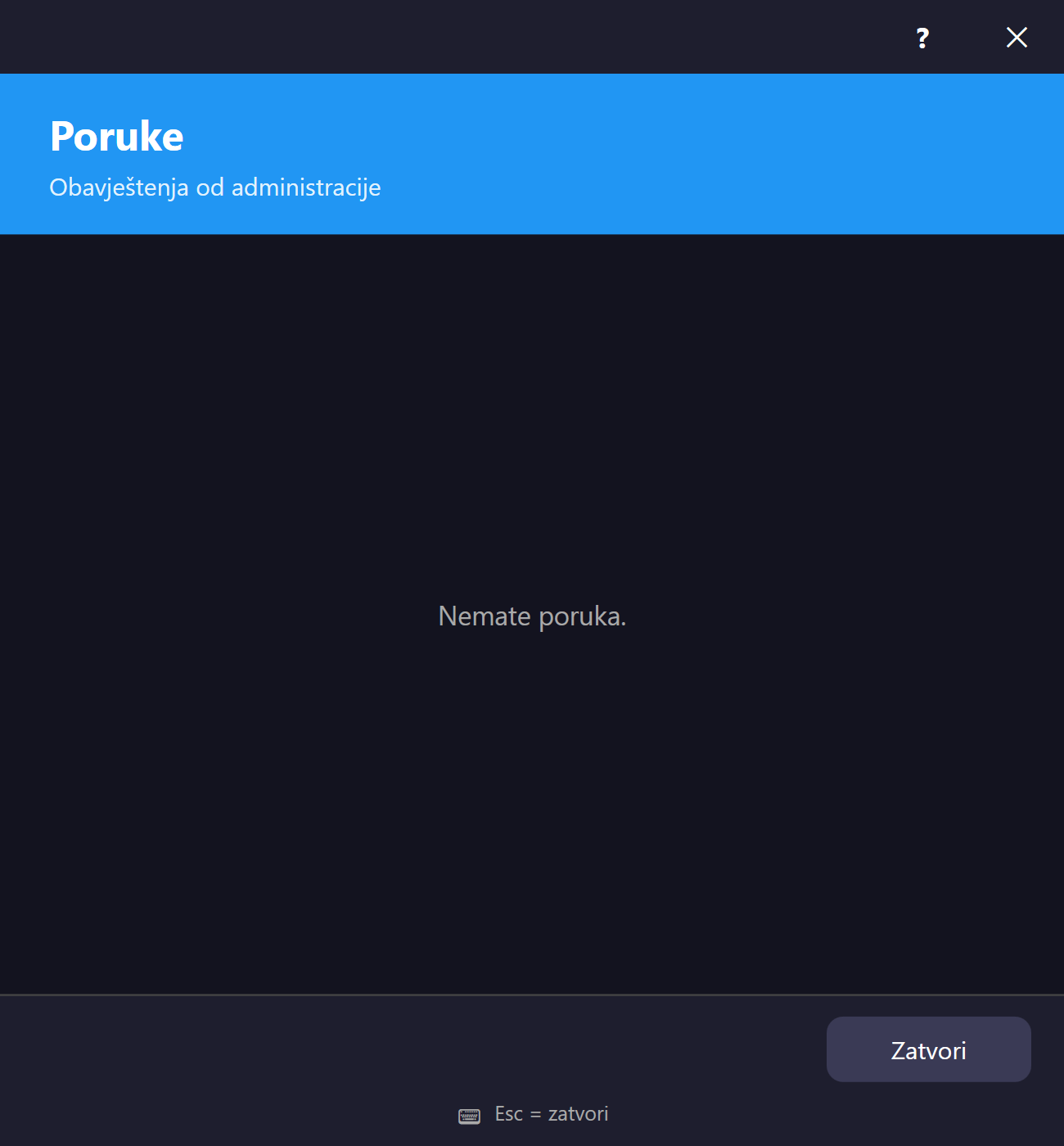
Web Administracija — TenantAdmin (Nivo 2)Web administracija — TenantAdmin (Razina 2)Veb administracija — TenantAdmin (Nivo 2)Web Administration — TenantAdmin (Level 2)Web-Administration — TenantAdmin (Stufe 2)Administración web — TenantAdmin (Nivel 2)
Dokumentacija Blazor web panela za vlasnike/menadžere garaža — cjenovnik, klijenti, fakturisanje, kartice i podešavanja tenanta. Ne pokriva stranice namijenjene platformskim administratorima (SuperAdmin/WebAdmin/Admin).
Dokumentacija web-sučelja (Blazor) za vlasnike/upravitelje garaža — cjenik, klijenti, fakturiranje, kartice i postavke tenanta. Ne obuhvaća stranice namijenjene administratorima platforme (SuperAdmin/WebAdmin/Admin).
Dokumentacija Blazor veb panela za vlasnike/menadžere garaža — cenovnik, klijenti, fakturisanje, kartice i podešavanja tenanta. Ne pokriva stranice namenjene administratorima platforme (SuperAdmin/WebAdmin/Admin).
Documentation for the Blazor web panel used by garage owners/managers — pricing, customers, invoicing, cards and tenant settings. Does not cover pages intended for platform administrators (SuperAdmin/WebAdmin/Admin).
Dokumentation des Blazor-Webpanels für Garagenbesitzer/-manager — Preise, Kunden, Rechnungsstellung, Karten und Mandanteneinstellungen. Deckt keine Seiten ab, die für Plattformadministratoren (SuperAdmin/WebAdmin/Admin) gedacht sind.
Documentación del panel web Blazor para propietarios/gerentes de garajes — tarifas, clientes, facturación, tarjetas y configuración del inquilino. No cubre páginas destinadas a administradores de la plataforma (SuperAdmin/WebAdmin/Admin).
Početna stranicaPočetna stranicaPočetna stranicaHome pageStartseitePágina de inicio #admin-home
Javna početna stranica Web Administracije — vidljiva i prije prijave. Sadrži naslovnu sekciju "Upravljanje parkingom na jednom mjestu", pregled ključnih mogućnosti sistema (praćenje sesija, izvještaji, multi-tenant arhitektura, EV punjači, upravljanje korisnicima, fleksibilne tarife) i sekciju za preuzimanje WPF desktop aplikacije.
Kad ste prijavljeni, umjesto dugmadi za prijavu/registraciju vidite pozdrav sa vašim imenom i dugme "Idi u administraciju" koje vas vodi direktno na Dashboard. Klik na pozdrav otvara brzi skočni prozor (modal) za izmjenu imena/prezimena/emaila i lozinke — to je isti podaci kao na stranicama Moj profil i Promjena lozinke, samo dostupni bez napuštanja početne stranice.
Javna početna stranica web administracije — vidljiva i prije prijave. Sadrži naslovni odjeljak „Upravljanje parkiralištem na jednom mjestu”, pregled ključnih mogućnosti sustava (praćenje sesija, izvješća, arhitektura za više tenanata, EV punionice, upravljanje korisnicima, fleksibilne tarife) i odjeljak za preuzimanje WPF desktop aplikacije.
Kada ste prijavljeni, umjesto gumba za prijavu/registraciju vidite pozdrav sa svojim imenom i gumb „Idi u administraciju” koji vas vodi izravno na Nadzornu ploču. Klik na pozdrav otvara brzi skočni prozor (modal) za izmjenu imena/prezimena/e-pošte i lozinke — to su isti podaci kao na stranicama Moj profil i Promjena lozinke, samo dostupni bez napuštanja početne stranice.
Javna početna stranica veb administracije — vidljiva i pre prijave. Sadrži naslovni odeljak „Upravljanje parkingom na jednom mestu“, pregled ključnih mogućnosti sistema (praćenje sesija, izveštaji, multi-tenant arhitektura, EV punjači, upravljanje korisnicima, fleksibilne tarife) i odeljak za preuzimanje WPF desktop aplikacije.
Kada ste prijavljeni, umesto dugmadi za prijavu/registraciju vidite pozdrav sa vašim imenom i dugme „Idi u administraciju“ koje vas vodi direktno na Dashboard. Klik na pozdrav otvara brzi iskačući prozor (modal) za izmenu imena/prezimena/emaila i lozinke — to su isti podaci kao na stranicama Moj profil i Promena lozinke, samo dostupni bez napuštanja početne stranice.
The public home page of the Web Administration — visible even before signing in. It shows a hero section ("Parking management in one place"), an overview of the system's key features (session tracking, reports, multi-tenant architecture, EV chargers, user management, flexible pricing) and a section for downloading the WPF desktop application.
Once signed in, the sign-in/register buttons are replaced with a greeting showing your name and a "Go to admin" button that takes you straight to the Dashboard. Clicking the greeting opens a quick popup for editing your name/email and password — the same data as on the My profile and Change password pages, just reachable without leaving the home page.
Die öffentliche Startseite der Web-Administration — sichtbar auch vor der Anmeldung. Zeigt einen Hero-Bereich ("Parkverwaltung an einem Ort"), einen Überblick über die wichtigsten Funktionen des Systems (Sitzungsverfolgung, Berichte, Multi-Mandanten-Architektur, EV-Ladestationen, Benutzerverwaltung, flexible Preise) und einen Bereich zum Herunterladen der WPF-Desktopanwendung.
Nach der Anmeldung werden die Anmelde-/Registrierungsschaltflächen durch eine Begrüßung mit Ihrem Namen und eine Schaltfläche „Zur Administration“ ersetzt, die Sie direkt zum Dashboard führt. Ein Klick auf die Begrüßung öffnet ein schnelles Popup zum Bearbeiten von Name/E-Mail und Passwort — dieselben Daten wie auf den Seiten Mein Profil und Passwort ändern, nur erreichbar ohne die Startseite zu verlassen.
La página de inicio pública de la Administración web — visible incluso antes de iniciar sesión. Muestra una sección principal ("Gestión de parqueo en un solo lugar"), una visión general de las funciones clave del sistema (seguimiento de sesiones, informes, arquitectura multiinquilino, cargadores EV, gestión de usuarios, tarifas flexibles) y una sección para descargar la aplicación de escritorio WPF.
Una vez conectado, los botones de inicio de sesión/registro se reemplazan por un saludo con su nombre y un botón "Ir a la administración" que lo lleva directamente al Panel. Al hacer clic en el saludo se abre una ventana emergente rápida para editar su nombre/correo y contraseña — los mismos datos que en las páginas Mi perfil y Cambiar contraseña, solo que accesibles sin salir de la página de inicio.
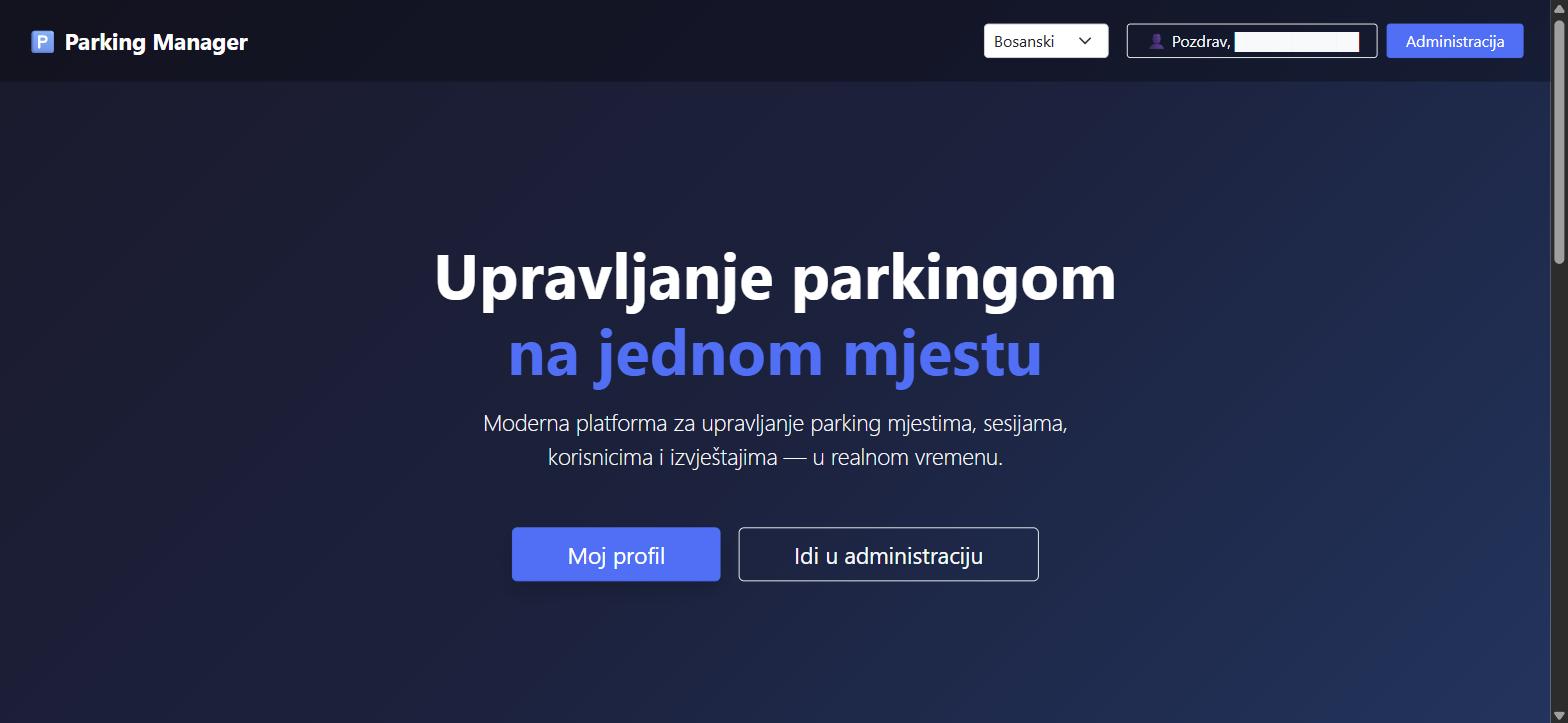
DashboardNadzorna pločaDashboardDashboardDashboardPanel #admin-tenant-dashboard
Centralna kontrolna tabla nakon prijave, sa dva taba: "Pregled" i "Prihodi i rashodi". U zaglavlju se vidi status desktop (WPF) terminala — online/offline bedž sa vremenom zadnje aktivnosti — te trenutna verzija aplikacije. Dugme "Osvježi" ručno povlači najnovije podatke; stranica se inače sama osvježava svakih 60 sekundi i uživo reagira na promjene preko real-time konekcije (nova sesija, uplata, izlazak vozila i sl. odmah se odražavaju bez ručnog osvježavanja).
Tab "Pregled" prikazuje: status licence (aktivna/uskoro ističe/istekla), broj parking mjesta (ukupno/slobodno/zauzeto sa podjelom na satno i mjesečno/mjesečna pretplata), statistiku dana (sesije, prihod, izlasci, prosječno trajanje), grafikon prihoda za zadnjih 7 dana, upozorenja (licenca ističe, parking preko 90% popunjen), aktivnost osoblja danas, promet po smjenama i paginiranu tabelu sesija tog dana sa statusom (Aktivna/Plaćena/Neplaćena), kao i popunjenost po zonama sa vizuelnim trakama napretka.
Tab "Prihodi i rashodi" nudi izbor perioda (dnevno/mjesečno/kvartalno/godišnje), dugme za preuzimanje PDF izvještaja te grafikone prihoda naspram rashoda i raspodjele rashoda po kategoriji.
Tabovi „WPF licence” i „Android uređaji”: prikazuju koliko je licenci zauzeto od dozvoljenog broja i listu računara, odnosno telefona, sa statusom (online/offline) i zadnjom aktivnošću. Dugme „Oslobodi slot” odjavljuje WPF računar koji je online i oslobađa njegovu licencu, a „Deaktiviraj” gasi Android uređaj. Dugme „Zatraži izmjenu broja licenci” šalje VehPark-u zahtjev za veći ili manji broj licenci, uz prikaz koliko će se promijeniti mjesečni račun. Promjena važi od 1. sljedećeg mjeseca.
Središnja nadzorna ploča nakon prijave, s dvije kartice: „Pregled” i „Prihodi i rashodi”. U zaglavlju se vidi status desktop (WPF) terminala — oznaka online/offline s vremenom posljednje aktivnosti — i trenutačna verzija aplikacije. Gumb „Osvježi” ručno dohvaća najnovije podatke; stranica se inače sama osvježava svakih 60 sekundi i uživo reagira na promjene putem veze u stvarnom vremenu (nova sesija, uplata, izlazak vozila i sl. odmah su vidljivi bez ručnog osvježavanja).
Kartica „Pregled” prikazuje: status licencije (aktivna/uskoro istječe/istekla), broj parkirnih mjesta (ukupno/slobodno/zauzeto s podjelom na najam po satu i mjesečnu pretplatu), statistiku dana (sesije, prihod, izlasci, prosječno trajanje), grafikon prihoda za posljednjih 7 dana, upozorenja (licencija istječe, parkiralište popunjeno više od 90 %), aktivnost osoblja danas, promet po smjenama i tablicu sesija tog dana podijeljenu na stranice sa statusom (Aktivna/Plaćena/Neplaćena), kao i popunjenost po zonama s vizualnim trakama napretka.
Kartica „Prihodi i rashodi” nudi odabir razdoblja (dnevno/mjesečno/tromjesečno/godišnje), gumb za preuzimanje PDF izvješća te grafikone prihoda u odnosu na rashode i raspodjele rashoda po kategoriji.
Kartice „WPF licencije” i „Android uređaji”: prikazuju koliko je licencija zauzeto od dopuštenog broja te popis računala, odnosno telefona, sa statusom (online/offline) i posljednjom aktivnošću. Gumb „Oslobodi mjesto” odjavljuje WPF računalo koje je online i oslobađa njegovu licenciju, a „Deaktiviraj” isključuje Android uređaj. Gumb „Zatraži izmjenu broja licencija” šalje VehParku zahtjev za veći ili manji broj licencija, uz prikaz koliko će se promijeniti mjesečni račun. Promjena vrijedi od 1. sljedećeg mjeseca.
Centralna kontrolna tabla nakon prijave, sa dve kartice: „Pregled“ i „Prihodi i rashodi“. U zaglavlju se vidi status desktop (WPF) terminala — online/offline bedž sa vremenom poslednje aktivnosti — i trenutna verzija aplikacije. Dugme „Osveži“ ručno preuzima najnovije podatke; stranica se inače sama osvežava na svakih 60 sekundi i uživo reaguje na promene preko veze u realnom vremenu (nova sesija, uplata, izlazak vozila i sl. odmah se vide bez ručnog osvežavanja).
Kartica „Pregled“ prikazuje: status licence (aktivna/uskoro ističe/istekla), broj parking mesta (ukupno/slobodno/zauzeto sa podelom na zakup po satu i mesečnu pretplatu), statistiku dana (sesije, prihod, izlasci, prosečno trajanje), grafikon prihoda za poslednjih 7 dana, upozorenja (licenca ističe, parking popunjen preko 90%), aktivnost osoblja danas, promet po smenama i tabelu sesija tog dana podeljenu na stranice sa statusom (Aktivna/Plaćena/Neplaćena), kao i popunjenost po zonama sa vizuelnim trakama napretka.
Kartica „Prihodi i rashodi“ nudi izbor perioda (dnevno/mesečno/kvartalno/godišnje), dugme za preuzimanje PDF izveštaja i grafikone prihoda u odnosu na rashode i raspodele rashoda po kategoriji.
Kartice „WPF licence“ i „Android uređaji“: prikazuju koliko je licenci zauzeto od dozvoljenog broja i listu računara, odnosno telefona, sa statusom (online/offline) i poslednjom aktivnošću. Dugme „Oslobodi mesto“ odjavljuje WPF računar koji je online i oslobađa njegovu licencu, a „Deaktiviraj“ gasi Android uređaj. Dugme „Zatraži izmenu broja licenci“ šalje VehPark-u zahtev za veći ili manji broj licenci, uz prikaz koliko će se promeniti mesečni račun. Promena važi od 1. sledećeg meseca.
The central control panel after signing in, with two tabs: "Overview" and "Revenue and expenses". The header shows the desktop (WPF) terminal's status — an online/offline badge with a last-seen timestamp — plus the current app version. The "Refresh" button manually pulls the latest data; the page otherwise refreshes itself every 60 seconds and reacts live to real-time updates (a new session, payment, vehicle exit, etc. show up immediately without a manual refresh).
The "Overview" tab shows: license status (active/expiring soon/expired), spot counts (total/free/occupied split by hourly vs. monthly), today's stats (sessions, revenue, exits, average duration), a 7-day revenue chart, alerts (license expiring, parking over 90% full), today's staff activity, shift traffic, and a paginated table of today's sessions with status (Active/Paid/Unpaid), along with per-zone occupancy shown with progress bars.
The "Revenue and expenses" tab offers a period selector (daily/monthly/quarterly/yearly), a PDF download button, and charts for revenue vs. expenses and expense breakdown by category.
"WPF licenses" and "Android devices" tabs: show how many licenses are in use out of the allowed number and a list of computers or phones with their status (online/offline) and last activity. "Release slot" signs out a WPF computer that is online and frees its license, and "Deactivate" disables an Android device. "Request license count change" sends VehPark a request for more or fewer licenses and shows how your monthly bill will change. The change applies from the 1st of the following month.
Das zentrale Kontrollzentrum nach der Anmeldung, mit zwei Reitern: „Übersicht“ und „Umsatz und Ausgaben“. Im Kopfbereich sieht man den Status des Desktop-(WPF)- Terminals — ein Online-/Offline-Badge mit dem Zeitpunkt der letzten Aktivität — sowie die aktuelle App-Version. Die Schaltfläche „Aktualisieren“ ruft manuell die neuesten Daten ab; die Seite aktualisiert sich sonst alle 60 Sekunden selbst und reagiert live auf Änderungen über eine Echtzeitverbindung (eine neue Sitzung, Zahlung, Fahrzeugausfahrt usw. werden sofort ohne manuelle Aktualisierung angezeigt).
Der Reiter „Übersicht“ zeigt: Lizenzstatus (aktiv/läuft bald ab/abgelaufen), Anzahl der Parkplätze (gesamt/frei/belegt, unterteilt nach stündlich und monatlich/Monatsabonnement), Tagesstatistik (Sitzungen, Umsatz, Ausfahrten, durchschnittliche Dauer), ein 7-Tage-Umsatzdiagramm, Warnungen (Lizenz läuft ab, Parkplatz über 90 % ausgelastet), heutige Personalaktivität, Verkehr nach Schicht und eine paginierte Tabelle der heutigen Sitzungen mit Status (Aktiv/Bezahlt/Unbezahlt), zusammen mit der Belegung pro Zone, dargestellt mit Fortschrittsbalken.
Der Reiter „Umsatz und Ausgaben“ bietet eine Zeitraumauswahl (täglich/monatlich/vierteljährlich/ jährlich), eine PDF-Download-Schaltfläche sowie Diagramme für Umsatz gegenüber Ausgaben und die Aufschlüsselung der Ausgaben nach Kategorie.
Reiter „WPF-Lizenzen“ und „Android-Geräte“: zeigen, wie viele Lizenzen von der erlaubten Anzahl belegt sind, sowie eine Liste der Computer bzw. Telefone mit Status (online/offline) und letzter Aktivität. „Slot freigeben“ meldet einen WPF-Computer ab, der online ist, und gibt seine Lizenz frei; „Deaktivieren“ sperrt ein Android-Gerät. „Änderung der Lizenzanzahl beantragen“ sendet VehPark eine Anfrage für mehr oder weniger Lizenzen und zeigt, wie sich Ihre Monatsrechnung ändert. Die Änderung gilt ab dem 1. des Folgemonats.
El panel de control central tras iniciar sesión, con dos pestañas: "Resumen" y "Ingresos y gastos". En el encabezado se ve el estado del terminal de escritorio (WPF) — una insignia en línea/fuera de línea con la hora de la última actividad — además de la versión actual de la aplicación. El botón "Actualizar" obtiene manualmente los datos más recientes; la página se actualiza sola cada 60 segundos y reacciona en vivo a las actualizaciones en tiempo real (una nueva sesión, pago, salida de vehículo, etc. se reflejan de inmediato sin actualización manual).
La pestaña "Resumen" muestra: estado de la licencia (activa/por vencer/vencida), número de plazas (totales/libres/ocupadas divididas por hora y mensual/suscripción mensual), estadísticas del día (sesiones, ingresos, salidas, duración promedio), un gráfico de ingresos de 7 días, alertas (licencia por vencer, parqueo ocupado en más del 90%), actividad del personal de hoy, tráfico por turno y una tabla paginada de las sesiones de hoy con estado (Activa/Pagada/No pagada), junto con la ocupación por zona mostrada con barras de progreso.
La pestaña "Ingresos y gastos" ofrece un selector de período (diario/mensual/trimestral/anual), un botón de descarga de PDF y gráficos de ingresos frente a gastos y desglose de gastos por categoría.
Pestañas "Licencias WPF" y "Dispositivos Android": muestran cuántas licencias están en uso respecto al número permitido y una lista de ordenadores o teléfonos con su estado (en línea/sin conexión) y su última actividad. "Liberar espacio" cierra la sesión de un ordenador WPF en línea y libera su licencia, y "Desactivar" desactiva un dispositivo Android. "Solicitar cambio en el número de licencias" envía a VehPark una solicitud de más o menos licencias y muestra cómo cambiará su factura mensual. El cambio se aplica desde el día 1 del mes siguiente.
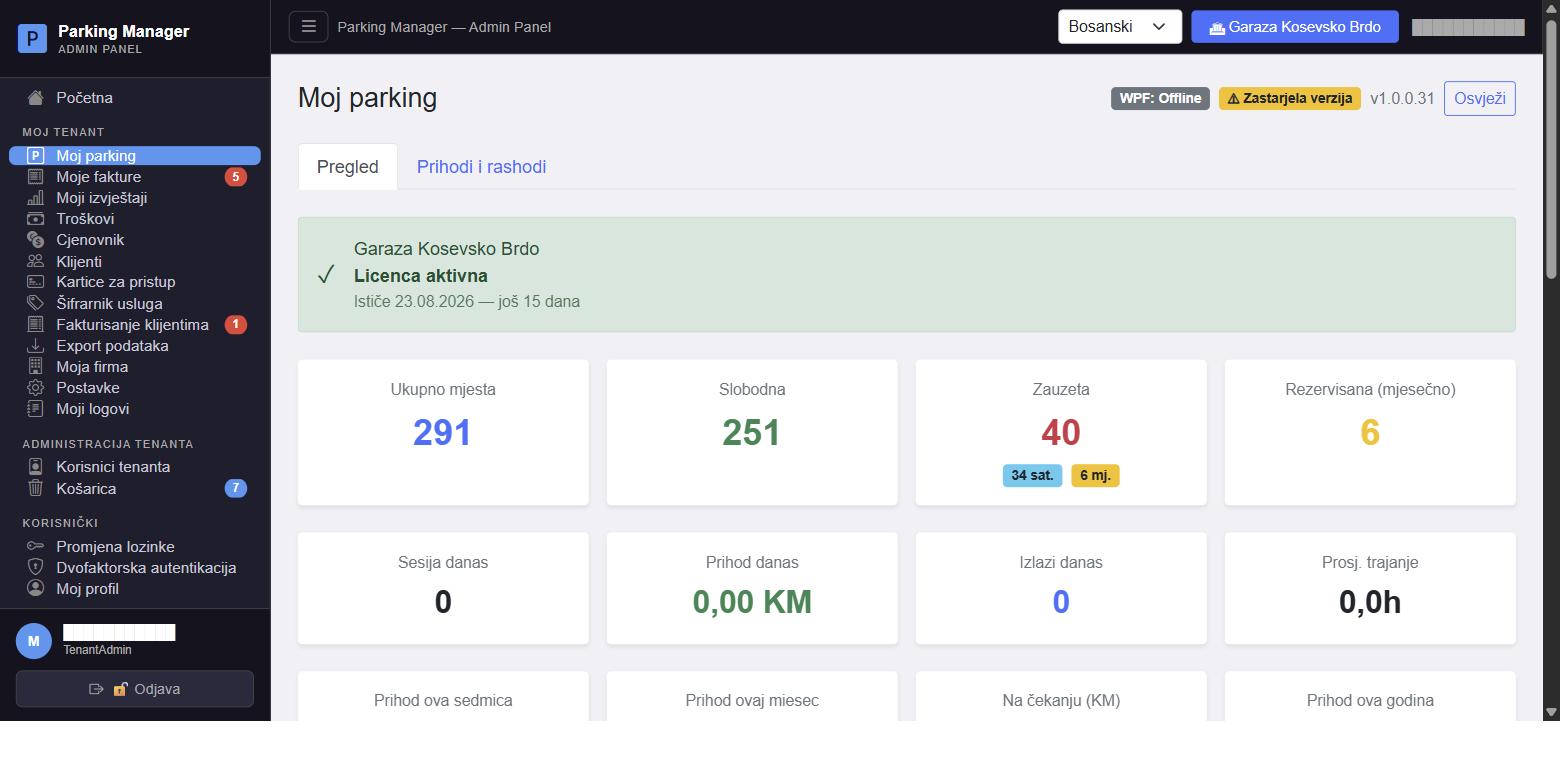
Moje faktureMoji računiMoje faktureMy invoicesMeine RechnungenMis facturas #admin-my-invoices
Prikazuje fakture koje platforma ispostavlja vašem tenantu (npr. mjesečna pretplata na sistem) — ne miješati sa stranicom Fakturisanje klijentima, gdje vi fakturišete svoje klijente. Dugmad za filter (Sve / Neplaćene / U obradi / Plaćene) svaka prikazuju uživo broj stavki, a ispod se vidi ukupan zbir plaćenih (zeleno) i neplaćenih (crveno) iznosa za trenutni filter.
Tabela prikazuje broj fakture, opis usluge, datum izdavanja, rok plaćanja, status (bojom pozadine reda), PDV% i iznos. Ikonica za pregled otvara PDF fakture u modalu (bez opcije slanja emailom — to je rezervisano za fakture koje vi šaljete klijentima). Lista se osvježava uživo kad stigne nova faktura ili se promijeni status neke postojeće.
Prikazuje račune koje platforma izdaje vašem tenantu (npr. mjesečna pretplata na sustav) — ne miješati sa stranicom Fakturiranje klijenata, na kojoj vi fakturirate svoje klijente. Svaki gumb filtra (Svi / Neplaćeni / U obradi / Plaćeni) prikazuje broj stavki uživo, a ispod se vidi ukupni zbroj plaćenih (zeleno) i neplaćenih (crveno) iznosa za trenutačni filtar.
Tablica prikazuje broj računa, opis usluge, datum izdavanja, rok plaćanja, status (bojom pozadine retka), PDV % i iznos. Ikona za pregled otvara PDF računa u modalnom prozoru (bez mogućnosti slanja e-poštom — to je rezervirano za račune koje vi šaljete klijentima). Popis se osvježava uživo kada stigne novi račun ili se promijeni status postojećeg.
Prikazuje fakture koje platforma izdaje vašem tenantu (npr. mesečna pretplata na sistem) — ne mešati sa stranicom Fakturisanje klijenata, gde vi fakturišete svoje klijente. Svako dugme filtera (Sve / Neplaćene / U obradi / Plaćene) prikazuje broj stavki uživo, a ispod se vidi ukupan zbir plaćenih (zeleno) i neplaćenih (crveno) iznosa za trenutni filter.
Tabela prikazuje broj fakture, opis usluge, datum izdavanja, rok plaćanja, status (bojom pozadine reda), PDV% i iznos. Ikonica za pregled otvara PDF fakture u modalu (bez opcije slanja emailom — to je rezervisano za fakture koje vi šaljete klijentima). Lista se osvežava uživo kada stigne nova faktura ili se promeni status neke postojeće.
Shows invoices that the platform issues to your tenant (e.g. the monthly system subscription) — not to be confused with Customer invoicing, where you invoice your own customers. The filter buttons (All / Unpaid / Processing / Paid) each show a live count, with the total paid (green) and unpaid (red) amount for the current filter shown below.
The table shows the invoice number, service description, issue date, due date, status (shown via the row's background color), VAT% and amount. The preview icon opens the invoice PDF in a modal (without an email-sending option — that's reserved for invoices you send to your own customers). The list refreshes live whenever a new invoice arrives or an existing one changes status.
Zeigt Rechnungen, die die Plattform an Ihren Mandanten ausstellt (z. B. das monatliche Systemabonnement) — nicht zu verwechseln mit Kundenrechnungen, wo Sie Ihre eigenen Kunden fakturieren. Die Filterschaltflächen (Alle / Unbezahlt / In Bearbeitung / Bezahlt) zeigen jeweils eine Live-Anzahl, mit der Gesamtsumme der bezahlten (grün) und unbezahlten (rot) Beträge für den aktuellen Filter darunter.
Die Tabelle zeigt die Rechnungsnummer, Leistungsbeschreibung, Ausstellungsdatum, Fälligkeitsdatum, Status (über die Hintergrundfarbe der Zeile), USt.-% und Betrag. Das Vorschau-Symbol öffnet das Rechnungs-PDF in einem Modal (ohne E-Mail-Versandoption — das ist für Rechnungen reserviert, die Sie an Ihre eigenen Kunden senden). Die Liste aktualisiert sich live, wenn eine neue Rechnung eingeht oder sich der Status einer bestehenden ändert.
Muestra las facturas que la plataforma emite a su inquilino (p. ej. la suscripción mensual del sistema) — no confundir con Facturación a clientes, donde usted factura a sus propios clientes. Los botones de filtro (Todas / No pagadas / En proceso / Pagadas) muestran cada uno un recuento en vivo, con el importe total pagado (verde) y no pagado (rojo) para el filtro actual mostrado debajo.
La tabla muestra el número de factura, la descripción del servicio, la fecha de emisión, la fecha de vencimiento, el estado (mostrado mediante el color de fondo de la fila), el %IVA y el importe. El icono de vista previa abre el PDF de la factura en una ventana modal (sin opción de envío por correo — eso está reservado para las facturas que usted envía a sus propios clientes). La lista se actualiza en vivo cada vez que llega una nueva factura o cambia el estado de una existente.
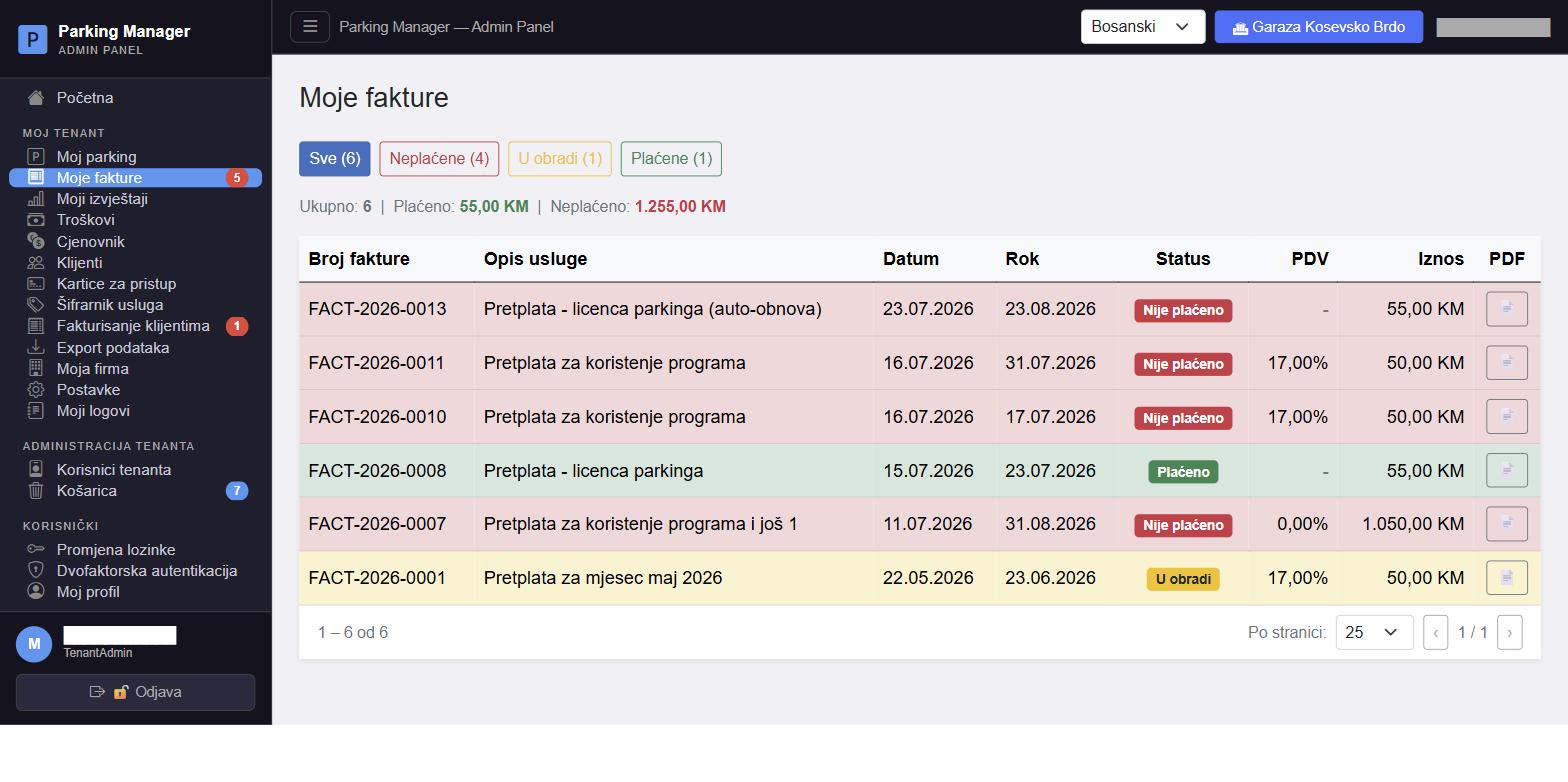
Moji izvještajiMoja izvješćaMoji izveštajiMy reportsMeine BerichteMis informes #admin-my-reports
Detaljni izvještaji o poslovanju vašeg tenanta, odvojeni u dva taba: "Aktivnost" i "Prihodi i rashodi". U tabu Aktivnost birate tip izvještaja — dnevni, sedmični, mjesečni, kvartalni, polugodišnji, godišnji, po smjeni ili po korisniku (osoblju) — svaki sa svojim setom filtera (datum, opseg datuma, godina/mjesec, smjena, korisnik). Rezultat prikazuje KPI kartice (ukupno sesija, prihod, plaćene/neplaćene sesije, aktivne sesije, prosječno trajanje, lojalnost bodovi), raspodjelu sesija po zoni i načinu plaćanja, te troškove za odabrani period.
Izvještaj "Po korisniku" prikazuje smjene odabranog zaposlenika (prijava/odjava, trajanje, broj sesija i prihod po smjeni) sa ukupnim zbirom za period. Svaki izvještaj se može preuzeti kao PDF (dugme "Preuzmi PDF") ili odštampati direktno iz preglednika.
Detaljna izvješća o poslovanju vašeg tenanta, podijeljena u dvije kartice: „Aktivnost” i „Prihodi i rashodi”. Na kartici Aktivnost odabirete vrstu izvješća — dnevno, tjedno, mjesečno, tromjesečno, polugodišnje, godišnje, po smjeni ili po korisniku (osoblju) — svako sa svojim skupom filtara (datum, raspon datuma, godina/mjesec, smjena, korisnik). Rezultat prikazuje KPI kartice (ukupno sesija, prihod, plaćene/neplaćene sesije, aktivne sesije, prosječno trajanje, bodovi vjernosti), raspodjelu sesija po zoni i načinu plaćanja te troškove za odabrano razdoblje.
Izvješće „Po korisniku” prikazuje smjene odabranog zaposlenika (prijava/odjava, trajanje, broj sesija i prihod po smjeni) s ukupnim zbrojem za razdoblje. Svako se izvješće može preuzeti kao PDF (gumb „Preuzmi PDF”) ili ispisati izravno iz preglednika.
Detaljni izveštaji o poslovanju vašeg tenanta, podeljeni u dve kartice: „Aktivnost“ i „Prihodi i rashodi“. Na kartici Aktivnost birate tip izveštaja — dnevni, nedeljni, mesečni, kvartalni, polugodišnji, godišnji, po smeni ili po korisniku (osoblju) — svaki sa svojim skupom filtera (datum, opseg datuma, godina/mesec, smena, korisnik). Rezultat prikazuje KPI kartice (ukupno sesija, prihod, plaćene/neplaćene sesije, aktivne sesije, prosečno trajanje, bodovi lojalnosti), raspodelu sesija po zoni i načinu plaćanja, kao i troškove za izabrani period.
Izveštaj „Po korisniku“ prikazuje smene izabranog zaposlenog (prijava/odjava, trajanje, broj sesija i prihod po smeni) sa ukupnim zbirom za period. Svaki izveštaj može da se preuzme kao PDF (dugme „Preuzmi PDF“) ili odštampa direktno iz pregledača.
Detailed operational reports for your tenant, split into two tabs: "Activity" and "Revenue and expenses". In the Activity tab you pick a report type — daily, weekly, monthly, quarterly, semi-annual, yearly, by shift, or by user (staff) — each with its own filters (date, date range, year/month, shift, user). The result shows KPI cards (total sessions, revenue, paid/unpaid sessions, active sessions, average duration, loyalty points earned), a breakdown of sessions by zone and payment method, and expenses for the selected period.
The "By user" report shows the selected staff member's shifts (login/logout, duration, session count and revenue per shift) with a period total. Every report can be downloaded as a PDF ("Download PDF" button) or printed directly from the browser.
Detaillierte Betriebsberichte für Ihren Mandanten, unterteilt in zwei Reiter: „Aktivität“ und „Umsatz und Ausgaben“. Im Reiter Aktivität wählen Sie einen Berichtstyp — täglich, wöchentlich, monatlich, quartalsweise, halbjährlich, jährlich, nach Schicht oder nach Benutzer (Personal) — jeweils mit eigenen Filtern (Datum, Datumsbereich, Jahr/Monat, Schicht, Benutzer). Das Ergebnis zeigt KPI-Karten (Gesamtsitzungen, Umsatz, bezahlte/unbezahlte Sitzungen, aktive Sitzungen, durchschnittliche Dauer, erhaltene Treuepunkte), eine Aufschlüsselung der Sitzungen nach Zone und Zahlungsart sowie die Ausgaben für den ausgewählten Zeitraum.
Der Bericht „Nach Benutzer“ zeigt die Schichten des ausgewählten Mitarbeiters (An-/Abmeldung, Dauer, Anzahl der Sitzungen und Umsatz pro Schicht) mit einer Gesamtsumme für den Zeitraum. Jeder Bericht kann als PDF herunterladen werden („PDF herunterladen“-Schaltfläche) oder direkt aus dem Browser gedruckt werden.
Informes operativos detallados de su inquilino, divididos en dos pestañas: "Actividad" y "Ingresos y gastos". En la pestaña Actividad se elige un tipo de informe — diario, semanal, mensual, trimestral, semestral, anual, por turno o por usuario (personal) — cada uno con sus propios filtros (fecha, rango de fechas, año/mes, turno, usuario). El resultado muestra tarjetas KPI (sesiones totales, ingresos, sesiones pagadas/no pagadas, sesiones activas, duración promedio, puntos de fidelidad obtenidos), un desglose de sesiones por zona y método de pago, y los gastos del período seleccionado.
El informe "Por usuario" muestra los turnos del empleado seleccionado (inicio/cierre de sesión, duración, número de sesiones e ingresos por turno) con un total del período. Cada informe se puede descargar como PDF (botón "Descargar PDF") o imprimir directamente desde el navegador.
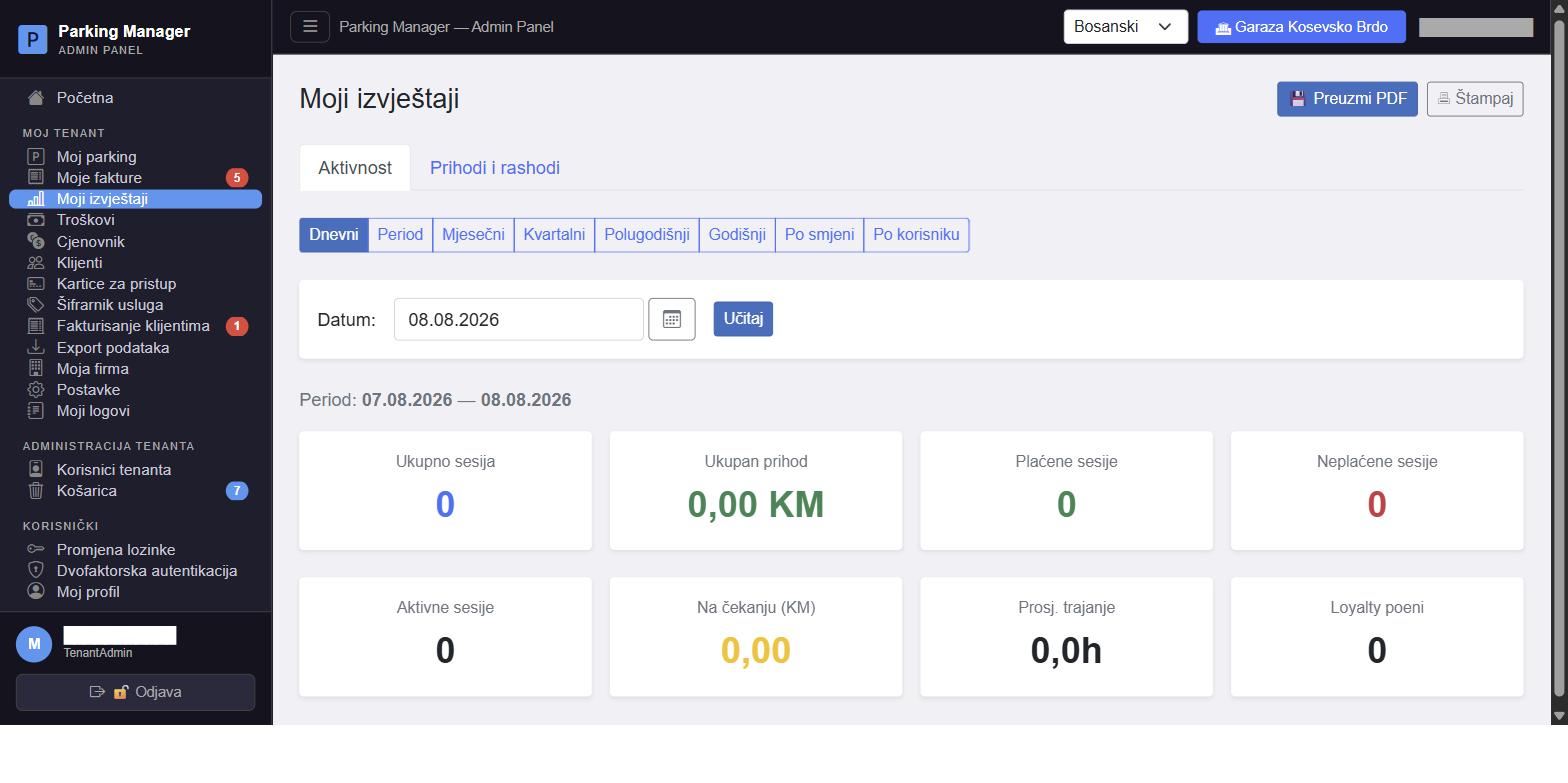
TroškoviTroškoviTroškoviExpensesAusgabenGastos #admin-expenses
Evidencija poslovnih troškova vašeg tenanta (struja, voda, održavanje, plaće, ulaganja, ostalo). Dugme "Novi trošak" otvara formu sa kategorijom, opisom, iznosom, datumom, dobavljačem i napomenom. Iznad tabele je pretraga po opisu/dobavljaču te ukupan broj i zbir prikazanih troškova.
Svaki trošak se može urediti ili obrisati; podaci ovdje su izvor za sekciju troškova u Mojim izvještajima i tab "Prihodi i rashodi" na Dashboardu.
Prilozi (računi): uz svaki trošak možete dodati skenirane račune (PDF, JPG, PNG, XLSX ili DOCX), pregledati ih i preuzeti. Gdje se čuvaju (VehPark pohrana, Google Drive ili OneDrive) birate na stranici Pohrana računa.
Evidencija poslovnih troškova vašeg tenanta (struja, voda, održavanje, plaće, ulaganja, ostalo). Gumb „Novi trošak” otvara obrazac s kategorijom, opisom, iznosom, datumom, dobavljačem i napomenom. Iznad tablice je pretraživanje po opisu/dobavljaču te ukupan broj i zbroj prikazanih troškova.
Svaki se trošak može urediti ili izbrisati; ovi su podaci izvor za odjeljak troškova u Mojim izvješćima i karticu „Prihodi i rashodi” na Nadzornoj ploči.
Privitci (računi): uz svaki trošak možete dodati skenirane račune (PDF, JPG, PNG, XLSX ili DOCX), pregledati ih i preuzeti. Gdje se spremaju (VehPark pohrana, Google Drive ili OneDrive) birate na stranici Pohrana računa.
Evidencija poslovnih troškova vašeg tenanta (struja, voda, održavanje, plate, ulaganja, ostalo). Dugme „Novi trošak“ otvara formu sa kategorijom, opisom, iznosom, datumom, dobavljačem i napomenom. Iznad tabele je pretraga po opisu/dobavljaču i ukupan broj i zbir prikazanih troškova.
Svaki trošak može da se uredi ili obriše; podaci ovde su izvor za odeljak troškova u Mojim izveštajima i karticu „Prihodi i rashodi“ na Dashboard-u.
Prilozi (računi): uz svaki trošak možete da dodate skenirane račune (PDF, JPG, PNG, XLSX ili DOCX), da ih pregledate i preuzmete. Gde se čuvaju (VehPark skladište, Google Drive ili OneDrive) birate na stranici Skladištenje računa.
A record of your tenant's business expenses (electricity, water, maintenance, salaries, investment, other). The "New expense" button opens a form with category, description, amount, date, vendor and a note. Above the table is a search by description/vendor, along with the total count and sum of the displayed expenses.
Each expense can be edited or deleted; this data feeds the expenses section in My reports and the "Revenue and expenses" tab on the Dashboard.
Attachments (receipts): you can attach scanned receipts (PDF, JPG, PNG, XLSX or DOCX) to each expense, preview them and download them. Where they are stored (VehPark storage, Google Drive or OneDrive) is chosen on the Receipt storage page.
Eine Aufzeichnung der Geschäftsausgaben Ihres Mandanten (Strom, Wasser, Instandhaltung, Gehälter, Investitionen, Sonstiges). Die Schaltfläche „Neue Ausgabe“ öffnet ein Formular mit Kategorie, Beschreibung, Betrag, Datum, Lieferant und einer Notiz. Über der Tabelle befindet sich eine Suche nach Beschreibung/Lieferant sowie die Gesamtanzahl und -summe der angezeigten Ausgaben.
Jede Ausgabe kann bearbeitet oder gelöscht werden; diese Daten fließen in den Ausgabenabschnitt in Meine Berichte und den Reiter „Umsatz und Ausgaben“ auf dem Dashboard ein.
Anhänge (Belege): Zu jeder Ausgabe können Sie gescannte Belege (PDF, JPG, PNG, XLSX oder DOCX) hinzufügen, ansehen und herunterladen. Wo sie gespeichert werden (VehPark-Ablage, Google Drive oder OneDrive), legen Sie auf der Seite Belegablage fest.
Un registro de los gastos operativos de su inquilino (electricidad, agua, mantenimiento, salarios, inversiones, otros). El botón "Nuevo gasto" abre un formulario con categoría, descripción, importe, fecha, proveedor y una nota. Encima de la tabla hay una búsqueda por descripción/proveedor, junto con el recuento total y la suma de los gastos mostrados.
Cada gasto se puede editar o eliminar; estos datos alimentan la sección de gastos en Mis informes y la pestaña "Ingresos y gastos" en el Panel.
Adjuntos (recibos): a cada gasto puede adjuntar recibos escaneados (PDF, JPG, PNG, XLSX o DOCX), verlos y descargarlos. Dónde se guardan (almacenamiento VehPark, Google Drive u OneDrive) se elige en la página Almacenamiento de recibos.
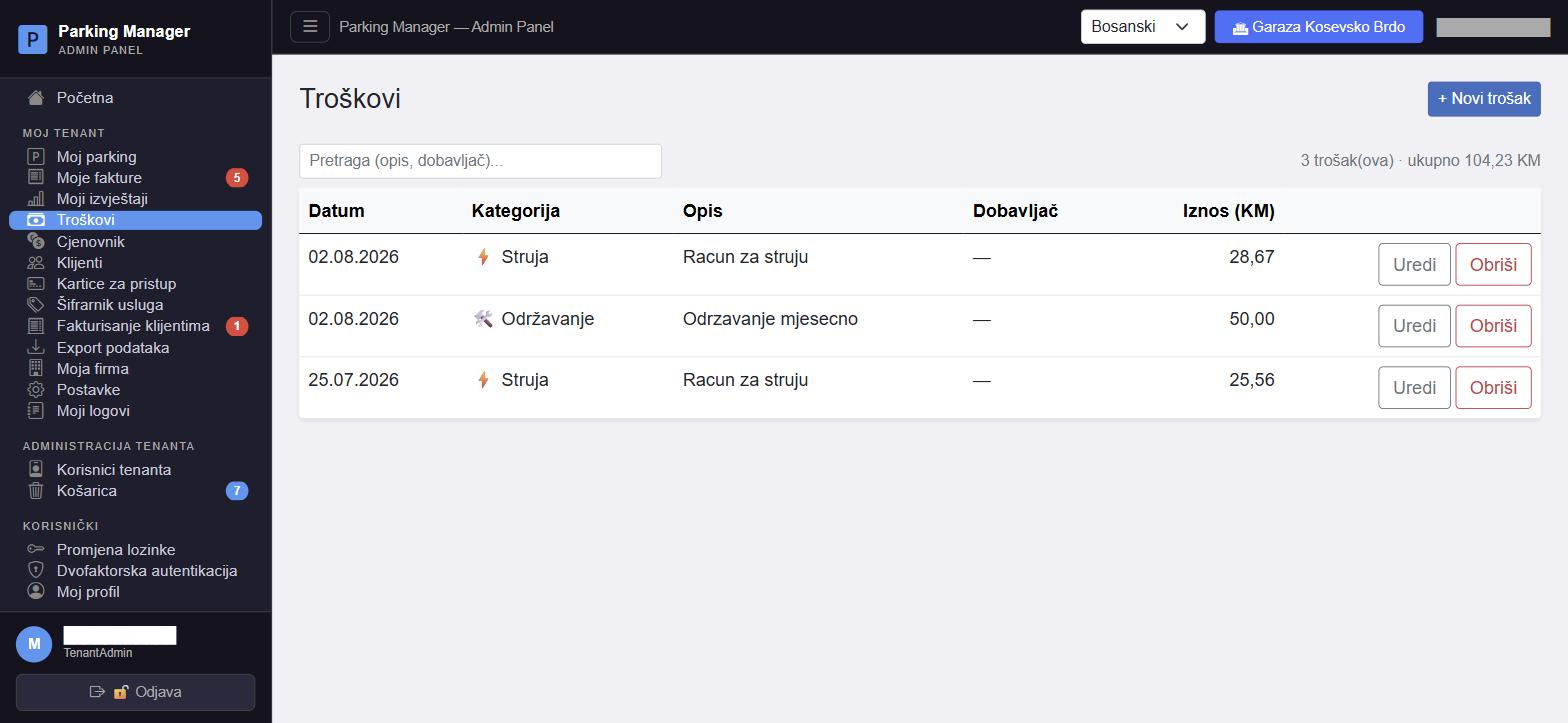
Pohrana računaPohrana računaSkladištenje računaReceipt storageBelegablageAlmacenamiento de recibos #admin-attachment-storage
Ovdje birate gdje se čuvaju računi (prilozi) koje dodajete uz troškove. Na raspolaganju su tri opcije: VehPark pohrana (podrazumijevano, bez ikakvog podešavanja), vaš Google Drive (folder „VehPark - Računi”) i vaš OneDrive (poseban aplikacijski folder „VehPark”). Google Drive i OneDrive su dostupni samo ako ih je VehPark uključio za vašu firmu. Prije povezivanja morate pročitati i prihvatiti uslove: računi se tada čuvaju isključivo na vašem nalogu, VehPark pristupa samo svom folderu, a vaša lozinka se nikad ne upisuje u VehPark jer prijava ide direktno na Google/Microsoft stranici.
Za VehPark pohranu vidi se zauzeti i preostali prostor. Dugme „Promijeni prostor (proširi / smanji)” šalje zahtjev za promjenu u koracima od 512 MB, uz prikaz mjesečne cijene dokupljenog prostora. Zahtjev odobrava VehPark administrator, a o ishodu dobijate email.
Kod promjene pohrane prikazuje se plan: koliko fajlova treba premjestiti i ima li na odredištu dovoljno mjesta. Nakon potvrde („Premjesti i promijeni”) prilozi se premještaju na serveru. Za to vrijeme novi računi se ne mogu dodavati, a postojeći se normalno otvaraju. Možete zatvoriti preglednik, premještanje se nastavlja samo.
Ovdje birate gdje se spremaju računi (privitci) koje dodajete uz troškove. Na raspolaganju su tri mogućnosti: VehPark pohrana (zadano, bez ikakvog podešavanja), vaš Google Drive (mapa „VehPark - Računi”) i vaš OneDrive (posebna aplikacijska mapa „VehPark”). Google Drive i OneDrive dostupni su samo ako ih je VehPark uključio za vašu tvrtku. Prije povezivanja morate pročitati i prihvatiti uvjete: računi se tada spremaju isključivo na vašem računu, VehPark pristupa samo svojoj mapi, a vaša se lozinka nikad ne upisuje u VehPark jer prijava ide izravno na stranici Googlea/Microsofta.
Za VehPark pohranu vidi se zauzeti i preostali prostor. Gumb „Promijeni prostor (proširi / smanji)” šalje zahtjev za promjenu u koracima od 512 MB, uz prikaz mjesečne cijene dokupljenog prostora. Zahtjev odobrava VehPark administrator, a o ishodu dobivate e-poruku.
Pri promjeni pohrane prikazuje se plan: koliko datoteka treba premjestiti i ima li na odredištu dovoljno mjesta. Nakon potvrde („Premjesti i promijeni”) privitci se premještaju na poslužitelju. Za to vrijeme novi se računi ne mogu dodavati, a postojeći se normalno otvaraju. Možete zatvoriti preglednik, premještanje se nastavlja samo.
Ovde birate gde se čuvaju računi (prilozi) koje dodajete uz troškove. Na raspolaganju su tri opcije: VehPark skladište (podrazumevano, bez ikakvog podešavanja), vaš Google Drive (folder „VehPark - Računi“) i vaš OneDrive (poseban aplikacijski folder „VehPark“). Google Drive i OneDrive su dostupni samo ako ih je VehPark uključio za vašu firmu. Pre povezivanja morate da pročitate i prihvatite uslove: računi se tada čuvaju isključivo na vašem nalogu, VehPark pristupa samo svom folderu, a vaša lozinka se nikad ne upisuje u VehPark jer prijava ide direktno na Google/Microsoft stranici.
Za VehPark skladište vidi se zauzeti i preostali prostor. Dugme „Promeni prostor (proširi / smanji)“ šalje zahtev za promenu u koracima od 512 MB, uz prikaz mesečne cene dokupljenog prostora. Zahtev odobrava VehPark administrator, a o ishodu dobijate email.
Pri promeni skladišta prikazuje se plan: koliko fajlova treba premestiti i da li na odredištu ima dovoljno mesta. Nakon potvrde („Premesti i promeni“) prilozi se premeštaju na serveru. Za to vreme novi računi ne mogu da se dodaju, a postojeći se normalno otvaraju. Možete da zatvorite pregledač, premeštanje se nastavlja samo.
Here you choose where the receipts (attachments) you add to expenses are stored. There are three options: VehPark storage (the default, no setup needed), your Google Drive (folder "VehPark - Receipts") and your OneDrive (a dedicated "VehPark" app folder). Google Drive and OneDrive are only available if VehPark has enabled them for your company. Before connecting you must read and accept the terms: the receipts are then stored only in your account, VehPark accesses only its own folder, and your password is never entered into VehPark because you sign in directly on the Google/Microsoft page.
For VehPark storage you see the used and remaining space. The "Change storage (increase / decrease)" button sends a change request in steps of 512 MB and shows the monthly price of the extra space. The request is approved by a VehPark administrator and you get an email with the outcome.
When you switch storage, a plan is shown: how many files need to be moved and whether the destination has enough space. After you confirm ("Move and change") the attachments are moved on the server. During the move new receipts cannot be added, while existing ones open normally. You can close the browser; the move continues on its own.
Hier legen Sie fest, wo die Belege (Anhänge) gespeichert werden, die Sie zu Ausgaben hinzufügen. Es gibt drei Optionen: VehPark-Ablage (Standard, ohne Einrichtung), Ihr Google Drive (Ordner „VehPark - Belege“) und Ihr OneDrive (eigener App-Ordner „VehPark“). Google Drive und OneDrive sind nur verfügbar, wenn VehPark sie für Ihr Unternehmen freigeschaltet hat. Vor dem Verbinden müssen Sie die Bedingungen lesen und akzeptieren: Die Belege liegen dann ausschließlich in Ihrem Konto, VehPark greift nur auf den eigenen Ordner zu, und Ihr Passwort wird nie in VehPark eingegeben, da die Anmeldung direkt auf der Google-/Microsoft-Seite erfolgt.
Für die VehPark-Ablage sehen Sie den belegten und den freien Speicher. Die Schaltfläche „Speicher ändern (erhöhen / verringern)“ sendet eine Änderungsanfrage in Schritten von 512 MB und zeigt den Monatspreis des zusätzlichen Speichers. Die Anfrage genehmigt ein VehPark-Administrator; über das Ergebnis erhalten Sie eine E-Mail.
Beim Wechsel der Ablage wird ein Plan angezeigt: wie viele Dateien verschoben werden müssen und ob am Ziel genug Platz ist. Nach der Bestätigung („Verschieben und ändern“) werden die Anhänge auf dem Server verschoben. Währenddessen können keine neuen Belege hinzugefügt werden, vorhandene lassen sich normal öffnen. Sie können den Browser schließen – das Verschieben läuft von selbst weiter.
Aquí elige dónde se guardan los recibos (adjuntos) que añade a los gastos. Hay tres opciones: Almacenamiento VehPark (predeterminado, sin configuración), su Google Drive (carpeta "VehPark - Recibos") y su OneDrive (una carpeta de aplicación "VehPark"). Google Drive y OneDrive solo están disponibles si VehPark los ha activado para su empresa. Antes de conectar debe leer y aceptar las condiciones: los recibos se guardan entonces solo en su cuenta, VehPark accede únicamente a su propia carpeta y su contraseña nunca se introduce en VehPark, porque el inicio de sesión se hace directamente en la página de Google/Microsoft.
Para el almacenamiento VehPark se muestra el espacio usado y el disponible. El botón "Cambiar espacio (aumentar / reducir)" envía una solicitud de cambio en pasos de 512 MB y muestra el precio mensual del espacio adicional. La solicitud la aprueba un administrador de VehPark y usted recibe un correo con el resultado.
Al cambiar de almacenamiento se muestra un plan: cuántos archivos hay que mover y si el destino tiene espacio suficiente. Tras confirmar ("Mover y cambiar") los adjuntos se mueven en el servidor. Mientras tanto no se pueden añadir recibos nuevos y los existentes se abren con normalidad. Puede cerrar el navegador; el traslado continúa por sí solo.
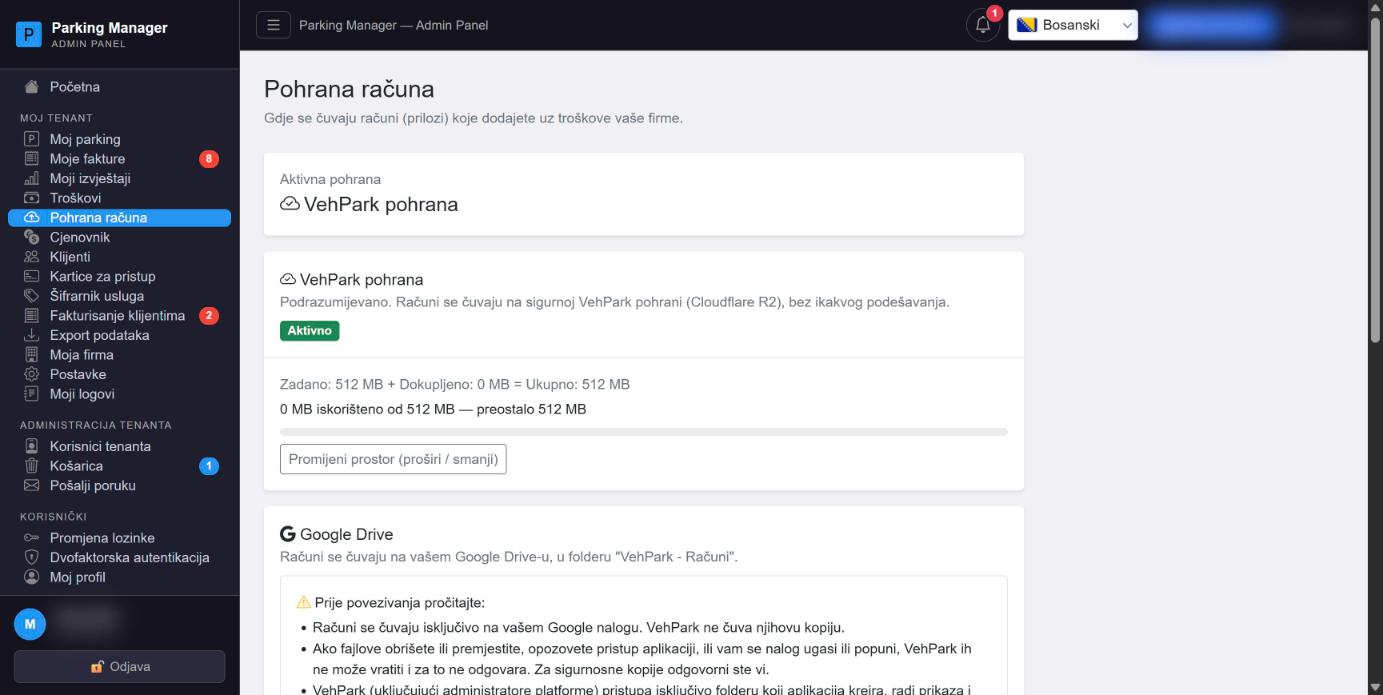
Cjenovnik i podešavanjaCjenik i postavkeCenovnik i podešavanjaPricing and settingsPreise und EinstellungenTarifas y configuración #admin-pricing
Centralno mjesto za cijene parkinga: satna, dnevna i mjesečna tarifa, množitelji za VIP, električna, kamper i velika vozila, opcioni "noćni sati" (period sa posebnim množiteljem cijene, npr. 22–06h) i broj bodova lojalnosti po satu parkiranja. Ugrađen live kalkulator odmah pokazuje koliko bi koštalo parkiranje za uneseni broj sati po svakoj kategoriji vozila, uključujući noćnu tarifu ako je uključena.
Važno: izmjene cijena se snimaju direktno na WPF terminal, pa forma zahtijeva da desktop aplikacija bude online (isti heartbeat status kao na Dashboardu) — ako terminal nije povezan, forma je zaključana uz upozorenje, a dugme "Snimi" je onemogućeno.
Središnje mjesto za cijene parkiranja: satna, dnevna i mjesečna tarifa, množitelji za VIP, električna, kamperska i velika vozila, neobvezni „noćni sati” (razdoblje s posebnim množiteljem cijene, npr. 22–06 h) i broj bodova vjernosti po satu parkiranja. Ugrađeni kalkulator uživo odmah pokazuje koliko bi koštalo parkiranje za uneseni broj sati za svaku kategoriju vozila, uključujući noćnu tarifu ako je uključena.
Važno: izmjene cijena spremaju se izravno na WPF terminal, pa obrazac zahtijeva da desktop aplikacija bude online (isti status kao na Nadzornoj ploči) — ako terminal nije povezan, obrazac je zaključan uz upozorenje, a gumb „Spremi” je onemogućen.
Centralno mesto za cene parkinga: tarifa po satu, dnevna i mesečna tarifa, množioci za VIP, električna, kamper i velika vozila, opcioni „noćni sati“ (period sa posebnim množiocem cene, npr. 22–06h) i broj bodova lojalnosti po satu parkiranja. Ugrađeni kalkulator uživo odmah pokazuje koliko bi koštalo parkiranje za uneti broj sati za svaku kategoriju vozila, uključujući noćnu tarifu ako je uključena.
Važno: izmene cena se snimaju direktno na WPF terminal, pa forma zahteva da desktop aplikacija bude online (isti status kao na Dashboard-u) — ako terminal nije povezan, forma je zaključana uz upozorenje, a dugme „Snimi“ je onemogućeno.
The central place to manage parking prices: hourly, daily and monthly rates, multipliers for VIP, electric, camper and large vehicles, an optional "night hours" window (a period with a special price multiplier, e.g. 22:00–06:00) and loyalty points earned per hour parked. A built-in live calculator instantly shows what parking would cost for a given number of hours in each vehicle category, including the night rate if enabled.
Important: price changes are saved directly to the WPF terminal, so the form requires the desktop application to be online (the same heartbeat status shown on the Dashboard) — if the terminal isn't connected, the form is locked with a warning and the "Save" button is disabled.
Die zentrale Stelle zur Verwaltung der Parkpreise: Stunden-, Tages- und Monatstarife, Multiplikatoren für VIP-, Elektro-, Camper- und Großfahrzeuge, ein optionales „Nachtstunden“-Fenster (ein Zeitraum mit besonderem Preismultiplikator, z. B. 22:00–06:00) und Treuepunkte pro geparkter Stunde. Ein integrierter Live-Rechner zeigt sofort, wie viel das Parken für eine eingegebene Anzahl von Stunden in jeder Fahrzeugkategorie kosten würde, einschließlich des Nachttarifs, falls aktiviert.
Wichtig: Preisänderungen werden direkt auf dem WPF-Terminal gespeichert, daher erfordert das Formular, dass die Desktopanwendung online ist (derselbe Heartbeat-Status wie auf dem Dashboard) — ist das Terminal nicht verbunden, ist das Formular mit einer Warnung gesperrt und die Schaltfläche „Speichern“ ist deaktiviert.
El lugar central para gestionar los precios de parqueo: tarifas por hora, por día y mensual, multiplicadores para vehículos VIP, eléctricos, camper y grandes, una ventana opcional de "horario nocturno" (un período con un multiplicador de precio especial, p. ej. 22:00–06:00) y puntos de fidelidad ganados por hora aparcada. Una calculadora en vivo integrada muestra al instante cuánto costaría el parqueo para un número dado de horas en cada categoría de vehículo, incluida la tarifa nocturna si está activada.
Importante: los cambios de precio se guardan directamente en el terminal WPF, por lo que el formulario requiere que la aplicación de escritorio esté en línea (el mismo estado de heartbeat que se muestra en el Panel) — si el terminal no está conectado, el formulario se bloquea con una advertencia y el botón "Guardar" se desactiva.
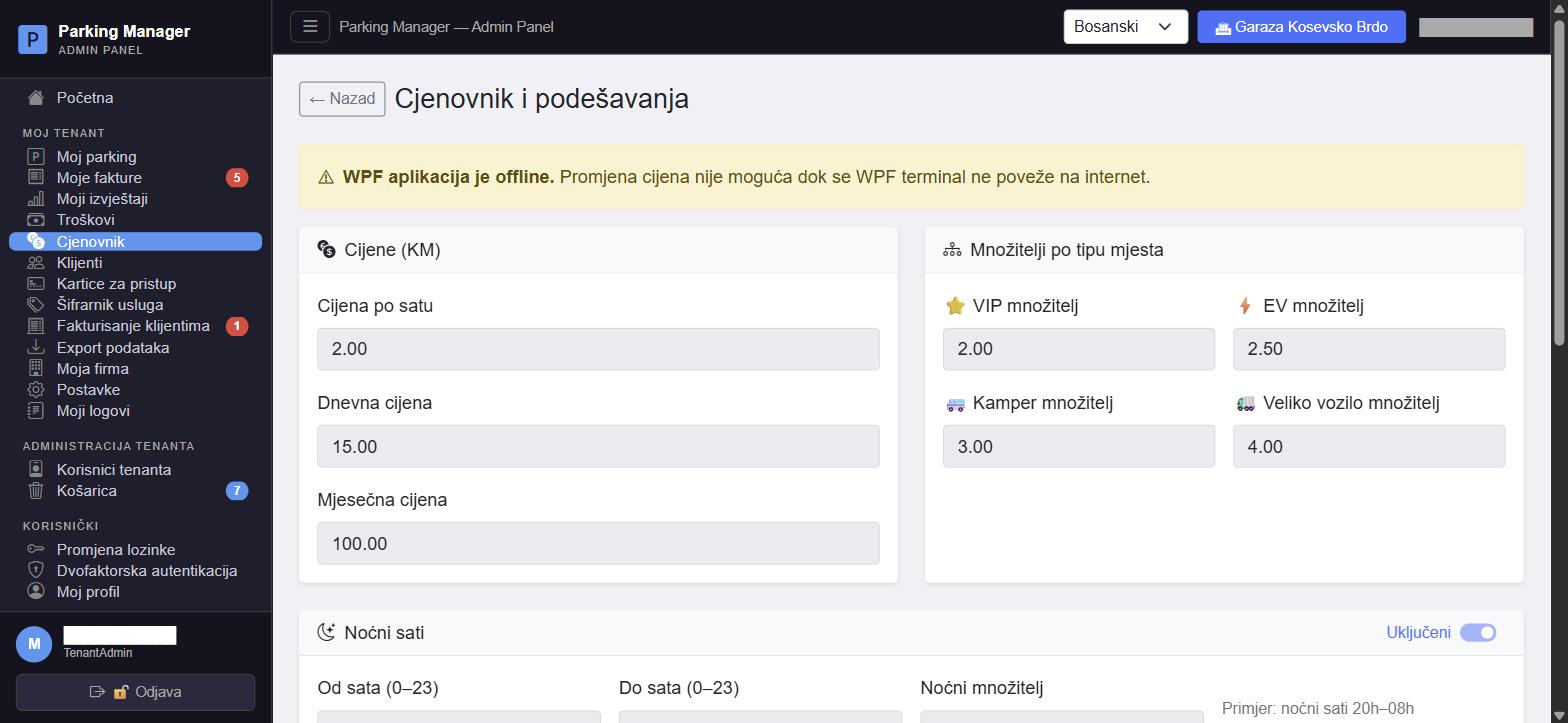
KlijentiKlijentiKlijentiCustomersKundenClientes #admin-customers
Baza klijenata vašeg tenanta (obično mjesečni zakupci parking mjesta). Za svakog klijenta se vodi ime, telefon, email, adresa, datum početka mjesečnog zakupa, napomena i oznaka "Automatsko fakturisanje" (uz opciju "Pošalji fakturu emailom" — vidljiva samo kad je automatsko fakturisanje uključeno). Iznad tabele je pretraga i višestruki odabir redova radi grupnog brisanja.
Dugme "Vozila" na svakom klijentu otvara popis njegovih registarskih oznaka (dodavanje/uklanjanje), a dugme "Pretplate" otvara njegove aktivne mjesečne usluge iz šifrarnika usluga — obje liste se koriste kod automatskog mjesečnog fakturisanja i na stranici Fakturisanje klijentima.
Baza klijenata vašeg tenanta (obično mjesečni zakupnici parkirnih mjesta). Za svakog se klijenta vodi ime, telefon, e-pošta, adresa, datum početka mjesečnog najma, napomena i oznaka „Automatsko fakturiranje” (uz opciju „Pošalji račun e-poštom” — vidljiva samo kada je automatsko fakturiranje uključeno). Iznad tablice je pretraživanje i višestruki odabir redaka radi skupnog brisanja.
Gumb „Vozila” kod svakog klijenta otvara popis njegovih registarskih oznaka (dodavanje/uklanjanje), a gumb „Pretplate” otvara njegove aktivne mjesečne usluge iz kataloga usluga — oba se popisa koriste pri automatskom mjesečnom fakturiranju i na stranici Fakturiranje klijenata.
Baza klijenata vašeg tenanta (obično mesečni zakupci parking mesta). Za svakog klijenta se vodi ime, telefon, email, adresa, datum početka mesečnog zakupa, napomena i oznaka „Automatsko fakturisanje“ (uz opciju „Pošalji fakturu emailom“ — vidljiva samo kada je automatsko fakturisanje uključeno). Iznad tabele je pretraga i višestruki izbor redova radi grupnog brisanja.
Dugme „Vozila“ kod svakog klijenta otvara spisak njegovih registarskih oznaka (dodavanje/uklanjanje), a dugme „Pretplate“ otvara njegove aktivne mesečne usluge iz šifarnika usluga — obe liste se koriste kod automatskog mesečnog fakturisanja i na stranici Fakturisanje klijenata.
Your tenant's customer database (typically monthly parking-spot renters). Each customer has a name, phone, email, address, monthly-rental start date, a note, and an "Auto-invoice" flag (with a "Send invoice by email" option — only visible once auto-invoice is enabled). Above the table are a search box and multi-row selection for bulk deletion.
The "Vehicles" button on each customer opens their list of license plates (add/remove), and the "Subscriptions" button opens their active monthly services from the service catalog — both lists are used for automatic monthly invoicing and on the Customer invoicing page.
Die Kundendatenbank Ihres Mandanten (typischerweise Monatsmieter von Parkplätzen). Jeder Kunde hat einen Namen, Telefon, E-Mail, Adresse, ein Startdatum der Monatsmiete, eine Notiz und ein Kennzeichen „Automatische Rechnungsstellung“ (mit einer Option „Rechnung per E-Mail senden“ — nur sichtbar, wenn die automatische Rechnungsstellung aktiviert ist). Über der Tabelle befinden sich ein Suchfeld und eine Mehrfachauswahl von Zeilen für die Massenlöschung.
Die Schaltfläche „Fahrzeuge“ bei jedem Kunden öffnet die Liste seiner Kennzeichen (Hinzufügen/Entfernen), und die Schaltfläche „Abonnements“ öffnet seine aktiven monatlichen Leistungen aus dem Leistungskatalog — beide Listen werden für die automatische monatliche Rechnungsstellung und auf der Seite Kundenrechnungen verwendet.
La base de datos de clientes de su inquilino (normalmente arrendatarios mensuales de plazas de parqueo). Cada cliente tiene nombre, teléfono, correo, dirección, fecha de inicio del arriendo mensual, una nota y una marca "Facturación automática" (con una opción "Enviar factura por correo" — visible solo cuando la facturación automática está activada). Encima de la tabla hay un cuadro de búsqueda y selección múltiple de filas para eliminación masiva.
El botón "Vehículos" en cada cliente abre la lista de sus matrículas (agregar/quitar), y el botón "Suscripciones" abre sus servicios mensuales activos del catálogo de servicios — ambas listas se usan para la facturación mensual automática y en la página Facturación a clientes.
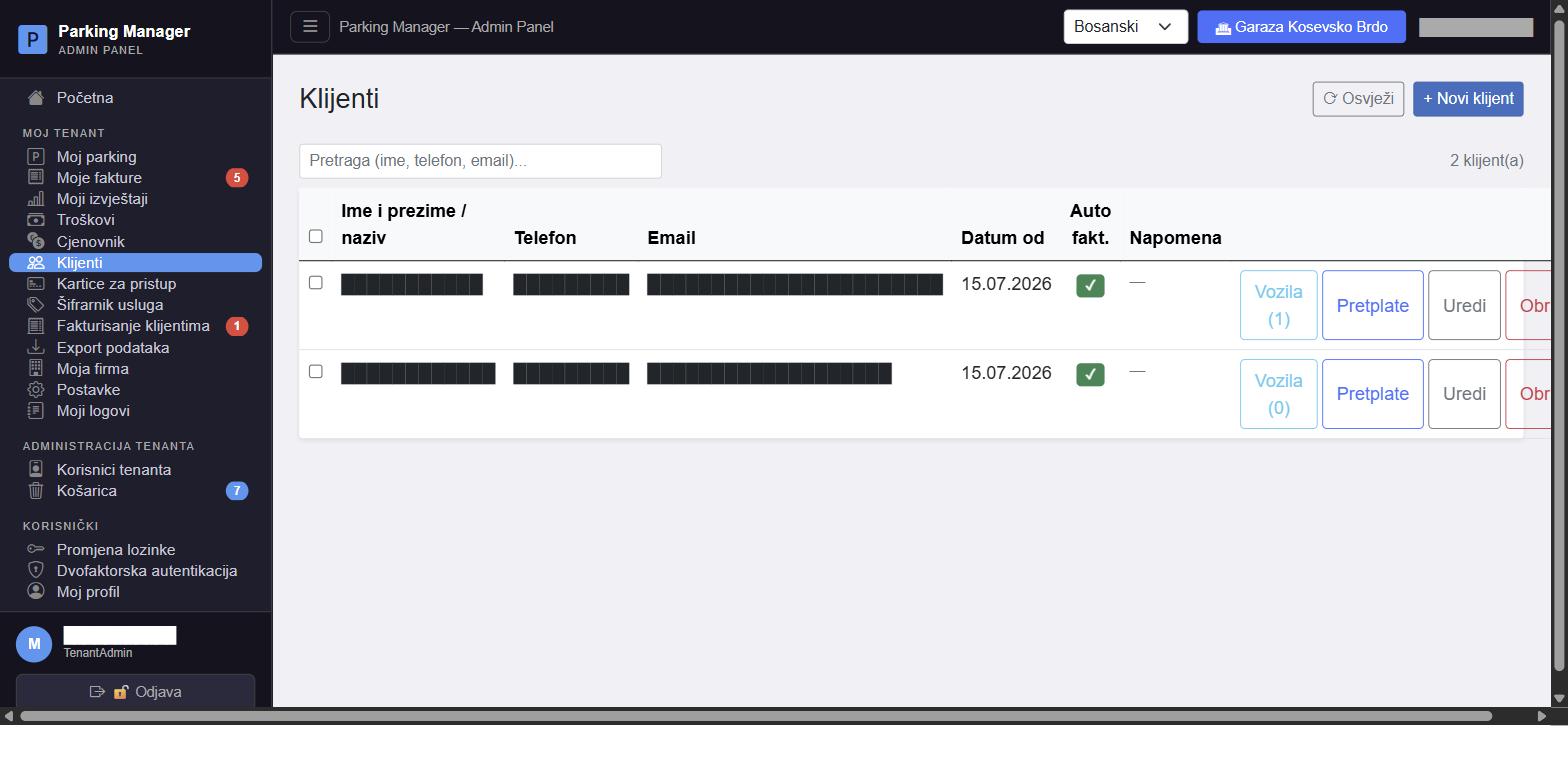
Kartice za pristup garažiPristupne kartice za garažuKartice za pristup garažiGarage access cardsZugangskarten für die GarageTarjetas de acceso al garaje #admin-cards
Upravljanje RFID/pristupnim karticama koje se očitavaju na kapiji garaže (isti sistem koji koristi WPF skener na terminalu). Svaka kartica je vezana za klijenta i jedno ili više njegovih vozila, ima šifru kartice, period važenja (od–do) i status (aktivna/istekla/uskoro ističe, prikazan bojom). Brzi izbor "+1/+3/+6/+12 mjeseci" olakšava postavljanje datuma važenja pri kreiranju.
Kad kartici ističe pretplata (unutar zadnjih 10 dana ili je već istekla), pojavljuje se dugme "Produži" koje otvara brzi modal za produženje za odabrani broj mjeseci. Lista se osvježava uživo — npr. kad se kartica registruje ili izmijeni sa WPF terminala ili druge sesije Administracije.
Upravljanje RFID/pristupnim karticama koje se očitavaju na ulazu u garažu (isti sustav koji koristi WPF skener na terminalu). Svaka je kartica vezana uz klijenta i jedno ili više njegovih vozila, ima kod kartice, razdoblje valjanosti (od–do) i status (aktivna/istekla/uskoro istječe, prikazan bojom). Brzi odabir „+1/+3/+6/+12 mjeseci” olakšava postavljanje datuma valjanosti pri izradi.
Kada kartici istječe pretplata (unutar posljednjih 10 dana ili je već istekla), pojavljuje se gumb „Produlji” koji otvara brzi modalni prozor za produljenje za odabrani broj mjeseci. Popis se osvježava uživo — npr. kada se kartica registrira ili izmijeni s WPF terminala ili iz druge sesije administracije.
Upravljanje RFID/pristupnim karticama koje se očitavaju na kapiji garaže (isti sistem koji koristi WPF skener na terminalu). Svaka kartica je vezana za klijenta i jedno ili više njegovih vozila, ima kod kartice, period važenja (od–do) i status (aktivna/istekla/uskoro ističe, prikazan bojom). Brzi izbor „+1/+3/+6/+12 meseci“ olakšava postavljanje datuma važenja pri kreiranju.
Kada kartici ističe pretplata (u poslednjih 10 dana ili je već istekla), pojavljuje se dugme „Produži“ koje otvara brzi modal za produženje za izabrani broj meseci. Lista se osvežava uživo — npr. kada se kartica registruje ili izmeni sa WPF terminala ili iz druge sesije administracije.
Management of RFID/access cards scanned at the garage gate (the same system used by the WPF terminal's scanner). Each card is linked to a customer and one or more of their vehicles, has a card code, a validity period (from–to), and a status (active/expired/expiring soon, shown by color). The quick "+1/+3/+6/+12 months" shortcuts make setting the validity date easy when creating a card.
When a card's subscription is nearing expiry (within the last 10 days, or already expired), an "Extend" button appears, opening a quick modal to extend it by a chosen number of months. The list updates live — e.g. when a card is registered or changed from the WPF terminal or another Administration session.
Verwaltung von RFID-/Zugangskarten, die an der Garagenschranke gescannt werden (dasselbe System, das der Scanner des WPF-Terminals verwendet). Jede Karte ist mit einem Kunden und einem oder mehreren seiner Fahrzeuge verknüpft, hat einen Kartencode, einen Gültigkeitszeitraum (von–bis) und einen Status (aktiv/abgelaufen/läuft bald ab, farblich dargestellt). Die schnellen „+1/+3/+6/+12 Monate“-Verknüpfungen erleichtern das Festlegen des Gültigkeitsdatums beim Erstellen einer Karte.
Wenn das Abonnement einer Karte bald abläuft (innerhalb der letzten 10 Tage oder bereits abgelaufen), erscheint eine Schaltfläche „Verlängern“, die ein schnelles Modal zur Verlängerung um eine gewählte Anzahl von Monaten öffnet. Die Liste aktualisiert sich live — z. B. wenn eine Karte vom WPF-Terminal oder einer anderen Administrationssitzung registriert oder geändert wird.
Gestión de tarjetas RFID/de acceso escaneadas en la puerta del garaje (el mismo sistema que usa el escáner del terminal WPF). Cada tarjeta está vinculada a un cliente y a uno o más de sus vehículos, tiene un código de tarjeta, un período de validez (desde–hasta) y un estado (activa/vencida/por vencer, mostrado por color). Los accesos rápidos "+1/+3/+6/+12 meses" facilitan establecer la fecha de validez al crear una tarjeta.
Cuando la suscripción de una tarjeta está próxima a vencer (dentro de los últimos 10 días, o ya vencida), aparece un botón "Extender" que abre una ventana modal rápida para extenderla por un número elegido de meses. La lista se actualiza en vivo — p. ej. cuando se registra o cambia una tarjeta desde el terminal WPF u otra sesión de Administración.
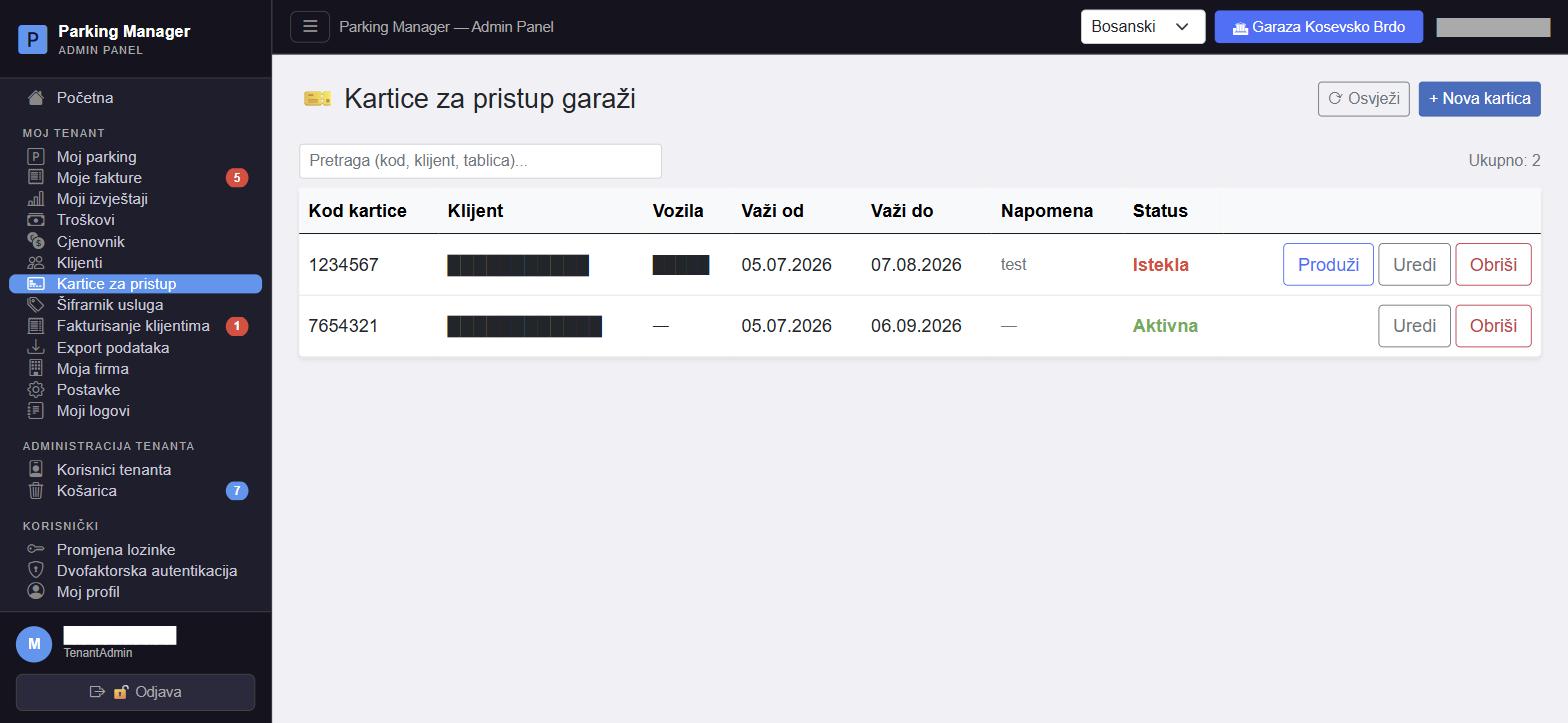
Šifrarnik uslugaKatalog uslugaŠifarnik uslugaService catalogLeistungskatalogCatálogo de servicios #admin-service-catalog
Katalog dodatnih usluga koje se mogu fakturisati klijentima (pored samog parkiranja) — naziv, napomena, cijena i opcioni popust (procenat ili fiksni iznos). Dugme "Sinhronizuj" automatski kreira/ažurira uslugu "Mjesečni parking" tako da njena cijena uvijek prati mjesečnu tarifu sa stranice Cjenovnik — takva usluga dobija oznaku "Povezano" i njena cijena se ne može ručno mijenjati.
Da li se PDV primjenjuje i po kojoj stopi zavisi od podešavanja na Moja firma (prikazano informativno na vrhu stranice). Usluge iz ovog šifrarnika se biraju kod dodavanja pretplate klijentu (Klijenti) i kao stavke na fakturi (Fakturisanje klijentima).
Katalog dodatnih usluga koje se mogu fakturirati klijentima (uz samo parkiranje) — naziv, napomena, cijena i neobvezni popust (postotak ili fiksni iznos). Gumb „Sinkroniziraj” automatski stvara/ažurira uslugu „Mjesečno parkiranje” tako da njezina cijena uvijek prati mjesečnu tarifu sa stranice Cjenik — takva usluga dobiva oznaku „Povezano” i njezina se cijena ne može ručno mijenjati.
Primjenjuje li se PDV i po kojoj stopi ovisi o postavkama na stranici Moja tvrtka (prikazano informativno na vrhu stranice). Usluge iz ovog kataloga odabiru se pri dodavanju pretplate klijentu (Klijenti) i kao stavke na računu (Fakturiranje klijenata).
Katalog dodatnih usluga koje mogu da se fakturišu klijentima (pored samog parkiranja) — naziv, napomena, cena i opcioni popust (procenat ili fiksni iznos). Dugme „Sinhronizuj“ automatski kreira/ažurira uslugu „Mesečni parking“ tako da njena cena uvek prati mesečnu tarifu sa stranice Cenovnik — takva usluga dobija oznaku „Povezano“ i njena cena ne može ručno da se menja.
Da li se PDV primenjuje i po kojoj stopi zavisi od podešavanja na stranici Moja firma (prikazano informativno na vrhu stranice). Usluge iz ovog šifarnika biraju se pri dodavanju pretplate klijentu (Klijenti) i kao stavke na fakturi (Fakturisanje klijenata).
A catalog of additional services that can be invoiced to customers (besides parking itself) — name, note, price and an optional discount (percentage or fixed amount). The "Sync" button automatically creates/updates a "Monthly parking" service whose price always tracks the monthly rate from the Pricing page — such a service is marked "Linked" and its price can't be edited manually.
Whether VAT applies and at what rate depends on the settings on My company (shown informationally at the top of the page). Services from this catalog are selected when adding a subscription to a customer (Customers) and as line items on invoices (Customer invoicing).
Ein Katalog zusätzlicher Leistungen, die Kunden in Rechnung gestellt werden können (neben dem Parken selbst) — Name, Notiz, Preis und ein optionaler Rabatt (Prozent oder fester Betrag). Die Schaltfläche „Synchronisieren“ erstellt/aktualisiert automatisch eine Leistung „Monatliches Parken“, deren Preis stets dem Monatstarif von der Seite Preise folgt — eine solche Leistung erhält die Markierung „Verknüpft“ und ihr Preis kann nicht manuell geändert werden.
Ob und mit welchem Satz USt. anfällt, hängt von den Einstellungen auf Mein Unternehmen ab (informativ oben auf der Seite angezeigt). Leistungen aus diesem Katalog werden beim Hinzufügen eines Abonnements zu einem Kunden (Kunden) und als Rechnungspositionen (Kundenrechnungen) ausgewählt.
Un catálogo de servicios adicionales que se pueden facturar a los clientes (además del parqueo en sí) — nombre, nota, precio y un descuento opcional (porcentaje o importe fijo). El botón "Sincronizar" crea/actualiza automáticamente un servicio "Parqueo mensual" cuyo precio siempre sigue la tarifa mensual de la página Tarifas — dicho servicio se marca como "Vinculado" y su precio no se puede editar manualmente.
Si se aplica el IVA y a qué tasa depende de la configuración en Mi empresa (mostrado informativamente en la parte superior de la página). Los servicios de este catálogo se seleccionan al agregar una suscripción a un cliente (Clientes) y como líneas en las facturas (Facturación a clientes).
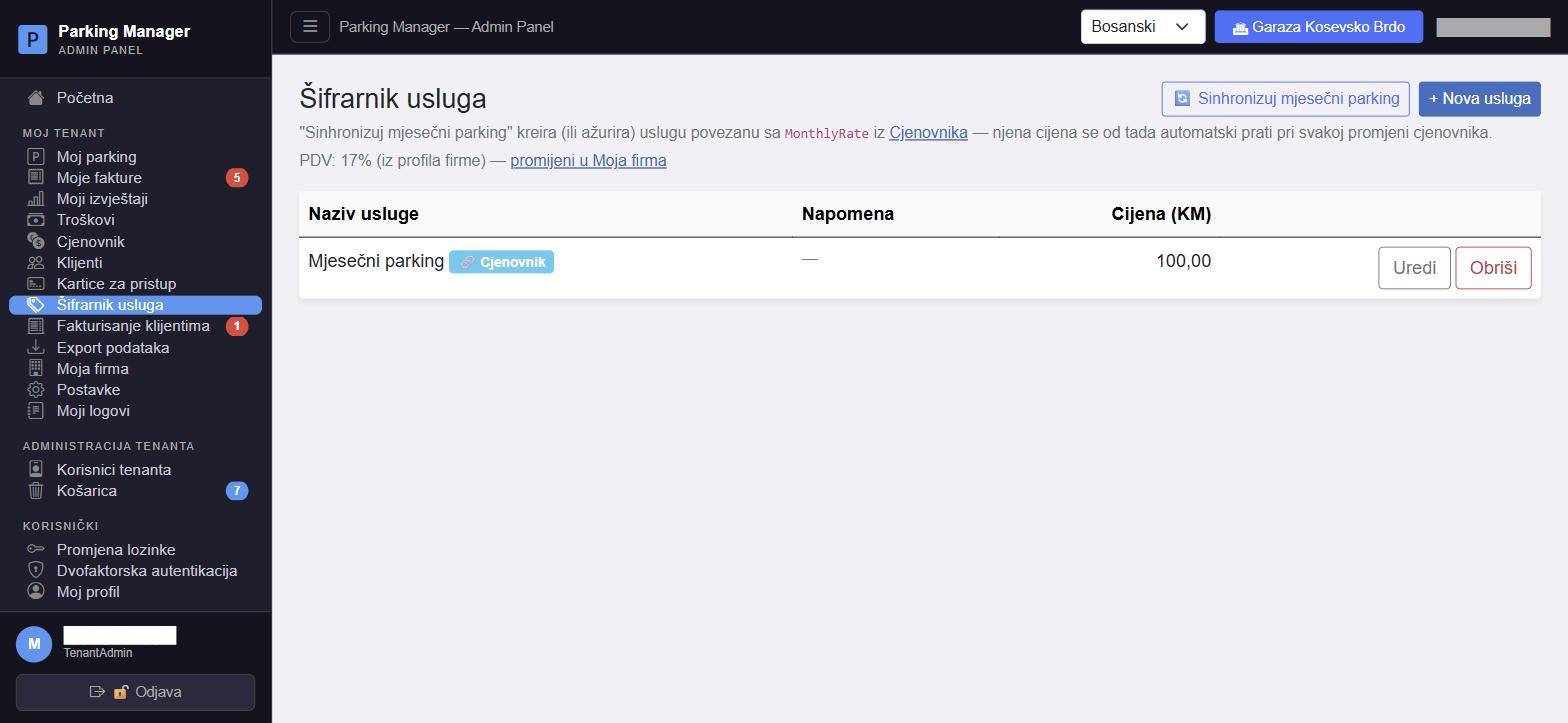
Fakturisanje klijentimaFakturiranje klijenataFakturisanje klijenataCustomer invoicingKundenrechnungenFacturación a clientes #admin-client-invoicing
Ovdje vi fakturišete svoje klijente — suprotan smjer od stranice Moje fakture, gdje platforma fakturiše vas. Dugme "Nova faktura" otvara formu: odabir klijenta iz liste klijenata, stavke (ručni unos ili odabir iz šifrarnika usluga, sa količinom, cijenom i opcionom registracijom vozila), rok plaćanja i napomena.
Tabela podržava pretragu, sortiranje po koloni, filter po oznaci (Original/Kopija/Plaćeno/ Neplaćeno — bira se prije preuzimanja PDF-a) i grupne akcije nad odabranim fakturama (označi u obradi, označi plaćeno, pošalji emailom, obriši). Zaključana (već poslana) faktura se više ne može direktno mijenjati — umjesto toga se izdaje knjižno odobrenje (umanjenje), knjižno zaduženje (uvećanje) ili, ako je dozvoljeno podešavanjima tenanta, storno. Faktura poslana klijentu traži dodatnu potvrdu prije izmjene.
Ovdje vi fakturirate svoje klijente — suprotan smjer od stranice Moji računi, na kojoj platforma fakturira vas. Gumb „Novi račun” otvara obrazac: odabir klijenta s popisa klijenata, stavke (ručni unos ili odabir iz kataloga usluga, s količinom, cijenom i neobveznom registarskom oznakom vozila), rok plaćanja i napomena.
Tablica podržava pretraživanje, sortiranje po stupcu, filtar po oznaci (Izvornik/Kopija/Plaćeno/Nije plaćeno — odabire se prije preuzimanja PDF-a) i skupne radnje nad odabranim računima (označi u obradi, označi kao plaćeno, pošalji e-poštom, izbriši). Zaključani (već poslani) račun više se ne može izravno mijenjati — umjesto toga izdaje se knjižno odobrenje (umanjenje), knjižno terećenje (povećanje) ili, ako to dopuštaju postavke tenanta, storno. Račun poslan klijentu traži dodatnu potvrdu prije izmjene.
Ovde vi fakturišete svoje klijente — suprotan smer od stranice Moje fakture, gde platforma fakturiše vas. Dugme „Nova faktura“ otvara formu: izbor klijenta sa liste klijenata, stavke (ručni unos ili izbor iz šifarnika usluga, sa količinom, cenom i opcionom registracijom vozila), rok plaćanja i napomena.
Tabela podržava pretragu, sortiranje po koloni, filter po oznaci (Original/Kopija/Plaćeno/Nije plaćeno — bira se pre preuzimanja PDF-a) i grupne akcije nad izabranim fakturama (označi u obradi, označi kao plaćeno, pošalji emailom, obriši). Zaključana (već poslata) faktura više ne može direktno da se menja — umesto toga se izdaje knjižno odobrenje (umanjenje), knjižno zaduženje (uvećanje) ili, ako je dozvoljeno podešavanjima tenanta, storno. Faktura poslata klijentu traži dodatnu potvrdu pre izmene.
This is where you invoice your own customers — the opposite direction from the My invoices page, where the platform invoices you. The "New invoice" button opens a form: pick a customer from the customer list, add line items (manual entry or picked from the service catalog, with quantity, price and an optional vehicle plate), a due date and a note.
The table supports search, column sorting, filtering by mark (Original/Copy/Paid/Unpaid — chosen before downloading the PDF) and bulk actions on selected invoices (mark processing, mark paid, email, delete). A locked (already-sent) invoice can no longer be edited directly — instead you issue a credit note (reduction), a debit note (increase), or, if allowed by the tenant's settings, a storno/void. Editing an invoice that was already sent to the customer requires an extra confirmation step.
Hier stellen Sie Rechnungen an Ihre eigenen Kunden aus — die entgegengesetzte Richtung zur Seite Meine Rechnungen, auf der die Plattform Sie fakturiert. Die Schaltfläche „Neue Rechnung“ öffnet ein Formular: Auswahl eines Kunden aus der Kundenliste, Positionen (manuelle Eingabe oder Auswahl aus dem Leistungskatalog, mit Menge, Preis und optionalem Fahrzeugkennzeichen), ein Fälligkeitsdatum und eine Notiz.
Die Tabelle unterstützt Suche, Spaltensortierung, Filterung nach Markierung (Original/Kopie/ Bezahlt/Unbezahlt — wird vor dem PDF-Download ausgewählt) und Massenaktionen für ausgewählte Rechnungen (als in Bearbeitung markieren, als bezahlt markieren, per E-Mail senden, löschen). Eine gesperrte (bereits versendete) Rechnung kann nicht mehr direkt geändert werden — stattdessen wird eine Gutschrift (Minderung), eine Lastschrift (Erhöhung) oder, falls von den Mandanteneinstellungen erlaubt, eine Stornierung ausgestellt. Das Bearbeiten einer bereits an den Kunden gesendeten Rechnung erfordert einen zusätzlichen Bestätigungsschritt.
Aquí factura a sus propios clientes — la dirección opuesta a la página Mis facturas, donde la plataforma le factura a usted. El botón "Nueva factura" abre un formulario: elegir un cliente de la lista de clientes, agregar líneas (entrada manual o elegidas del catálogo de servicios, con cantidad, precio y matrícula de vehículo opcional), una fecha de vencimiento y una nota.
La tabla admite búsqueda, ordenamiento por columna, filtrado por marca (Original/Copia/Pagada/ No pagada — se elige antes de descargar el PDF) y acciones masivas sobre las facturas seleccionadas (marcar en proceso, marcar pagada, enviar por correo, eliminar). Una factura bloqueada (ya enviada) ya no se puede editar directamente — en su lugar se emite una nota de crédito (reducción), una nota de débito (aumento) o, si lo permite la configuración del inquilino, una anulación. Editar una factura ya enviada al cliente requiere un paso de confirmación adicional.
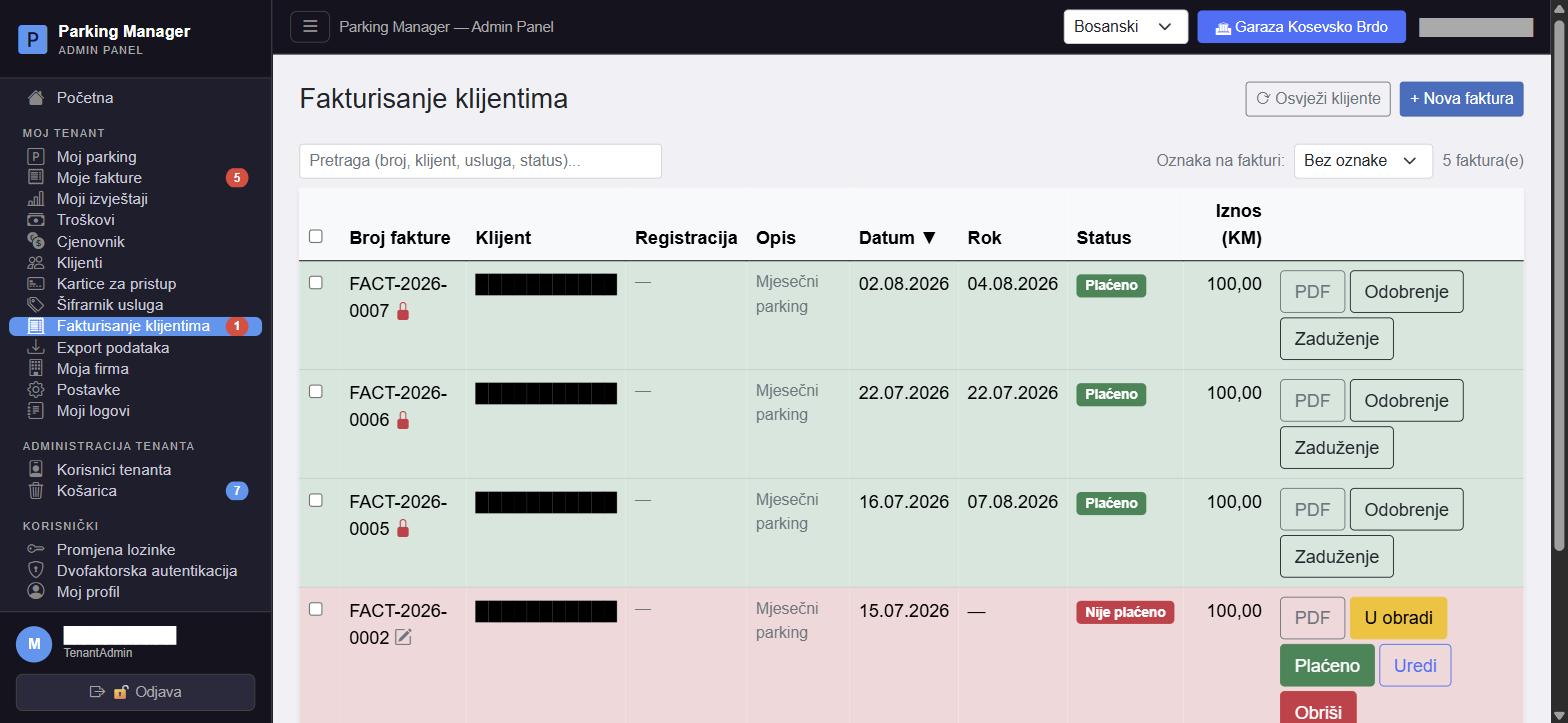
Export podatakaIzvoz podatakaIzvoz podatakaData exportDatenexportExportación de datos #admin-data-export
Omogućava preuzimanje kompletnog izvoza podataka vašeg tenanta u tri formata: JSON, SQLite baza ili Excel. Fajl se preuzima kao ZIP arhiva. Ova opcija mora biti uključena za vaš tenant od strane platformskog administratora — ako nije, stranica prikazuje upozorenje umjesto dugmadi.
Omogućuje preuzimanje potpunog izvoza podataka vašeg tenanta u tri formata: JSON, SQLite baza ili Excel. Datoteka se preuzima kao ZIP arhiva. Ovu mogućnost za vaš tenant mora uključiti administrator platforme — ako nije uključena, stranica umjesto gumba prikazuje upozorenje.
Omogućava preuzimanje kompletnog izvoza podataka vašeg tenanta u tri formata: JSON, SQLite baza ili Excel. Fajl se preuzima kao ZIP arhiva. Ovu opciju za vaš tenant mora da uključi administrator platforme — ako nije uključena, stranica umesto dugmadi prikazuje upozorenje.
Lets you download a full export of your tenant's data in three formats: JSON, an SQLite database, or Excel. The file downloads as a ZIP archive. This feature must be enabled for your tenant by a platform administrator — if it isn't, the page shows a warning instead of the buttons.
Ermöglicht das Herunterladen eines vollständigen Exports der Daten Ihres Mandanten in drei Formaten: JSON, eine SQLite-Datenbank oder Excel. Die Datei wird als ZIP-Archiv heruntergeladen. Diese Funktion muss von einem Plattformadministrator für Ihren Mandanten aktiviert werden — ist sie es nicht, zeigt die Seite statt der Schaltflächen eine Warnung an.
Le permite descargar una exportación completa de los datos de su inquilino en tres formatos: JSON, una base de datos SQLite o Excel. El archivo se descarga como un archivo ZIP. Esta función debe ser habilitada para su inquilino por un administrador de la plataforma — si no lo está, la página muestra una advertencia en lugar de los botones.
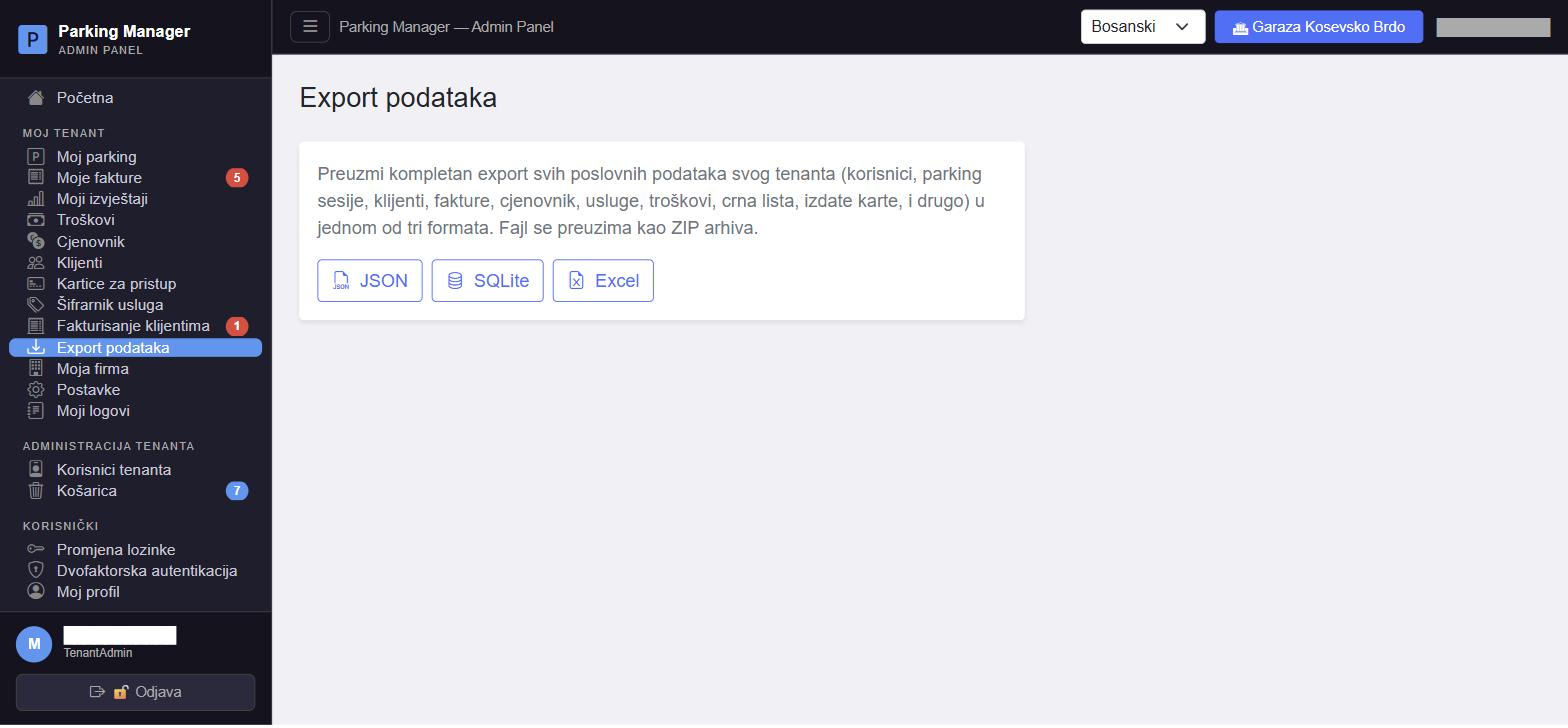
Moja firmaMoja tvrtkaMoja firmaMy companyMein UnternehmenMi empresa #admin-my-company
Podaci o firmi koji se koriste na fakturama i dokumentima, podijeljeni u sekcije: opšti podaci (grad, država, adresa, poštanski broj, web stranica), kontakt (direktor, telefon, email), finansijski podaci (ID broj, PDV broj, sud i broj registracije, valuta, banka i broj računa) i PDV podešavanja (uključi/isključi PDV i podrazumijevana stopa — ova stopa se onda koristi u šifrarniku usluga i na fakturama).
Dodatno se ovdje podešava zaglavlje (letterhead) i podnožje fakture — mogu biti tekstualna ili slika koju uploadujete — te opcija prikaza/skrivanja kutije sa podacima prodavca na fakturi. Sve izmjene se snimaju dugmetom "Snimi" u zaglavlju stranice.
Podaci o tvrtki koji se koriste na računima i dokumentima, podijeljeni u odjeljke: opći podaci (grad, država, adresa, poštanski broj, web-stranica), kontakt (direktor, telefon, e-pošta), financijski podaci (ID broj, PDV broj, sud i broj registracije, valuta, banka i broj računa) i postavke PDV-a (uključi/isključi PDV i zadana stopa — ta se stopa zatim koristi u katalogu usluga i na računima).
Ovdje se dodatno podešava zaglavlje (memorandum) i podnožje računa — mogu biti tekstualni ili slika koju učitate — te opcija prikaza/skrivanja okvira s podacima prodavatelja na računu. Sve se izmjene spremaju gumbom „Spremi” u zaglavlju stranice.
Podaci o firmi koji se koriste na fakturama i dokumentima, podeljeni u odeljke: opšti podaci (grad, država, adresa, poštanski broj, veb-sajt), kontakt (direktor, telefon, email), finansijski podaci (ID broj, PDV broj, sud i broj registracije, valuta, banka i broj računa) i PDV podešavanja (uključi/isključi PDV i podrazumevana stopa — ta stopa se zatim koristi u šifarniku usluga i na fakturama).
Ovde se dodatno podešava zaglavlje (memorandum) i podnožje fakture — mogu biti tekstualni ili slika koju otpremite — kao i opcija prikaza/skrivanja okvira sa podacima prodavca na fakturi. Sve izmene se snimaju dugmetom „Snimi“ u zaglavlju stranice.
Company details used on invoices and documents, split into sections: general info (city, country, address, postal code, website), contact (director, phone, email), financial details (tax ID, VAT number, court and registration number, currency, bank name and account number) and VAT settings (enable/disable VAT and the default rate — this rate then feeds the service catalog and invoices).
This page also configures the invoice letterhead and footer — either as text or an uploaded image — plus an option to show/hide the seller info box on invoices. All changes are saved with the "Save" button in the page header.
Firmendaten, die auf Rechnungen und Dokumenten verwendet werden, unterteilt in Abschnitte: allgemeine Angaben (Stadt, Land, Adresse, Postleitzahl, Website), Kontakt (Geschäftsführer, Telefon, E-Mail), finanzielle Angaben (Steuer-ID, USt-Nummer, Gericht und Registrierungsnummer, Währung, Bankname und Kontonummer) und USt-Einstellungen (USt. aktivieren/deaktivieren und der Standardsatz — dieser Satz fließt dann in den Leistungskatalog und die Rechnungen ein).
Diese Seite konfiguriert außerdem den Rechnungs-Briefkopf und die Fußzeile — entweder als Text oder als hochgeladenes Bild — sowie eine Option zum Ein-/Ausblenden der Verkäuferinfobox auf Rechnungen. Alle Änderungen werden mit der Schaltfläche „Speichern“ im Seitenkopf gespeichert.
Datos de la empresa usados en facturas y documentos, divididos en secciones: información general (ciudad, país, dirección, código postal, sitio web), contacto (director, teléfono, correo), datos financieros (ID fiscal, número de IVA, tribunal y número de registro, moneda, nombre del banco y número de cuenta) y configuración de IVA (activar/desactivar el IVA y la tasa predeterminada — esta tasa alimenta luego el catálogo de servicios y las facturas).
Esta página también configura el encabezado y el pie de página de la factura — como texto o como una imagen cargada — además de una opción para mostrar/ocultar el cuadro de datos del vendedor en las facturas. Todos los cambios se guardan con el botón "Guardar" en el encabezado de la página.
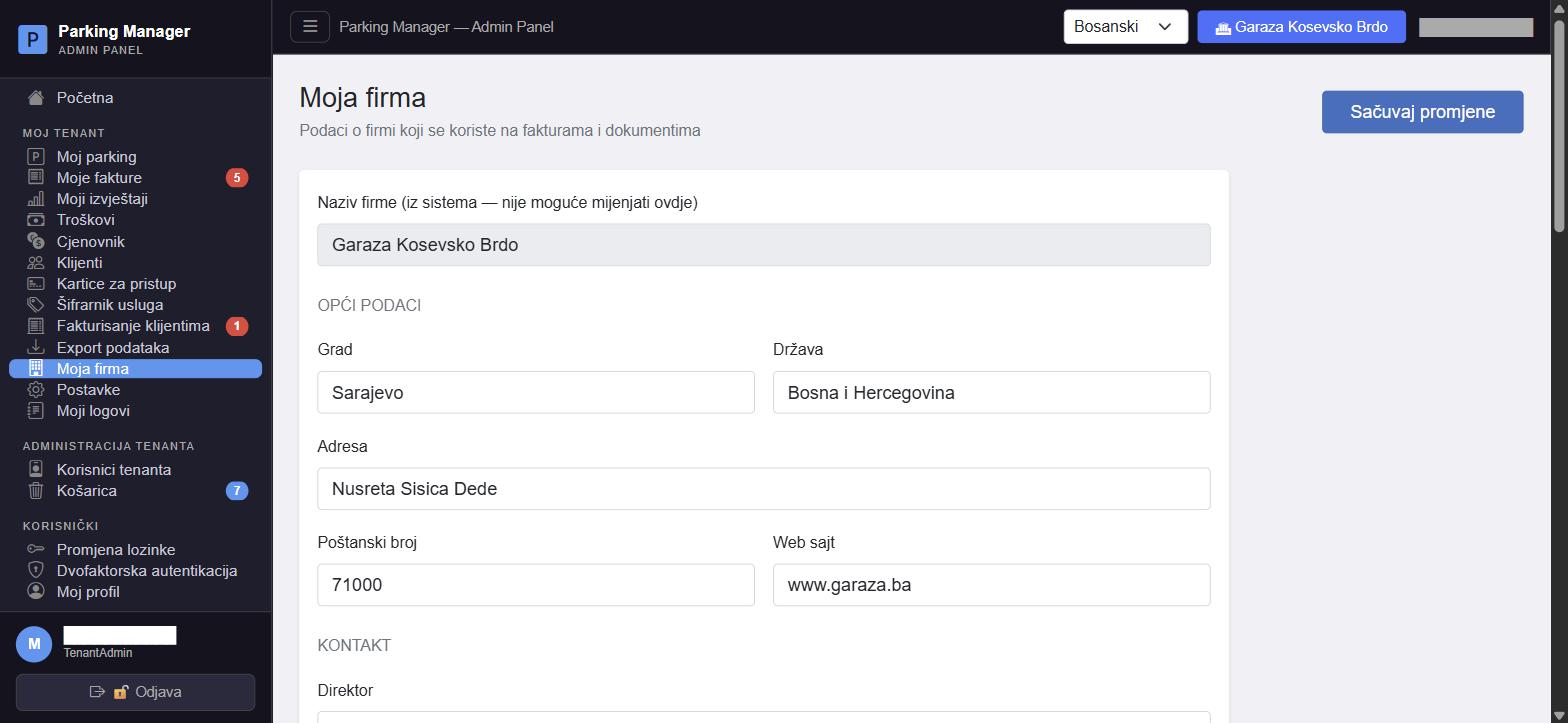
Postavke tenantaPostavke tenantaPodešavanja tenantaTenant settingsMandanten-EinstellungenConfiguración del inquilino #admin-settings
Konfiguracija smjena i poslovnih pravila za vaš tenant. Sekcija Smjene omogućava definisanje naziva i početnog sata za tri smjene (koje se koriste u izvještajima "po smjeni" i na Dashboardu), sa pregledom obračunatih vremenskih opsega. Sekcija Vremenska zona i Format datuma utiču na to kako se datumi i "danas" tumače kroz cijelu Administraciju za vaš tenant.
Sekcija Poslovna pravila uključuje: omogućavanje popusta, broj besplatnih minuta parkiranja prije naplate, upozorenje za predugo parkiranje (uz prag u satima) i povrat dijela dnevne tarife pri ranom izlasku. Sekcija Kartice definiše način praćenja (po vozilu ili po kartici — vidi Kartice za pristup garaži) i broj dana upozorenja/tolerancije prije isteka kartice.
Konfiguracija smjena i poslovnih pravila za vaš tenant. Odjeljak Smjene omogućuje definiranje naziva i početnog sata za tri smjene (koje se koriste u izvješćima „po smjeni” i na nadzornoj ploči), s pregledom izračunatih vremenskih raspona. Odjeljci Vremenska zona i Format datuma određuju kako se datumi i „danas” tumače u cijeloj administraciji za vaš tenant.
Odjeljak Poslovna pravila uključuje: omogućavanje popusta, broj besplatnih minuta parkiranja prije naplate, upozorenje za predugo parkiranje (uz prag u satima) i povrat dijela dnevne tarife pri ranijem izlasku. Odjeljak Kartice određuje način praćenja (po vozilu ili po kartici — vidi Pristupne kartice za garažu) i broj dana upozorenja/tolerancije prije isteka kartice.
Konfiguracija smena i poslovnih pravila za vaš tenant. Odeljak Smene omogućava definisanje naziva i početnog sata za tri smene (koje se koriste u izveštajima „po smeni“ i na Dashboard-u), sa pregledom obračunatih vremenskih opsega. Odeljci Vremenska zona i Format datuma utiču na to kako se datumi i „danas“ tumače u celoj administraciji za vaš tenant.
Odeljak Poslovna pravila obuhvata: omogućavanje popusta, broj besplatnih minuta parkiranja pre naplate, upozorenje za predugo parkiranje (uz prag u satima) i povraćaj dela dnevne tarife pri ranijem izlasku. Odeljak Kartice definiše način praćenja (po vozilu ili po kartici — vidi Kartice za pristup garaži) i broj dana upozorenja/tolerancije pre isteka kartice.
Shift and business rule configuration for your tenant. The Shifts section lets you set the name and start hour for three shifts (used in "by shift" reports and on the Dashboard), with a computed overview of the resulting time ranges. The Time zone and Date format sections affect how dates and "today" are interpreted throughout the Administration for your tenant.
The Business rules section covers: enabling discounts, free parking minutes before charging starts, a long-parking warning (with an hour threshold), and a partial daily-rate refund on early exit. The Cards section sets the tracking mode (per vehicle or per card — see Garage access cards) and the warning/grace period in days before a card expires.
Konfiguration von Schichten und Geschäftsregeln für Ihren Mandanten. Der Abschnitt Schichten ermöglicht die Festlegung von Name und Startstunde für drei Schichten (verwendet in „nach Schicht“-Berichten und im Dashboard), mit einer berechneten Übersicht der resultierenden Zeitbereiche. Die Abschnitte Zeitzone und Datumsformat beeinflussen, wie Daten und „heute“ in der gesamten Administration für Ihren Mandanten interpretiert werden.
Der Abschnitt Geschäftsregeln umfasst: Aktivierung von Rabatten, kostenlose Parkminuten vor Beginn der Berechnung, eine Warnung bei zu langem Parken (mit einem Stundenschwellenwert) und eine teilweise Rückerstattung des Tagestarifs bei früher Ausfahrt. Der Abschnitt Karten legt den Nachverfolgungsmodus fest (pro Fahrzeug oder pro Karte — siehe Zugangskarten für die Garage) sowie die Warn-/Kulanzfrist in Tagen vor Ablauf einer Karte.
Configuración de turnos y reglas de negocio para su inquilino. La sección Turnos le permite establecer el nombre y la hora de inicio de tres turnos (usados en informes "por turno" y en el Panel), con una vista general calculada de los rangos de tiempo resultantes. Las secciones Zona horaria y Formato de fecha afectan cómo se interpretan las fechas y "hoy" en toda la Administración para su inquilino.
La sección Reglas de negocio cubre: activar descuentos, minutos de parqueo gratis antes de que empiece el cobro, una advertencia de parqueo prolongado (con un umbral en horas) y un reembolso parcial de la tarifa diaria en caso de salida anticipada. La sección Tarjetas establece el modo de seguimiento (por vehículo o por tarjeta — ver Tarjetas de acceso al garaje) y el período de advertencia/gracia en días antes de que vence una tarjeta.
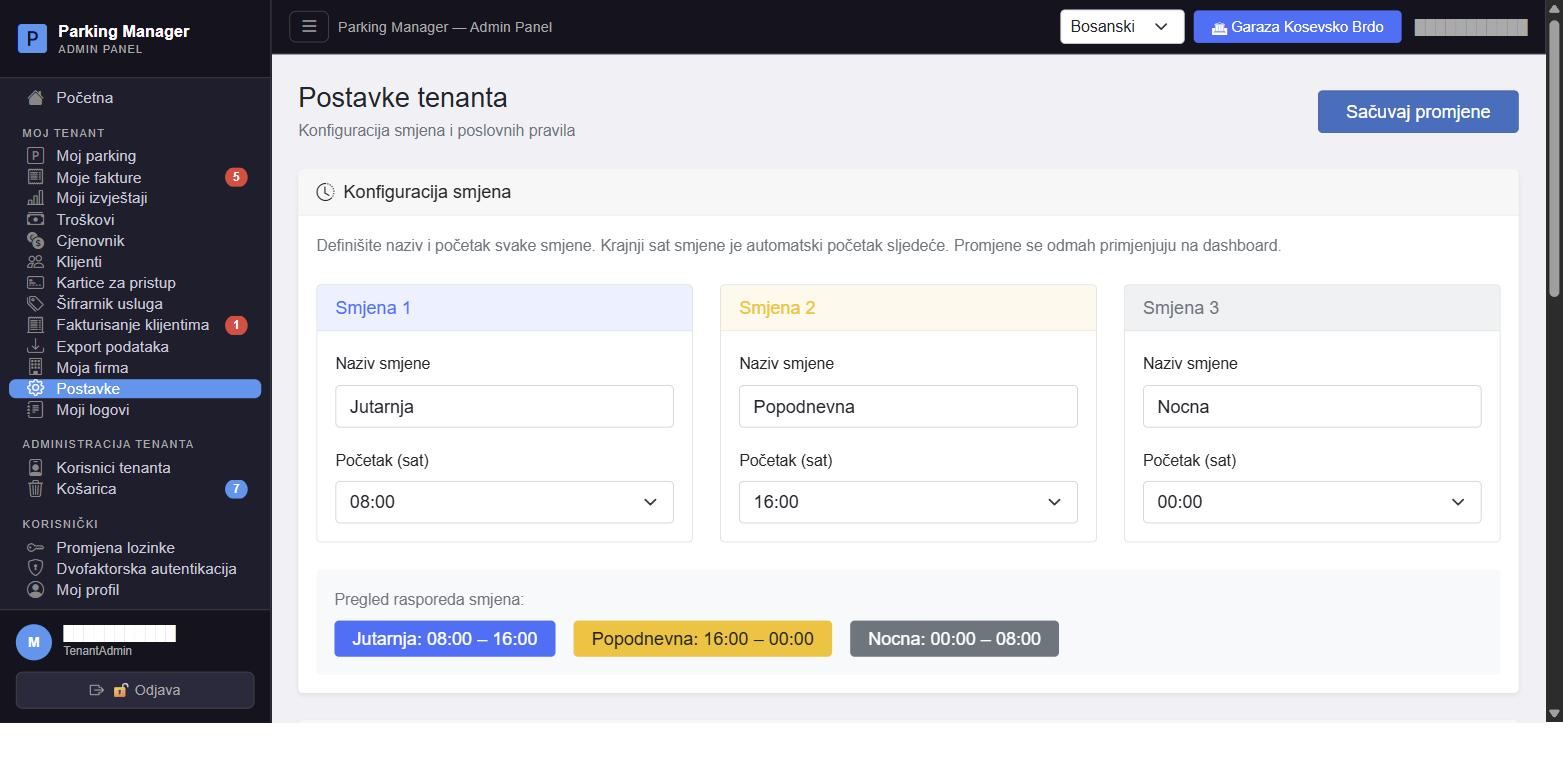
Audit logovi tenantaAudit zapisi tenantaAudit logovi tenantaTenant audit logsAudit-Protokolle des MandantenRegistros de auditoría del inquilino #admin-my-logs
Prikazuje sve radnje korisnika na vašem tenantu — parkiranje, oslobađanje mjesta, prijave na sistem, izmjene i još mnogo toga. Filteri omogućavaju odabir vremenskog opsega, tipa radnje i pretragu po emailu korisnika. Svaki red prikazuje tačno vrijeme, korisnika, radnju (obojenu prema tipu — npr. crveno za brisanje, zeleno za uspješnu naplatu), entitet nad kojim je radnja izvršena i dodatne detalje.
Prikazuje sve radnje korisnika na vašem tenantu — parkiranje, oslobađanje mjesta, prijave u sustav, izmjene i još mnogo toga. Filtri omogućuju odabir vremenskog raspona, vrste radnje i pretraživanje po e-pošti korisnika. Svaki redak prikazuje točno vrijeme, korisnika, radnju (obojenu prema vrsti — npr. crveno za brisanje, zeleno za uspješnu naplatu), entitet nad kojim je radnja izvršena i dodatne detalje.
Prikazuje sve radnje korisnika na vašem tenantu — parkiranje, oslobađanje mesta, prijave na sistem, izmene i još mnogo toga. Filteri omogućavaju izbor vremenskog opsega, tipa radnje i pretragu po emailu korisnika. Svaki red prikazuje tačno vreme, korisnika, radnju (obojenu prema tipu — npr. crveno za brisanje, zeleno za uspešnu naplatu), entitet nad kojim je radnja izvršena i dodatne detalje.
Shows every user action on your tenant — parking, freeing a spot, sign-ins, changes and more. Filters let you pick a date range, an action type, and search by user email. Each row shows the exact time, the user, the action (color-coded by type — e.g. red for deletions, green for successful payments), the entity the action was performed on, and extra details.
Zeigt jede Benutzeraktion auf Ihrem Mandanten — Parken, Freigeben eines Platzes, Anmeldungen, Änderungen und mehr. Filter ermöglichen die Auswahl eines Datumsbereichs, eines Aktionstyps und die Suche nach Benutzer-E-Mail. Jede Zeile zeigt die genaue Zeit, den Benutzer, die Aktion (farbcodiert nach Typ — z. B. rot für Löschungen, grün für erfolgreiche Zahlungen), das Objekt, an dem die Aktion durchgeführt wurde, und zusätzliche Details.
Muestra cada acción de usuario en su inquilino — parqueo, liberación de una plaza, inicios de sesión, cambios y más. Los filtros permiten elegir un rango de fechas, un tipo de acción y buscar por correo del usuario. Cada fila muestra la hora exacta, el usuario, la acción (codificada por color según el tipo — p. ej. rojo para eliminaciones, verde para pagos exitosos), la entidad sobre la que se realizó la acción y detalles adicionales.
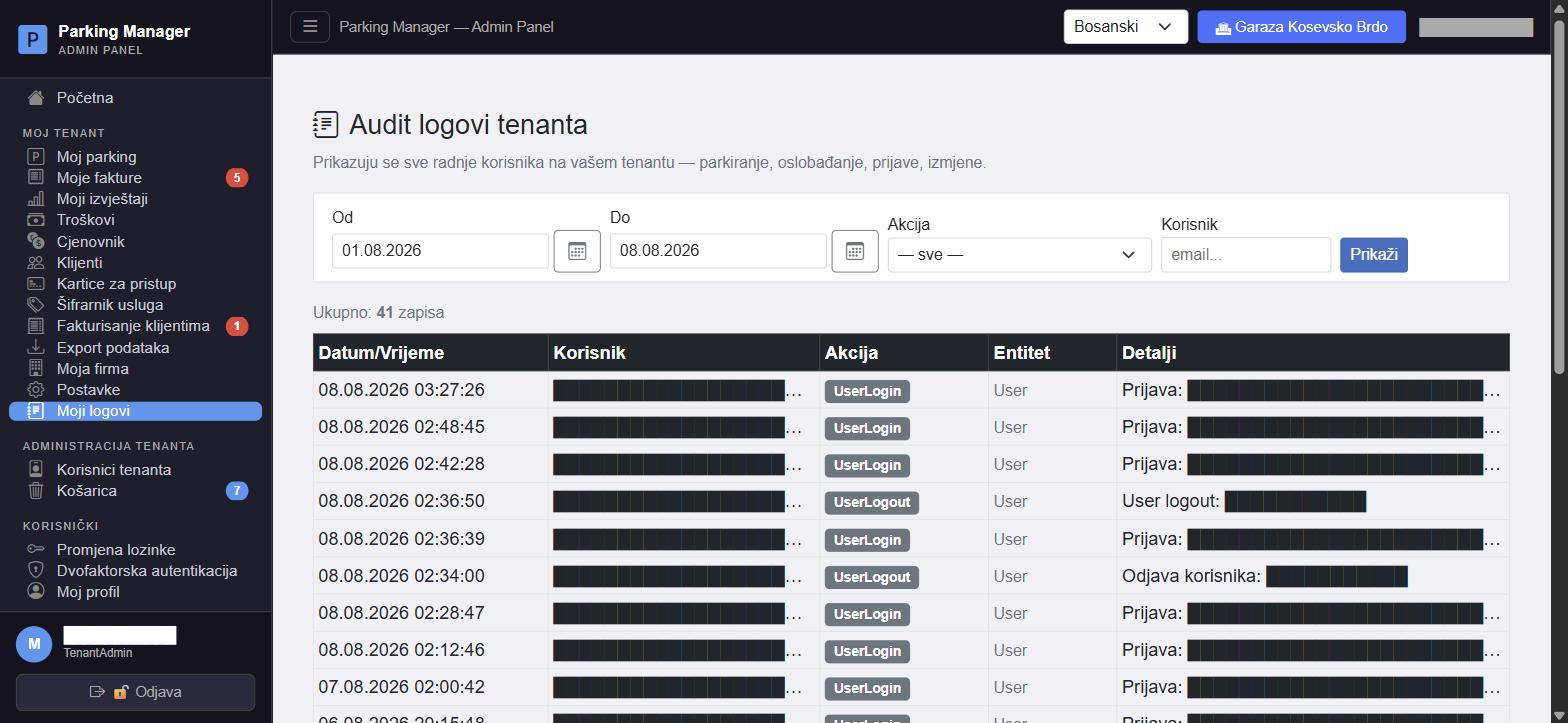
Korisnici i tenantiKorisnici i tenantiKorisnici i tenantiUsers and tenantsBenutzer und MandantenUsuarios e inquilinos #admin-tenant-users
Za TenantAdmin ulogu ova stranica prikazuje jednostavnu tabelu svih korisnika (osoblja) dodijeljenih vašem tenantu — ime, email i rolu (Manager/Operator; role platforme kao SuperAdmin se prikazuju kao "N/A" jer nisu relevantne na nivou tenanta). Dugme "Ukloni" uklanja korisnika sa vašeg tenanta (ne briše njegov nalog).
U donjem dijelu, sekcija "Dodaj korisnika" omogućava pretragu postojećeg naloga po emailu (min. 2 karaktera) i njegovo dodavanje na vaš tenant dugmetom "Dodaj" — ako je korisnik već član, umjesto dugmeta se prikazuje oznaka "Već član".
Za ulogu TenantAdmin ova stranica prikazuje jednostavnu tablicu svih korisnika (osoblja) dodijeljenih vašem tenantu — ime, e-poštu i ulogu (Manager/Operator; uloge platforme poput SuperAdmin prikazuju se kao „N/A” jer nisu relevantne na razini tenanta). Gumb „Ukloni” uklanja korisnika iz vašeg tenanta (ne briše njegov korisnički račun).
U donjem dijelu odjeljak „Dodaj korisnika” omogućuje pretraživanje postojećeg korisničkog računa po e-pošti (najmanje 2 znaka) i njegovo dodavanje u vaš tenant gumbom „Dodaj” — ako je korisnik već član, umjesto gumba prikazuje se oznaka „Već član”.
Za ulogu TenantAdmin ova stranica prikazuje jednostavnu tabelu svih korisnika (osoblja) dodeljenih vašem tenantu — ime, email i ulogu (Manager/Operator; uloge platforme kao što je SuperAdmin prikazuju se kao „N/A“ jer nisu relevantne na nivou tenanta). Dugme „Ukloni“ uklanja korisnika iz vašeg tenanta (ne briše njegov nalog).
U donjem delu, odeljak „Dodaj korisnika“ omogućava pretragu postojećeg naloga po emailu (najmanje 2 karaktera) i njegovo dodavanje u vaš tenant dugmetom „Dodaj“ — ako je korisnik već član, umesto dugmeta se prikazuje oznaka „Već član“.
For the TenantAdmin role, this page shows a simple table of all staff assigned to your tenant — name, email and role (Manager/Operator; platform roles like SuperAdmin are shown as "N/A" since they aren't relevant at the tenant level). The "Remove" button removes a user from your tenant (it does not delete their account).
Further down, the "Add user" section lets you search an existing account by email (min. 2 characters) and add it to your tenant with the "Add" button — if the user is already a member, an "Already a member" badge is shown instead of the button.
Für die Rolle TenantAdmin zeigt diese Seite eine einfache Tabelle aller Mitarbeiter, die Ihrem Mandanten zugewiesen sind — Name, E-Mail und Rolle (Manager/Operator; Plattformrollen wie SuperAdmin werden als „N/A“ angezeigt, da sie auf Mandantenebene nicht relevant sind). Die Schaltfläche „Entfernen“ entfernt einen Benutzer aus Ihrem Mandanten (löscht nicht sein Konto).
Weiter unten ermöglicht der Abschnitt „Benutzer hinzufügen“ die Suche nach einem bestehenden Konto per E-Mail (mind. 2 Zeichen) und dessen Hinzufügen zu Ihrem Mandanten mit der Schaltfläche „Hinzufügen“ — ist der Benutzer bereits Mitglied, wird statt der Schaltfläche ein Badge „Bereits Mitglied“ angezeigt.
Para el rol TenantAdmin, esta página muestra una tabla simple de todo el personal asignado a su inquilino — nombre, correo y rol (Gerente/Operador; los roles de plataforma como SuperAdmin se muestran como "N/D" ya que no son relevantes a nivel de inquilino). El botón "Quitar" elimina a un usuario de su inquilino (no elimina su cuenta).
Más abajo, la sección "Agregar usuario" permite buscar una cuenta existente por correo (mín. 2 caracteres) y agregarla a su inquilino con el botón "Agregar" — si el usuario ya es miembro, se muestra una insignia "Ya es miembro" en lugar del botón.
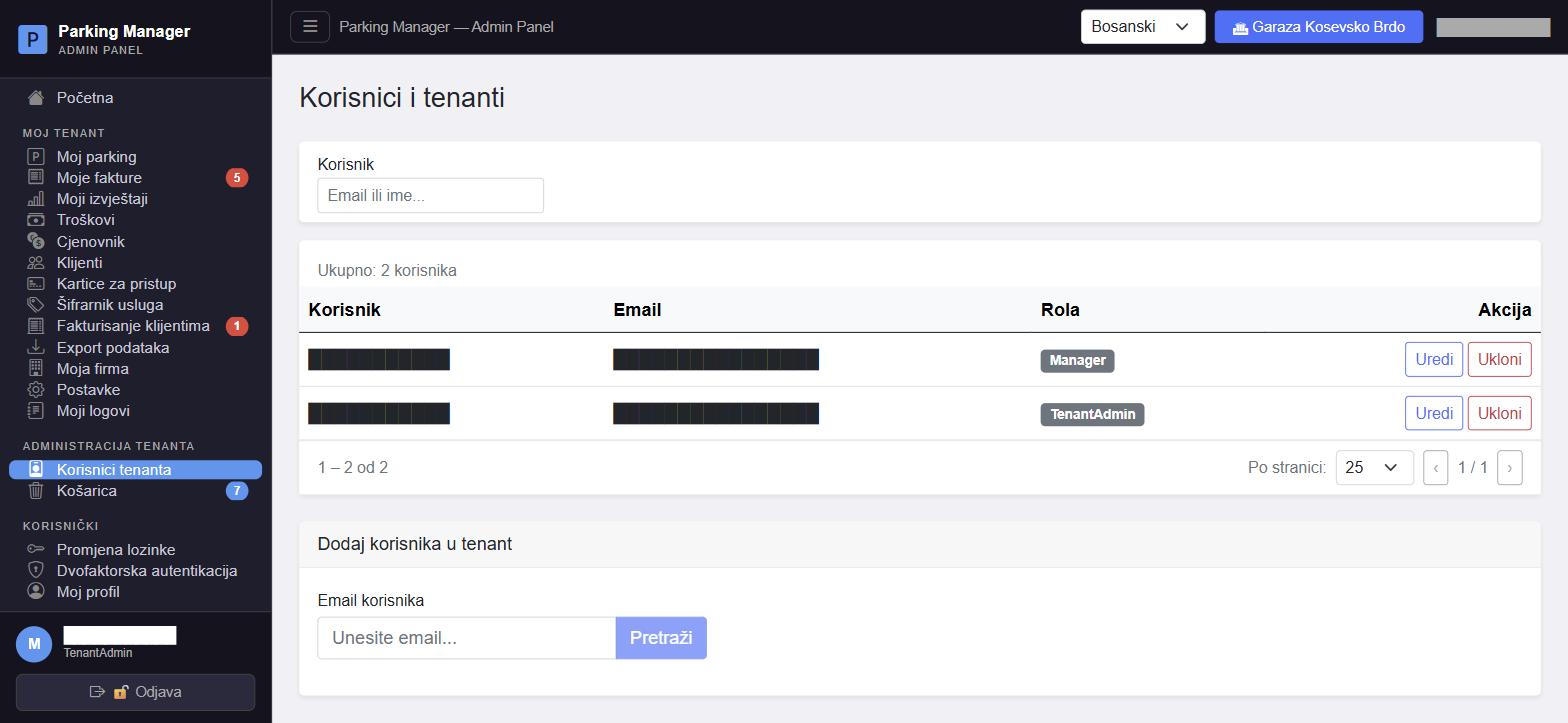
KošaricaKošKorpaRecycle binPapierkorbPapelera #admin-recycle-bin
Sve što se obriše na Nivou 2 prvo završava ovdje, a ne nestaje odmah trajno. Za TenantAdmin ulogu vidljivi su tabovi Fakture, Klijenti, Zone i Parking mjesta (tabovi Korisnici/Tenanti/Postavke su rezervisani za platformske administratore). Svaka stavka se može "Vratiti" (poništi brisanje) — trajno brisanje ("Trajno obriši") je za fakture i klijente dostupno samo ako je platformski administrator to eksplicitno dozvolio za vaš tenant.
Broj obrisanih stavki po kategoriji je vidljiv kao bedž na svakom tabu, tako da odmah vidite ima li nešto u košarici i prije nego kliknete na taj tab.
Sve što se izbriše na Razini 2 najprije završi ovdje, a ne nestaje odmah trajno. Za ulogu TenantAdmin vidljive su kartice Računi, Klijenti, Zone i Parkirna mjesta (kartice Korisnici/Tenanti/Postavke rezervirane su za administratore platforme). Svaka se stavka može „Vratiti” (poništava brisanje) — trajno brisanje („Trajno izbriši”) za račune i klijente dostupno je samo ako ga je administrator platforme izričito dopustio za vaš tenant.
Broj izbrisanih stavki po kategoriji vidljiv je kao oznaka na svakoj kartici, pa odmah vidite ima li nešto u košu i prije nego što kliknete na tu karticu.
Sve što se obriše na Nivou 2 prvo završava ovde, a ne nestaje odmah trajno. Za ulogu TenantAdmin vidljive su kartice Fakture, Klijenti, Zone i Parking mesta (kartice Korisnici/Tenanti/Podešavanja rezervisane su za administratore platforme). Svaka stavka može da se „Vrati“ (poništava brisanje) — trajno brisanje („Trajno obriši“) za fakture i klijente dostupno je samo ako ga je administrator platforme eksplicitno dozvolio za vaš tenant.
Broj obrisanih stavki po kategoriji vidljiv je kao bedž na svakoj kartici, pa odmah vidite da li ima nečega u korpi i pre nego što kliknete na tu karticu.
Anything deleted at Level 2 lands here first instead of disappearing permanently right away. For the TenantAdmin role, the visible tabs are Invoices, Customers, Zones and Parking spots (the Users/Tenants/Settings tabs are reserved for platform administrators). Each item can be "Restored" (undoing the deletion) — permanent deletion ("Delete permanently") for invoices and customers is only available if a platform administrator has explicitly allowed it for your tenant.
The number of deleted items per category is shown as a badge on each tab, so you can tell at a glance whether there's anything in the bin before even clicking into it.
Alles, was auf Stufe 2 gelöscht wird, landet zunächst hier, statt sofort dauerhaft zu verschwinden. Für die Rolle TenantAdmin sind die Reiter Rechnungen, Kunden, Zonen und Parkplätze sichtbar (die Reiter Benutzer/Mandanten/Einstellungen sind Plattformadministratoren vorbehalten). Jeder Eintrag kann „wiederhergestellt“ werden (macht die Löschung rückgängig) — die dauerhafte Löschung („Dauerhaft löschen“) ist für Rechnungen und Kunden nur verfügbar, wenn ein Plattformadministrator dies für Ihren Mandanten explizit erlaubt hat.
Die Anzahl der gelöschten Einträge pro Kategorie wird als Badge auf jedem Reiter angezeigt, sodass Sie auf einen Blick erkennen, ob sich etwas im Papierkorb befindet, noch bevor Sie den Reiter anklicken.
Todo lo que se elimina en el Nivel 2 aterriza aquí primero en lugar de desaparecer permanentemente de inmediato. Para el rol TenantAdmin, las pestañas visibles son Facturas, Clientes, Zonas y Plazas de parqueo (las pestañas Usuarios/Inquilinos/Configuración están reservadas para administradores de la plataforma). Cada elemento se puede "Restaurar" (deshaciendo la eliminación) — la eliminación permanente ("Eliminar permanentemente") para facturas y clientes solo está disponible si un administrador de la plataforma lo ha permitido explícitamente para su inquilino.
El número de elementos eliminados por categoría se muestra como una insignia en cada pestaña, para que pueda saber de un vistazo si hay algo en la papelera incluso antes de hacer clic en ella.
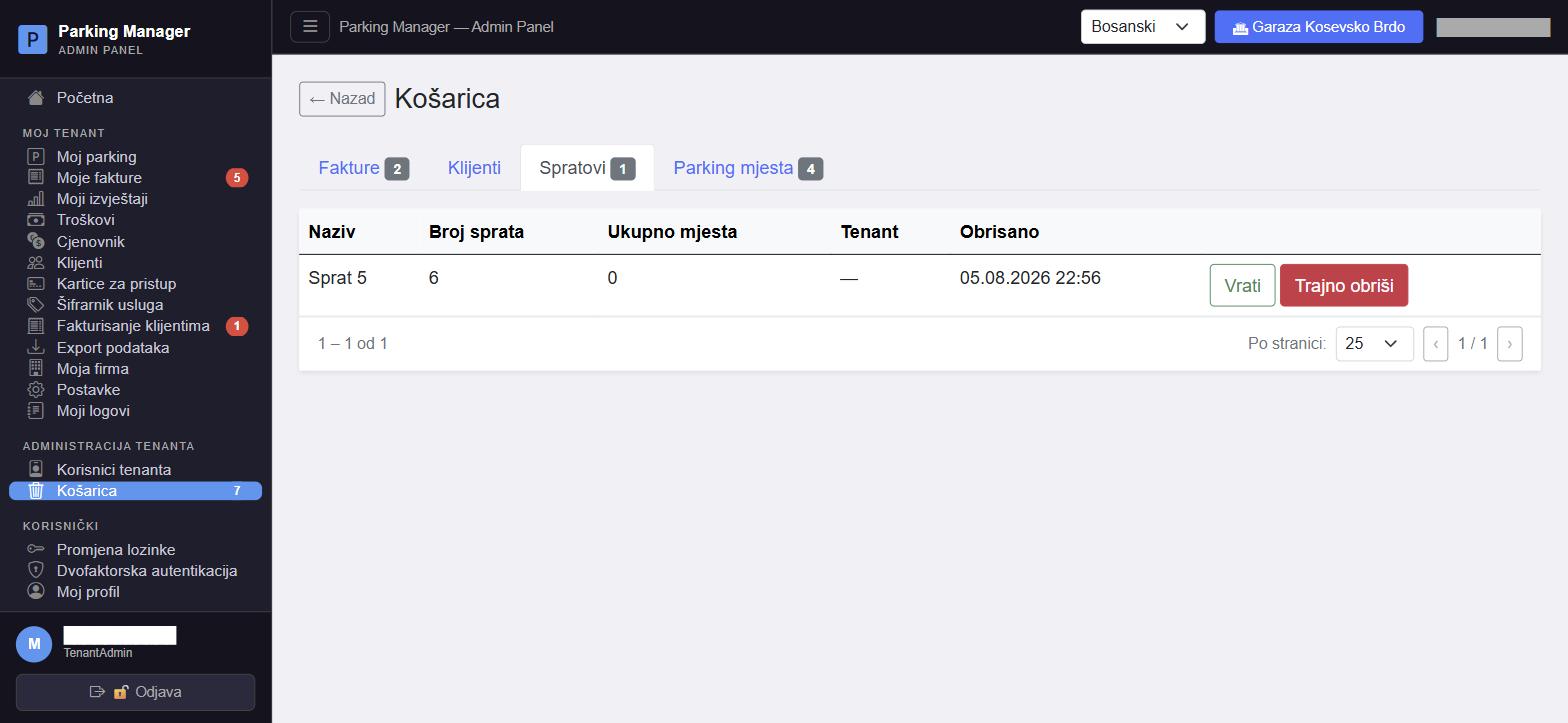
Pošalji porukuPošalji porukuPošalji porukuSend messageNachricht sendenEnviar mensaje #admin-send-message
Slanje kratke poruke korisnicima vaše firme: unesite naslov i tekst, pa izaberite ko je prima: svi korisnici mog tenanta, samo menadžeri ili pojedinačno izabrani korisnici (lista sa pretragom). Poruka stiže odmah na zvonce u web administraciji, u WPF aplikaciji i u Android aplikaciji.
Ispod forme je historija poslanog: sve poruke koje ste poslali, sa datumom slanja i pretragom.
Slanje kratke poruke korisnicima vaše tvrtke: unesite naslov i tekst, zatim odaberite tko je prima: svi korisnici mojeg tenanta, samo menadžeri ili pojedinačno odabrani korisnici (popis s pretraživanjem). Poruka odmah stiže na zvonce u web administraciji, u WPF aplikaciji i u Android aplikaciji.
Ispod obrasca nalazi se povijest poslanih: sve poruke koje ste poslali, s datumom slanja i pretraživanjem.
Slanje kratke poruke korisnicima vaše firme: unesite naslov i tekst, pa izaberite ko je prima: svi korisnici mog tenanta, samo menadžeri ili pojedinačno izabrani korisnici (lista sa pretragom). Poruka odmah stiže na zvonce u veb administraciji, u WPF aplikaciji i u Android aplikaciji.
Ispod forme je istorija poslatih: sve poruke koje ste poslali, sa datumom slanja i pretragom.
Send a short message to the users of your company: enter a title and text, then choose who receives it: all users in my tenant, managers only or individually selected users (a searchable list). The message is delivered instantly to the bell in the web administration, in the WPF app and in the Android app.
Below the form is the sent history: every message you have sent, with the send date and a search box.
Senden Sie eine kurze Nachricht an die Benutzer Ihres Unternehmens: Titel und Text eingeben, dann Empfänger wählen: alle Nutzer meines Mandanten, nur Manager oder einzeln ausgewählte Nutzer (durchsuchbare Liste). Die Nachricht erscheint sofort an der Glocke in der Web-Administration, in der WPF-Anwendung und in der Android-App.
Unter dem Formular steht der Verlauf gesendeter Nachrichten: alle von Ihnen gesendeten Nachrichten mit Sendedatum und Suche.
Envíe un mensaje breve a los usuarios de su empresa: escriba un título y un texto y elija quién lo recibe: todos los usuarios de mi inquilino, solo gerentes o usuarios seleccionados individualmente (lista con búsqueda). El mensaje llega al instante a la campana de la administración web, de la aplicación WPF y de la aplicación Android.
Debajo del formulario está el historial de enviados: todos los mensajes que ha enviado, con la fecha de envío y búsqueda.
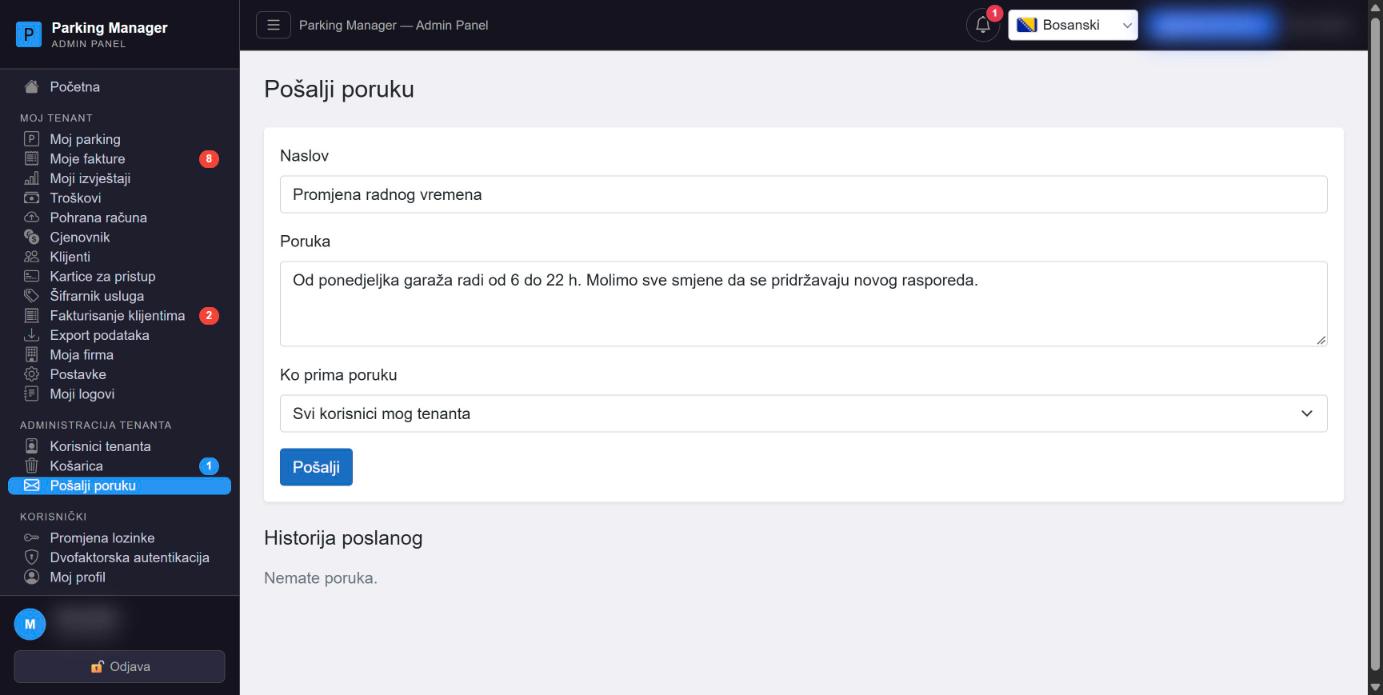
Promjena lozinkePromjena lozinkePromena lozinkeChange passwordPasswort ändernCambiar contraseña #admin-change-password
Jednostavna forma sa poljima Trenutna lozinka, Nova lozinka i potvrda nove lozinke. Nakon uspješne promjene, iz sigurnosnih razloga se poništavaju svi aktivni refresh tokeni (uključujući trenutnu sesiju) pa ste automatski odjavljeni i morate se ponovo prijaviti sa novom lozinkom.
Jednostavan obrazac s poljima Trenutačna lozinka, Nova lozinka i potvrda nove lozinke. Nakon uspješne promjene iz sigurnosnih se razloga poništavaju svi aktivni refresh tokeni (uključujući trenutačnu sesiju), pa ste automatski odjavljeni i morate se ponovno prijaviti novom lozinkom.
Jednostavna forma sa poljima Trenutna lozinka, Nova lozinka i potvrda nove lozinke. Nakon uspešne promene, iz bezbednosnih razloga se poništavaju svi aktivni refresh tokeni (uključujući trenutnu sesiju), pa ste automatski odjavljeni i morate ponovo da se prijavite novom lozinkom.
A simple form with Current password, New password and a confirmation field. After a successful change, all active refresh tokens are revoked for security reasons (including the current session), so you're automatically signed out and need to sign back in with the new password.
Ein einfaches Formular mit den Feldern Aktuelles Passwort, Neues Passwort und einem Bestätigungsfeld. Nach einer erfolgreichen Änderung werden aus Sicherheitsgründen alle aktiven Refresh-Token widerrufen (einschließlich der aktuellen Sitzung), sodass Sie automatisch abgemeldet werden und sich mit dem neuen Passwort erneut anmelden müssen.
Un formulario simple con los campos Contraseña actual, Nueva contraseña y un campo de confirmación. Tras un cambio exitoso, por motivos de seguridad se revocan todos los tokens de actualización activos (incluida la sesión actual), por lo que se cierra su sesión automáticamente y debe volver a iniciar sesión con la nueva contraseña.
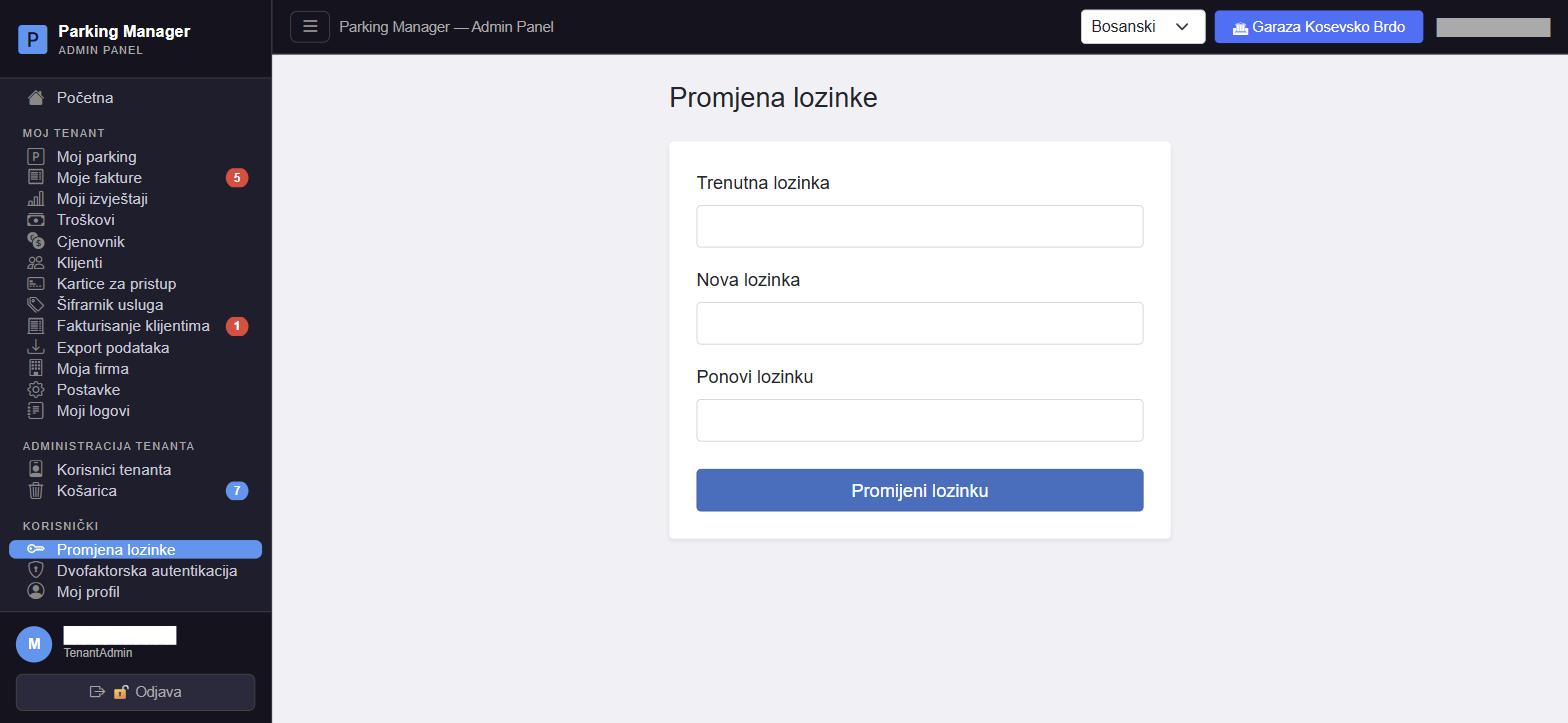
Dvofaktorska autentikacijaDvofaktorska autentifikacijaDvofaktorska autentifikacijaTwo-factor authenticationZwei-Faktor-AuthentifizierungAutenticación de dos factores #admin-mfa
Omogućava uključivanje/isključivanje dodatne zaštite naloga preko autentikator aplikacije (TOTP — Google Authenticator, Microsoft Authenticator i sl.). Uključivanje ide u tri koraka: skeniranje QR koda (ili ručni unos tajnog ključa), unos 6-cifrenog koda iz aplikacije za potvrdu, te preuzimanje/čuvanje rezervnih (recovery) kodova za slučaj gubitka telefona.
Kad je MFA uključena, stranica prikazuje zeleni bedž "Aktivno" i dugme za isključivanje (koje traži unos trenutne lozinke radi potvrde). I uključivanje i isključivanje MFA poništavaju sve aktivne sesije, pa se nakon toga morate ponovo prijaviti.
Omogućuje uključivanje/isključivanje dodatne zaštite korisničkog računa putem aplikacije za autentifikaciju (TOTP — Google Authenticator, Microsoft Authenticator i sl.). Uključivanje se odvija u tri koraka: skeniranje QR koda (ili ručni unos tajnog ključa), unos 6-znamenkastog koda iz aplikacije radi potvrde te preuzimanje/spremanje kodova za oporavak za slučaj gubitka telefona.
Kada je MFA uključen, stranica prikazuje zelenu oznaku „Aktivno” i gumb za isključivanje (koji radi potvrde traži unos trenutačne lozinke). I uključivanje i isključivanje MFA-a poništavaju sve aktivne sesije, pa se nakon toga morate ponovno prijaviti.
Omogućava uključivanje/isključivanje dodatne zaštite naloga preko aplikacije za autentifikaciju (TOTP — Google Authenticator, Microsoft Authenticator i sl.). Uključivanje se odvija u tri koraka: skeniranje QR koda (ili ručni unos tajnog ključa), unos 6-cifrenog koda iz aplikacije radi potvrde i preuzimanje/čuvanje rezervnih (recovery) kodova za slučaj gubitka telefona.
Kada je MFA uključen, stranica prikazuje zeleni bedž „Aktivno“ i dugme za isključivanje (koje radi potvrde traži unos trenutne lozinke). I uključivanje i isključivanje MFA poništavaju sve aktivne sesije, pa posle toga morate ponovo da se prijavite.
Lets you enable/disable extra account protection via an authenticator app (TOTP — Google Authenticator, Microsoft Authenticator, etc.). Enabling it is a three-step flow: scan a QR code (or enter the secret key manually), enter a 6-digit code from the app to confirm, and then download/save recovery codes in case you lose your phone.
When MFA is enabled, the page shows a green "Active" badge and a disable button (which requires your current password to confirm). Both enabling and disabling MFA revoke all active sessions, so you'll need to sign in again afterwards.
Ermöglicht das Aktivieren/Deaktivieren zusätzlichen Kontoschutzes über eine Authenticator-App (TOTP — Google Authenticator, Microsoft Authenticator usw.). Die Aktivierung ist ein dreistufiger Ablauf: einen QR-Code scannen (oder den geheimen Schlüssel manuell eingeben), einen 6-stelligen Code aus der App zur Bestätigung eingeben und dann Wiederherstellungscodes herunterladen/speichern für den Fall, dass Sie Ihr Telefon verlieren.
Wenn MFA aktiviert ist, zeigt die Seite ein grünes Badge „Aktiv“ und eine Deaktivierungsschaltfläche (die zur Bestätigung Ihr aktuelles Passwort erfordert). Sowohl das Aktivieren als auch das Deaktivieren von MFA widerruft alle aktiven Sitzungen, sodass Sie sich danach erneut anmelden müssen.
Le permite activar/desactivar la protección adicional de la cuenta mediante una aplicación autenticadora (TOTP — Google Authenticator, Microsoft Authenticator, etc.). Activarla es un proceso de tres pasos: escanear un código QR (o ingresar la clave secreta manualmente), ingresar un código de 6 dígitos de la aplicación para confirmar, y luego descargar/guardar códigos de recuperación en caso de perder su teléfono.
Cuando la MFA está activada, la página muestra una insignia verde "Activa" y un botón para desactivarla (que requiere su contraseña actual para confirmar). Tanto activar como desactivar la MFA revoca todas las sesiones activas, por lo que deberá volver a iniciar sesión después.
Moj profilMoj profilMoj profilMy profileMein ProfilMi perfil #admin-my-profile
Osnovni podaci vašeg naloga — ime, prezime, email — i vaša rola (samo za prikaz, ne može se mijenjati ovdje). Dugme "Snimi promjene" je onemogućeno dok sva obavezna polja nisu popunjena. Prečice na dnu vode direktno na Promjena lozinke i Dvofaktorska autentikacija.
Napomena: isti podaci (ime/email/lozinka) se mogu brzo urediti i iz skočnog prozora na Početnoj stranici — ovo je puna, samostalna stranica za istu svrhu.
Brisanje naloga: dugme „Obriši moj nalog” na dnu stranice, uz potvrdu lozinkom, odmah deaktivira nalog i odjavljuje vas sa svih uređaja. Lični podaci se trajno anonimiziraju nakon 30 dana, a do tada brisanje možete poništiti preko info@vehpark.com. Više o tome na stranici Brisanje naloga.
Osnovni podaci vašeg korisničkog računa — ime, prezime, e-pošta — i vaša uloga (samo za prikaz, ovdje se ne može mijenjati). Gumb „Spremi promjene” onemogućen je dok nisu popunjena sva obvezna polja. Prečaci na dnu vode izravno na Promjena lozinke i Dvofaktorska autentifikacija.
Napomena: iste podatke (ime/e-pošta/lozinka) možete brzo urediti i u skočnom prozoru na Početnoj stranici — ovo je potpuna, samostalna stranica za istu svrhu.
Brisanje korisničkog računa: gumb „Izbriši moj račun” na dnu stranice, uz potvrdu lozinkom, odmah deaktivira račun i odjavljuje vas sa svih uređaja. Osobni podaci trajno se anonimiziraju nakon 30 dana, a do tada brisanje možete poništiti putem info@vehpark.com. Više o tome na stranici Brisanje računa.
Osnovni podaci vašeg naloga — ime, prezime, email — i vaša uloga (samo za prikaz, ovde ne može da se menja). Dugme „Sačuvaj promene“ je onemogućeno dok sva obavezna polja nisu popunjena. Prečice na dnu vode direktno na Promena lozinke i Dvofaktorska autentifikacija.
Napomena: isti podaci (ime/email/lozinka) mogu brzo da se urede i iz iskačućeg prozora na Početnoj stranici — ovo je puna, samostalna stranica za istu svrhu.
Brisanje naloga: dugme „Obriši moj nalog“ na dnu stranice, uz potvrdu lozinkom, odmah deaktivira nalog i odjavljuje vas sa svih uređaja. Lični podaci se trajno anonimizuju posle 30 dana, a do tada brisanje možete da poništite preko info@vehpark.com. Više o tome na stranici Brisanje naloga.
Basic account details — first name, last name, email — and your role (display-only, cannot be changed here). The "Save changes" button stays disabled until all required fields are filled in. Shortcuts at the bottom link directly to Change password and Two-factor authentication.
Note: the same data (name/email/password) can also be quickly edited from the popup on the home page — this is the full, standalone page for the same purpose.
Delete account: the "Delete my account" button at the bottom of the page, confirmed with your password, immediately deactivates the account and signs you out on all devices. Personal data is permanently anonymised after 30 days; until then you can cancel the deletion via info@vehpark.com. More on the Account deletion page.
Grundlegende Kontodaten — Vorname, Nachname, E-Mail — und Ihre Rolle (nur zur Anzeige, kann hier nicht geändert werden). Die Schaltfläche „Änderungen speichern“ bleibt deaktiviert, bis alle Pflichtfelder ausgefüllt sind. Verknüpfungen unten führen direkt zu Passwort ändern und Zwei-Faktor-Authentifizierung.
Hinweis: Dieselben Daten (Name/E-Mail/Passwort) können auch schnell über das Popup auf der Startseite bearbeitet werden — dies ist die vollständige, eigenständige Seite für denselben Zweck.
Konto löschen: Die Schaltfläche „Mein Konto löschen“ unten auf der Seite deaktiviert das Konto nach Bestätigung mit dem Passwort sofort und meldet Sie auf allen Geräten ab. Personenbezogene Daten werden nach 30 Tagen dauerhaft anonymisiert; bis dahin können Sie die Löschung über info@vehpark.com widerrufen. Mehr dazu auf der Seite Kontolöschung.
Datos básicos de la cuenta — nombre, apellido, correo — y su rol (solo para visualización, no se puede cambiar aquí). El botón "Guardar cambios" permanece desactivado hasta que se completen todos los campos obligatorios. Los accesos rápidos en la parte inferior enlazan directamente a Cambiar contraseña y Autenticación de dos factores.
Nota: los mismos datos (nombre/correo/contraseña) también se pueden editar rápidamente desde la ventana emergente en la página de inicio — esta es la página completa e independiente para el mismo propósito.
Eliminar cuenta: el botón "Eliminar mi cuenta" al final de la página, confirmado con su contraseña, desactiva la cuenta de inmediato y cierra su sesión en todos los dispositivos. Los datos personales se anonimizan de forma permanente a los 30 días; hasta entonces puede anular la eliminación a través de info@vehpark.com. Más información en la página Eliminación de cuenta.
Web Administracija — prijava i javne straniceWeb administracija — prijava i javne straniceVeb administracija — prijava i javne straniceWeb Administration — sign-in and public pagesWeb-Administration — Anmeldung und öffentliche SeitenAdministración web — inicio de sesión y páginas públicas
Stranice dostupne bez prijave: prijava, registracija korisnika i firme, zaboravljena lozinka i brisanje naloga.
Stranice dostupne bez prijave: prijava, registracija korisnika i tvrtke, zaboravljena lozinka i brisanje računa.
Stranice dostupne bez prijave: prijava, registracija korisnika i firme, zaboravljena lozinka i brisanje naloga.
Pages available without signing in: sign-in, user and company registration, forgotten password and account deletion.
Seiten, die ohne Anmeldung erreichbar sind: Anmeldung, Benutzer- und Firmenregistrierung, Passwort vergessen und Kontolöschung.
Páginas disponibles sin iniciar sesión: inicio de sesión, registro de usuarios y empresas, contraseña olvidada y eliminación de cuenta.
PrijavaPrijavaPrijavaSign inAnmeldungInicio de sesión #admin-login
Prijava u web administraciju emailom i lozinkom, uz opciju „Zapamti me”. Umjesto lozinke možete koristiti dugmad „Prijavi se s Google-om” ili „Prijavi se s Microsoft nalogom”. Ako vaš VehPark nalog ima isti (potvrđeni) email kao Google/Microsoft nalog, povezuju se automatski pri prvoj prijavi. Ako nalog ne postoji, otvara se Registracija.
Ako imate uključenu dvofaktorsku autentikaciju, nakon lozinke (ili Google/Microsoft prijave) traži se 6-cifreni kod iz aplikacije za autentikaciju, a umjesto njega možete upisati recovery kod. Ispod forme su linkovi Zaboravljena lozinka, Registracija i Registracija firme.
Prijava u web administraciju adresom e-pošte i lozinkom, uz mogućnost „Zapamti me”. Umjesto lozinke možete koristiti gumbe „Prijavi se s Googleom” ili „Prijavi se Microsoftovim računom”. Ako vaš VehPark račun ima istu (potvrđenu) adresu e-pošte kao Google/Microsoft račun, povezuju se automatski pri prvoj prijavi. Ako račun ne postoji, otvara se Registracija.
Ako imate uključenu dvofaktorsku autentifikaciju, nakon lozinke (ili prijave Googleom/Microsoftom) traži se šesteroznamenkasti kod iz aplikacije za autentifikaciju, a umjesto njega možete upisati kod za oporavak. Ispod obrasca su poveznice Zaboravljena lozinka, Registracija i Registracija tvrtke.
Prijava u veb administraciju emailom i lozinkom, uz opciju „Zapamti me“. Umesto lozinke možete da koristite dugmad „Prijavi se sa Google-om“ ili „Prijavi se sa Microsoft nalogom“. Ako vaš VehPark nalog ima isti (potvrđeni) email kao Google/Microsoft nalog, povezuju se automatski pri prvoj prijavi. Ako nalog ne postoji, otvara se Registracija.
Ako imate uključenu dvofaktorsku autentifikaciju, posle lozinke (ili Google/Microsoft prijave) traži se šestocifreni kod iz aplikacije za autentifikaciju, a umesto njega možete da upišete recovery kod. Ispod forme su linkovi Zaboravljena lozinka, Registracija i Registracija firme.
Sign in to the web administration with email and password, with a "Remember me" option. Instead of a password you can use "Sign in with Google" or "Sign in with Microsoft". If your VehPark account has the same (verified) email as the Google/Microsoft account, they are linked automatically on first sign-in. If no account exists, Registration opens.
If two-factor authentication is enabled, after the password (or Google/Microsoft sign-in) you are asked for the 6-digit code from your authenticator app; you can enter a recovery code instead. Below the form are links to Forgot password, Registration and Company registration.
Anmeldung an der Web-Administration mit E-Mail und Passwort, mit der Option „Angemeldet bleiben“. Statt eines Passworts können Sie „Mit Google anmelden“ oder „Mit Microsoft anmelden“ verwenden. Hat Ihr VehPark-Konto dieselbe (bestätigte) E-Mail wie das Google-/Microsoft-Konto, werden beide bei der ersten Anmeldung automatisch verknüpft. Gibt es noch kein Konto, öffnet sich die Registrierung.
Ist die Zwei-Faktor-Authentifizierung aktiv, wird nach dem Passwort (oder der Google-/Microsoft-Anmeldung) der 6-stellige Code aus der Authenticator-App abgefragt; stattdessen kann ein Wiederherstellungscode eingegeben werden. Unter dem Formular finden Sie Links zu Passwort vergessen, Registrierung und Firmenregistrierung.
Inicio de sesión en la administración web con correo y contraseña, con la opción "Recordarme". En lugar de la contraseña puede usar "Iniciar sesión con Google" o "Iniciar sesión con Microsoft". Si su cuenta VehPark tiene el mismo correo (verificado) que la cuenta de Google/Microsoft, se vinculan automáticamente en el primer inicio de sesión. Si no existe la cuenta, se abre el Registro.
Si tiene activada la autenticación de dos factores, después de la contraseña (o del inicio con Google/Microsoft) se pide el código de 6 dígitos de la aplicación de autenticación; en su lugar puede introducir un código de recuperación. Debajo del formulario están los enlaces Contraseña olvidada, Registro y Registro de empresa.
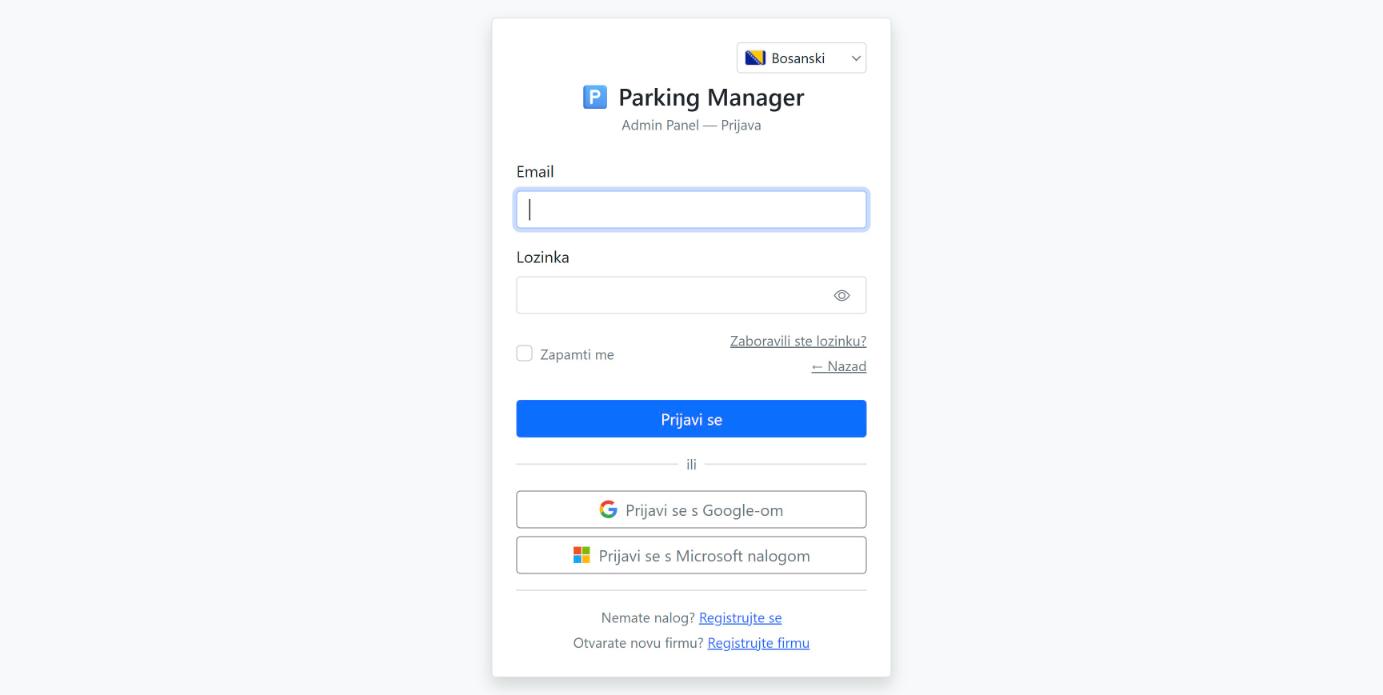
RegistracijaRegistracijaRegistracijaRegistrationRegistrierungRegistro #admin-register
Kreiranje novog korisničkog naloga: ime, prezime, email, lozinka (najmanje 6 znakova) i opcioni naziv parking objekta u kojem radite (informativno, administrator ga vidi pri odobravanju). Potrebno je odgovoriti na sigurnosno pitanje i prihvatiti uslove korištenja i politiku privatnosti.
Brža opcija su dugmad „Registruj se s Google-om” i „Registruj se s Microsoft nalogom”, bez lozinke. Takav nalog za WPF i Android aplikaciju dobija lozinku preko Zaboravljene lozinke. Svaki novi nalog čeka odobrenje administratora; o odobrenju dobijate email.
Izrada novog korisničkog računa: ime, prezime, adresa e-pošte, lozinka (najmanje 6 znakova) i neobvezan naziv parkirališta na kojem radite (informativno, administrator ga vidi pri odobravanju). Potrebno je odgovoriti na sigurnosno pitanje i prihvatiti uvjete korištenja i politiku privatnosti.
Brža mogućnost su gumbi „Registriraj se s Googleom” i „Registriraj se Microsoftovim računom”, bez lozinke. Takav račun za WPF i Android aplikaciju dobiva lozinku putem Zaboravljene lozinke. Svaki novi račun čeka odobrenje administratora; o odobrenju dobivate e-poruku.
Kreiranje novog korisničkog naloga: ime, prezime, email, lozinka (najmanje 6 znakova) i opcioni naziv parking objekta u kom radite (informativno, administrator ga vidi pri odobravanju). Potrebno je odgovoriti na sigurnosno pitanje i prihvatiti uslove korišćenja i politiku privatnosti.
Brža opcija su dugmad „Registruj se sa Google-om“ i „Registruj se sa Microsoft nalogom“, bez lozinke. Takav nalog za WPF i Android aplikaciju dobija lozinku preko Zaboravljene lozinke. Svaki novi nalog čeka odobrenje administratora; o odobrenju dobijate email.
Create a new user account: first name, last name, email, password (at least 6 characters) and an optional name of the parking facility you work at (informational, the administrator sees it when approving). You must answer a security question and accept the terms of use and privacy policy.
A quicker option is "Sign up with Google" or "Sign up with Microsoft", with no password. Such an account gets a password for the WPF and Android apps via Forgot password. Every new account waits for administrator approval; you receive an email once it is approved.
Neues Benutzerkonto anlegen: Vorname, Nachname, E-Mail, Passwort (mindestens 6 Zeichen) und optional der Name der Parkanlage, in der Sie arbeiten (nur zur Information, der Administrator sieht ihn bei der Freigabe). Sie müssen eine Sicherheitsfrage beantworten und Nutzungsbedingungen sowie Datenschutzerklärung akzeptieren.
Schneller geht es mit „Mit Google registrieren“ oder „Mit Microsoft registrieren“, ohne Passwort. Ein solches Konto erhält ein Passwort für die WPF- und Android-App über Passwort vergessen. Jedes neue Konto wartet auf die Freigabe durch einen Administrator; nach der Freigabe erhalten Sie eine E-Mail.
Creación de una cuenta de usuario nueva: nombre, apellido, correo, contraseña (mínimo 6 caracteres) y, opcionalmente, el nombre del aparcamiento donde trabaja (informativo, el administrador lo ve al aprobar). Debe responder una pregunta de seguridad y aceptar las condiciones de uso y la política de privacidad.
Una opción más rápida son "Registrarse con Google" y "Registrarse con Microsoft", sin contraseña. Esa cuenta obtiene una contraseña para las aplicaciones WPF y Android mediante Contraseña olvidada. Toda cuenta nueva espera la aprobación de un administrador; recibirá un correo cuando se apruebe.
Registracija firmeRegistracija tvrtkeRegistracija firmeCompany registrationFirmenregistrierungRegistro de empresa #admin-register-company
Zahtjev za otvaranje nove firme (tenanta) u dva koraka. 1. Podaci o firmi: naziv, država, adresa te ID/PDV broj (naziv polja se prilagođava odabranoj državi, npr. JIB, OIB ili PIB). 2. Vaš nalog: ime, prezime, email i lozinka. Ako niste vi administrator firme, isključite opciju „Ovaj email je kontakt email firme i ja sam administrator firme” i upišite email već registrovanog korisnika koji će biti administrator.
Nakon sigurnosnog pitanja zahtjev se šalje dugmetom „Pošalji zahtjev”. VehPark ga pregleda, a o ishodu dobijate email. Stranica je dostupna samo ako je samostalna registracija firmi uključena.
Zahtjev za otvaranje nove tvrtke (tenanta) u dva koraka. 1. Podaci o tvrtki: naziv, država, adresa te ID/PDV broj (naziv polja prilagođava se odabranoj državi, npr. JIB, OIB ili PIB). 2. Vaš korisnički račun: ime, prezime, adresa e-pošte i lozinka. Ako niste vi administrator tvrtke, isključite opciju „Ova adresa e-pošte kontaktna je adresa tvrtke i ja sam administrator tvrtke” i upišite adresu već registriranog korisnika koji će biti administrator.
Nakon sigurnosnog pitanja zahtjev se šalje gumbom „Pošalji zahtjev”. VehPark ga pregledava, a o ishodu dobivate e-poruku. Stranica je dostupna samo ako je samostalna registracija tvrtki uključena.
Zahtev za otvaranje nove firme (tenanta) u dva koraka. 1. Podaci o firmi: naziv, država, adresa i ID/PDV broj (naziv polja se prilagođava izabranoj državi, npr. JIB, OIB ili PIB). 2. Vaš nalog: ime, prezime, email i lozinka. Ako niste vi administrator firme, isključite opciju „Ovaj email je kontakt email firme i ja sam administrator firme“ i upišite email već registrovanog korisnika koji će biti administrator.
Posle sigurnosnog pitanja zahtev se šalje dugmetom „Pošalji zahtev“. VehPark ga pregleda, a o ishodu dobijate email. Stranica je dostupna samo ako je samostalna registracija firmi uključena.
A request to open a new company (tenant), in two steps. 1. Company details: name, country, address and company ID/VAT number (the field label adapts to the selected country, e.g. JIB, OIB or PIB). 2. Your account: first name, last name, email and password. If you are not the company administrator, clear "This email is the company's contact email and I am the company administrator" and enter the email of an already registered user who will be the administrator.
After the security question, send the request with "Submit request". VehPark reviews it and you get an email with the outcome. The page is only available when self-service company registration is enabled.
Antrag auf Eröffnung eines neuen Unternehmens (Mandanten) in zwei Schritten. 1. Firmendaten: Name, Land, Adresse sowie Firmen-ID/USt-Nummer (die Feldbezeichnung passt sich dem gewählten Land an, z. B. JIB, OIB oder PIB). 2. Ihr Konto: Vorname, Nachname, E-Mail und Passwort. Wenn Sie nicht selbst Firmenadministrator sind, deaktivieren Sie „Diese E-Mail ist die Kontakt-E-Mail der Firma, und ich bin der Firmenadministrator“ und geben die E-Mail eines bereits registrierten Benutzers ein, der Administrator wird.
Nach der Sicherheitsfrage wird der Antrag mit „Anfrage senden“ abgeschickt. VehPark prüft ihn, und Sie erhalten eine E-Mail mit dem Ergebnis. Die Seite ist nur verfügbar, wenn die Selbstregistrierung von Firmen aktiviert ist.
Solicitud para abrir una empresa (inquilino) nueva, en dos pasos. 1. Datos de la empresa: nombre, país, dirección y número de identificación/IVA (la etiqueta del campo se adapta al país elegido, p. ej. JIB, OIB o PIB). 2. Su cuenta: nombre, apellido, correo y contraseña. Si usted no es el administrador de la empresa, desmarque "Este correo es el correo de contacto de la empresa y yo soy el administrador de la empresa" e introduzca el correo de un usuario ya registrado que será el administrador.
Tras la pregunta de seguridad, la solicitud se envía con "Enviar solicitud". VehPark la revisa y usted recibe un correo con el resultado. La página solo está disponible si el registro autónomo de empresas está activado.
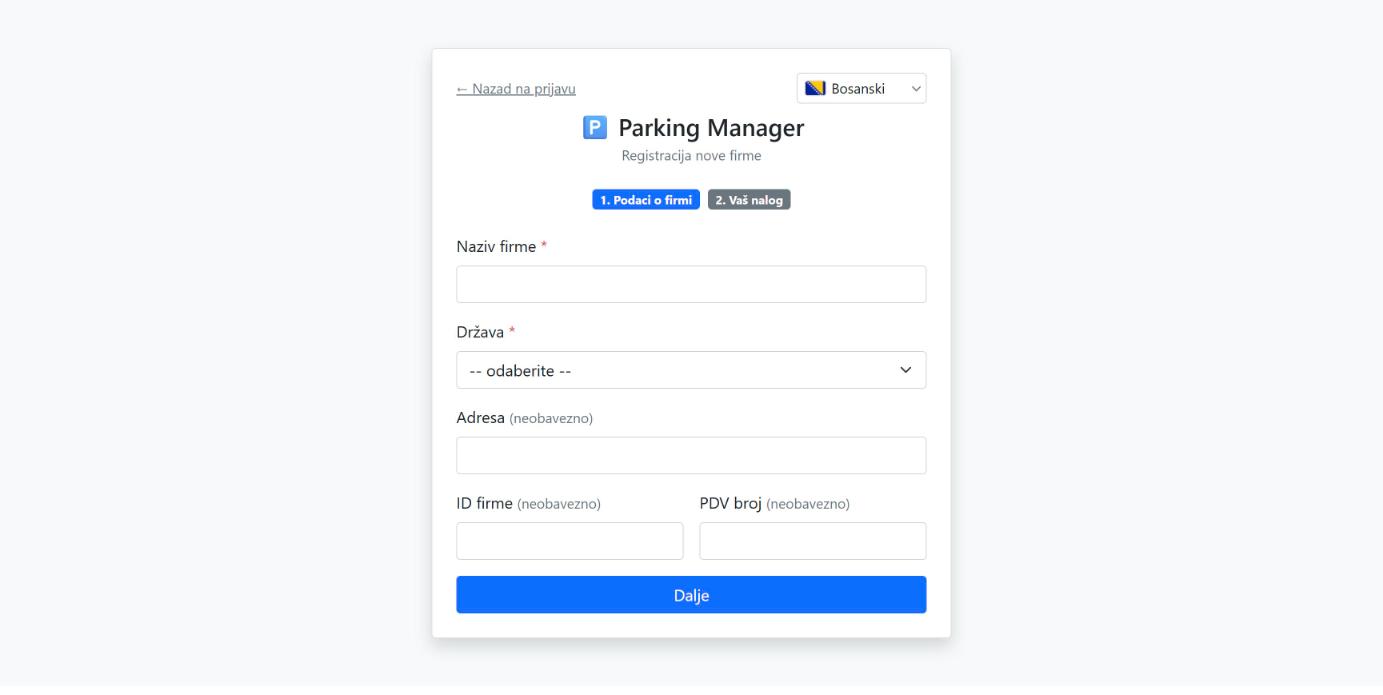
Zaboravljena lozinkaZaboravljena lozinkaZaboravljena lozinkaForgot passwordPasswort vergessenContraseña olvidada #admin-forgot-password
Unesite email svog naloga i odgovorite na sigurnosno pitanje, pa kliknite „Pošalji link za reset”. Ako nalog s tom adresom postoji, stiže email s linkom za postavljanje nove lozinke (provjerite i spam folder). Iz sigurnosnih razloga stranica ne otkriva da li nalog postoji. Nova lozinka važi za web administraciju, WPF i Android aplikaciju. Ovim putem lozinku postavljaju i korisnici registrovani preko Google ili Microsoft naloga.
Unesite adresu e-pošte svog računa i odgovorite na sigurnosno pitanje, zatim kliknite „Pošalji poveznicu”. Ako račun s tom adresom postoji, stiže e-poruka s poveznicom za postavljanje nove lozinke (provjerite i mapu neželjene pošte). Iz sigurnosnih razloga stranica ne otkriva postoji li račun. Nova lozinka vrijedi za web administraciju, WPF i Android aplikaciju. Na ovaj način lozinku postavljaju i korisnici registrirani Google ili Microsoftovim računom.
Unesite email svog naloga i odgovorite na sigurnosno pitanje, pa kliknite „Pošalji link za reset“. Ako nalog sa tom adresom postoji, stiže email sa linkom za postavljanje nove lozinke (proverite i spam folder). Iz bezbednosnih razloga stranica ne otkriva da li nalog postoji. Nova lozinka važi za veb administraciju, WPF i Android aplikaciju. Ovim putem lozinku postavljaju i korisnici registrovani preko Google ili Microsoft naloga.
Enter your account email, answer the security question and click "Send reset link". If an account with that address exists, you receive an email with a link to set a new password (check the spam folder too). For security reasons the page does not reveal whether the account exists. The new password works for the web administration and the WPF and Android apps. Users who registered with Google or Microsoft also set a password this way.
Geben Sie die E-Mail Ihres Kontos ein, beantworten Sie die Sicherheitsfrage und klicken Sie auf „Link zum Zurücksetzen senden“. Existiert ein Konto mit dieser Adresse, erhalten Sie eine E-Mail mit einem Link zum Festlegen eines neuen Passworts (prüfen Sie auch den Spam-Ordner). Aus Sicherheitsgründen verrät die Seite nicht, ob das Konto existiert. Das neue Passwort gilt für die Web-Administration sowie die WPF- und Android-App. Auch Benutzer, die sich mit Google oder Microsoft registriert haben, legen so ein Passwort fest.
Introduzca el correo de su cuenta, responda la pregunta de seguridad y haga clic en "Enviar enlace de restablecimiento". Si existe una cuenta con esa dirección, recibirá un correo con un enlace para establecer una contraseña nueva (revise también la carpeta de spam). Por seguridad, la página no revela si la cuenta existe. La nueva contraseña sirve para la administración web y las aplicaciones WPF y Android. Los usuarios registrados con Google o Microsoft también establecen así su contraseña.
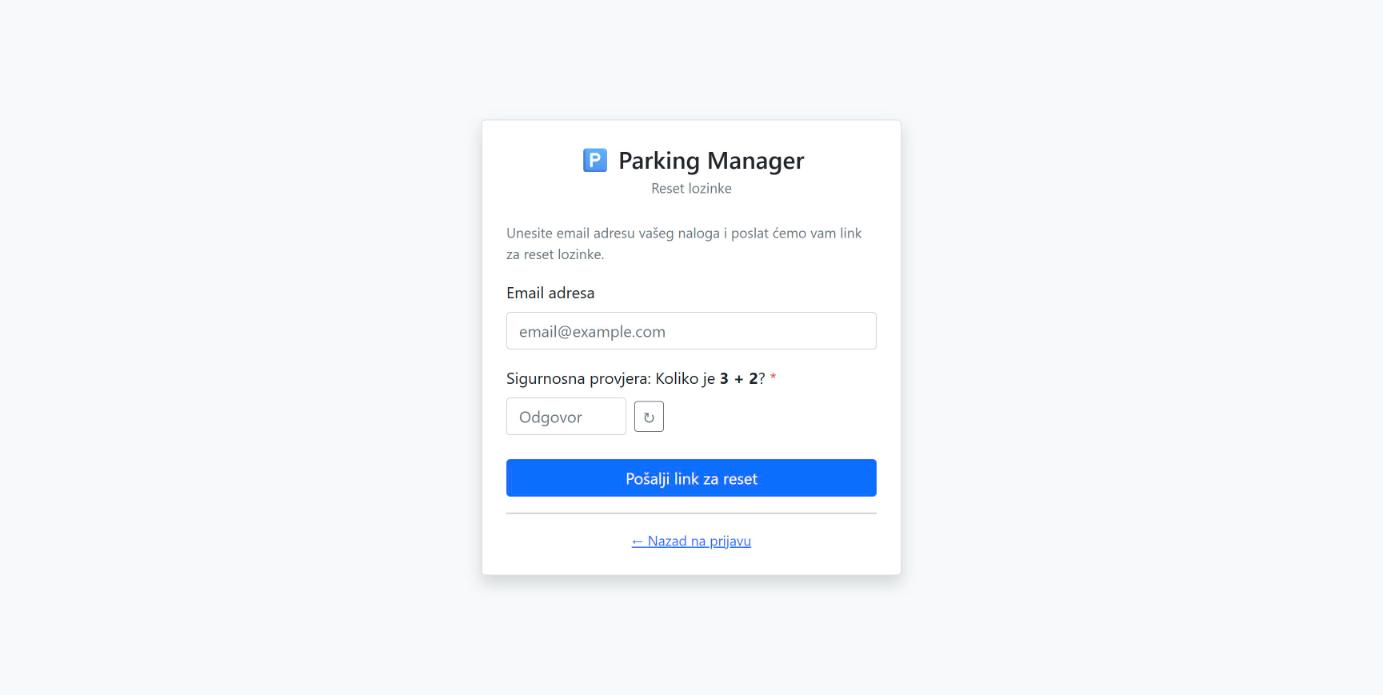
Brisanje naloga (javna stranica)Brisanje računa (javna stranica)Brisanje naloga (javna stranica)Account deletion (public page)Kontolöschung (öffentliche Seite)Eliminación de cuenta (página pública) #admin-delete-account
Javna stranica /delete-account (dostupna bez prijave) koja objašnjava kako obrisati nalog i podatke: iz aplikacije (Android: Postavke → Brisanje naloga; web: Moj profil), ili bez aplikacije, emailom na info@vehpark.com. Navodi šta se briše (lični podaci se anonimiziraju nakon 30 dana), šta se zadržava i zašto (poslovni zapisi firme, finansijska dokumentacija), kako u roku od 30 dana poništiti brisanje i šta treba uraditi ako ste jedini administrator firme. Na ovu stranicu vodi i link u Google Play opisu Android aplikacije.
Javna stranica /delete-account (dostupna bez prijave) koja objašnjava kako izbrisati korisnički račun i podatke: iz aplikacije (Android: „Postavke” → „Brisanje naloga”; web: Moj profil) ili bez aplikacije, e-porukom na info@vehpark.com. Navodi što se briše (osobni podaci anonimiziraju se nakon 30 dana), što se zadržava i zašto (poslovni zapisi tvrtke, financijska dokumentacija), kako u roku od 30 dana poništiti brisanje i što učiniti ako ste jedini administrator tvrtke. Na ovu stranicu vodi i poveznica u opisu Android aplikacije na Google Playu.
Javna stranica /delete-account (dostupna bez prijave) koja objašnjava kako obrisati nalog i podatke: iz aplikacije (Android: „Postavke“ → „Brisanje naloga“; veb: Moj profil) ili bez aplikacije, emailom na info@vehpark.com. Navodi šta se briše (lični podaci se anonimizuju posle 30 dana), šta se zadržava i zašto (poslovni zapisi firme, finansijska dokumentacija), kako u roku od 30 dana poništiti brisanje i šta treba uraditi ako ste jedini administrator firme. Na ovu stranicu vodi i link u Google Play opisu Android aplikacije.
The public page /delete-account (available without signing in) explains how to delete your account and data: from the app (Android: "Postavke" → "Brisanje naloga"; web: My profile) or without the app, by emailing info@vehpark.com. It lists what is deleted (personal data is anonymised after 30 days), what is kept and why (the company's business records, financial documents), how to cancel the deletion within 30 days, and what to do if you are the company's only administrator. The Google Play listing of the Android app also links to this page.
Die öffentliche Seite /delete-account (ohne Anmeldung erreichbar) erklärt, wie Sie Ihr Konto und Ihre Daten löschen: in der App (Android: „Postavke“ → „Brisanje naloga“; Web: Mein Profil) oder ohne App per E-Mail an info@vehpark.com. Sie beschreibt, was gelöscht wird (personenbezogene Daten werden nach 30 Tagen anonymisiert), was aufbewahrt wird und warum (Geschäftsunterlagen des Unternehmens, Finanzdokumente), wie man die Löschung innerhalb von 30 Tagen widerruft und was zu tun ist, wenn Sie der einzige Administrator der Firma sind. Auch der Google-Play-Eintrag der Android-App verlinkt auf diese Seite.
La página pública /delete-account (disponible sin iniciar sesión) explica cómo eliminar su cuenta y sus datos: desde la aplicación (Android: "Postavke" → "Brisanje naloga"; web: Mi perfil) o sin la aplicación, escribiendo a info@vehpark.com. Indica qué se elimina (los datos personales se anonimizan a los 30 días), qué se conserva y por qué (registros comerciales de la empresa, documentación financiera), cómo anular la eliminación en un plazo de 30 días y qué hacer si es el único administrador de la empresa. La ficha de Google Play de la aplicación Android también enlaza a esta página.